

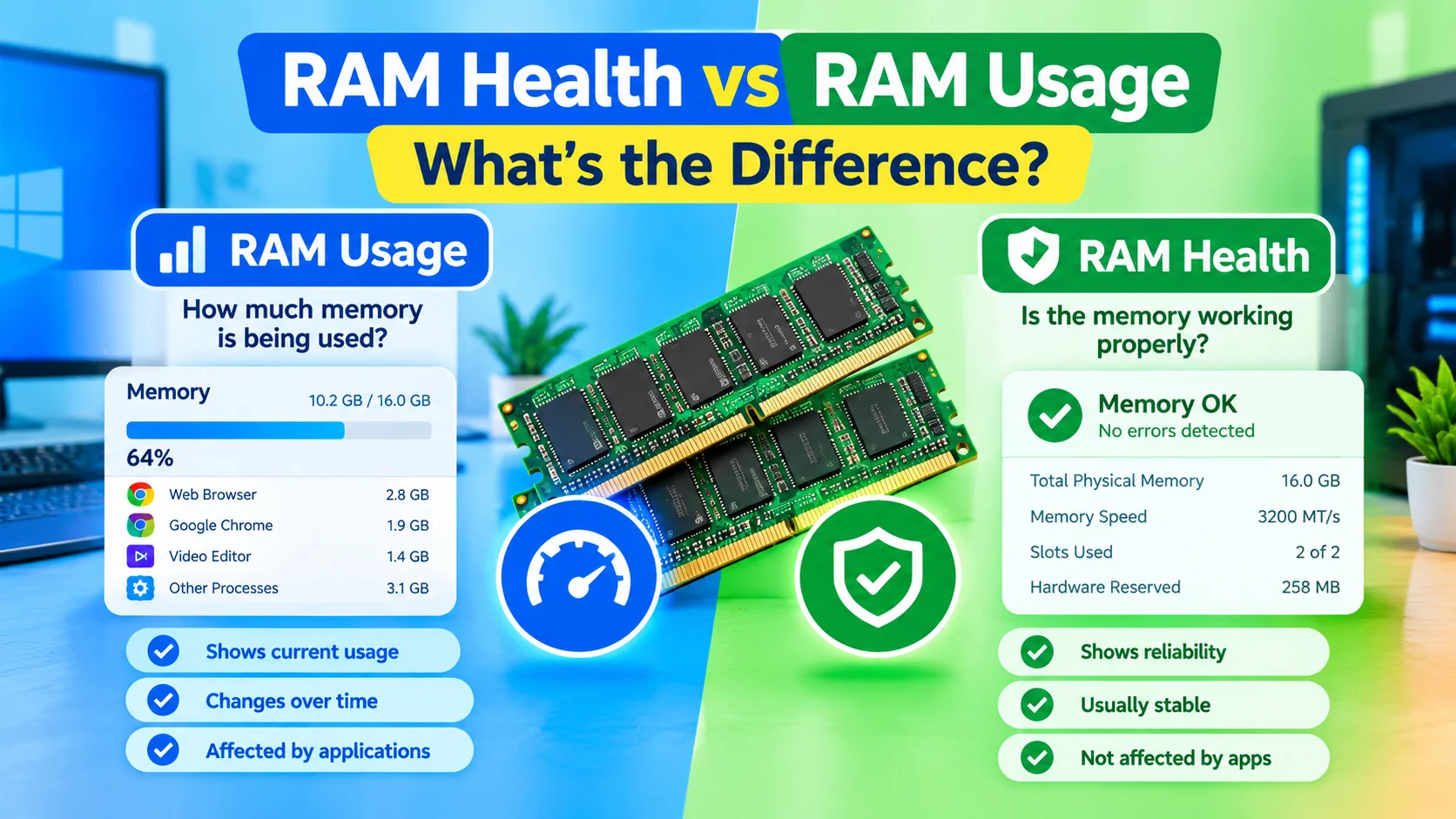
RAM Health vs RAM Usage are two different concepts that can help you understand and troubleshoot your computer’s memory. RAM usage shows how much of your available memory is currently being used by Windows, applications, and background processes. RAM health refers to whether your physical RAM modules are functioning correctly and reliably.
When a computer becomes slow, freezes, crashes, or struggles to run multiple applications, understanding the difference between RAM health and RAM usage can help you identify the actual cause.
A computer can have high RAM usage while the RAM itself is perfectly healthy. Likewise, a computer can have low RAM usage but faulty memory that causes crashes, blue screens, or corrupted data.
In this guide, you’ll learn what RAM health and RAM usage mean, how they differ, how to check both in Windows, and what to do when your computer shows signs of memory problems.
What Is RAM Usage?
RAM usage is the amount of system memory currently occupied by Windows, applications, background processes, and cached data.
For example, if your computer has 16 GB of RAM and Windows reports that 10 GB is being used, your current RAM usage is approximately 62.5%.
RAM usage constantly changes depending on what your computer is doing.
Opening a web browser with many tabs, launching a video editor, playing a game, or running virtual machines can significantly increase memory consumption.
What High RAM Usage Means
High RAM usage does not automatically indicate a problem.
Modern versions of Windows attempt to use available memory efficiently. Cached information can remain in RAM so that frequently accessed data can be retrieved more quickly.
For example:
- 30–50% usage: Often normal during light workloads.
- 50–80% usage: Can be normal during multitasking.
- 80–95% usage: May cause performance problems if applications need additional memory.
- 95–100% usage: Can result in slowdowns, stuttering, application failures, or heavy paging.
The important factor is not simply the percentage shown in Task Manager. You should also consider whether the system is experiencing noticeable performance problems.
What Is RAM Health?
RAM health describes the physical and functional condition of your memory modules.
Healthy RAM should reliably store and retrieve data without producing memory errors. A defective RAM module may cause corrupted data, application crashes, Windows errors, random restarts, or blue screens.
RAM health is therefore different from how much RAM is being used.
A computer can have:
- Low RAM usage but defective memory.
- High RAM usage with perfectly healthy RAM.
- High RAM usage and healthy memory that simply needs more capacity.
- Normal RAM usage with intermittent memory errors.
This distinction is important when troubleshooting computer problems.
This guide explains how to check RAM health in Windows, identify common symptoms of faulty memory, and determine what to do when a memory test reports errors.
RAM Health vs RAM Usage
The easiest way to understand the difference is to think of RAM usage as capacity and RAM health as reliability.
| Feature | RAM Usage | RAM Health |
|---|---|---|
| Measures | Memory currently being used | Whether RAM works correctly |
| Changes over time | Yes | Usually relatively stable |
| Affected by applications | Strongly | Usually not |
| Visible in Task Manager | Yes | Not fully |
| Indicates defective RAM | No | Potentially |
| High value always bad? | No | Memory errors are concerning |
| Main troubleshooting purpose | Performance | Hardware reliability |
In simple terms, RAM usage tells you how busy your memory is, while RAM health tells you whether the memory is working properly.
How to Check RAM Usage in Windows
Windows includes a built-in way to monitor memory usage through Task Manager.
Step 1: Open Task Manager
Press Ctrl + Shift + Esc to open Task Manager.
You can also right-click the Start button and select Task Manager.
Step 2: Open the Performance Tab
Select Performance from the left side of Task Manager.
Choose Memory.
You should see information such as:
- Total installed RAM
- Memory currently in use
- Available memory
- Memory speed
- Number of memory slots in use
- Hardware-reserved memory
- Memory usage percentage
The exact information displayed can vary depending on your Windows version and hardware.
Step 3: Check Individual Applications
Go to the Processes section and examine the Memory column.
This allows you to identify applications consuming significant amounts of RAM.
For example, a browser with dozens of open tabs may use considerably more memory than a simple text editor.
How to Interpret RAM Usage Correctly
Seeing 90% RAM usage does not automatically mean that your RAM is failing.
Instead, investigate what is consuming the memory.
Open Task Manager and sort processes by the Memory column.
You may discover that the majority of RAM is being used by:
- Web browsers
- Games
- Video editing software
- Virtual machines
- Large creative applications
- Background applications
- Cloud synchronization tools
- Development environments
If closing an application significantly reduces memory usage and the computer becomes responsive again, the problem may simply be heavy memory consumption.
What Is the Difference Between Available and Free RAM?
Windows memory terminology can sometimes be confusing.
Available memory generally represents RAM that Windows can make available to applications when needed. It can include memory that is currently being used for caching but can be reclaimed.
This means you should not assume that every megabyte shown as occupied is permanently unavailable.
Windows manages memory dynamically and may use otherwise idle RAM to improve performance.
As a result, seeing relatively high memory usage is not necessarily evidence of a RAM problem.
Signs of a RAM Health Problem
Hardware problems can produce symptoms that are different from ordinary high RAM usage.
Possible signs include:
Random Blue Screens
Repeated blue-screen errors can sometimes be associated with defective memory, although many other hardware and software problems can cause similar symptoms.
Unexpected Application Crashes
If applications repeatedly close or crash without an obvious software-related cause, memory problems are one possible cause.
Random Restarts
Unexpected system restarts may occur when Windows encounters serious hardware or software errors.
Corrupted Files
Defective RAM can potentially contribute to data corruption because incorrect data may be written to storage or passed between applications.
Installation Errors
Windows or software installation processes that repeatedly fail can sometimes be associated with faulty memory, although storage, CPU, motherboard, and software issues can also produce installation errors.
Memory Test Errors
A memory diagnostic that reports actual RAM errors provides stronger evidence of a hardware problem than high RAM usage alone.
How to Test RAM Health
Windows provides built-in memory diagnostic functionality that can be used as a starting point.
Use Windows Memory Diagnostic
Press Windows + R.
Enter:
mdsched.exe
Press Enter.
Windows will offer options to restart the computer and check for memory problems.
Save your work before starting the test because the computer needs to restart.
After the test completes, Windows can report whether memory problems were detected.
Use Windows Memory Diagnostic Results
If the diagnostic reports memory errors, do not immediately assume that one particular RAM stick is defective.
Possible causes include:
- Faulty RAM
- Incorrect memory settings
- Unstable overclocking
- Motherboard problems
- Compatibility issues
- Power-related problems
For persistent errors, a more comprehensive bootable memory-testing utility can provide additional testing.
Why RAM Usage Can Be High on a Healthy Computer
One of the most common RAM misconceptions is that high memory usage automatically means the RAM is unhealthy.
It does not.
Suppose your computer has 8 GB of RAM and you regularly use 7 GB. The RAM can still be completely healthy.
The issue is capacity, not necessarily hardware reliability.
Similarly, a computer with 32 GB of RAM could show only 20% usage while still containing a defective memory module.
This is why RAM usage and RAM health need to be evaluated separately.
High RAM Usage vs Faulty RAM
Consider these two examples.
Example 1: High RAM Usage
You have 8 GB of RAM.
You open a browser with many tabs, a photo editor, and several other applications. Task Manager reports 95% memory usage.
The computer becomes slow when you open another program.
This situation suggests that the system may be running short of available memory. It does not, by itself, indicate defective RAM.
Example 2: Faulty RAM
You have 16 GB of RAM.
Only a few applications are running, but the computer frequently crashes, produces different blue-screen errors, and a memory diagnostic reports errors.
Here, RAM health becomes a much more important area to investigate.
Can High RAM Usage Damage RAM?
Normal high RAM usage does not normally damage RAM.
Memory is designed to be continuously accessed during normal computer operation.
Using 90% or even close to 100% of available RAM does not mean that the physical memory module is being damaged.
However, extremely demanding workloads can expose other problems, such as:
- Insufficient memory capacity
- Excessive paging
- Application instability
- Thermal problems elsewhere in the system
- Unstable memory overclocking
High utilization and physical damage are two different concepts.
What Happens When RAM Is Full?
When physical RAM becomes heavily occupied, Windows can use the page file on the storage drive to move some data out of physical memory.
Storage is significantly slower than RAM.
As a result, a system experiencing memory pressure may become:
- Slower when switching applications
- Less responsive
- More prone to stuttering
- Slower when opening programs
- Slower when handling large files
This is often described as paging or memory pressure.
Adding more RAM can help if insufficient memory is consistently causing these symptoms.
Does More RAM Mean Better RAM Health?
No.
Increasing RAM capacity does not automatically improve the health of the memory modules.
For example, upgrading from 8 GB to 16 GB gives the computer more memory capacity. It does not prove that either module is healthy.
RAM capacity and RAM reliability should always be considered separately.
What If Only One RAM Stick Is Bad?
A computer with multiple memory modules can sometimes behave unpredictably if one module develops a fault.
You might experience:
- Intermittent crashes
- Windows installation failures
- Application errors
- Blue screens
- Boot problems
- File corruption
If diagnostic testing identifies memory errors, testing individual modules separately can help determine whether the problem is isolated to one module.
Before physically removing RAM, shut down the computer, disconnect power, and follow the manufacturer’s hardware instructions.
RAM Speed Is Not RAM Health
Another common misconception involves memory speed.
Task Manager may show a RAM speed such as:
3200 MT/s
or another value depending on the system.
This describes the memory’s operating data rate, not its health.
A faster memory module is not necessarily healthier than a slower module.
For example, a 3200 MT/s module can be defective, while a 2666 MT/s module can operate perfectly.
Performance specifications and hardware reliability are separate characteristics.
RAM Temperature and Health
Temperature can also be relevant when diagnosing memory problems.
Modern RAM modules are generally designed to operate within specified temperature ranges. Excessive heat can contribute to instability, particularly in systems with aggressive memory settings or poor airflow.
However, ordinary RAM usage does not automatically cause dangerous temperatures.
If you suspect overheating, examine the system’s overall airflow and hardware monitoring information rather than assuming high memory usage is responsible.
How to Troubleshoot High RAM Usage
If your RAM usage is consistently high, try these steps:
1. Check Task Manager
Identify which applications are consuming the most memory.
2. Close Unnecessary Applications
Close programs that you are not currently using.
3. Reduce Browser Tabs
Large numbers of browser tabs can consume substantial amounts of RAM.
4. Review Startup Applications
Disable unnecessary programs that automatically launch with Windows.
5. Check for Memory Leaks
If a program’s memory consumption continuously increases while it remains open, it may have a memory-management problem.
Updating or reinstalling the affected application may help.
6. Check the Page File
Windows normally manages virtual memory automatically. Avoid changing advanced page-file settings unless you have a specific reason to do so.
7. Consider a RAM Upgrade
If your normal workload consistently exceeds your available memory, increasing RAM capacity may provide a meaningful performance improvement.
How to Troubleshoot Suspected RAM Failure
If you suspect that the physical memory is defective, use a different approach.
Start with a memory diagnostic test.
If errors appear:
- Shut down the computer.
- Check that the RAM modules are properly seated.
- Return memory settings to stable/default values if you have overclocked them.
- Test modules individually when appropriate.
- Test different motherboard slots if recommended by the motherboard manufacturer.
- Check motherboard and RAM compatibility.
- Replace the defective module if testing confirms a hardware failure.
For laptops, RAM may be partially or completely soldered to the motherboard, so physical replacement may not be possible.
When Should You Upgrade Your RAM?
Consider upgrading RAM when your computer regularly experiences memory pressure during your normal workload.
An upgrade may make sense if:
- Applications frequently consume nearly all available RAM.
- Windows relies heavily on paging during normal work.
- You regularly run many demanding applications simultaneously.
- Games or creative applications exceed your current memory capacity.
- Your workload has grown beyond what your existing system can comfortably handle.
An upgrade is less likely to solve problems caused by defective RAM, corrupted Windows files, faulty storage, or unrelated hardware.
RAM Health vs RAM Usage: The Key Takeaway
RAM usage and RAM health answer two completely different questions.
RAM usage asks:
How much memory is my computer using right now?
RAM health asks:
Is my physical memory working reliably?
High RAM usage can occur on a perfectly healthy computer. Conversely, a computer can have low RAM usage while suffering from defective memory.
When troubleshooting performance, start by checking RAM usage and memory pressure. When investigating crashes, corruption, blue screens, or diagnostic errors, investigate RAM health.
Understanding this distinction prevents unnecessary hardware replacements and helps you choose the right troubleshooting method.
Frequently Asked Questions
Is high RAM usage a sign of bad RAM?
No. High RAM usage usually means applications and Windows are using a large portion of available memory. It does not by itself indicate that the physical RAM is defective.
How can I check RAM health in Windows?
You can start with Windows Memory Diagnostic by running mdsched.exe. For more comprehensive testing, a bootable memory-testing tool can be used.
Can RAM be healthy but have high usage?
Yes. RAM usage measures how much memory is being used, while RAM health concerns whether the physical memory can reliably store and retrieve data.
What percentage of RAM usage is normal?
There is no single percentage that is always considered normal. Usage depends on installed RAM, applications, workload, and Windows memory management. Consistently reaching very high usage while experiencing slowdowns is more significant than the percentage alone.
Does adding RAM fix faulty memory?
No. Adding another RAM module does not repair defective memory. Faulty modules generally need to be tested, removed, or replaced.
Can bad RAM cause blue screens?
Yes. Defective or unstable RAM can contribute to blue-screen errors, crashes, and data corruption. However, blue screens can have many other causes, so memory should be tested rather than assumed to be the problem.
Is 100% RAM usage dangerous?
100% RAM usage is not inherently dangerous to the memory hardware. However, insufficient available memory can cause significant performance problems because Windows may rely more heavily on the page file.
Final Thoughts
RAM usage is primarily a performance and capacity measurement, while RAM health is a hardware reliability issue.
If Task Manager shows high memory usage, investigate which applications are consuming RAM before replacing hardware. If your computer crashes unexpectedly or memory diagnostics report errors, investigate the physical memory and related hardware.
Keeping these two concepts separate makes Windows troubleshooting much easier—and can help you avoid replacing perfectly healthy RAM simply because it is heavily used.