

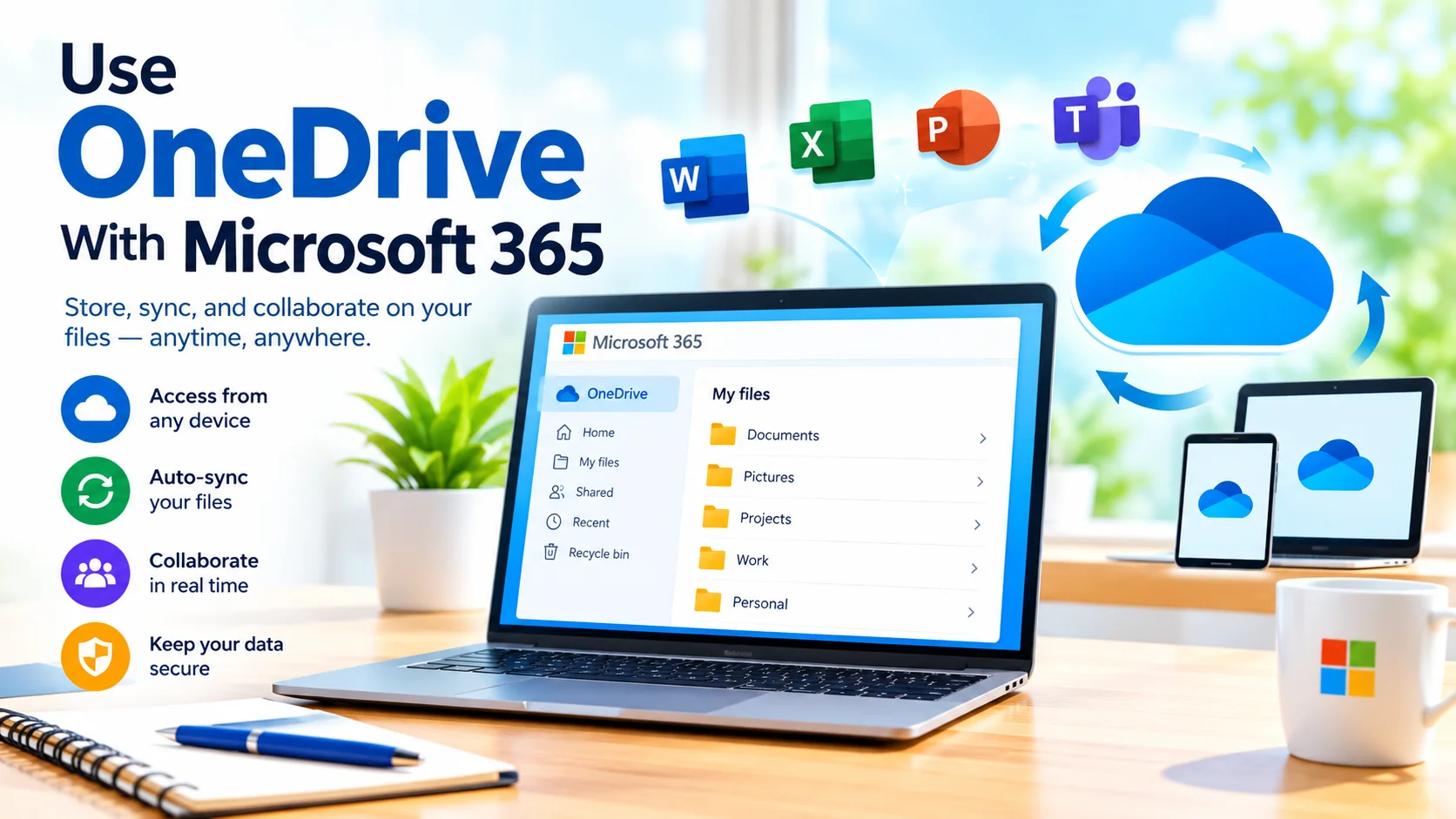
Use OneDrive With Microsoft 365 to store files online, access documents from multiple devices, and keep your important work synchronized. OneDrive is integrated into Microsoft 365, making it easier to work with Word, Excel, PowerPoint, and other Microsoft apps without constantly moving files between devices.
Whether you work from home, manage school documents, or collaborate with a team, learning how to use OneDrive effectively can make file management simpler and more convenient.
What Is OneDrive?
OneDrive is Microsoft’s cloud storage service. It allows you to save files online and access them from computers, smartphones, tablets, and supported web browsers.
When you use OneDrive with Microsoft 365, your files can work closely with Microsoft applications. For example, you can save a Word document to OneDrive and later open it from another device without manually copying the file.
OneDrive can also synchronize selected files and folders between your computer and the cloud.
Why Use OneDrive With Microsoft 365?
Microsoft 365 and OneDrive are designed to work together. This integration provides several useful benefits.
Access Files From Anywhere
Files stored in OneDrive can be accessed from supported devices with an internet connection. This can be particularly useful when you move between a desktop computer, laptop, and mobile device.
Instead of carrying a USB drive, you can sign in to your Microsoft account and access your files online.
Automatically Sync Your Files
The OneDrive desktop application can synchronize files between your computer and cloud storage.
When synchronization is enabled, changes made to supported files can be reflected across your connected devices. This helps reduce the need to manually transfer updated documents.
Work With Microsoft 365 Apps
OneDrive works closely with Microsoft 365 applications such as Word, Excel, and PowerPoint.
You can save a document to OneDrive and continue editing it later. Depending on the application and account configuration, Microsoft 365 can also support collaborative editing so multiple people can work on a document.
Share Files More Easily
OneDrive lets you share files and folders instead of sending large attachments through email.
You can create a sharing link and configure available permissions. Depending on the account and sharing settings, recipients may be able to view or edit the shared content.
How to Set Up OneDrive With Microsoft 365
Getting started with OneDrive is relatively straightforward.
1. Sign In to Your Microsoft Account
Use the Microsoft account associated with your Microsoft 365 subscription.
If you use Microsoft 365 through work or school, your organization may provide a separate Microsoft account for accessing OneDrive.
2. Open OneDrive
On Windows, look for OneDrive in the Start menu or notification area. You can also access OneDrive through a web browser.
After signing in, follow the setup instructions provided by the OneDrive application.
3. Choose Your OneDrive Folder
OneDrive creates a folder on your computer for synchronized content.
You can place files inside this folder when you want them to be synchronized with your OneDrive storage.
4. Move or Save Files to OneDrive
Move existing documents into your OneDrive folder or choose OneDrive as the save location when creating a new Microsoft 365 document.
For example, in Word, you can save a document to a OneDrive location instead of storing it only on your local hard drive.
How to Save Microsoft 365 Documents to OneDrive
Saving documents to OneDrive can help keep your work available across devices.
In Word, Excel, or PowerPoint:
- Open the document.
- Select File.
- Choose Save As or Save a Copy, depending on the application.
- Select OneDrive as the storage location.
- Choose a folder.
- Enter a file name.
- Select Save.
Once the document is stored in OneDrive, you can access it from other supported devices by signing in to the same account.
Understanding OneDrive Sync Status
OneDrive uses status indicators to show whether files are available locally, synchronized, or stored primarily online.
The exact icons and options can vary depending on your Windows version and OneDrive configuration.
If a file has not finished synchronizing, avoid shutting down or disconnecting the computer before the synchronization process completes when the latest changes are important.
Checking the OneDrive status can help you identify synchronization problems before they affect your workflow.
Use Files On-Demand to Save Disk Space
OneDrive can help reduce local storage usage with Files On-Demand.
With this feature, some files can remain primarily in the cloud instead of occupying the same amount of space on your computer as fully downloaded files.
You can then download files when you need to work with them offline.
This can be especially useful on laptops or computers with limited storage capacity.
Share Microsoft 365 Files From OneDrive
Sharing a document through OneDrive can be useful when collaborating with coworkers, classmates, or family members.
To share a file:
- Locate the file in OneDrive.
- Select Share.
- Choose the appropriate sharing options.
- Specify whether recipients can edit or only view the file.
- Send the sharing invitation or copy the sharing link.
Always check sharing permissions before sending a link, particularly when the document contains private or business information.
Collaborate on Documents
OneDrive can make collaboration easier because Microsoft 365 documents stored in the cloud can support simultaneous editing.
For example, a team can work on the same Word document instead of creating multiple copies such as:
- Report-Final.docx
- Report-Final-2.docx
- Report-Final-Revised.docx
Working from a shared cloud document can reduce confusion about which version contains the latest changes.
Organize Your OneDrive Files
A well-organized OneDrive account is easier to manage.
Consider creating folders based on projects, departments, subjects, or years. For example:
- Work
- Personal
- School
- Projects
- Photos
- Important Documents
Use descriptive filenames so documents are easier to locate later.
Avoid creating excessive folder levels, because deeply nested folders can make frequently used files harder to find.
Keep OneDrive Secure
Cloud storage should be treated as an important part of your digital security.
Use a strong, unique password for your Microsoft account and enable available multi-factor authentication options.
Be careful when sharing files. A link that provides editing access should only be given to people who need that permission.
You should also review your Microsoft account security settings periodically and avoid signing in to your account on untrusted computers.
What Happens When You Delete a OneDrive File?
Deleting a synchronized OneDrive file can affect the file across synchronized locations, depending on your settings and device configuration.
If you accidentally delete a file, check the OneDrive recycle bin. Deleted files may remain recoverable for a limited period, depending on your account type and organizational policies.
For important files, OneDrive should not necessarily be your only form of backup. Maintain appropriate backups for critical personal or business data.
Troubleshooting OneDrive Sync Problems
Sometimes OneDrive may stop synchronizing files.
Common causes include:
- An unavailable internet connection
- A full storage quota
- Account sign-in problems
- File or folder naming restrictions
- OneDrive application issues
- Temporary service problems
- Insufficient local storage
Start by checking your internet connection and OneDrive status. Make sure you’re signed in to the correct Microsoft account and have sufficient available storage.
Restarting OneDrive can also resolve temporary synchronization problems.
OneDrive vs. Local Storage
Local storage keeps files directly on your computer, while OneDrive provides cloud-based storage and synchronization.
You don’t necessarily have to choose only one. Using both can provide flexibility.
For example, you might store active Microsoft 365 documents in OneDrive while keeping appropriate local backups of particularly important files.
The best approach depends on your storage needs, internet access, account configuration, and backup strategy.
Tips for Using OneDrive With Microsoft 365
Follow these practices to get more from OneDrive:
- Save frequently used Microsoft 365 documents to OneDrive.
- Organize files into clearly named folders.
- Check synchronization status before closing a device.
- Use Files On-Demand when local storage is limited.
- Review sharing permissions before sending files.
- Enable additional account security features.
- Keep separate backups of critical information.
- Remove outdated files when you no longer need them.
- Make sure you’re using the correct Microsoft account.
Final Thoughts
Learning to use OneDrive with Microsoft 365 can simplify file storage, synchronization, and collaboration. By saving Microsoft 365 documents to OneDrive, you can make your files easier to access across devices while taking advantage of cloud-based sharing and collaboration features.
For the best experience, keep your files organized, monitor synchronization status, use appropriate sharing permissions, and protect your Microsoft account with strong security practices.