

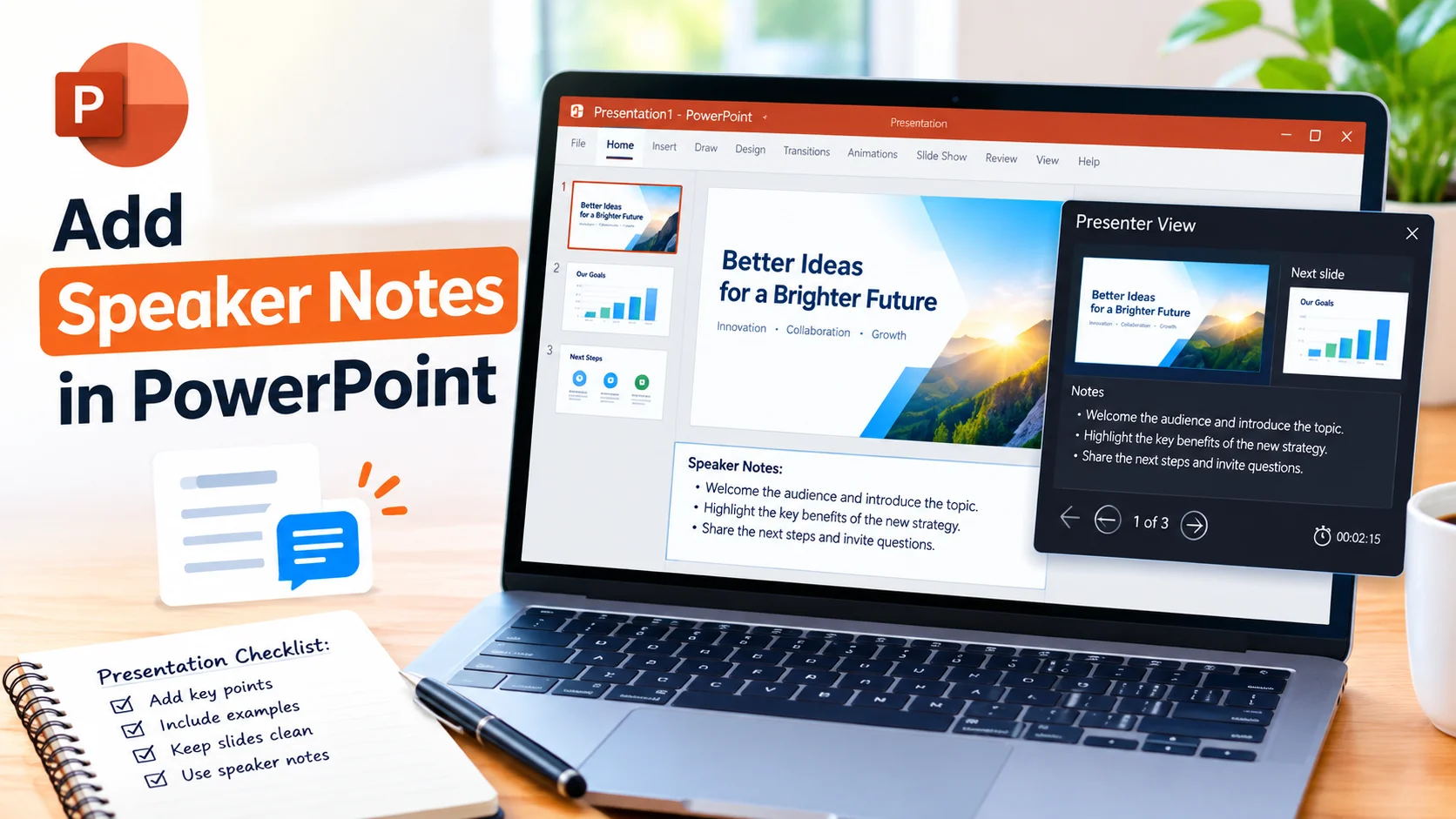
Add Speaker Notes in PowerPoint to keep important reminders, talking points, examples, and presentation cues available while you present. Speaker notes are useful when you want to keep slides clean and easy to read without putting every detail on the screen.
Whether you’re preparing a business presentation, classroom lesson, sales pitch, or online meeting, PowerPoint speaker notes can help you stay organized and deliver your content with greater confidence.
What Are Speaker Notes in PowerPoint?
Speaker notes are text you can add to individual PowerPoint slides. They are designed primarily for the presenter rather than the audience.
You can use notes to record:
- Key points you want to mention
- Additional explanations
- Statistics or examples
- Questions to ask your audience
- Presentation reminders
- Speaking prompts
- Details that should not appear on the slide
For example, instead of placing a long explanation on a slide, you can summarize the main idea on the slide and put the supporting details in the speaker notes.
How to Add Speaker Notes in PowerPoint
Adding speaker notes is straightforward.
- Open your presentation in Microsoft PowerPoint.
- Select the slide where you want to add notes.
- Look below the slide editing area for the Notes section.
- Click Click to add notes.
- Type your speaker notes.
- Select another slide and repeat the process as needed.
Your notes are saved with the presentation, so you can access them when preparing or presenting the slideshow.
What Should You Put in Speaker Notes?
Effective speaker notes should help you present the slide without simply repeating its visible text.
Consider adding a short explanation of the main message, important facts, or an example that helps your audience understand the topic.
For example, if a slide contains a chart showing sales growth, your notes could explain what caused the increase and which figures deserve attention.
Keep your notes concise enough to scan quickly while presenting. Long paragraphs can make it harder to find the information you need.
Use Speaker Notes in Presenter View
PowerPoint’s Presenter View can display your speaker notes on the presenter’s screen while the audience sees only the presentation slides.
To use Presenter View:
- Connect your computer to a second display or projector.
- Open your PowerPoint presentation.
- Start the slideshow.
- Enable Presenter View if it is not already active.
- Use the presenter screen to view your notes while presenting.
Depending on your PowerPoint version and display configuration, Presenter View can also show the current slide, upcoming slide, presentation controls, and timing information.
How to Edit Speaker Notes
You can edit notes whenever you need to update your presentation.
Select the slide containing the notes and click inside the notes area. Add, remove, or revise the text just as you would edit other PowerPoint content.
It is a good idea to review your notes after making significant changes to a slide. This helps ensure that your talking points still match the information displayed on screen.
Add Notes Without Overloading Your Slides
One of the biggest benefits of speaker notes is that they let you separate presentation content from presentation guidance.
A slide should generally communicate the essential information quickly. Speaker notes can provide the additional context you need to explain that information verbally.
For example:
Slide:
“Three Ways to Improve Customer Service”
Speaker notes:
- Explain why response time matters.
- Mention the recent support-ticket example.
- Ask the audience which improvement would have the greatest impact.
This approach keeps the slide simple while giving you useful prompts during the presentation.
Tips for Writing Better Speaker Notes
Follow these tips when creating speaker notes:
Use Short Prompts
Write phrases that remind you what to say rather than creating a complete script for every slide.
Highlight Important Details
Include numbers, names, examples, or facts that you might otherwise forget.
Add Transitions
Notes can remind you how to move naturally from one topic to the next.
Include Audience Questions
If you plan to ask a question, put it in your notes so you don’t overlook it.
Keep Notes Easy to Scan
Use short paragraphs, bullet points, and clear wording. You should be able to find the information quickly while presenting.
Can You Print PowerPoint Speaker Notes?
Yes. PowerPoint can print slides with their associated speaker notes. This can be useful when preparing for an offline presentation or creating a reference copy.
When printing, check the available layout options and choose the notes-related layout if you want the slide and its notes to appear together.
Speaker Notes vs. Slide Text
Speaker notes and slide text serve different purposes.
| Slide Text | Speaker Notes |
|---|---|
| Designed for the audience | Designed for the presenter |
| Shows essential information | Provides additional details |
| Should be easy to read | Can contain presentation prompts |
| Supports visual communication | Supports verbal delivery |
| Usually kept concise | Can include more context |
Using both effectively can make a presentation clearer and easier to deliver.
Final Thoughts
Learning how to add speaker notes in PowerPoint can make presentations easier to prepare and deliver. Notes give you a private space for reminders, explanations, examples, and talking points without cluttering your slides.
For the best results, keep your slides focused on the audience and use speaker notes to support what you plan to say. With concise, well-organized notes, you can stay on track while maintaining a clean and professional presentation.