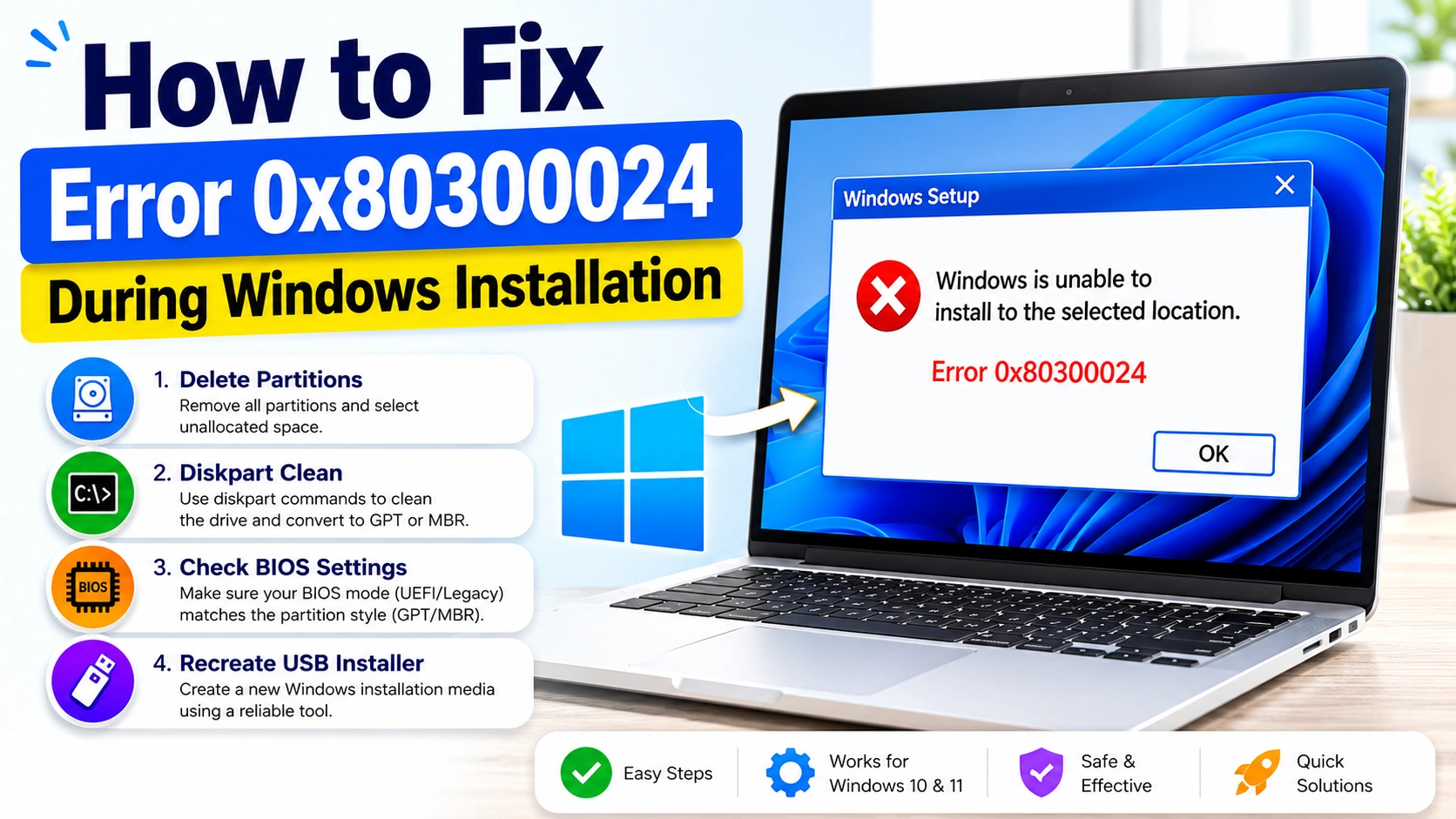
Error 0x80300024 is a common Windows installation issue that prevents the operating system from being installed on a selected drive or partition. The error typically appears while installing Windows 10 or Windows 11 and is often linked to storage configuration problems, partition conflicts, or BIOS settings.
In most cases, the issue can be resolved without replacing hardware.
Users commonly encounter messages such as:
“Windows is unable to install to the selected location.”
or
“We couldn’t install Windows in the location you chose.”
The problem usually occurs when the Windows installer cannot properly access or configure the target storage device.
Disconnect Unnecessary Drives
One of the most effective fixes is disconnecting additional storage devices connected to the computer. Multiple SSDs or HDDs can sometimes interfere with the installation process and create boot priority conflicts.
Before starting the installation:
- Leave only the target SSD or HDD connected
- Disconnect secondary drives temporarily
- Restart the Windows installer
This solution alone resolves the error for many users.
Delete Existing Partitions
Corrupted or incompatible partitions may also trigger Error 0x80300024. Removing old partitions allows Windows Setup to create a clean installation environment.
To do this:
- Select “Custom: Install Windows only”
- Highlight each partition on the target drive
- Click “Delete”
- Continue until the drive shows “Unallocated Space”
- Select the unallocated space and continue installation
Deleting partitions will erase all existing data on the drive.
Clean the Disk Using Diskpart
If the installer still cannot proceed, the drive may require a full cleanup using Diskpart.
Open Command Prompt during Windows Setup by pressing:
Shift + F10
Then enter:
diskpart
list disk
select disk 0
clean
convert gpt
exit
After completing the commands:
- Close Command Prompt
- Refresh the drive list
- Select the unallocated space
- Continue installation
Systems using Legacy BIOS mode may require MBR instead of GPT. In that case, use:
convert mbr
instead of GPT conversion.
Check BIOS Boot Mode
The partition format must match the motherboard boot configuration.
Modern systems using UEFI require GPT partition style, while Legacy or CSM mode requires MBR. A mismatch between these settings frequently causes installation failures.
You can verify the boot mode in BIOS or UEFI firmware settings before reinstalling Windows.
Recreate the Windows Installation USB
Corrupted installation media can also trigger Error 0x80300024. Recreating the bootable USB often resolves hidden setup issues.
Reliable tools include:
- Microsoft Media Creation Tool
- Rufus
When creating the installer, ensure the partition scheme matches the BIOS mode:
- GPT for UEFI
- MBR for Legacy BIOS
Try Another USB Port
USB compatibility problems occasionally interrupt Windows Setup. Switching between USB 3.0 and USB 2.0 ports may improve installation stability, particularly on older motherboards.
If available, using a different flash drive is also recommended.
Check SSD or HDD Health
Persistent installation errors may indicate storage hardware failure. Drives with bad sectors or connection issues can prevent Windows from writing installation files correctly.
Common symptoms include:
- Extremely slow formatting
- Installation freezing
- Read or write errors
- Random setup crashes
Storage health can be checked using SMART diagnostics or tools such as CrystalDiskInfo.
Conclusion
Error 0x80300024 is usually related to disk configuration, partition formatting, or installation media problems rather than Windows itself. Cleaning the target drive, matching GPT or MBR with the correct BIOS mode, and recreating the installer are the most effective solutions.
For most users, the issue can be resolved within a few minutes by preparing the storage drive correctly before reinstalling Windows.