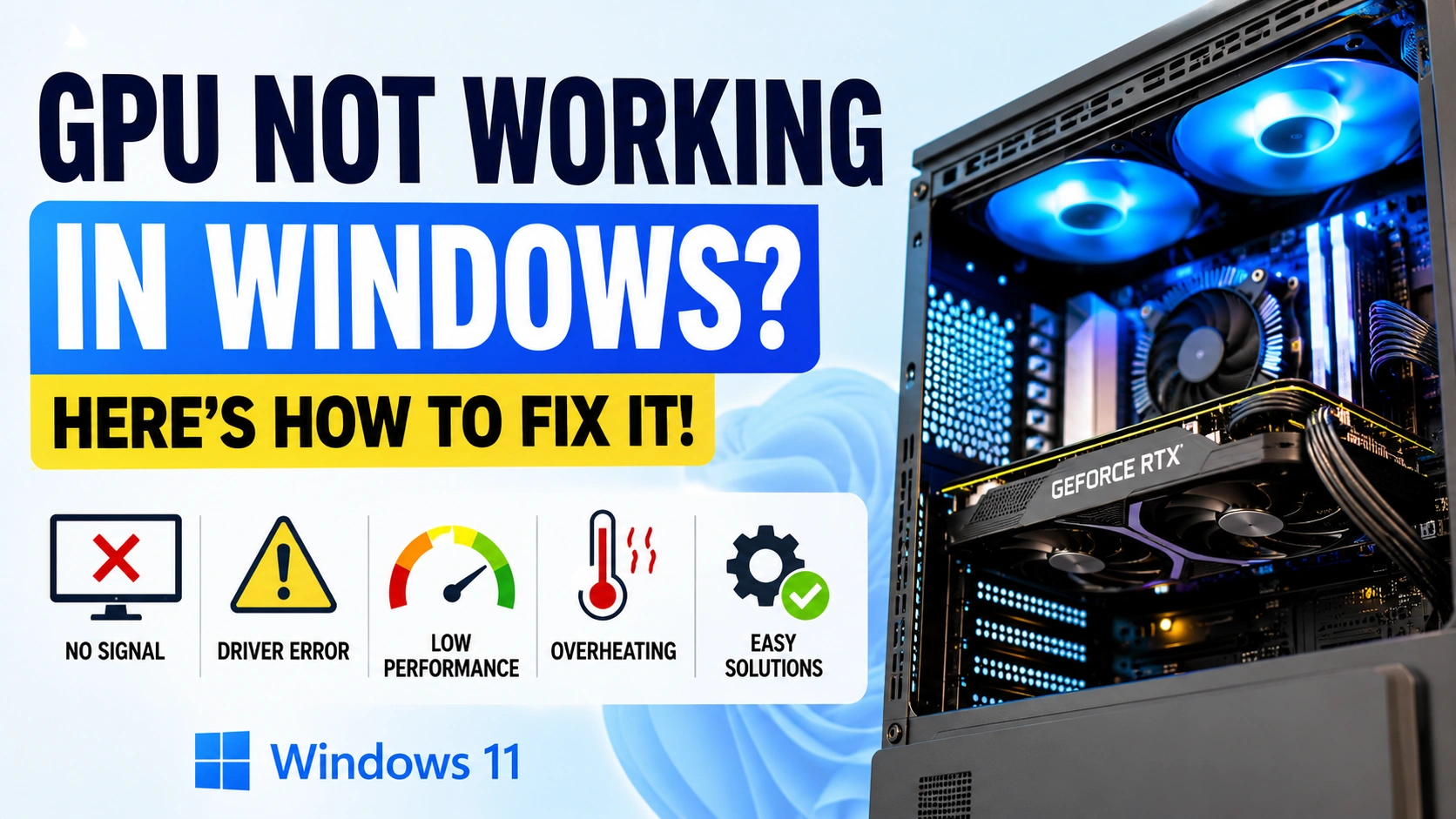
Few computer problems are as frustrating as discovering that your GPU is not working in Windows. Whether you’re trying to launch a game, edit a video, or simply connect multiple monitors, graphics card issues can disrupt your workflow and significantly impact performance.
In some situations, Windows may fail to detect the graphics card entirely. In others, the GPU appears to be working but causes black screens, random crashes, screen flickering, or poor gaming performance. These symptoms can occur after a Windows update, a driver installation, a hardware upgrade, or even after a sudden power interruption.
The good news is that a GPU not working in Windows does not always indicate a failed graphics card. Many GPU-related problems are caused by software conflicts, corrupted drivers, overheating, power issues, or incorrect system settings.
This guide explains the most common causes of a GPU not working in Windows and provides step-by-step solutions to help restore normal operation.
Why Is Your GPU Not Working in Windows?
Before troubleshooting, it helps to understand what might be causing the problem.
Several factors can lead to a GPU not working in Windows, including:
- Corrupted graphics drivers
- Outdated GPU software
- Windows update conflicts
- Overheating issues
- Loose power connections
- Faulty display cables
- Incorrect BIOS settings
- Insufficient power supply
- Hardware failure
Identifying the cause can save time and prevent unnecessary repairs.
Check Whether Windows Detects the GPU
The first step when dealing with a GPU not working in Windows is confirming whether the operating system can detect the graphics card.
How to Check
- Press Windows + X.
- Select Device Manager.
- Expand Display Adapters.
If the GPU appears in the list, Windows recognizes the hardware.
However, if you see a warning icon, an unknown device, or no graphics card at all, further troubleshooting is necessary.
This simple check provides valuable information about whether the issue is software-related or hardware-related.
Restart the Computer
Although it may seem basic, restarting Windows often resolves temporary conflicts affecting graphics hardware.
Background services, driver processes, and system resources occasionally become unstable. A full restart refreshes these components and may immediately fix a GPU not working in Windows problem.
After rebooting, verify whether the graphics card functions normally.
Update the Graphics Driver
A damaged or outdated graphics driver is one of the leading causes of a GPU not working in Windows.
Drivers allow Windows to communicate with graphics hardware. If this communication breaks down, display problems can occur.
Update the Driver
- Open Device Manager.
- Expand Display Adapters.
- Right-click the graphics card.
- Select Update Driver.
- Choose Search Automatically for Drivers.
Once the update is complete, restart the computer.
Many users find that updating the driver resolves black screens, performance issues, and GPU detection problems.
Perform a Clean Driver Installation
Sometimes updating the driver is not enough.
Corrupted files from previous installations may continue causing problems even after a new driver is installed. In these situations, performing a clean installation is often the best solution.
Remove the existing graphics driver completely and install a fresh version from the GPU manufacturer’s website.
A clean installation can often resolve persistent GPU not working in Windows issues that standard updates fail to fix.
Verify Monitor Connections
Not every display problem originates from the graphics card itself.
A loose HDMI cable, damaged DisplayPort cable, or incorrect monitor input can create symptoms that look like a GPU not working in Windows issue.
Inspect all display connections carefully.
Make sure:
- Cables are securely connected.
- The monitor is powered on.
- The correct input source is selected.
- No cable damage is visible.
If possible, test another cable to eliminate connection-related problems.
Make Sure the Monitor Is Connected to the GPU
Many desktop computers include both integrated graphics and a dedicated graphics card.
If the monitor is connected to the motherboard instead of the graphics card, Windows may use integrated graphics rather than the dedicated GPU.
As a result, users may incorrectly assume they have a GPU not working in Windows problem.
Check the back of the PC and ensure the display cable is connected directly to the graphics card ports.
Inspect GPU Power Connections
Dedicated graphics cards require stable power to operate correctly.
Loose PCIe power cables can prevent the GPU from starting properly during boot.
Turn off the computer and inspect all graphics card power connections.
Verify that:
- PCIe connectors are fully inserted.
- Power cables are undamaged.
- The graphics card is firmly seated.
Power-related issues are more common than many users realize and can easily cause a GPU not working in Windows situation.
Check for Overheating
Excessive heat can affect graphics card stability and performance.
When a GPU becomes too hot, it may reduce performance automatically or shut down to protect itself from damage.
Signs of overheating include:
- Loud fan noise
- Sudden FPS drops
- Game crashes
- Screen artifacts
- Unexpected restarts
If overheating is suspected, clean dust from the PC, improve airflow, and ensure all cooling fans are operating correctly.
Many cases of a GPU not working in Windows are ultimately linked to poor cooling.
Review Recent Windows Updates
Sometimes a GPU not working in Windows issue appears immediately after a system update.
While Windows updates generally improve stability and security, occasional compatibility problems can affect graphics drivers.
Open Windows Update History and review recently installed updates.
If the timing matches the start of the issue, consider uninstalling the most recent update and testing the system again.
Check BIOS Graphics Settings
Incorrect BIOS settings can prevent Windows from using the dedicated graphics card.
This is particularly common after resetting the BIOS or updating motherboard firmware.
Access the BIOS and verify that:
- PCIe graphics are enabled.
- Dedicated graphics are selected when available.
- Graphics settings match your hardware configuration.
A simple BIOS adjustment can sometimes resolve a GPU not working in Windows problem immediately.
Test the GPU Under Load
Some graphics cards appear normal during basic tasks but fail under demanding workloads.
Launch a game, benchmark tool, or rendering application and monitor system behavior.
Watch for:
- Crashes
- Artifacts
- Temperature spikes
- Driver failures
- Performance drops
These symptoms can reveal hidden issues that are not visible during everyday computer use.
Verify the Power Supply Capacity
An insufficient power supply can cause GPU instability.
Modern graphics cards often require significant power, especially during gaming and rendering.
If the power supply cannot meet demand, the GPU may:
- Crash unexpectedly
- Disconnect from Windows
- Cause black screens
- Trigger system shutdowns
Compare your PSU wattage with the manufacturer’s recommendations for your graphics card.
Upgrading the power supply may solve recurring GPU not working in Windows issues.
Test the Graphics Card in Another PC
If the problem remains unresolved, testing the graphics card in another computer can help isolate the cause.
This step determines whether the issue follows the GPU or remains with the original system.
If the graphics card works normally in another PC, the problem likely involves the motherboard, software, or power supply.
If the issue occurs in multiple computers, hardware failure becomes more likely.
When Is the GPU Actually Failing?
Although software issues are common, graphics cards can fail over time.
Possible signs of hardware failure include:
- Persistent visual artifacts
- Burn marks on the card
- Repeated crashes across multiple systems
- Complete detection failure
- Fan malfunction
- Electrical damage
If multiple troubleshooting methods fail and the graphics card exhibits these symptoms, replacement may be necessary.
How to Prevent Future GPU Problems
Preventive maintenance can reduce the likelihood of future graphics card issues.
Follow these best practices:
- Keep drivers updated.
- Clean dust regularly.
- Maintain proper airflow.
- Avoid unstable overclocking.
- Monitor GPU temperatures.
- Use a quality power supply.
- Install Windows updates responsibly.
- Shut down the PC properly.
Regular maintenance helps keep your graphics card stable and reliable.
Conclusion
Experiencing a GPU not working in Windows issue can be frustrating, but it does not always mean the graphics card is defective. In many cases, the problem is caused by driver corruption, Windows update conflicts, overheating, power delivery issues, or incorrect settings.
By following a structured troubleshooting process, you can identify the root cause and restore normal functionality. Start with simple fixes such as restarting Windows, checking connections, and updating drivers. If the problem persists, move on to hardware inspections and advanced diagnostics.
Most cases of a GPU not working in Windows can be resolved without replacing the graphics card, saving both time and money while restoring your system’s performance.