

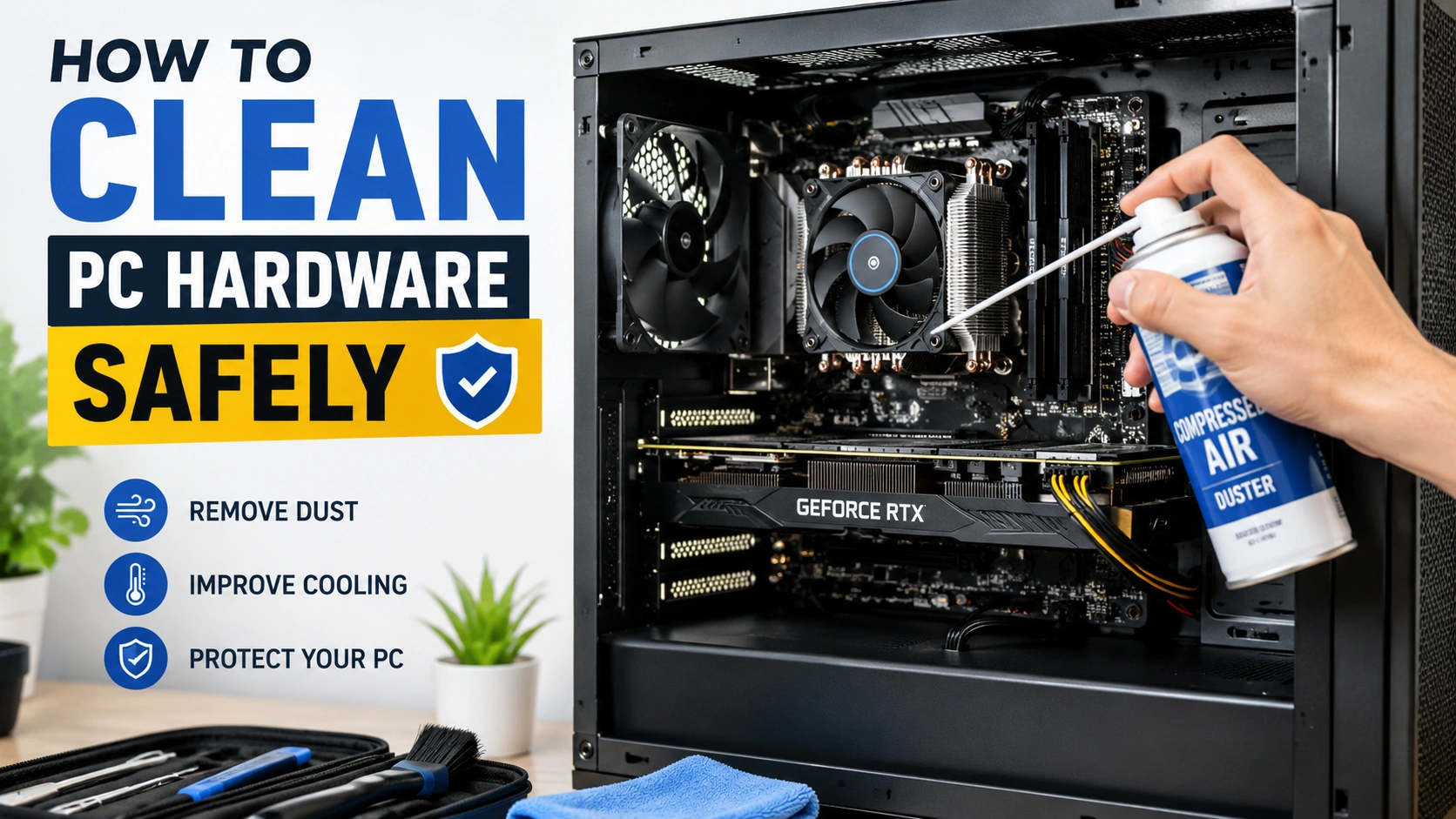
Dust, dirt, and debris gradually build up inside every computer. Over time, this accumulation can block airflow, increase temperatures, reduce performance, and shorten the lifespan of important components. Regular maintenance is one of the easiest ways to keep your system running efficiently.
Knowing how to clean PC hardware safely helps prevent accidental damage while improving cooling performance and system stability. Whether you own a gaming PC, office workstation, or home computer, this guide will walk you through the proper cleaning process.
Why Cleaning PC Hardware Is Important
A computer relies on proper airflow to keep components cool. When dust accumulates inside the case, cooling fans must work harder to maintain safe temperatures.
Benefits of regular PC cleaning include:
- Lower CPU and GPU temperatures
- Reduced fan noise
- Improved airflow
- Better system stability
- Longer hardware lifespan
- Reduced risk of overheating
- More efficient performance during demanding tasks
Experts generally recommend cleaning a desktop PC every three to six months, depending on the environment.
Tools You Will Need
Before opening your computer, gather the necessary cleaning supplies.
Recommended Tools
- Compressed air canister
- Anti-static brush
- Microfiber cloth
- Phillips screwdriver
- Cotton swabs
- Anti-static wrist strap (optional)
- Flashlight for visibility
Avoid Using
- Household vacuum cleaners directly on components
- Paper towels
- Wet wipes
- Harsh cleaning chemicals
- Excessive moisture
Using the wrong tools can damage sensitive electronic parts.
Step 1: Shut Down and Unplug the PC
Safety should always come first.
- Turn off the computer completely.
- Disconnect the power cable.
- Unplug peripherals such as keyboards, monitors, and USB devices.
- Hold the power button for several seconds to discharge any remaining electricity.
Allow the system to cool down before beginning the cleaning process.
Step 2: Move the Computer to a Suitable Workspace
Choose a well-ventilated area with plenty of lighting.
Cleaning generates dust that can spread throughout a room. Many users prefer working outdoors, in a garage, or near an open window.
Place the computer on a stable, non-carpeted surface to reduce static electricity.
Step 3: Open the PC Case Carefully
Most desktop computers have removable side panels secured by screws.
Remove the side panel and inspect the interior. Common dust accumulation areas include:
- CPU cooler
- Graphics card
- Case fans
- Power supply vents
- Dust filters
- Storage bays
- Motherboard surfaces
Take a moment to identify areas that require attention before cleaning.
Step 4: Remove Dust Using Compressed Air
Compressed air is one of the safest ways to clean internal computer components.
Best Practices
- Hold the can upright.
- Use short bursts of air.
- Keep the nozzle several inches away from components.
- Prevent fans from spinning excessively by holding the blades in place.
Focus on cleaning:
Case Fans
Dust often accumulates on fan blades and fan frames. Blow air through both sides until debris is removed.
CPU Cooler
The heatsink fins can trap large amounts of dust. Direct compressed air through the fins to restore airflow.
Graphics Card
Pay close attention to GPU cooling fans and heatsinks, especially in gaming systems.
Motherboard
Use gentle bursts of air to remove dust around RAM slots, expansion cards, and connectors.
Step 5: Clean Dust Filters
Many modern PC cases include removable dust filters.
Remove each filter and clean it separately.
Washable Filters
- Rinse with water.
- Allow them to dry completely.
- Reinstall only when fully dry.
Non-Washable Filters
Use compressed air or a soft brush to remove dust.
Clean filters significantly improve airflow throughout the system.
Step 6: Wipe Exterior Surfaces
Once internal cleaning is complete, focus on external surfaces.
Use a microfiber cloth to clean:
- Case panels
- Front intake grills
- Power button area
- Side windows
- Peripheral surfaces
For stubborn fingerprints, slightly dampen the cloth with water. Avoid spraying liquids directly onto hardware.
Step 7: Organize Cables
Dust cleaning is an excellent opportunity to improve cable management.
Proper cable routing can:
- Increase airflow
- Simplify future maintenance
- Improve system appearance
- Reduce dust buildup
Use cable ties or Velcro straps to secure loose wires.
Step 8: Inspect Components for Damage
While cleaning, examine hardware for signs of wear or failure.
Look for:
- Damaged fan blades
- Loose power connectors
- Corrosion
- Bulging capacitors
- Frayed cables
- Unusual discoloration
Early detection of hardware issues can prevent expensive repairs later.
Step 9: Reassemble and Test the System
After completing the cleaning process, carefully reassemble and test your PC to ensure everything is working correctly.
Reassembly Steps:
- Reinstall the side panels securely.
- Reconnect all internal and external cables properly.
- Power on the computer and allow it to boot normally.
- Check that all fans are spinning smoothly without unusual noise or vibration.
- Use system monitoring software to verify temperatures and ensure everything is within a safe range.
Expected Results:
After cleaning, you may immediately notice improved airflow, lower operating temperatures, and quieter fan performance. These are clear signs that your system is running more efficiently.
Common Mistakes to Avoid When Cleaning Your PC
Many users unintentionally damage their hardware during cleaning due to improper techniques. To keep your system safe, avoid the following mistakes:
Using a Vacuum Cleaner Directly
Vacuum cleaners can generate static electricity, which may damage sensitive internal components such as the motherboard or RAM. Instead, use compressed air designed for electronics.
Spraying Liquids Inside the PC
Never use water or cleaning sprays inside your computer case. Even small amounts of moisture can cause short circuits and permanent hardware failure.
Touching Components Unnecessarily
Avoid handling internal parts unless required. If you must touch components, make sure to ground yourself to prevent static discharge.
Spinning Fans Excessively
When using compressed air, holding fans still is important. Letting them spin at high speed can damage the fan bearings and reduce their lifespan.
Cleaning While the PC Is Powered On
Always shut down your system and disconnect it from the power source before opening the case. This ensures both your safety and the protection of your hardware.
Additional Tips for Long-Term PC Maintenance
Keeping your PC clean involves more than just occasional dust removal. Building good habits can significantly reduce dust buildup and improve long-term system stability.
Recommended Practices:
- Place your computer off the floor to reduce dust intake.
- Use dust filters on intake fans and clean them regularly.
- Vacuum and clean your room frequently to minimize airborne dust.
- Ensure proper airflow around the PC case; avoid tight or enclosed spaces.
- Do not smoke near your computer, as residue can damage internal components.
- Regularly remove pet hair from the surrounding area.
- Perform routine inspections every few months to catch early signs of dust buildup or airflow issues.
These simple practices help reduce dust accumulation, improve cooling efficiency, and enhance the overall reliability and lifespan of your system.
Frequently Asked Questions
How often should I clean my PC?
For most users, cleaning your PC every 3 to 6 months is recommended. If you live in a dusty environment or have pets, consider cleaning it every month to maintain optimal performance and airflow.
Can dust cause overheating?
Yes. Dust buildup can block airflow and trap heat inside your system. Over time, this leads to higher temperatures, reduced performance, and even potential hardware damage if not addressed.
Is compressed air safe for computers?
Yes, compressed air is safe when used properly. Always use short bursts and avoid letting cooling fans spin freely, as this can cause electrical damage or wear out the bearings.
Should I remove components before cleaning?
For regular maintenance, you usually don’t need to remove any parts. However, for deep cleaning sessions, it may be necessary to remove components such as the graphics card or CPU cooler to thoroughly clear dust buildup.
Conclusion
Learning how to clean PC hardware safely is an essential part of computer maintenance. Regular cleaning removes dust, improves airflow, lowers operating temperatures, and helps extend the lifespan of expensive components. By using proper tools, following safe handling practices, and performing maintenance on a regular schedule, you can keep your desktop PC running smoothly, quietly, and efficiently for years to come.