

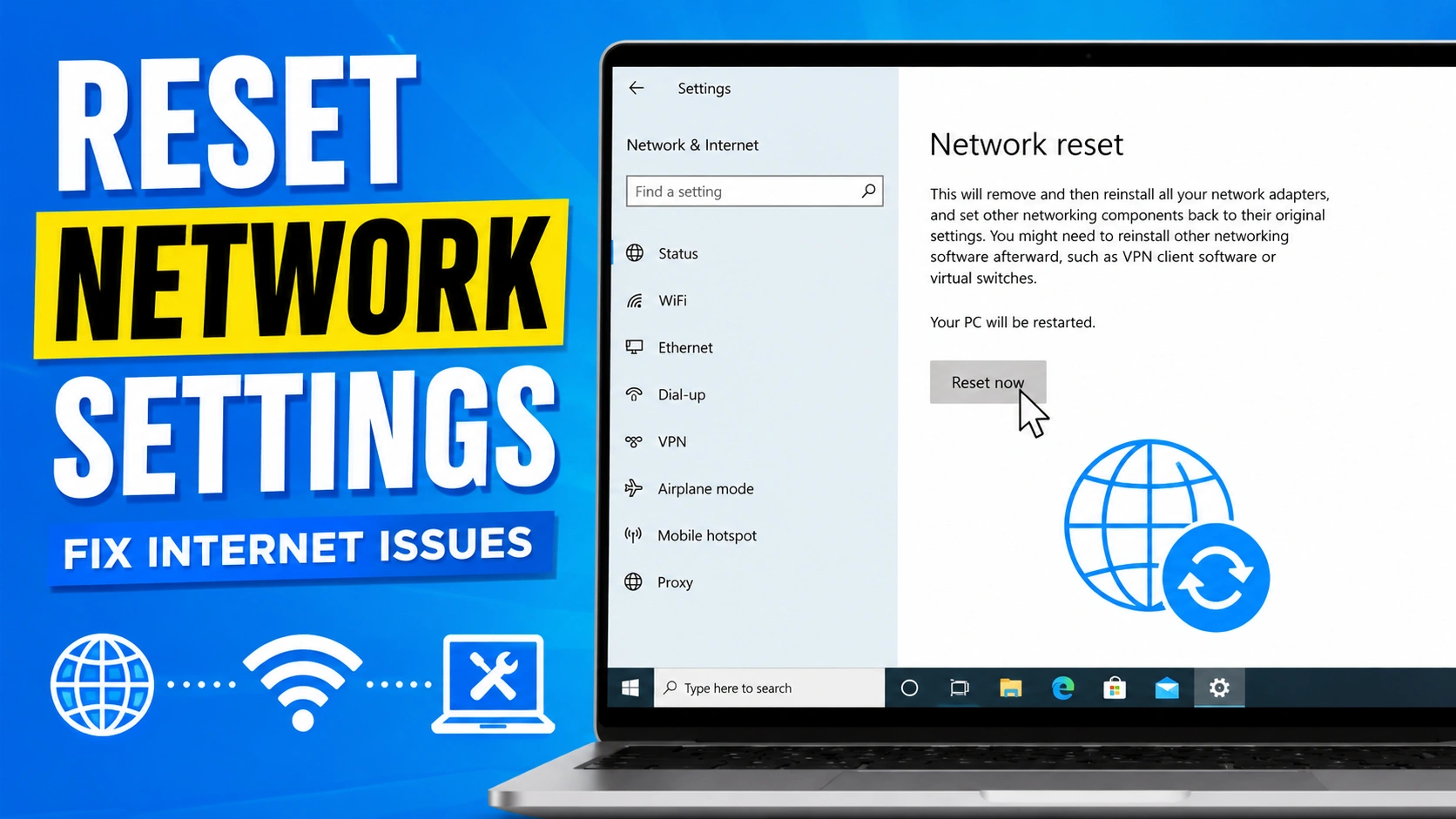
When your internet becomes unstable, slow, or completely disconnected, the fastest and most effective troubleshooting step is often to reset network settings. This process restores all network-related configurations back to their original default state, helping eliminate issues caused by corrupted settings, incorrect manual configurations, driver conflicts, or software changes that may have disrupted your connection.
Over time, network settings can become misconfigured due to Windows updates, VPN usage, proxy configurations, or third-party applications that modify internet behavior. When this happens, you may experience problems such as frequent Wi-Fi drops, “connected but no internet” errors, slow browsing speeds, or complete inability to access online services. Instead of manually diagnosing each potential issue, a network reset provides a clean slate by removing problematic configurations and re-establishing stable baseline settings.
In this guide, you will learn how to properly reset network settings on Windows, Android, and iPhone devices step by step. By following these methods, you can quickly restore stable internet performance and resolve common connectivity problems without needing advanced technical knowledge.
1. What Does Reset Network Settings Do?
When you reset network settings, your device essentially clears all saved network configurations and restores them to their default state. This process does not affect your personal files, but it completely refreshes how your device connects to the internet and local networks.
After performing a network reset, your system will remove and restore the following components:
- Wi-Fi networks and passwords
All previously saved Wi-Fi connections will be deleted, and you will need to reconnect manually by entering the password again. - Ethernet configurations
Any custom wired network settings, including manual IP assignments, will be reset to automatic (DHCP). - DNS and IP settings
Any custom DNS servers or static IP configurations will be cleared and replaced with default network provider settings. - VPN and proxy settings
All VPN profiles and proxy configurations will be removed or disabled, which can help fix conflicts affecting internet access. - Network adapters
Network interfaces are reinitialized, and in many cases, drivers are reloaded or reinstalled to resolve corruption issues.
This process is especially useful when troubleshooting persistent connection problems such as unstable Wi-Fi, limited connectivity, slow browsing speeds, or repeated “no internet access” errors that cannot be fixed through basic restarts or router resets.
By returning everything to a clean default configuration, a network reset helps eliminate hidden software conflicts and gives your device a fresh start in establishing a stable internet connection.
2. When You Should Reset Network Settings
You should consider resetting network settings when you experience persistent internet or network-related problems that do not improve after basic troubleshooting steps.
Common situations include:
- No internet access even though your device is connected to Wi-Fi or mobile data
- Slow browsing speed or frequent buffering when loading websites or streaming content
- Wi-Fi keeps disconnecting repeatedly without a stable connection
- DNS errors, such as websites not loading or messages like “DNS server not responding”
- Limited connectivity warnings, especially on Windows devices showing restricted or unstable network status
In most cases, resetting network settings is recommended as a final troubleshooting step after you have already tried restarting your device, rebooting the router, or updating network drivers. It helps eliminate hidden configuration issues that are difficult to identify manually and restores your device’s network setup to a clean default state.
3. How to Reset Network Settings on Windows
Resetting network settings on Windows is a straightforward process that restores all network components to their default configuration. This is useful for fixing persistent connectivity issues, such as unstable Wi-Fi or no internet access.
Follow these steps:
- Open Settings on your Windows PC
- Go to Network & Internet
- Scroll down and click Advanced Network Settings
- Find and select Network Reset
- Click Reset Now
- Confirm the action when prompted
- Restart your PC to complete the process
After your computer restarts, Windows will automatically reinstall all network adapters and restore default network settings. You will need to reconnect to Wi-Fi networks and re-enter saved passwords afterward.
4. Reset Network Settings Using Command Prompt
For advanced users, Windows also allows you to reset network settings using the Command Prompt. This method is more powerful because it directly repairs core network components and is often used when standard settings reset does not fully resolve the issue.
Steps:
- Open Command Prompt as Administrator
- Search for “cmd” in the Start menu
- Right-click Command Prompt
- Select Run as administrator
- Run the following commands one by one:
netsh winsock reset
This resets the Winsock catalog, which controls how Windows accesses network services.
netsh int ip reset
This resets the TCP/IP stack and fixes IP-related configuration issues.
ipconfig /flushdns
This clears the DNS cache, removing outdated or corrupted DNS records.
- Restart your computer
After restarting, Windows will rebuild network configurations automatically.
What This Method Fixes:
- Corrupted TCP/IP settings
- DNS resolution problems
- Network stack errors
- Connectivity issues caused by misconfigured system files
This method is especially useful for deeper or long-standing network problems that cannot be solved through normal settings.
5. Reset Network Settings on Mobile Devices
Mobile devices also provide built-in options to reset network settings. This is useful when you experience weak signals, unstable connections, or mobile data issues that cannot be fixed with basic troubleshooting.
Android:
- Open Settings on your device
- Tap System (or General Management, depending on your phone brand)
- Select Reset Options
- Tap Reset Wi-Fi, Mobile & Bluetooth
- Confirm the reset
After the process is complete, your saved Wi-Fi networks, paired Bluetooth devices, and mobile network settings will be removed, and you will need to reconnect manually.
iPhone:
- Open Settings
- Go to General
- Tap Transfer or Reset iPhone
- Select Reset
- Tap Reset Network Settings
- Enter your passcode and confirm the action
Your iPhone will restart automatically and restore all network configurations to default, including Wi-Fi, cellular, VPN, and APN settings.
This process helps resolve common mobile network issues such as dropped connections, no internet access, or failure to connect to Wi-Fi networks.
6. Benefits of Reset Network Settings
Resetting network settings provides several important advantages, especially when dealing with persistent or hard-to-diagnose connectivity issues.
Key benefits include:
- Fix unstable internet connections
Helps restore consistent connectivity when Wi-Fi or mobile data keeps dropping. - Remove corrupted configurations
Clears incorrect or damaged network settings that may be causing connection failures. - Improve Wi-Fi stability
Refreshes network adapters and settings, leading to a more stable wireless connection. - Resolve DNS errors
Fixes issues related to domain name resolution, such as websites not loading properly. - Restore default network performance
Brings all network settings back to factory defaults for a clean and optimized connection setup.
Overall, a network reset is a simple but powerful troubleshooting method that can significantly improve internet reliability without requiring advanced technical skills.
7. Risks of Reset Network Settings
Before you reset network settings, it’s important to understand what changes will occur so you can avoid unexpected disruptions afterward.
Key risks include:
- Saved Wi-Fi passwords will be deleted
You will need to re-enter all Wi-Fi credentials to reconnect to previously used networks. - VPN settings will be removed
Any configured VPN profiles will be erased and must be set up again manually. - Custom DNS settings will reset
Any manually configured DNS servers (such as Google DNS or Cloudflare DNS) will revert to default values. - Manual reconnection required for devices
You may need to reconnect to Wi-Fi networks and re-pair Bluetooth devices after the reset.
Because of these changes, it is recommended to note down important credentials and network settings before proceeding, especially if you frequently switch between multiple networks or use custom configurations for work or security purposes.
8. Alternative Fixes Before Resetting
Before performing a full network reset, it is recommended to try several basic troubleshooting methods. These solutions often resolve common internet issues without affecting your saved settings or requiring reconfiguration.
Try these solutions first:
- Restart router and modem
Power off your router and modem for 10–30 seconds, then turn them back on to refresh the connection. - Update network drivers
Ensure your Wi-Fi or Ethernet drivers are up to date to prevent compatibility or performance issues. - Change DNS to Google DNS
Switching to a reliable DNS provider like Google DNS can improve browsing speed and fix loading issues. - Disable and re-enable Wi-Fi adapter
Turning the Wi-Fi adapter off and on can refresh network connectivity without restarting the device. - Run Windows Network Troubleshooter
Use the built-in Windows tool to automatically detect and fix common network problems.
👉 Fix Slow Internet Connection in Windows Guide
These methods are simple, non-destructive, and should always be attempted first before resetting network settings completely.
9. External Tools and References
For more detailed troubleshooting and official guidance, you can refer to the following trusted resources. These tools and documentation provide additional support when resolving network issues or configuring advanced settings.
- Microsoft Support – Network Reset Guide
https://support.microsoft.com
Official Microsoft documentation explaining how to reset network settings on Windows, along with troubleshooting steps for common connectivity issues. - Google Public DNS Setup Guide
https://developers.google.com/speed/public-dns
A detailed guide on configuring Google DNS to improve browsing speed, stability, and reliability when accessing websites.
These references are useful for users who want to go beyond basic fixes and understand more advanced network configuration options or official system-level solutions.
10. Best Practices After Reset Network Settings
After you reset network settings, it’s important to properly reconfigure your device to ensure a stable and reliable internet connection. A few simple steps can help you get the best performance after the reset.
Recommended steps:
- Reconnect to trusted Wi-Fi networks
Re-enter saved passwords and connect only to secure and trusted networks. - Update network drivers
Check for the latest Wi-Fi or Ethernet drivers to improve compatibility and performance. - Set DNS manually if needed
If browsing feels slow, consider using reliable DNS services such as Google DNS or Cloudflare DNS. - Restart your router for a full refresh
Rebooting the router helps synchronize your device with a clean network connection. - Monitor connection stability
Observe your internet performance for a few hours to ensure the issue has been fully resolved.
Following these best practices helps maintain a stable connection and reduces the chance of recurring network problems after a reset.
Conclusion
To resolve persistent internet issues, one of the most effective solutions is to reset network settings. This process removes incorrect, corrupted, or conflicting configurations and restores all network components back to their default state. As a result, it can quickly help restore stable and reliable internet access on Windows, Android, and iPhone devices.
However, a network reset should be used with caution, as it will remove saved Wi-Fi passwords, VPN configurations, and custom network settings. For this reason, it is always best to try basic troubleshooting methods first—such as restarting your router, updating drivers, or changing DNS settings—before performing a full reset.
When used correctly, resetting network settings is a powerful and simple solution for fixing a wide range of connectivity problems and improving overall network performance.