

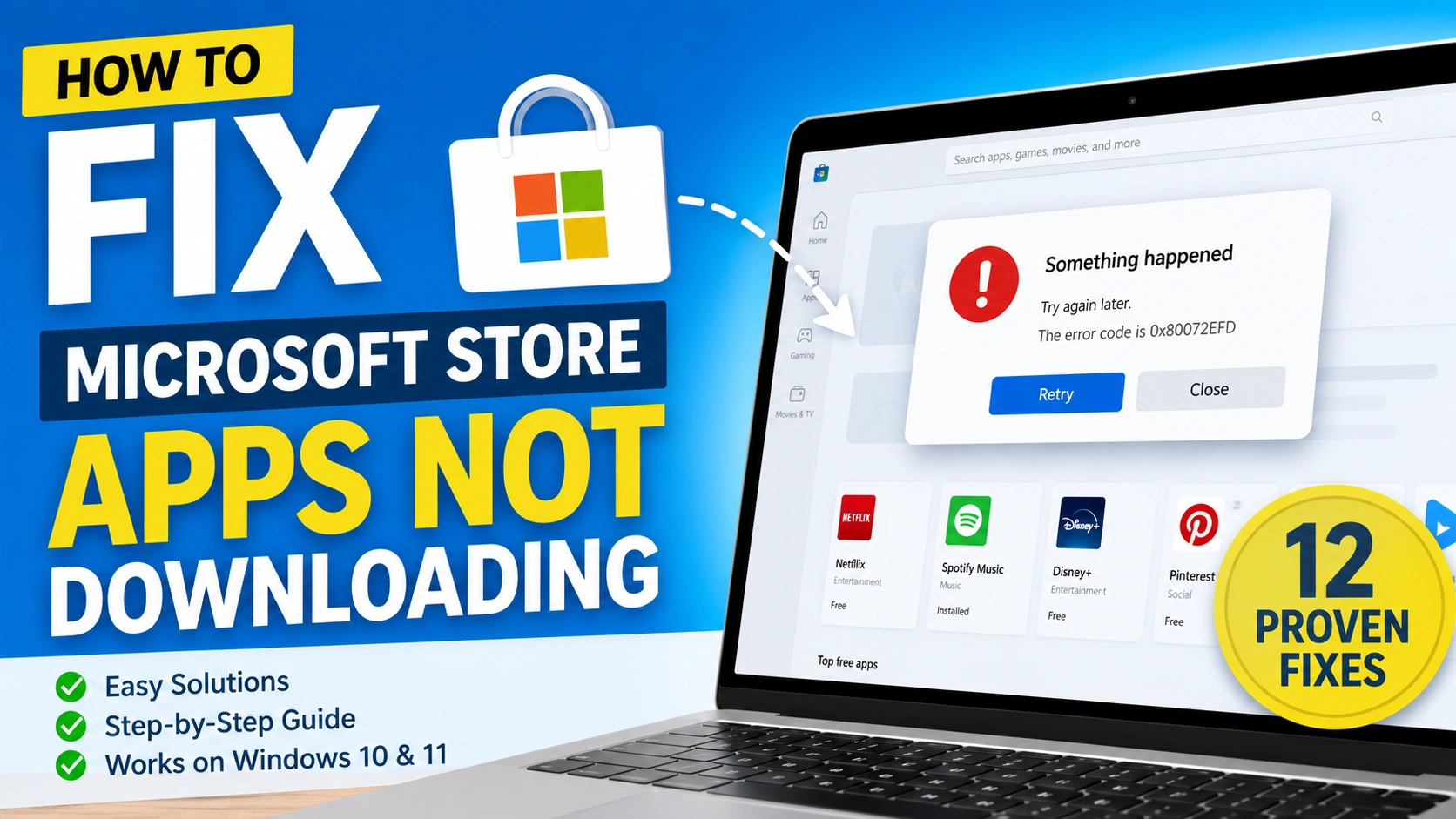
Microsoft Store is the official platform for downloading apps, games, and digital content on Windows 10 and Windows 11. It provides a convenient and secure way to install software without searching for applications across multiple websites. However, users sometimes encounter frustrating situations where apps become stuck on “Pending,” downloads never start, or installation errors repeatedly appear.
If you’re trying to Fix Microsoft Store Apps Not Downloading, several factors could be responsible for the problem. Issues such as corrupted cache files, unstable internet connections, outdated Windows components, insufficient storage space, or Microsoft account synchronization errors can all interfere with the download process. In some cases, recent system updates or damaged Windows files may also prevent Microsoft Store from functioning correctly.
The good news is that most Microsoft Store download problems can be resolved without advanced technical knowledge. Windows includes several built-in troubleshooting tools, and there are multiple proven methods that can restore normal Store functionality in just a few minutes.
In this guide, you’ll learn how to Fix Microsoft Store Apps Not Downloading using step-by-step solutions that work for both Windows 10 and Windows 11. Whether your downloads are stuck, failing unexpectedly, or refusing to start altogether, these troubleshooting methods can help get Microsoft Store working properly again.
Why Microsoft Store Apps Are Not Downloading
Before attempting any fixes to Fix Microsoft Store Apps Not Downloading, it’s helpful to understand why Microsoft Store downloads may fail. Identifying the underlying cause can make troubleshooting faster and more effective while helping you choose the most appropriate solution.
Some of the most common reasons why you may need to Fix Microsoft Store Apps Not Downloading include:
- Corrupted Microsoft Store cache files
- Slow or unstable internet connections
- Missing or outdated Windows updates
- Microsoft account synchronization issues
- Insufficient disk space
- Damaged Windows system files
- Incorrect date and time settings
- Disabled Windows services required by Microsoft Store
When these problems occur, Microsoft Store may be unable to communicate properly with Microsoft’s servers, authenticate your account, or complete app installations successfully. As a result, downloads may remain stuck on pending, fail unexpectedly, or refuse to start altogether.
Fortunately, most issues related to Fix Microsoft Store Apps Not Downloading can be resolved using built-in Windows troubleshooting tools and the proven solutions covered in this guide. By following the methods below, you can restore normal download functionality and get Microsoft Store working properly again.
Method 1: Check Your Internet Connection
A weak or unstable connection can prevent Microsoft Store from communicating with Microsoft’s servers.
Steps
- Open your web browser.
- Visit several websites.
- Confirm pages load properly.
- Restart your modem or router.
- Try a different network if available.
- Reopen Microsoft Store.
Reliable connectivity is essential when attempting to Fix Microsoft Store Apps Not Downloading.
Method 2: Restart Your Computer
Temporary Windows glitches often interfere with Store services.
Steps
- Save any open work.
- Click Start.
- Select Power.
- Choose Restart.
- Wait for Windows to reload.
After restarting, try downloading the app again.
Method 3: Sign Out and Sign Back Into Microsoft Store
Account synchronization issues may block downloads.
Steps
- Open Microsoft Store.
- Click your profile icon.
- Select Sign Out.
- Close Microsoft Store.
- Reopen the Store.
- Sign back in.
This refreshes your authentication session and often resolves download problems.
Method 4: Clear Microsoft Store Cache
Corrupted cache data is one of the leading causes of Store download failures.
Steps
- Press Windows + R.
- Type:
wsreset.exe
- Press Enter.
- Wait for the reset process to finish.
- Microsoft Store will reopen automatically.
This method clears temporary Store files without affecting installed applications.
Method 5: Run the Windows Store Apps Troubleshooter
Windows includes a built-in troubleshooter specifically designed to identify and resolve Microsoft Store-related issues. If you’re trying to Fix Microsoft Store Apps Not Downloading, this tool can automatically detect configuration errors, corrupted settings, and other common problems that may prevent app downloads.
Steps
- Open Settings.
- Navigate to System > Troubleshoot.
- Select Other troubleshooters.
- Find Windows Store Apps.
- Click Run.
- Follow the on-screen recommendations.
The troubleshooter will scan your system for known Microsoft Store issues and attempt to repair them automatically. Once the process is complete, restart Microsoft Store and try downloading the app again. This is one of the easiest methods to Fix Microsoft Store Apps Not Downloading without making manual system changes.
Method 6: Check Date and Time Settings
Incorrect system time can prevent secure communication with Microsoft servers.
Steps
- Open Settings.
- Select Time & Language.
- Click Date & Time.
- Enable:
- Set time automatically
- Set time zone automatically
After making changes, restart Microsoft Store.
Method 7: Verify Available Storage Space
Insufficient storage space can stop downloads and installations.
Steps
- Open Settings.
- Select System.
- Click Storage.
- Review available disk space.
- Remove unnecessary files if needed.
Maintaining adequate free space improves Windows performance and application reliability.
Method 8: Install Pending Windows Updates
Outdated Windows components can cause compatibility issues with Microsoft Store.
Steps
- Open Settings.
- Select Windows Update.
- Click Check for updates.
- Install all available updates.
- Restart your computer.
If Windows Update itself is failing, consider reading our guide on Fix Windows Update Not Working.
Method 9: Reset Microsoft Store
Resetting Microsoft Store restores its default settings.
Steps
- Open Settings.
- Go to Apps > Installed Apps.
- Locate Microsoft Store.
- Open Advanced Options.
- Click Reset.
- Confirm the action.
Launch Microsoft Store again and test app downloads.
Method 10: Repair System Files Using SFC
Corrupted Windows system files can affect Store functionality.
Steps
- Open Command Prompt as Administrator.
- Run:
sfc /scannow
- Wait for the scan to complete.
- Restart your PC.
This tool automatically repairs damaged system files.
Method 11: Repair Windows Image Using DISM
If SFC cannot resolve the issue, DISM may repair deeper Windows corruption.
Steps
Open Command Prompt as Administrator and run:
DISM /Online /Cleanup-Image /RestoreHealth
Allow the process to finish completely before restarting Windows.
Method 12: Re-Register Microsoft Store
Re-registering Store components can resolve persistent download failures.
Steps
- Open PowerShell as Administrator.
- Run:
Get-AppxPackage -allusers Microsoft.WindowsStore | Foreach {
Add-AppxPackage -DisableDevelopmentMode -Register "$($_.InstallLocation)\AppxManifest.xml"
}
- Wait for completion.
- Restart your computer.
This rebuilds Microsoft Store registration files and often resolves stubborn issues.
Additional Tips to Fix Microsoft Store Apps Not Downloading
After you successfully Fix Microsoft Store Apps Not Downloading, it’s important to take preventive measures to avoid similar problems in the future. Regular system maintenance can improve Microsoft Store performance and reduce the risk of download failures.
To prevent future download issues:
- Keep Windows updated regularly.
- Maintain sufficient free disk space.
- Use a stable internet connection.
- Avoid untrusted system optimization tools.
- Sign in using a valid Microsoft account.
- Clear Microsoft Store cache periodically.
Many Microsoft Store download issues are related to broader Windows problems. Resolving those issues can improve overall system performance, application reliability, and download stability. Following these best practices can help you Fix Microsoft Store Apps Not Downloading more effectively and reduce the chances of encountering the same issue again.
If applications frequently crash after installation, see Fix Application Crashes in Windows for additional troubleshooting steps.
Network-related problems can also prevent app downloads. Learn how to Fix DNS Server Not Responding and restore internet connectivity.
If downloaded programs refuse to launch, check our tutorial on Fix Software Not Opening in Windows.
For additional troubleshooting information, visit the official Microsoft Windows Support website or review the latest documentation on Microsoft Learn.
Conclusion
To Fix Microsoft Store Apps Not Downloading, start with basic troubleshooting steps such as checking your internet connection, restarting your computer, and clearing the Microsoft Store cache. These simple fixes often resolve the most common download and installation issues.
If downloads still fail, try resetting Microsoft Store, installing the latest Windows updates, and repairing corrupted system files. By following these proven solutions, most users can successfully Fix Microsoft Store Apps Not Downloading and restore normal app installation functionality on Windows 10 and Windows 11.