

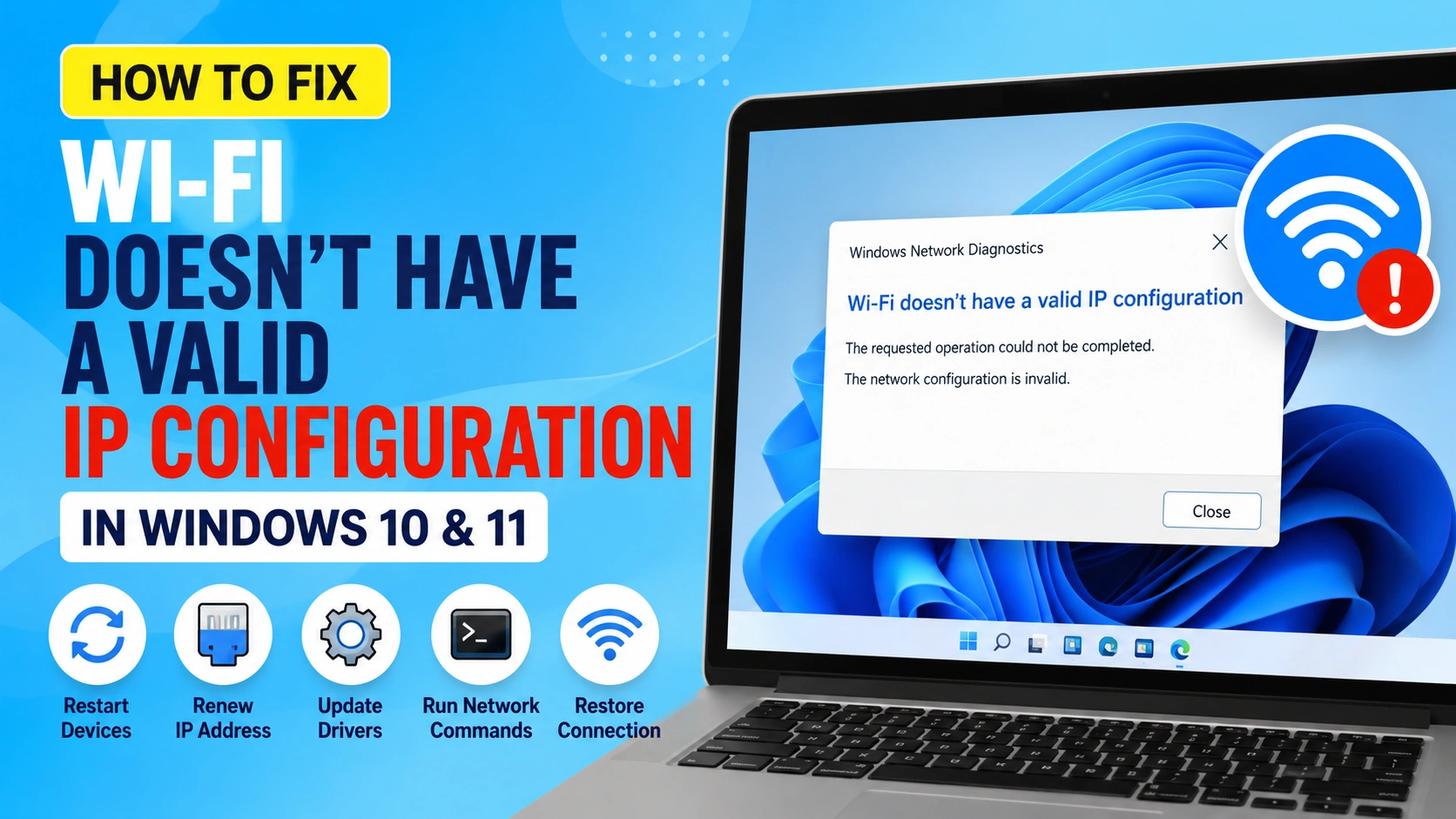
A stable internet connection depends on proper communication between your computer and your network. When Windows displays the error Wi-Fi Doesn’t Have a Valid IP Configuration, your device cannot obtain a valid IP address from the router, preventing internet access.
This problem commonly appears in Windows 10 and Windows 11 after system updates, driver issues, network configuration changes, or router problems.
In some cases, you may also notice slow browsing, buffering videos, or delayed downloads. If your connection remains sluggish even after resolving the IP configuration error, check out our guide on Solve Internet Slow Speed Windows for additional optimization tips and troubleshooting methods.
Fortunately, the error is usually easy to fix. This guide explains why it happens and provides step-by-step solutions to restore your Wi-Fi connection.
What Does Wi-Fi Doesn’t Have a Valid IP Configuration Mean?
Every device connected to a network needs a unique IP address. Your router typically assigns these addresses automatically through DHCP (Dynamic Host Configuration Protocol).
When Windows cannot receive or use a valid IP address, it displays the Wi-Fi Doesn’t Have a Valid IP Configuration error and disconnects from the internet.
Common symptoms include:
- No internet access
- Limited connectivity warnings
- Yellow warning icon on the network symbol
- Troubleshooter reporting IP configuration issues
- Frequent Wi-Fi disconnections
Understanding the causes helps determine the most effective solution.
Why Does Wi-Fi Doesn’t Have a Valid IP Configuration Occur?
Several factors can trigger this networking issue.
Router DHCP Problems
If DHCP is disabled or malfunctioning, the router cannot assign IP addresses to connected devices.
Corrupted Network Settings
Incorrect TCP/IP settings may prevent Windows from obtaining a valid address.
Outdated Network Drivers
Old or corrupted Wi-Fi drivers can interfere with communication between Windows and network hardware.
Network Adapter Malfunctions
A faulty adapter configuration may block IP address assignment.
Temporary Software Conflicts
Security software, VPN applications, or recent updates may disrupt network communication.
Corrupted Winsock Configuration
Windows networking components sometimes become damaged, causing connectivity errors.
Fix 1: Restart Your Computer and Router
Before attempting advanced troubleshooting, start with the simplest solution: restarting your computer and router. Temporary software glitches, DHCP conflicts, or network communication errors can often trigger the Wi-Fi Doesn’t Have a Valid IP Configuration error.
Steps
- Shut down your computer completely.
- Turn off your router or modem.
- Unplug the router from the power source for at least 30 seconds.
- Plug the router back in.
- Wait until all network and internet indicator lights stabilize.
- Start your computer and reconnect to Wi-Fi.
A complete restart refreshes network connections, clears temporary cache files, and allows the router’s DHCP server to assign a new IP address to your device. In many cases, this simple method resolves the Wi-Fi Doesn’t Have a Valid IP Configuration error without requiring additional troubleshooting.
If the problem persists after restarting both devices, continue with the next solution to renew your IP address and restore proper network connectivity.
Fix 2: Release and Renew the IP Address
One of the most effective ways to fix the Wi-Fi Doesn’t Have a Valid IP Configuration error is to release your current IP address and request a new one from the router. This process refreshes the connection between Windows and the DHCP server, which is responsible for assigning IP addresses on your network.
Steps
- Press Windows + X.
- Select Terminal (Admin) or Command Prompt (Admin).
- Type the following command and press Enter:
ipconfig /release
- Wait for Windows to release the current IP address.
- Next, enter the following command:
ipconfig /renew
- Press Enter and allow Windows to obtain a new IP address from the router.
- Restart your computer.
This procedure forces Windows to communicate with the DHCP server and request a fresh IP configuration. If the problem was caused by an invalid, expired, or conflicting IP address, renewing the IP address can quickly restore network connectivity.
If you continue to experience internet issues after renewing the IP address, consider following our guide on Reset Network Settings for a more comprehensive network repair solution.
This method is particularly useful when the Wi-Fi Doesn’t Have a Valid IP Configuration error appears after router restarts, Windows updates, network changes, or temporary DHCP failures.
Fix 3: Reset TCP/IP Settings
TCP/IP controls how your computer communicates with networks and the internet. If these settings become corrupted, Windows may fail to obtain a valid IP address.
Steps
Open Command Prompt as Administrator and run:
netsh int ip reset
Press Enter and wait for the process to complete.
Restart your computer afterward.
The command restores TCP/IP settings to their default state and removes incorrect network configurations that may be causing the Wi-Fi Doesn’t Have a Valid IP Configuration error.
If the issue continues after resetting TCP/IP, follow our complete guide on Reset Network Settings to Fix Internet Problems to perform a full network reset and reinstall all network adapters in Windows. This advanced troubleshooting step can resolve persistent connectivity issues that basic fixes cannot address.
Fix 4: Reset Winsock
Winsock (Windows Sockets API) is a core networking component that manages communication between Windows applications and network services. If the Winsock catalog becomes corrupted, you may experience internet connectivity problems, including the Wi-Fi Doesn’t Have a Valid IP Configuration error.
Resetting Winsock restores its default configuration and can resolve network-related issues caused by software conflicts, malware removal, VPN applications, or corrupted network settings.
Steps
- Press Windows + X and select Terminal (Admin) or Command Prompt (Admin).
- Enter the following command:
netsh winsock reset
- Press Enter.
- Wait for the confirmation message indicating the Winsock catalog was successfully reset.
- Restart your computer.
After the restart, Windows will rebuild the networking components automatically. This often resolves connectivity problems, DNS failures, and IP configuration errors.
Resetting Winsock is one of the most effective solutions for fixing the Wi-Fi Doesn’t Have a Valid IP Configuration error because it repairs damaged network communication settings without affecting personal files or installed applications.
Fix 5: Update Wi-Fi Drivers
Outdated, incompatible, or corrupted Wi-Fi drivers are one of the most common causes of the Wi-Fi Doesn’t Have a Valid IP Configuration error. Network drivers act as a bridge between Windows and your wireless hardware. If they become damaged or outdated, your computer may struggle to communicate with the router and obtain a valid IP address.
Updating your Wi-Fi drivers can improve network stability, compatibility, and overall internet performance.
Steps
- Press Windows + X and select Device Manager.
- Expand the Network Adapters category.
- Locate your Wi-Fi adapter.
- Right-click the adapter and select Update Driver.
- Choose Search Automatically for Drivers.
- Allow Windows to search for and install available driver updates.
- Restart your computer after the installation is complete.
Updated drivers often resolve issues related to DHCP communication, network connectivity, and wireless performance. They can also fix bugs introduced by Windows updates or older driver versions.
If Windows cannot find a newer driver, visit your computer manufacturer’s support website or the wireless adapter manufacturer’s website to download the latest version manually.
For persistent connectivity problems, you may also want to read our guide on Solve Internet Slow Speed Windows, which covers additional network optimization techniques and driver-related troubleshooting steps.
Keeping Wi-Fi drivers up to date is an essential part of preventing the Wi-Fi Doesn’t Have a Valid IP Configuration error and ensuring a reliable internet connection in Windows 10 and Windows 11.
Fix 6: Reinstall the Wireless Adapter
A corrupted or improperly configured wireless adapter driver can prevent Windows from obtaining a valid IP address. Reinstalling the adapter removes damaged settings and allows Windows to install a fresh copy of the driver.
Steps
- Press Windows + X and select Device Manager.
- Expand the Network Adapters category.
- Right-click your Wi-Fi adapter.
- Select Uninstall Device.
- Confirm the removal when prompted.
- Restart your computer.
After the restart, Windows will automatically detect and reinstall the wireless adapter. This process often resolves driver-related causes of the Wi-Fi Doesn’t Have a Valid IP Configuration error.
If Windows does not reinstall the adapter automatically, open Device Manager, click Action, and select Scan for Hardware Changes. You can also download the latest driver from your computer or adapter manufacturer’s support website.
Reinstalling the wireless adapter can fix network connectivity issues caused by corrupted drivers, incorrect configurations, failed Windows updates, or hardware communication problems. If the error persists, proceed to the next solution to continue troubleshooting the Wi-Fi Doesn’t Have a Valid IP Configuration problem.
Fix 7: Set IP Address Automatically
Incorrect manual settings can trigger IP configuration errors.
Steps
- Open Control Panel.
- Select Network and Sharing Center.
- Click Change Adapter Settings.
- Right-click Wi-Fi.
- Choose Properties.
- Select Internet Protocol Version 4 (TCP/IPv4).
- Click Properties.
Enable:
- Obtain an IP address automatically
- Obtain DNS server address automatically
Click OK and reconnect.
Fix 8: Flush DNS Cache
DNS corruption can interfere with network communication and prevent your computer from resolving website addresses correctly.
Steps
Open Command Prompt as Administrator.
Run:
ipconfig /flushdns
After completion, restart your browser and test your internet connection.
If the problem persists, read our detailed guide on Fix DNS Server Not Responding Error in Windows 10 and 11 for additional troubleshooting methods, including changing DNS servers, resetting network settings, and repairing Windows network components.
This command clears outdated DNS records and forces Windows to retrieve fresh DNS information from the network, which often resolves connectivity issues related to the Wi-Fi Doesn’t Have a Valid IP Configuration error.
Fix 9: Disable and Re-enable the Network Adapter
Sometimes the Wi-Fi Doesn’t Have a Valid IP Configuration error is caused by a temporary issue with the network adapter. Disabling and re-enabling the adapter forces Windows to refresh the network connection and reload the adapter settings without requiring a full system restart.
Steps
- Press Windows + R, type
ncpa.cpl, and press Enter. - In the Network Connections window, locate your Wi-Fi adapter.
- Right-click the Wi-Fi adapter and select Disable.
- Wait approximately 15 seconds.
- Right-click the adapter again.
- Select Enable.
- Reconnect to your Wi-Fi network.
This process refreshes the adapter and clears temporary networking glitches that may prevent Windows from obtaining a valid IP address. It can also resolve minor issues related to DHCP communication, wireless connectivity, and network configuration conflicts.
If the connection is restored after re-enabling the adapter, the problem was likely caused by a temporary network interruption or adapter malfunction. However, if the Wi-Fi Doesn’t Have a Valid IP Configuration error continues to appear, proceed to the next solution and consider performing a complete Network Reset to Fix Internet Problems.
Regularly refreshing your network adapter can help maintain stable connectivity and reduce common Windows networking issues.
Fix 10: Perform a Network Reset
Windows includes a built-in network reset feature.
Steps
- Open Settings.
- Navigate to:
Network & Internet → Advanced Network Settings
- Select Network Reset.
- Click Reset Now.
- Restart the computer.
This reinstalls network adapters and restores default configurations.
For additional guidance, refer to Microsoft’s official network troubleshooting resources: https://support.microsoft.com/windows
Fix 11: Temporarily Disable Antivirus or VPN Software
Some security applications interfere with DHCP communication.
Steps
- Disconnect from VPN services.
- Temporarily disable third-party antivirus software.
- Reconnect to Wi-Fi.
- Check if internet access returns.
If the connection works, update or reconfigure the software.
Fix 12: Assign a Static IP Address
When DHCP repeatedly fails, manually assigning an IP may help.
Steps
- Open Wi-Fi Properties.
- Open IPv4 settings.
- Choose Use the Following IP Address.
- Enter an address compatible with your router.
Example:
IP Address: 192.168.1.100
Subnet Mask: 255.255.255.0
Default Gateway: 192.168.1.1
Use public DNS servers:
Preferred DNS: 8.8.8.8
Alternate DNS: 8.8.4.4
Save changes and reconnect.
Advanced Troubleshooting for Wi-Fi Doesn’t Have a Valid IP Configuration
If the Wi-Fi Doesn’t Have a Valid IP Configuration error persists after trying the standard fixes, you may need to perform more advanced troubleshooting. These methods can help identify deeper network configuration issues, router problems, or corrupted Windows components that prevent your computer from obtaining a valid IP address.
Update Router Firmware
Outdated router firmware can cause DHCP failures, network instability, and IP configuration problems.
To update your router:
- Open your router’s administration page.
- Log in using your administrator credentials.
- Navigate to the Firmware or System Update section.
- Check for available updates.
- Install the latest firmware version.
Router firmware updates often resolve connectivity bugs that contribute to the Wi-Fi Doesn’t Have a Valid IP Configuration error.
Check DHCP Settings
DHCP (Dynamic Host Configuration Protocol) automatically assigns IP addresses to devices on your network.
If DHCP is disabled, Windows may be unable to receive a valid IP address.
To verify DHCP settings:
- Access your router’s admin panel.
- Locate the DHCP configuration page.
- Ensure DHCP Server is enabled.
- Save any changes and restart the router.
A properly configured DHCP server is essential for stable network connectivity.
Test Another Device
Testing another device helps determine whether the problem is caused by Windows or the network itself.
Try connecting:
- A smartphone
- A tablet
- Another laptop or desktop computer
If multiple devices experience the same connectivity issue, the router, modem, or internet service provider (ISP) is likely responsible.
If only one computer is affected, focus on troubleshooting Windows network settings and drivers.
Run System File Checker
Corrupted Windows system files can interfere with networking services and cause IP configuration errors.
Open Command Prompt as Administrator and run:
sfc /scannow
Press Enter and allow Windows to complete the scan.
The System File Checker will detect and repair damaged operating system files that may be contributing to the Wi-Fi Doesn’t Have a Valid IP Configuration problem.
If Windows reports corrupted files that cannot be repaired, you may need additional system repair tools or a Windows update.
Perform a DISM Scan
If SFC cannot repair all corrupted files, run the Deployment Image Servicing and Management (DISM) tool.
Open Command Prompt as Administrator and execute:
DISM /Online /Cleanup-Image /RestoreHealth
After the scan completes:
- Restart the computer.
- Run
sfc /scannowagain. - Test your Wi-Fi connection.
DISM repairs the Windows image and often resolves persistent network-related issues.
Check for ISP Outages
Sometimes the issue is not related to Windows or your router.
Contact your ISP or visit its service status page to determine whether there are:
- Network outages
- Maintenance activities
- Regional service disruptions
An ISP outage can sometimes appear as an IP configuration problem even when your local network is functioning correctly.
By performing these advanced troubleshooting steps, you can resolve stubborn cases of the Wi-Fi Doesn’t Have a Valid IP Configuration error and restore reliable internet access in Windows 10 and Windows 11. This section also strengthens keyword relevance through related terms such as invalid IP address, DHCP issues, network connectivity problems, and Windows network troubleshooting.
How to Prevent Wi-Fi IP Configuration Errors
Preventing the Wi-Fi Doesn’t Have a Valid IP Configuration error is easier than fixing it after it occurs. Regular maintenance of your Windows network settings can significantly reduce the risk of future IP address and connectivity problems.
Follow these best practices:
- Keep Windows updated with the latest security and networking improvements.
- Update network drivers regularly to maintain compatibility with your router and hardware.
- Restart routers periodically to refresh network connections and DHCP services.
- Avoid installing multiple VPN applications that may create network conflicts.
- Keep router firmware updated to improve stability and performance.
- Use reliable antivirus software that does not interfere with network communications.
- Monitor network settings changes after Windows updates or software installations.
- Perform routine system maintenance to prevent corruption of TCP/IP and DNS settings.
By following these recommendations, you can minimize the chances of encountering the Wi-Fi Doesn’t Have a Valid IP Configuration error and maintain a more reliable internet connection. These habits also help prevent related issues such as invalid IP address errors, DNS problems, limited connectivity warnings, and slow network performance.
Frequently Asked Questions
Why does Wi-Fi Doesn’t Have a Valid IP Configuration appear?
This error appears when Windows cannot obtain a valid IP address from the router due to DHCP issues, corrupted network settings, or outdated drivers.
Can resetting Winsock fix IP configuration errors?
Yes. Resetting Winsock can repair corrupted network communication settings that may prevent Windows from obtaining a valid IP address.
Is this problem caused by my router or Windows?
It can be either. Testing another device on the same network can help determine whether the issue originates from Windows or the router.
Conclusion
The Wi-Fi Doesn’t Have a Valid IP Configuration error occurs when Windows cannot obtain or properly use a valid IP address from your router or network. This issue is commonly caused by DHCP failures, corrupted TCP/IP settings, outdated Wi-Fi drivers, incorrect network configurations, or temporary communication problems between your device and the router.
Fortunately, most cases can be resolved using simple troubleshooting methods such as restarting your computer and router, renewing the IP address, resetting Winsock, updating network drivers, or performing a complete network reset. These solutions help restore proper communication between Windows and your network, allowing your device to receive a valid IP address and reconnect to the internet.
To reduce the likelihood of future Wi-Fi Doesn’t Have a Valid IP Configuration errors, keep Windows and network drivers updated, maintain your router firmware, and periodically review your network settings. If you continue experiencing connectivity issues after applying these fixes, you may also find these guides helpful:
- Reset Network Settings to Fix Internet Problems
- Fix DNS Server Not Responding Error in Windows 10 and 11
- Solve Internet Slow Speed Windows
By following the solutions outlined in this guide, you can restore a stable internet connection, eliminate IP configuration problems, and keep your Windows 10 or Windows 11 device connected reliably.