

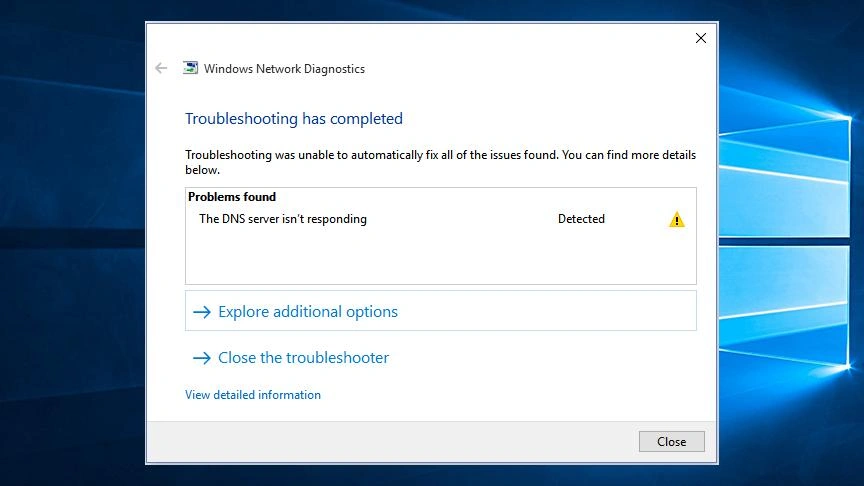
A DNS Server Not Responding error is one of the most common internet connectivity issues experienced by Windows users. This problem typically occurs when your computer cannot communicate with the DNS server responsible for translating website names into IP addresses. As a result, web pages fail to load, online applications may stop working, and internet access becomes unreliable even though your device appears to be connected to Wi-Fi or Ethernet.
The error can occur for a variety of reasons, including incorrect DNS settings, network configuration problems, outdated drivers, router issues, malware infections, or temporary outages from your Internet Service Provider (ISP). In some cases, the problem is minor and can be resolved with a simple restart, while other situations may require more advanced troubleshooting.
Fortunately, most DNS-related issues can be fixed without professional assistance. Windows includes several built-in networking tools that can help diagnose and repair DNS problems, and there are additional solutions that can restore normal internet connectivity within minutes.
If you are looking for reliable ways to Fix DNS Server Not Responding errors in Windows 10 and Windows 11, this comprehensive guide will walk you through the most effective troubleshooting methods. By following the step-by-step instructions below, you can identify the cause of the problem, restore access to websites and online services, and prevent the issue from occurring again in the future.
What Does DNS Server Not Responding Mean?
The Domain Name System (DNS) acts like the internet’s phone book. Instead of requiring users to remember numerical IP addresses, DNS automatically translates easy-to-read domain names such as google.com, youtube.com, or microsoft.com into the IP addresses that computers use to communicate with web servers.
Whenever you enter a website address into your browser, your computer sends a request to a DNS server. The DNS server then finds the correct IP address and directs your browser to the requested website.
A DNS Server Not Responding error occurs when your computer cannot receive a response from the DNS server. As a result, Windows is unable to translate website names into IP addresses, preventing webpages from loading properly.
When this issue occurs, you may experience symptoms such as:
- Websites fail to open in any browser.
- Error messages stating “DNS Server Not Responding.”
- Internet-connected applications stop working.
- Network troubleshooting reports DNS-related problems.
- Some websites become inaccessible while others work normally.
In many cases, the internet connection itself is still active. Your computer may remain connected to Wi-Fi or Ethernet, but without a functioning DNS service, it cannot locate the websites and online services you want to access.
Understanding how DNS works makes it easier to diagnose and Fix DNS Server Not Responding errors using the troubleshooting methods covered in this guide.
Common Causes of DNS Server Not Responding
Before applying troubleshooting methods, it is important to understand what can trigger a DNS Server Not Responding error. Identifying the underlying cause can help you choose the most effective solution and restore internet access more quickly.
Below are the most common reasons why this DNS issue occurs in Windows 10 and Windows 11.
Incorrect DNS Settings
Misconfigured DNS settings are one of the leading causes of DNS errors. If the preferred or alternate DNS server addresses are entered incorrectly, Windows may be unable to resolve website names and establish internet connections.
This often happens after manually changing network settings or installing network-related software.
Temporary Router or Modem Issues
Routers and modems manage communication between your devices and the internet. Temporary software glitches, memory overload, or connection interruptions within the networking equipment can prevent DNS requests from being processed correctly.
A simple restart often resolves these temporary issues.
Outdated Network Drivers
Network adapter drivers allow Windows to communicate with your hardware. When drivers become outdated, corrupted, or incompatible with recent Windows updates, network connectivity problems may occur, including DNS resolution failures.
Regular driver updates help maintain stable internet performance.
Corrupted Windows Network Configuration
Windows stores various network settings that control how your computer connects to the internet. Corrupted TCP/IP settings, damaged Winsock entries, or incorrect network configurations can interfere with DNS communication.
Resetting network components often resolves these problems.
Firewall or Antivirus Interference
Security software is designed to protect your system, but sometimes it can mistakenly block legitimate DNS requests. Overly restrictive firewall rules or antivirus network protection features may prevent your computer from contacting DNS servers.
Temporarily disabling security software can help determine whether it is causing the issue.
ISP DNS Server Outages
In some cases, the problem is not with your computer at all. Your Internet Service Provider (ISP) may be experiencing DNS server outages, maintenance periods, or technical difficulties.
When this occurs, switching to a public DNS service such as Google DNS or Cloudflare DNS can often restore connectivity immediately.
Malware or Unwanted Software Infections
Certain types of malware specifically target network settings and DNS configurations. These threats may redirect web traffic, block access to websites, or alter DNS server addresses without your knowledge.
Running regular malware scans helps protect your system from these issues.
VPN or Proxy Conflicts
VPN applications and proxy services modify how internet traffic is routed. If these services are misconfigured or encounter connection problems, they can interfere with DNS requests and generate DNS Server Not Responding errors.
Disabling the VPN or proxy temporarily can help identify whether it is responsible.
Browser Configuration Problems
Although less common, browser-related issues can sometimes appear as DNS errors. Corrupted browser cache files, outdated settings, or problematic extensions may affect website loading and create connectivity symptoms similar to DNS failures.
Testing another browser can help rule out browser-specific problems.
Network Congestion and Connectivity Issues
Heavy network traffic, unstable Wi-Fi connections, or weak wireless signals can interrupt communication with DNS servers. If DNS requests time out due to poor connectivity, Windows may display DNS-related error messages.
Improving signal strength or switching to a wired Ethernet connection can often help.
Understanding these common causes makes it easier to diagnose and Fix DNS Server Not Responding errors efficiently. Once you identify the likely source of the problem, you can apply the appropriate troubleshooting method and restore normal internet access.
Method 1: Restart Your Router and Computer
Temporary network glitches are often responsible for DNS failures.
Steps
- Shut down your computer.
- Turn off your router and modem.
- Wait at least 60 seconds.
- Power the router and modem back on.
- Restart your computer.
After reconnecting to the network, check whether the DNS issue has been resolved.
Method 2: Run the Windows Network Troubleshooter
Windows includes built-in tools designed to detect and repair networking problems.
Steps
- Open Settings.
- Navigate to System > Troubleshoot.
- Select Other troubleshooters.
- Find Network and Internet.
- Click Run.
Allow Windows to scan and apply any recommended fixes.
Method 3: Flush the DNS Cache
Corrupted DNS cache entries can prevent proper website resolution.
Steps
- Open Command Prompt as Administrator.
- Type the following command:
ipconfig /flushdns
- Press Enter.
You should see a message confirming that the DNS Resolver Cache was successfully flushed.
This is one of the quickest ways to Fix DNS Server Not Responding errors.
Method 4: Renew Your IP Configuration
Refreshing your IP settings can correct network communication issues.
Steps
Open Command Prompt as Administrator and run:
ipconfig /release
ipconfig /renew
Wait for the process to complete and test your internet connection again.
Method 5: Change DNS Server Addresses
Your Internet Service Provider’s DNS servers may be unavailable.
Using public DNS services often resolves the problem.
Google Public DNS
Preferred DNS:
8.8.8.8
Alternate DNS:
8.8.4.4
Cloudflare DNS
Preferred DNS:
1.1.1.1
Alternate DNS:
1.0.0.1
Steps
- Open Control Panel.
- Select Network and Internet.
- Open Network and Sharing Center.
- Click Change adapter settings.
- Right-click your active connection.
- Select Properties.
- Double-click Internet Protocol Version 4 (TCP/IPv4).
- Choose Use the following DNS server addresses.
- Enter your preferred DNS values.
- Click OK.
Changing DNS servers is often the most effective way to Fix DNS Server Not Responding problems.
Method 6: Disable VPN and Proxy Services
VPN applications and proxy configurations can sometimes interfere with DNS requests.
Disable Proxy
- Open Settings.
- Navigate to Network & Internet > Proxy.
- Turn off proxy settings.
Disable VPN
- Disconnect any active VPN.
- Restart your browser.
- Test your internet connection.
If connectivity returns, the VPN configuration may be responsible.
Method 7: Update Network Drivers
Outdated or corrupted drivers can cause DNS communication failures.
Steps
- Press Windows + X.
- Select Device Manager.
- Expand Network Adapters.
- Right-click your network device.
- Choose Update Driver.
- Select Search automatically for drivers.
Install available updates and restart your computer.
Method 8: Reset TCP/IP Settings
Corrupted TCP/IP configurations may prevent DNS requests from functioning correctly.
Steps
Open Command Prompt as Administrator and execute:
netsh int ip reset
netsh winsock reset
Restart the computer after running the commands.
Method 9: Temporarily Disable Antivirus and Firewall
Security software occasionally blocks legitimate DNS traffic.
Steps
- Disable third-party antivirus software temporarily.
- Turn off the firewall for testing.
- Check whether websites load normally.
If the issue disappears, review your security software settings before re-enabling protection.
Method 10: Scan for Malware
Some malware modifies DNS settings and redirects internet traffic.
Steps
- Open Windows Security.
- Select Virus & Threat Protection.
- Click Scan Options.
- Choose Full Scan.
- Start the scan.
Remove any detected threats and restart the computer.
Method 11: Reset Network Settings
A complete network reset can restore default configurations.
Steps
- Open Settings.
- Navigate to Network & Internet.
- Select Advanced Network Settings.
- Click Network Reset.
- Choose Reset Now.
Your computer will restart automatically after the process.
How to Prevent DNS Errors in the Future
After you successfully Fix DNS Server Not Responding issues, it is important to take preventive measures to avoid future connectivity problems. Maintaining a healthy network environment can significantly reduce the likelihood of DNS-related errors.
Keep Windows Updated
Microsoft regularly releases updates that improve network stability, security, and compatibility. Installing the latest Windows updates ensures your system has the newest networking fixes and performance improvements.
Update Network Drivers Regularly
Network adapter drivers play a critical role in internet connectivity. Outdated or corrupted drivers can cause communication failures between your computer and DNS servers. Check for driver updates through Device Manager or your hardware manufacturer’s website.
Use Reliable DNS Providers
Consider using trusted DNS services such as Google Public DNS or Cloudflare DNS. These providers offer fast, secure, and reliable name resolution, which can help prevent DNS Server Not Responding errors.
Popular options include:
- Google DNS: 8.8.8.8 and 8.8.4.4
- Cloudflare DNS: 1.1.1.1 and 1.0.0.1
Restart Networking Equipment Periodically
Routers and modems can develop temporary performance issues over time. Restarting your networking equipment every few weeks helps clear memory, refresh connections, and maintain optimal performance.
Avoid Installing Unknown Software
Some applications modify network settings, install unwanted browser extensions, or change DNS configurations without your knowledge. Only download software from reputable sources and review installation options carefully.
Scan for Malware Frequently
Malware can alter DNS settings, redirect web traffic, and disrupt internet access. Perform regular scans using Windows Security or a trusted antivirus solution to detect and remove threats before they affect your network.
Review VPN and Proxy Settings Carefully
VPNs and proxy services can sometimes create DNS conflicts or routing issues. If you use these tools, periodically verify that their settings are configured correctly and remove any services you no longer need.
Keep Router Firmware Updated
Router manufacturers frequently release firmware updates that improve security, fix bugs, and enhance network performance. Log in to your router’s administration panel occasionally and install available firmware updates.
Monitor Your Internet Connection
Pay attention to recurring connectivity issues, slow website loading, or intermittent DNS failures. Early detection allows you to address potential problems before they become more serious.
Backup Important Network Settings
If you use custom DNS servers or advanced networking configurations, keep a record of your settings. Having a backup makes it easier to restore a working configuration after troubleshooting or hardware replacement.
By following these best practices, you can reduce the risk of DNS Server Not Responding errors and maintain a faster, more reliable internet connection on Windows 10 and Windows 11.
Resources
Microsoft Network Troubleshooting Guide:
https://support.microsoft.com
Cloudflare DNS Information:
https://www.cloudflare.com
Google Public DNS:
https://developers.google.com/speed/public-dns
Conclusion
Knowing how to Fix DNS Server Not Responding errors in Windows 10 and Windows 11 can save significant troubleshooting time when internet connectivity suddenly stops working. In many cases, flushing the DNS cache, changing DNS servers, updating network drivers, or resetting network settings will restore access immediately.
By following the methods outlined in this guide and maintaining healthy network configurations, you can resolve DNS problems quickly and keep your Windows system connected reliably.