

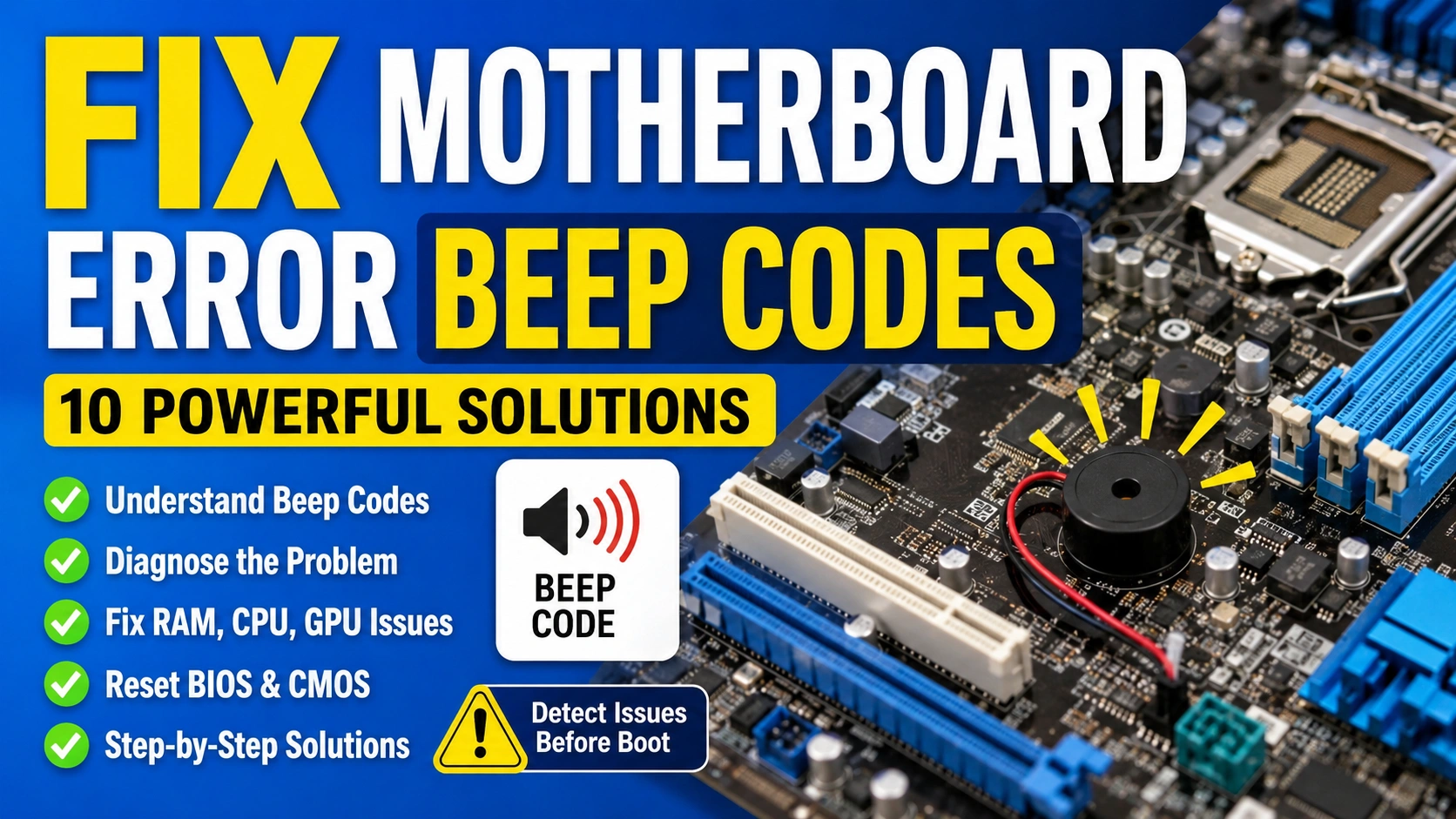
When a computer fails to boot properly, one of the most useful diagnostic tools is the motherboard’s built-in beep code system. These sounds are generated by the BIOS or UEFI firmware during startup and can help identify hardware failures before the operating system even loads.
Learning how to Fix Motherboard Error Beep Codes can save time, prevent unnecessary hardware replacements, and help you quickly locate the source of a startup problem. Whether the issue involves RAM, the graphics card, the processor, or another component, understanding beep codes is an essential troubleshooting skill.
In this guide, you will learn what motherboard beep codes mean and how to resolve the most common hardware-related startup errors.
What Are Motherboard Beep Codes?
Motherboard beep codes are diagnostic audio signals generated by a computer’s internal speaker during the Power-On Self-Test (POST) process. POST is a built-in startup procedure performed by the BIOS or UEFI firmware every time the computer is powered on. Its purpose is to verify that essential hardware components are functioning correctly before the operating system loads.
During the POST process, the system checks several critical components, including:
- Memory (RAM)
- Processor (CPU)
- Graphics Card (GPU)
- Motherboard Chipset
- Keyboard Controller
- Power Delivery Circuits
- Storage Controller Interfaces
If the BIOS detects a hardware fault or initialization problem, it may be unable to display an error message on the screen. Instead, it communicates the issue through a series of short and long beep sounds known as motherboard beep codes. Each beep pattern corresponds to a specific hardware problem, allowing users and technicians to identify the faulty component quickly.
For example, certain beep sequences may indicate memory failures, while others can point to graphics card errors, CPU issues, or motherboard-related faults. Since beep code meanings vary between BIOS manufacturers such as AMI, Award, and Phoenix, it is important to consult your motherboard documentation for accurate interpretation.
Understanding these diagnostic signals is the first and most important step to Fix Motherboard Error Beep Codes, helping you troubleshoot startup issues efficiently and restore normal system operation.
Common Motherboard Beep Code Meanings
Different BIOS manufacturers use different beep patterns.
AMI BIOS Beep Codes
| Beep Pattern | Meaning |
|---|---|
| 1 Beep | Memory refresh failure |
| 2 Beeps | Memory parity error |
| 3 Beeps | Base memory failure |
| 5 Beeps | CPU error |
| 8 Beeps | Display memory error |
Award BIOS Beep Codes
| Beep Pattern | Meaning |
|---|---|
| 1 Long Beep | Memory issue |
| 1 Long + 2 Short | Graphics card error |
| Continuous Beeps | RAM not detected |
| Repeating High-Low | CPU overheating |
Phoenix BIOS Beep Codes
Phoenix BIOS typically uses sequences such as:
- 1-1-3
- 1-3-1
- 1-4-2
Refer to your motherboard manual for exact interpretations.
Solution 1: Reseat the RAM Modules
Memory problems are among the most common reasons for beep code errors.
To fix RAM-related issues:
- Turn off the PC.
- Disconnect power.
- Remove RAM modules.
- Clean contacts carefully.
- Reinstall modules securely.
- Test one module at a time.
Many users successfully Fix Motherboard Error Beep Codes by simply reseating faulty or loose memory sticks.
Solution 2: Test RAM Slots Individually
A defective RAM slot can generate startup beep codes even when the memory modules are working correctly.
Try:
- Installing one RAM stick at a time.
- Testing each motherboard slot.
- Identifying damaged slots.
This method helps isolate the exact source of memory-related POST failures.
Solution 3: Check the Graphics Card
Graphics card issues commonly trigger beep sequences.
Inspect the GPU for:
- Improper seating
- Loose PCIe connections
- Damaged power cables
- Physical damage
Remove and reinstall the card carefully. If possible, test with another GPU to determine whether the original card has failed.
Solution 4: Verify CPU Installation
CPU-related beep codes often indicate installation or compatibility issues.
Check:
- Bent CPU pins
- Improper cooler mounting
- Thermal paste application
- CPU socket debris
A correctly installed processor can often Fix Motherboard Error Beep Codes associated with processor detection failures.
Solution 5: Inspect Power Supply Connections
Insufficient power delivery can trigger hardware initialization errors.
Verify:
- 24-pin motherboard connector
- 8-pin CPU connector
- PCIe power cables
- SATA power connections
Loose cables frequently cause startup problems that appear as hardware failures.
Solution 6: Reset the CMOS
Corrupted BIOS settings may generate false beep code errors.
To reset CMOS:
- Power off the system.
- Remove the CMOS battery.
- Wait five minutes.
- Reinstall the battery.
- Restart the PC.
Alternatively, use the motherboard’s Clear CMOS jumper.
Resetting BIOS settings often helps Fix Motherboard Error Beep Codes caused by configuration issues.
Solution 7: Disconnect Non-Essential Hardware
Peripheral devices can interfere with POST.
Temporarily disconnect:
- USB devices
- Additional storage drives
- Expansion cards
- Printers and accessories
Boot with only essential components connected.
This approach simplifies diagnosis and helps identify problematic hardware.
Solution 8: Update the BIOS
An outdated BIOS may struggle with newer processors, memory kits, or graphics cards.
Visit your motherboard manufacturer’s support page and install the latest stable BIOS version.
Always follow official update instructions carefully to avoid firmware corruption.
Solution 9: Check for Overheating Problems
Some beep codes indicate thermal issues.
Inspect:
- CPU cooler operation
- Fan functionality
- Dust buildup
- Airflow restrictions
Overheating can prevent successful POST and trigger warning beeps during startup.
Solution 10: Consult the Motherboard Manual
Each motherboard manufacturer implements beep codes differently.
The official manual provides:
- Exact beep code definitions
- Diagnostic procedures
- Compatibility information
- Hardware troubleshooting steps
Using the correct documentation is one of the fastest ways to Fix Motherboard Error Beep Codes accurately.
Preventing Future Motherboard Beep Code Errors
Preventing motherboard beep code errors is much easier than troubleshooting them after they occur. Regular maintenance and proper hardware practices can significantly reduce the risk of startup failures and hardware detection issues.
Clean Your PC Regularly
Dust accumulation can block airflow, increase component temperatures, and interfere with electrical connections. Clean your computer every few months using compressed air to remove dust from fans, heatsinks, RAM slots, and other internal components.
Keep BIOS Firmware Updated
Motherboard manufacturers frequently release BIOS updates that improve hardware compatibility, system stability, and bug fixes. Installing the latest stable BIOS version can help prevent POST errors and component detection problems.
Use a High-Quality Power Supply
A reliable power supply unit (PSU) provides stable voltage to all system components. Low-quality or failing power supplies can cause boot failures, random shutdowns, and motherboard beep code errors. Choose a PSU from a reputable manufacturer with sufficient wattage for your system.
Avoid Static Discharge During Upgrades
Electrostatic discharge (ESD) can damage sensitive computer components. Before handling hardware, ground yourself by touching a metal surface or using an anti-static wrist strap. Proper handling helps protect the motherboard, RAM, CPU, and expansion cards from electrical damage.
Monitor Component Temperatures
Excessive heat can lead to hardware instability and startup problems. Use system monitoring software to check CPU, GPU, and motherboard temperatures regularly. Ensure cooling fans are functioning properly and replace thermal paste when necessary.
Install Compatible Hardware
Always verify compatibility before upgrading system components. Incompatible RAM, processors, or expansion cards can trigger POST failures and motherboard beep codes. Check the motherboard manufacturer’s compatibility list to ensure supported hardware is installed.
Inspect Connections Periodically
Loose cables and improperly seated components are common causes of startup issues. Periodically check power connectors, RAM modules, graphics cards, and storage devices to ensure everything is securely connected.
Final Thoughts
Consistent preventive maintenance is the best way to avoid motherboard beep code errors. By keeping your system clean, monitoring temperatures, updating firmware, using reliable power components, and installing compatible hardware, you can greatly reduce the chances of hardware detection failures and ensure long-term PC stability.
Frequently Asked Questions
Why is my motherboard continuously beeping?
Continuous beeping usually indicates a RAM problem, power issue, or overheating condition depending on the BIOS manufacturer.
Can a dead CMOS battery cause beep codes?
Yes. A failing CMOS battery can lead to BIOS configuration issues that may trigger startup errors.
Do all motherboards use the same beep codes?
No. Beep code meanings vary between AMI, Award, Phoenix, and UEFI-based systems.
Can bad RAM cause a computer not to display anything?
Yes. Faulty RAM often prevents the system from completing POST, resulting in beep codes and a blank screen.
Should I update BIOS to fix beep code problems?
In some cases, yes. BIOS updates can improve hardware compatibility and resolve startup detection issues.
Conclusion
Knowing how to Fix Motherboard Error Beep Codes is an essential skill for diagnosing PC startup failures. Beep codes provide valuable information about hardware issues involving RAM, the CPU, graphics cards, power delivery, and BIOS settings. By systematically checking each component, reseating hardware, resetting CMOS settings, and consulting your motherboard documentation, you can identify the root cause of most POST errors and restore your computer to normal operation without unnecessary repairs.