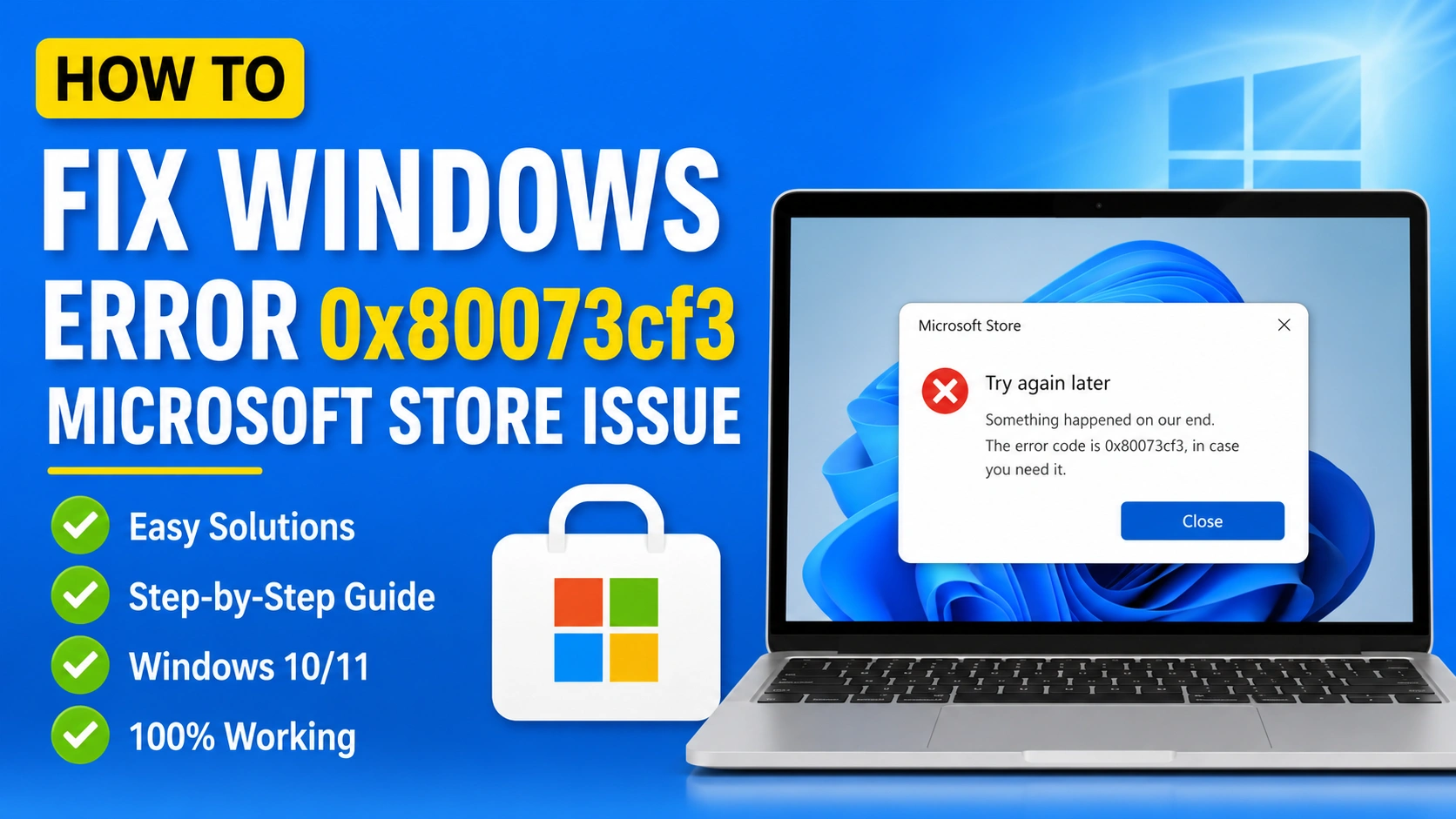
Windows Error 0x80073cf3 is a common Microsoft Store issue that can occur when installing, updating, or reinstalling apps on Windows 10 and Windows 11. This error usually indicates that a required app dependency is missing, corrupted, or conflicts with an existing package on the system. As a result, Microsoft Store may be unable to complete the installation process successfully.
Users experiencing Error 0x80073cf3 often find that app downloads fail unexpectedly or that updates become stuck before completion. In some cases, Microsoft Store may display a message stating that package dependencies are missing or that the application cannot be installed because of a conflict with another package.
Fortunately, this problem can usually be resolved through a series of troubleshooting steps, including clearing the Microsoft Store cache, repairing system files, updating Windows, and resetting Store components. This guide explains the most effective methods to fix Windows Error 0x80073cf3 and restore normal Microsoft Store functionality.
If you are searching for ways to Fix Windows Error 0x80073cf3 Microsoft Store Issue, this guide provides several effective solutions that work on both Windows 10 and Windows 11.
What Causes Windows Error 0x80073cf3?
Windows Error 0x80073cf3 typically occurs when Microsoft Store cannot properly install, update, or verify an application. The error is often related to missing app dependencies, corrupted Store data, or damaged Windows components that prevent apps from installing correctly.
Below are the most common causes of this issue:
Corrupted Microsoft Store Cache
Microsoft Store stores temporary files to improve performance. If these cache files become corrupted, the Store may fail to download or update apps, triggering Error 0x80073cf3.
Missing or Damaged Application Dependencies
Many Microsoft Store apps rely on additional components and frameworks to function. If a required dependency is missing, outdated, or corrupted, the installation process may fail.
Incomplete Windows Updates
Windows updates often include important fixes and components required by Microsoft Store. An interrupted or incomplete update can create compatibility problems and lead to installation errors.
Corrupted System Files
Damaged Windows system files can interfere with Store services and app deployment processes. Corruption may occur due to unexpected shutdowns, malware infections, or failed updates.
Incorrect App Installation Records
If previous installation data becomes corrupted or remains partially stored after an unsuccessful uninstall, Microsoft Store may detect a conflict when attempting to install or update the app again.
Microsoft Store Synchronization Problems
Synchronization issues between Microsoft Store and your Microsoft account can sometimes prevent app licenses, purchases, or updates from being verified correctly.
Damaged User Profile Settings
In some cases, a corrupted Windows user profile can affect Microsoft Store functionality. This may prevent applications from installing properly or cause repeated Store errors.
Insufficient Disk Space
Microsoft Store requires available storage space to download, extract, and install applications. Low disk space can interrupt the installation process and generate Error 0x80073cf3.
Third-Party Security Software Interference
Certain antivirus or security programs may mistakenly block Microsoft Store processes, preventing app installations and updates from completing successfully.
Understanding the underlying cause of Windows Error 0x80073cf3 can help you choose the most effective troubleshooting method and resolve the Microsoft Store issue more quickly.
- Microsoft Store Support: https://support.microsoft.com
- Windows Troubleshooting Guide: https://learn.microsoft.com/windows/
Method 1: Restart Your Computer
A simple restart can resolve temporary Microsoft Store glitches.
Steps:
- Save all open work.
- Click the Start menu.
- Select Power.
- Click Restart.
- Open Microsoft Store after rebooting.
- Try installing the application again.
If the error remains, continue with the next solution.
Method 2: Run the Windows Store Apps Troubleshooter
Windows includes a built-in tool that can automatically detect and repair Microsoft Store issues.
Steps:
- Open Settings.
- Navigate to System > Troubleshoot.
- Select Other troubleshooters.
- Locate Windows Store Apps.
- Click Run.
- Follow the on-screen instructions.
After the troubleshooting process finishes, test the Store again.
Method 3: Clear Microsoft Store Cache
Corrupted cache files are one of the most common reasons behind Error 0x80073cf3.
Steps:
- Press Windows + R.
- Type:
wsreset.exe
- Press Enter.
- Wait for the process to complete.
- Microsoft Store will reopen automatically.
Try downloading or updating the application again.
Method 4: Update Windows
Outdated Windows components can create compatibility problems with Microsoft Store applications.
Steps:
- Open Settings.
- Select Windows Update.
- Click Check for updates.
- Install all available updates.
- Restart the computer.
Keeping Windows fully updated often resolves Store-related errors.
Method 5: Reinstall the Problematic Application
The application itself may contain corrupted installation data.
Steps:
- Open Settings.
- Go to Apps > Installed Apps.
- Locate the affected application.
- Click Uninstall.
- Restart your PC.
- Open Microsoft Store.
- Install the application again.
This process refreshes the application’s package files and dependencies.
Method 6: Re-register Microsoft Store
Re-registering Microsoft Store can repair damaged Store components.
Steps:
- Right-click the Start button.
- Select Windows Terminal (Admin) or PowerShell (Admin).
- Enter the following command:
Get-AppxPackage -allusers Microsoft.WindowsStore | Foreach {
Add-AppxPackage -DisableDevelopmentMode -Register "$($_.InstallLocation)\AppxManifest.xml"
}
- Press Enter.
- Wait for the process to finish.
- Restart the computer.
Open Microsoft Store and check whether the error has been resolved.
Method 7: Repair Corrupted System Files
Damaged Windows system files can interfere with Store services.
Run System File Checker
Open Command Prompt as Administrator and execute:
sfc /scannow
Wait for the scan to complete.
Run DISM
If SFC finds issues, run:
DISM /Online /Cleanup-Image /RestoreHealth
After completion, restart the computer.
These tools repair Windows components that may be causing Error 0x80073cf3.
Method 8: Reset Microsoft Store
Resetting the Store restores default settings without affecting your Windows installation.
Steps:
- Open Settings.
- Go to Apps > Installed Apps.
- Locate Microsoft Store.
- Click Advanced Options.
- Select Reset.
- Confirm the action.
Launch Microsoft Store again after the reset process finishes.
Method 9: Create a New User Account
Profile corruption can occasionally trigger Microsoft Store errors.
Steps:
- Open Settings.
- Navigate to Accounts > Other Users.
- Click Add Account.
- Create a new local account.
- Sign into the new account.
- Test Microsoft Store.
If the Store works correctly, the original profile may be damaged.
Method 10: Check Microsoft Store Dependency Packages
Error 0x80073cf3 frequently appears when required packages are missing.
Common dependencies include:
- Microsoft Visual C++ Runtime
- Microsoft .NET Framework
- Microsoft UI XAML packages
- Xbox services components
Install pending updates from Microsoft Store and Windows Update to ensure all dependencies are present.
Additional Tips to Prevent Error 0x80073cf3
To reduce the chances of encountering this issue again:
- Keep Windows updated regularly.
- Avoid interrupting app installations.
- Periodically clear Microsoft Store cache.
- Install apps only from trusted sources.
- Run system maintenance scans regularly.
- Ensure sufficient disk space is available.
Conclusion
Knowing how to Fix Windows Error 0x80073cf3 Microsoft Store Issue can help restore normal app downloads, updates, and installations. In most cases, clearing the Microsoft Store cache, running the Store troubleshooter, re-registering Microsoft Store, or repairing system files resolves the problem quickly.
If the error persists after trying all methods, consider performing an in-place Windows repair upgrade to restore damaged operating system components while keeping your personal files intact.