

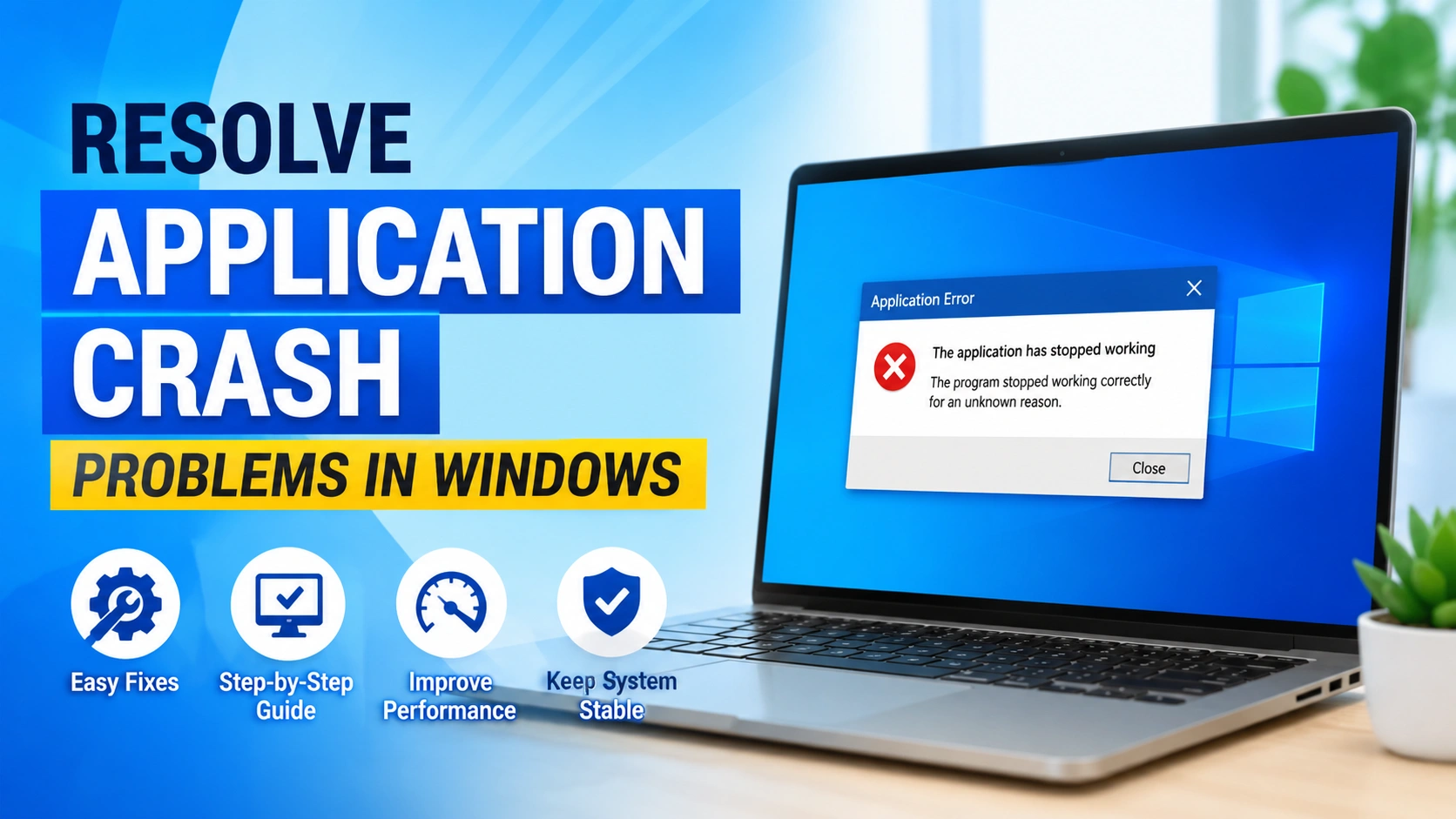
Application crashes are among the most frustrating issues Windows users encounter. Programs may suddenly close, freeze, stop responding, or display error messages without warning. Fortunately, there are several effective methods to resolve application crash problems in Windows and restore software stability.
This guide explains the most common causes of application crashes and provides step-by-step solutions for fixing them in Windows 10 and Windows 11.
Application crashes are sometimes caused by damaged system files. If Windows itself is experiencing errors, you may also want to read our guide on Fix Windows Error 0x80004005 for additional troubleshooting techniques. This related tutorial covers common Windows corruption issues that can affect application stability and overall system performance.
Application crashes are sometimes caused by damaged system files. If Windows itself is experiencing errors, you may also want to read our guide on Fix Windows Error 0x80004005 for additional troubleshooting techniques. This related tutorial covers common Windows corruption issues that can affect application stability and overall system performance.
What Causes Application Crashes Problems in Windows?
Application crashes in Windows usually happen when a program stops working unexpectedly due to system, software, or hardware-related issues. Understanding the root causes helps in applying the right fix.
1. Corrupted System or Application Files
Damaged or missing program files can prevent applications from running properly and cause sudden crashes.
2. Outdated Software
Older versions of applications may not be compatible with the latest Windows updates, leading to instability.
3. Driver Issues
Faulty or outdated drivers—especially graphics, audio, chipset, or storage drivers—can trigger crashes during program execution.
4. Insufficient System Resources
Low RAM, CPU overload, or limited storage space can cause applications to freeze or close unexpectedly.
5. Malware or Virus Infection
Malicious software can interfere with system processes and disrupt normal application behavior.
6. Windows Compatibility Issues
Some applications are not fully compatible with certain Windows versions or updates, causing repeated crashes.
7. Conflicting Background Programs
Other running software (especially antivirus or optimization tools) may conflict with the application.
8. Hardware Problems
Failing RAM, overheating, or unstable storage devices can also lead to frequent application crashes.
For example, corrupted system files and software compatibility issues are common causes of application instability, according to Microsoft Support. Malware infections can also interfere with application performance and cause unexpected crashes, as explained in Microsoft Security Documentation.
Applications that depend on runtime components such as the Microsoft Visual C++ Redistributable Packages may also fail when required libraries are missing or damaged.
Identifying the root cause makes it easier to resolve application crash problems in Windows successfully.
Method 1: Restart Your Computer
A simple restart can clear temporary errors affecting applications.
Steps:
- Save any open work.
- Click the Start menu.
- Select Power.
- Choose Restart.
- Wait for Windows to reboot.
- Launch the application again.
If the software still crashes, continue with the next solution.
Method 2: Update the Application
Developers regularly release updates that fix bugs and compatibility issues.
Steps:
- Open the affected application.
- Check the Help or Settings menu.
- Look for an Update option.
- Install available updates.
- Restart the application.
Updating software is one of the fastest ways to resolve application crash problems in Windows.
Method 3: Run the Program as Administrator
Some applications require elevated permissions to operate correctly.
Steps:
- Locate the application shortcut.
- Right-click the icon.
- Select Run as administrator.
- Confirm the User Account Control prompt.
- Test whether the crash persists.
Method 4: Install Windows Updates
Windows updates often contain important compatibility and stability fixes.
Steps:
- Open Settings.
- Select Windows Update.
- Click Check for updates.
- Install all available updates.
- Restart your computer.
Keeping Windows current helps resolve application crash problems in Windows caused by system-level bugs.
Method 5: Repair Corrupted System Files
Damaged system files can cause applications to malfunction unexpectedly.
Using System File Checker:
- Open Command Prompt as Administrator.
- Enter:
sfc /scannow
- Press Enter.
- Wait for the scan to complete.
- Restart the computer.
Using DISM:
If SFC cannot fix all issues:
DISM /Online /Cleanup-Image /RestoreHealth
Restart the system after the repair process finishes.
Method 6: Update Device Drivers
Outdated drivers frequently trigger software instability.
Steps:
- Press Windows + X.
- Select Device Manager.
- Expand hardware categories.
- Right-click devices.
- Select Update driver.
- Follow the prompts.
Pay particular attention to graphics, audio, chipset, and storage drivers.
Hardware conflicts are another common cause of software instability. Read our guide on Solve Hardware Compatibility Issues.
Method 7: Reinstall the Application
Corrupted installation files can lead to recurring crashes.
Steps:
- Open Settings.
- Select Apps.
- Locate the affected program.
- Click Uninstall.
- Restart Windows.
- Download the latest version from the official website.
- Install the application again.
A clean installation can often resolve application crash problems in Windows permanently.
Method 8: Check Compatibility Settings
Older applications may not function properly on modern versions of Windows.
Steps:
- Right-click the application executable.
- Select Properties.
- Open the Compatibility tab.
- Enable Run this program in compatibility mode.
- Choose an older Windows version.
- Click Apply and OK.
Test the application afterward.
Method 9: Scan for Malware
Malicious software can interfere with normal application behavior.
Steps:
- Open Windows Security.
- Select Virus & Threat Protection.
- Click Quick Scan.
- Run a Full Scan if necessary.
- Remove any detected threats.
Performing malware scans helps maintain overall system stability.
Method 10: Check Event Viewer for Crash Details
Windows records detailed information about application failures.
Steps:
- Press Windows + X.
- Select Event Viewer.
- Navigate to:
Windows Logs > Application
- Look for Error entries matching the crash time.
- Review the faulting module and application details.
This information can help identify the exact source of the problem.
Prevent Future Application Crashes
To reduce the risk of application crashes in Windows, it is important to maintain a stable and well-optimized system.
Best practices to prevent crashes:
- Keep Windows updated to ensure system compatibility
- Install software only from trusted and verified sources
- Update drivers regularly, especially graphics and chipset drivers
- Maintain sufficient free disk space for system operations
- Use reliable antivirus protection to prevent malware-related issues
- Avoid running too many applications simultaneously
- Remove unused or unnecessary programs
- Create regular system restore points for recovery options
These practices help reduce application crashes in Windows and improve overall system stability, performance, and long-term reliability.
Conclusion
Application crashes can occur due to corrupted files, outdated software, driver conflicts, malware, or Windows compatibility issues. By following the methods outlined above, you can effectively resolve application crash problems in Windows and restore normal software operation.
Start with basic solutions such as restarting the computer and updating the application. If the issue continues, proceed with system file repairs, driver updates, compatibility settings, and application reinstallation. In most cases, these troubleshooting techniques successfully eliminate recurring crashes and improve overall Windows stability.