

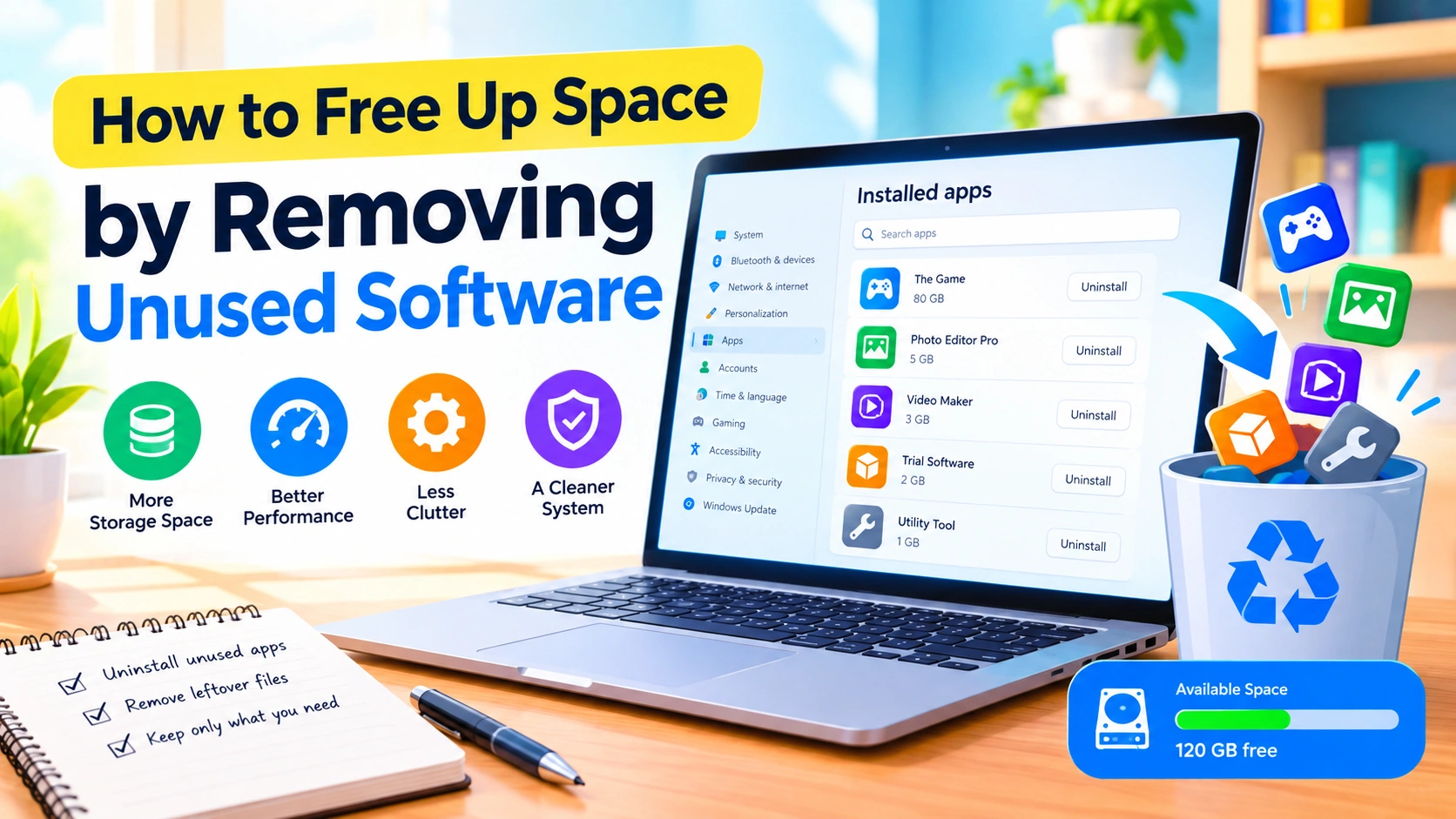
Running out of storage space can make everyday computer tasks frustrating. A crowded drive can leave less room for Windows updates, temporary files, personal documents, and new applications. One of the easiest ways to recover storage is to remove software you no longer use.
Over time, computers often accumulate old games, trial programs, duplicate utilities, outdated applications, and software installed for a one-time task. Uninstalling these programs can reclaim valuable disk space while also making your system easier to manage.
In this guide, you’ll learn how to Removing unused software, uninstall it safely, remove leftover files, and prevent unnecessary applications from filling your storage again.
Why Unused Software Takes Up Space
Applications can consume much more storage than their main executable files suggest. A program may also create:
- Installation files
- Cached data
- Temporary files
- Downloaded updates
- User profiles
- Saved game data
- Configuration files
- Crash reports
- Supporting components
Large games and creative applications can occupy tens or even hundreds of gigabytes. Removing just a few unused programs can therefore make a noticeable difference.
Uninstalling unnecessary software can also reduce clutter and make it easier to find the applications you actually use.
Check How Much Storage You Have
Before removing anything, check which drive is running low on space.
In Windows, open Settings > System > Storage. Windows displays an overview of how storage is being used, including applications, temporary files, documents, pictures, and other categories.
This information can help you decide whether uninstalling software is likely to make a significant difference.
If applications are using a large portion of your drive, reviewing installed programs should be one of your first cleanup steps.
Find Applications You No Longer Use
A good starting point is your installed-apps list.
In Windows 11, open:
Settings > Apps > Installed apps
You’ll see a list of applications installed on your computer. You can usually sort the list by size, making it easier to identify large programs.
Look for software that you:
- Haven’t opened in months
- Installed for a temporary project
- No longer need
- Have replaced with another application
- Downloaded as a trial
- Installed accidentally
- No longer use because you changed services or devices
Pay particular attention to large games, video editors, design applications, virtual machines, and development tools.
Uninstall Unused Programs in Windows
Once you’ve identified an application you don’t need, uninstalling it is usually straightforward.
Step 1: Open Installed Apps
Go to Settings > Apps > Installed apps.
Step 2: Find the Program
Scroll through the list or use the search box to locate the application.
Step 3: Open the Menu
Select the three-dot menu next to the application.
Step 4: Choose Uninstall
Select Uninstall and follow the instructions provided by the program.
Some applications open their own uninstall wizard. Follow its instructions carefully rather than simply deleting the program’s folder.
This guide explains how to remove unused programs in Windows and what to check before deleting software.
Don’t Delete Program Folders Manually
A common mistake is to open Program Files or Program Files (x86) and delete application folders manually.
This may remove some files, but it does not properly uninstall the software. Windows may still contain registry entries, services, shortcuts, or other components associated with the application.
Whenever possible, use the application’s built-in uninstaller or Windows’ Uninstall option.
Manual deletion should generally be reserved for specific troubleshooting situations where you know exactly which files can safely be removed.
Check for Large Games
Games are often among the biggest applications on a PC.
If you have games installed through platforms such as Steam, Epic Games Store, or Xbox, check those libraries for titles you no longer play.
Uninstalling a game you haven’t touched in months can potentially recover many gigabytes of storage.
If you might play the game again later, consider whether uninstalling it is worthwhile. Some platforms allow you to reinstall purchased games without buying them again.
Remove Old Trial Software
Trial versions of software are another common source of unnecessary storage usage.
You might have installed a photo editor, PDF application, security utility, system optimizer, or productivity program to test it once and then never used it again.
If you’re no longer using the application, uninstalling it can recover storage and reduce the number of programs competing for your attention.
Be especially cautious with programs that claim to clean, accelerate, or repair your computer. Don’t keep software simply because it promises benefits you don’t actually need.
Check Applications Installed by Manufacturers
New computers sometimes include manufacturer utilities and promotional applications.
Some may be useful, while others may be unnecessary for your particular setup.
Before removing manufacturer software, research what the program does. Avoid uninstalling drivers, hardware support components, firmware utilities, or applications required for special keyboard, audio, display, or device features unless you know they are unnecessary.
When you’re unsure about a program, search for its official documentation before uninstalling it.
Remove Software You No Longer Need for Work or School
Projects often require temporary software.
For example, you might install:
- Programming environments
- Database tools
- Design applications
- Research utilities
- Exam software
- Remote-access tools
- File-conversion programs
After a project ends, these applications can remain installed indefinitely.
Review your software every few months and remove tools that are no longer part of your current workflow.
Clean Up Leftover Files Carefully
Uninstalling an application does not always remove every file it created.
Some programs leave behind folders containing settings, caches, saved files, logs, or other data.
Windows also provides built-in storage-management features that can help remove unnecessary temporary files.
Open Settings > System > Storage > Temporary files and review the categories carefully before deleting them.
Avoid blindly deleting folders you don’t recognize. If a leftover folder contains important documents, saved projects, or personal data, removing it could cause data loss.
Check Your Downloads Folder
Removing unused applications is only part of a storage cleanup.
Your Downloads folder may contain old installers, ZIP archives, setup files, PDFs, images, and other files you no longer need.
After uninstalling software, look for installation files associated with programs you have removed. For example, an old .exe installer may no longer serve a purpose.
However, don’t delete installers simply because they are old. Keep files you may need for future installations, licenses, recovery, or offline use.
Review Software Before Deleting It
Not every unfamiliar application is safe to remove.
Before uninstalling a program, consider:
- Do I use it?
- What does it do?
- Is it required by another application?
- Is it related to my hardware?
- Does Windows or another program depend on it?
- Can I reinstall it later if necessary?
If you cannot identify an application, research its exact name and publisher before removing it.
This is particularly important for drivers, runtime components, security software, and hardware utilities.
Use Storage Size to Prioritize Cleanup
If your main goal is to recover as much space as possible, sort installed applications by size.
For example, you may discover that:
- A rarely used game takes 80 GB
- An old video editor takes 15 GB
- Several unused utilities take 2 GB each
Removing one large application may free more space than uninstalling dozens of tiny programs.
Start with software that consumes significant storage and that you’re confident you no longer need.
Restart Your Computer After Major Cleanup
After uninstalling several large programs, restarting Windows can be useful.
A restart allows Windows and other applications to release files that may have been in use. It can also help refresh storage information.
After restarting, return to Settings > System > Storage to see how much space you’ve recovered.
What Not to Uninstall
Be cautious with essential Windows components and hardware-related software.
Avoid removing programs simply because you don’t recognize their names. Components associated with graphics drivers, audio hardware, networking, system runtimes, security tools, and device management may be necessary even if you rarely interact with them directly.
When in doubt, identify the publisher and purpose first.
How to Prevent Software From Building Up Again
Once you’ve cleaned your PC, a few habits can help keep storage under control.
Review Installed Apps Regularly
Check your installed applications every few months. A quick review can prevent unused programs from accumulating.
Install Software Only When Necessary
Before downloading a new application, consider whether you already have a program that performs the same task.
Remove Temporary Tools
If you install software for a one-time project, add it to your cleanup list when the project ends.
Monitor Large Applications
Keep an eye on games, creative tools, virtual machines, and development environments because they can grow quickly.
Keep Personal Files Organized
Separate important documents and media from application data so you can identify what is safe to remove.
Final Thoughts
Removing unused software is one of the simplest ways to free up storage on a Windows PC. Start by checking your storage usage, sort installed applications by size, and uninstall programs you no longer need using Windows’ normal uninstall tools.
Remember that the goal isn’t to remove as many applications as possible. The goal is to safely eliminate software that provides no current value while keeping essential Windows components, drivers, and applications you still rely on.
A regular software cleanup can give you more available storage, reduce digital clutter, and make your computer easier to manage.