

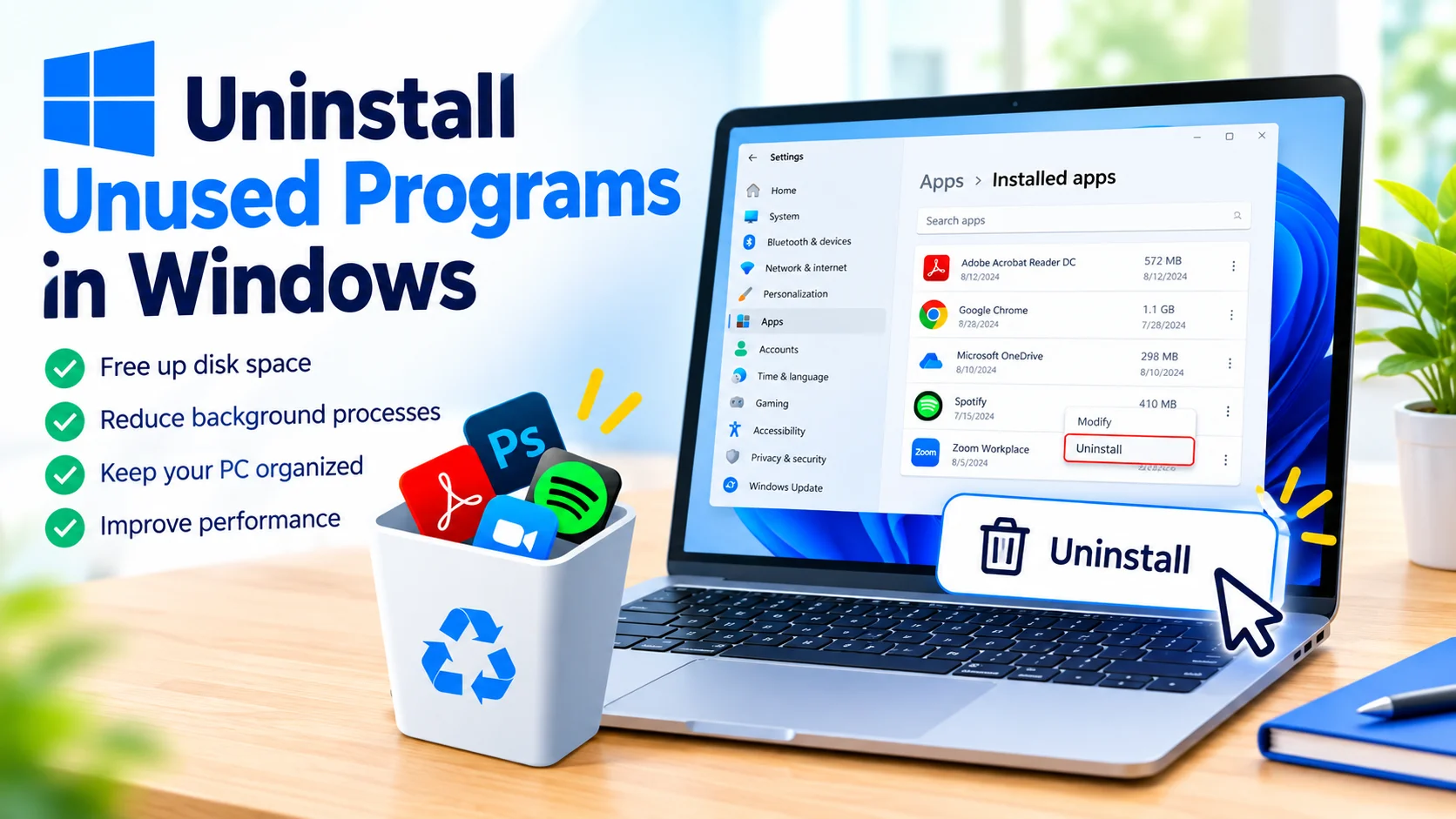
Unused programs can quietly take up valuable storage space, add unnecessary background processes, and make your Windows PC harder to manage. Removing software you no longer need is a simple maintenance task that can help keep your system organized and free up disk space.
Windows provides several ways to uninstall applications safely, including the Settings app, Control Panel, and built-in uninstallers. This guide explains how to remove unused programs in Windows and what to check before deleting software.
Why Uninstall Unused Programs?
Keeping applications you no longer use may not cause an immediate problem, but removing unnecessary software has several benefits:
- Free up storage space: Large applications and games can consume significant disk space.
- Reduce background activity: Some programs automatically run services or processes when Windows starts.
- Improve system organization: Removing unused applications makes it easier to find software you actually need.
- Reduce unnecessary startup items: Some applications add themselves to Windows startup.
- Lower potential security risks: Old software that is no longer maintained may contain unpatched vulnerabilities.
Uninstalling programs does not guarantee a major performance improvement, especially on modern PCs, but it can be useful as part of regular Windows maintenance.
Check the Program Before Uninstalling It
Before removing an application, make sure you no longer need it. Some programs are required by Windows, hardware manufacturers, or other applications.
Check the following:
- Identify what the program does.
- Confirm that you do not use it.
- Check whether another application depends on it.
- Back up important files associated with the program.
- Make sure you have access to the installation files or license information if you may need the software again.
Avoid uninstalling unfamiliar system components simply because their names look unnecessary.
Uninstall Programs Through Windows Settings
The Windows Settings app is one of the easiest ways to remove applications.
Windows 11
- Press Windows + I to open Settings.
- Select Apps.
- Choose Installed apps.
- Find the application you want to remove.
- Select the three-dot menu next to the application.
- Click Uninstall.
- Follow the instructions provided by the application’s uninstaller.
For large applications, the process may take several minutes.
Windows 10
On Windows 10, the process is slightly different:
- Open Settings.
- Select Apps.
- Click Apps & features.
- Locate the program you want to remove.
- Select it and click Uninstall.
- Follow the application’s removal instructions.
The exact options can vary depending on the type of application installed.
Uninstall Programs Using Control Panel
Some traditional desktop applications may still use the classic Windows uninstall system.
To remove one:
- Open Control Panel.
- Select Programs.
- Click Programs and Features.
- Find the application in the list.
- Select it.
- Click Uninstall or Uninstall/Change.
- Complete the application’s uninstall wizard.
Control Panel can be particularly useful when an older desktop program does not appear in the Windows Settings application list.
In this guide, you’ll learn how to uninstall programs using Control Panel, what to do when an application refuses to uninstall, and how to avoid removing software that Windows needs.
Use the Program’s Built-In Uninstaller
Some applications include their own uninstall utility.
Look for an Uninstall option in the program’s Start menu folder or installation directory. Running the official uninstaller can help remove application files, settings, and related components correctly.
This method can be useful for software that does not uninstall normally through Windows Settings.
What to Do If a Program Will Not Uninstall
Occasionally, Windows may display an error when you attempt to remove an application.
Try these steps:
Restart Windows
A program may still be running in the background. Restart your PC and try uninstalling it again.
Close the Application
Make sure the program and any related windows are closed before starting the uninstall process.
Try Control Panel
If uninstalling through Settings fails, open Control Panel > Programs and Features and try removing the application from there.
Use the Software Manufacturer’s Removal Tool
Some applications provide dedicated cleanup or removal utilities. If the normal uninstall process fails, check the software manufacturer’s official support documentation for an appropriate tool.
Remove Programs You No Longer Use
A good way to clean up Windows is to review your installed applications periodically.
Look for:
- Programs you have not opened in months
- Old trial software
- Applications installed for temporary projects
- Games you no longer play
- Duplicate utilities
- Outdated tools that have been replaced
- Manufacturer software you do not need
Do not remove applications simply because they are unfamiliar. Search for their purpose first if you are unsure.
Be Careful With System and Driver Software
Some installed applications are connected to your computer’s hardware or Windows functionality.
Be cautious when removing software with names related to:
- Graphics drivers
- Audio drivers
- Chipset components
- Network adapters
- Touchpads
- Bluetooth
- Security software
- Microsoft system components
If you are unsure what a program does, identify it before uninstalling it. Removing the wrong driver or system component can cause hardware or software problems.
Does Uninstalling Programs Improve Windows Performance?
Uninstalling unused applications can free storage and reduce unnecessary background activity, but the performance impact depends on the programs involved.
Removing a large application that runs multiple background services may make a noticeable difference. Removing a small application that never runs in the background may have little effect on performance.
For better overall Windows performance, combine application cleanup with other maintenance tasks such as managing startup applications, installing updates, maintaining sufficient free disk space, and keeping security software up to date.
What Happens After Uninstalling a Program?
Most uninstallers remove the main application and associated files. However, some programs may leave behind configuration files, folders, logs, or other data.
You generally do not need to manually remove every leftover file. Deleting registry entries or system folders without knowing their purpose can create additional problems.
If an application stores important documents or personal data, check where those files are saved before uninstalling it.
Frequently Asked Questions
Does uninstalling a program delete my personal files?
Not necessarily. An uninstaller may remove application-related data, but personal documents, downloads, saved projects, and other files can remain. Check the application’s documentation and back up important data before uninstalling it.
Can I reinstall an application after uninstalling it?
Usually, yes. You may need to download the installer again and enter your license or account information.
Should I uninstall programs I rarely use?
If you are certain you no longer need them, uninstalling them can free storage and reduce clutter. If you may need a program occasionally, keeping it installed may be more convenient.
Is it safe to uninstall Microsoft applications?
It depends on the application. Some Microsoft apps can be safely removed, while other components are closely integrated with Windows. Research an unfamiliar component before removing it.
Should I use third-party uninstallers?
Windows’ built-in uninstall options are sufficient for most users. A third-party tool may offer additional cleanup features, but it is important to use reputable software and understand what it removes.
Final Thoughts
Uninstalling unused programs is a straightforward way to keep a Windows PC organized and reclaim storage space. Start with Settings > Apps > Installed apps on Windows 11 or Settings > Apps > Apps & features on Windows 10. For traditional desktop applications, Control Panel > Programs and Features remains another useful option.
Before uninstalling anything, verify that the program is no longer needed and avoid removing unfamiliar drivers or system components. With regular software cleanup, you can maintain a cleaner and easier-to-manage Windows installation.