

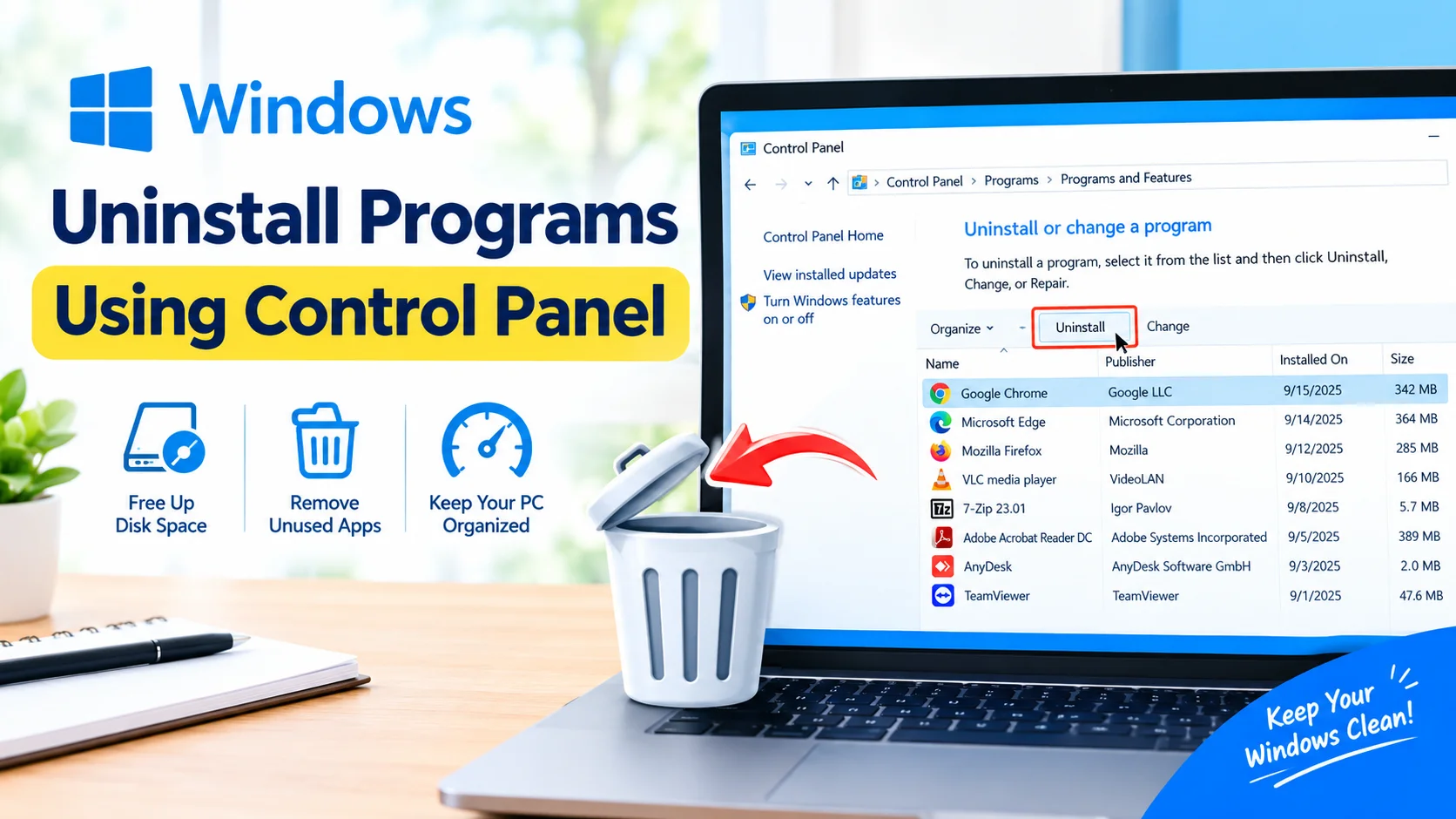
Uninstalling programs you no longer use is a simple way to keep your Windows PC organized and free up storage space. While modern versions of Windows provide several ways to remove applications, Control Panel remains a useful option for uninstalling traditional desktop programs.
In this guide, you’ll learn how to uninstall programs using Control Panel, what to do when an application refuses to uninstall, and how to avoid removing software that Windows needs.
Why Uninstall Unused Programs?
Over time, your computer can accumulate applications you installed once but no longer need. Removing unnecessary programs can:
- Free up disk space
- Reduce clutter in Windows
- Remove outdated software
- Eliminate unwanted background processes
- Reduce the number of applications that start with Windows
- Make it easier to find programs you actually use
Uninstalling a program does not normally affect your personal documents, photos, or other files unless those files are stored inside the application’s own folders.
How to Uninstall Programs Using Control Panel
The following method works with many traditional desktop applications in Windows 10 and Windows 11.
1. Open Control Panel
Press Windows + R to open the Run dialog.
Type:
controlPress Enter.
You can also search for Control Panel from the Windows Start menu.
2. Open Programs and Features
In Control Panel, select Programs.
Under Programs and Features, click Uninstall a program.
You will see a list of installed desktop applications.
3. Find the Program You Want to Remove
Browse through the list and locate the application you no longer need.
The list may include information such as:
- Program name
- Publisher
- Installation date
- Program version
- Approximate size
If there are many applications installed, you can use the column headings to organize the list and make a program easier to locate.
4. Select the Program
Click the program you want to uninstall.
Be careful when selecting software. Avoid removing applications if you are unsure what they do, particularly hardware drivers, system utilities, security software, or components installed by your computer manufacturer.
5. Click Uninstall
With the program selected, click Uninstall at the top of the Programs and Features window.
Windows will launch the program’s uninstaller.
Follow the instructions displayed by the application. Depending on the software, you may need to confirm the removal or select additional options.
6. Restart Your Computer if Necessary
Some programs require Windows to restart before the uninstall process is completely finished.
If the uninstaller asks you to restart, save your work and reboot the computer.
Even when a restart isn’t required, restarting Windows can help ensure that background processes associated with the removed application have stopped.
What If the Program Is Not Listed in Control Panel?
Not every Windows application appears in Programs and Features.
Apps installed through the Microsoft Store or newer Windows application systems may instead need to be removed through Settings.
In Windows, open:
Settings → Apps → Installed apps
Find the application, select its menu, and choose Uninstall when the option is available.
Some portable applications may not have an uninstall entry at all. These programs are often removed by deleting their application folder, although you should check the developer’s instructions first.
What to Do When a Program Will Not Uninstall
Sometimes an application’s uninstaller fails or displays an error.
Try these troubleshooting steps:
Restart Windows
A program may be using files that the uninstaller needs to remove. Restarting the computer can release those files.
Close the Application
Make sure the program is completely closed before attempting to uninstall it again.
Also check the system tray for a background component belonging to the application.
Try Safe Mode
If background software prevents an application from being removed normally, Windows Safe Mode can sometimes help with troubleshooting.
However, not every application can be safely removed this way, so use the software developer’s recommended procedure when available.
Repair or Reinstall the Program
If the uninstaller is damaged, reinstalling the same version of the application can restore its uninstall files. You can then try removing it again through Control Panel.
Use the Developer’s Removal Tool
Some applications provide a dedicated removal utility for situations where the standard Windows uninstaller does not work. Download such tools only from the software publisher’s official website.
Programs You Should Be Careful About Removing
Don’t uninstall software simply because its name looks unfamiliar.
Some programs are required for Windows or your hardware to work correctly. Be particularly cautious with:
- Device drivers
- Graphics components
- Audio drivers
- Chipset software
- Network utilities
- Security software
- Microsoft system components
- Hardware manufacturer utilities
If you don’t recognize a program, research its name and publisher before removing it.
Does Uninstalling a Program Delete Personal Files?
Usually, uninstalling an application removes the application itself and its associated program files. However, it may leave behind personal data, configuration files, saved settings, or files created by the application.
For example, uninstalling a photo-editing application does not necessarily mean your photographs will be deleted.
Before removing important software, check where the application stores your personal files and create a backup if necessary.
Control Panel vs. Windows Settings
Both Control Panel and Windows Settings can be used to remove applications, but they serve slightly different purposes.
Control Panel is particularly useful for traditional desktop programs that use classic Windows installation packages.
Windows Settings is generally more convenient for newer applications and Microsoft Store apps.
If a program does not appear in Control Panel, check Settings → Apps → Installed apps.
Frequently Asked Questions
Can I uninstall programs from Control Panel in Windows 11?
Yes. Windows 11 still includes Control Panel and its Programs and Features section for many traditional desktop applications.
Will uninstalling a program make my PC faster?
It can help reduce storage usage and may remove unwanted background services or startup components. However, uninstalling one unused program does not necessarily produce a noticeable performance improvement.
Why can’t I find an application in Control Panel?
The application may use a newer Windows installation system, may have been installed from the Microsoft Store, or may be a portable application. Check Settings → Apps → Installed apps.
Is it safe to uninstall an application I don’t recognize?
Not automatically. First identify the program and its publisher. Removing an important driver or system component can cause hardware or software problems.
Should I restart Windows after uninstalling a program?
Restarting is recommended if the uninstaller requests it. A restart can also ensure that remaining background processes are fully closed.
Final Thoughts
Control Panel remains a practical way to uninstall traditional desktop programs in Windows. Open Control Panel, navigate to Programs and Features, select the application you want to remove, and follow its uninstall wizard.
Before uninstalling unfamiliar software, verify what it does and who published it. For applications that don’t appear in Control Panel, Windows Settings provides another convenient way to manage installed apps.
Keeping only the software you actually use can make your Windows installation easier to manage and help prevent unnecessary applications from occupying valuable storage space.