

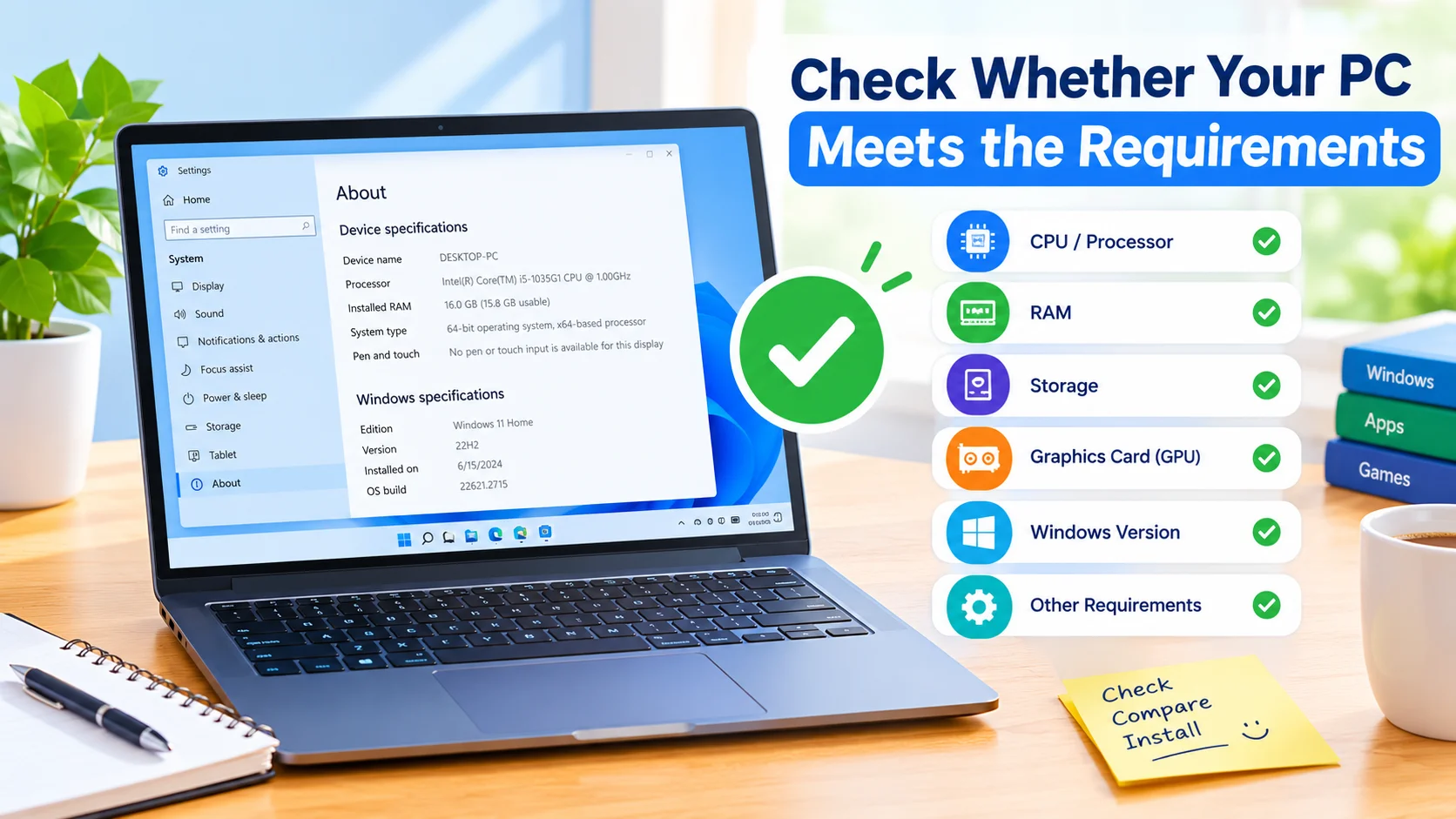
Before installing a new application, upgrading Windows, or playing a demanding PC game, it is important to check whether your PC meets the requirements. Knowing your computer’s hardware and software specifications can help you avoid installation errors, poor performance, crashes, and compatibility problems.
Windows provides several built-in tools that make it easy to view your processor, RAM, storage, graphics hardware, Windows version, and other important specifications. You can then compare those details with the application’s or game’s minimum and recommended requirements.
Why You Should Check PC Requirements
Every application has different hardware and software requirements. Lightweight programs may run comfortably on older computers, while modern games, video-editing software, and professional applications often require more powerful hardware.
Checking your PC requirements beforehand can help you:
- Determine whether software can run on your computer
- Avoid installing incompatible applications
- Identify hardware limitations
- Reduce unexpected performance problems
- Decide whether a hardware upgrade is necessary
- Check compatibility before upgrading Windows
- Compare your PC with minimum and recommended requirements
What PC Specifications Should You Check?
The most important specifications usually include:
- Processor (CPU): Determines how quickly the computer can process tasks.
- RAM: Affects multitasking and application performance.
- Storage: Determines whether you have enough free space for installation.
- Graphics card (GPU): Important for games, 3D applications, and graphics-intensive software.
- Operating system: Some applications require a specific Windows version or architecture.
- System type: Many modern applications require 64-bit Windows.
- DirectX version: Particularly important for many PC games.
How to Check Your Windows Version
Start by checking which version of Windows your PC is running.
- Press Windows + I to open Settings.
- Select System.
- Click About.
- Look under Windows specifications.
- Check the edition, version, and OS build.
You can also check whether your system is 64-bit under System type.
This information is useful because some applications require a particular Windows version or only support 64-bit systems.
How to Check Your Processor and RAM
Windows makes it easy to view basic hardware information.
- Open Settings.
- Go to System > About.
- Find the Device specifications section.
- Check Processor to identify your CPU.
- Check Installed RAM to see how much memory is available.
For example, if a program requires at least 8 GB of RAM and your PC has 4 GB, the computer does not meet that particular memory requirement.
Keep in mind that installed RAM and available RAM are not always the same. Windows and running applications use some of your memory.
How to Check Your Graphics Card
The graphics processor is especially important for games and graphics-intensive applications.
You can use Task Manager to check your GPU:
- Press Ctrl + Shift + Esc.
- Select Performance.
- Click GPU.
- Look for the GPU name and available graphics memory.
You can also press Windows + R, type dxdiag, and press Enter. The DirectX Diagnostic Tool provides additional information about your graphics hardware and drivers.
Compare the GPU model with the application’s minimum and recommended graphics requirements.
How to Check Available Storage
A program may meet your hardware requirements but still fail to install if there is not enough free storage.
To check your available space:
- Open Settings.
- Select System.
- Click Storage.
- Review the available space on your drives.
You can also open File Explorer and select This PC to see the available space on your drives.
Pay attention to the application’s required installation space. Some programs also need additional free space for temporary files, updates, and cached data.
Use System Information for More Details
Windows includes a useful tool called System Information.
- Press Windows + R.
- Type
msinfo32. - Press Enter.
- Review the available system information.
System Information can show details about your processor, installed memory, BIOS, motherboard, Windows installation, and other components.
This is particularly useful when the basic information displayed in Windows Settings is not enough.
Use DirectX Diagnostic Tool
The DirectX Diagnostic Tool, commonly called DxDiag, can provide useful information when checking gaming requirements.
To open it:
- Press Windows + R.
- Type
dxdiag. - Press Enter.
- Review the System, Display, and other available tabs.
The System tab provides information about Windows, the processor, and memory. The Display tab provides graphics-related information.
If you are troubleshooting a game, DxDiag can also help identify graphics drivers and DirectX-related information.
Compare Your PC With Minimum Requirements
Once you know your PC specifications, compare them with the software’s published requirements.
A minimum requirement generally represents the hardware and software needed to run the application at a basic level. A recommended requirement typically indicates a configuration intended to provide a better experience.
For example:
| Requirement | Your PC | Result |
|---|---|---|
| Windows 11 | Windows 11 | Meets |
| 8 GB RAM | 16 GB RAM | Meets |
| Intel Core i5 | Intel Core i3 | May not meet |
| 100 GB storage | 150 GB free | Meets |
| Dedicated GPU | Integrated graphics | May not meet |
Do not judge compatibility based on one specification alone. CPU, RAM, GPU, storage, operating system, and other requirements can all affect whether software works properly.
Minimum vs. Recommended Requirements
Understanding the difference between these two categories is important.
Minimum requirements indicate the lowest supported configuration. Meeting the minimum does not necessarily mean you will receive smooth or high-quality performance.
Recommended requirements represent a stronger configuration that is generally intended to provide a better experience.
For demanding applications and games, exceeding the minimum requirements can provide additional performance headroom.
What to Do If Your PC Does Not Meet the Requirements
If your computer falls short of the requirements, you have several options.
Free Up Storage
If storage is the only limitation, remove unnecessary files or uninstall unused applications.
Close Background Applications
If your PC has limited RAM, closing unnecessary programs can free memory while you use demanding software.
Update Windows and Drivers
Keeping Windows and hardware drivers updated can improve compatibility and resolve some software problems.
Upgrade Hardware
Depending on your computer, you may be able to add RAM, replace a storage drive, or upgrade another component. Desktop PCs generally offer more upgrade options than many laptops.
Choose Less Demanding Software
If an application requires significantly more powerful hardware, consider a lighter alternative that matches your PC’s capabilities.
Frequently Asked Questions
How do I check whether my PC can run a program?
Check your processor, RAM, graphics card, available storage, Windows version, and system type. Compare each specification with the program’s published requirements.
How do I check my PC specifications in Windows?
Open Settings > System > About to view basic processor, RAM, Windows, and system information.
How do I check my graphics card?
Open Task Manager > Performance > GPU to see your graphics processor and related information.
How much free storage do I need?
Check the application’s listed storage requirement and keep additional free space available for temporary files, updates, and normal Windows operation.
Is meeting the minimum requirements enough?
Not always. Minimum requirements generally indicate basic compatibility, while recommended requirements are intended for a better experience.
Final Thoughts
Learning how to check whether your PC meets the requirements can save time and prevent compatibility problems. Before installing software, check your Windows version, processor, RAM, graphics hardware, storage space, and other specifications listed by the developer.
Windows tools such as Settings, Task Manager, System Information, and DirectX Diagnostic Tool provide most of the information you need. After collecting your specifications, compare them carefully with the application’s minimum and recommended requirements before installing it.