

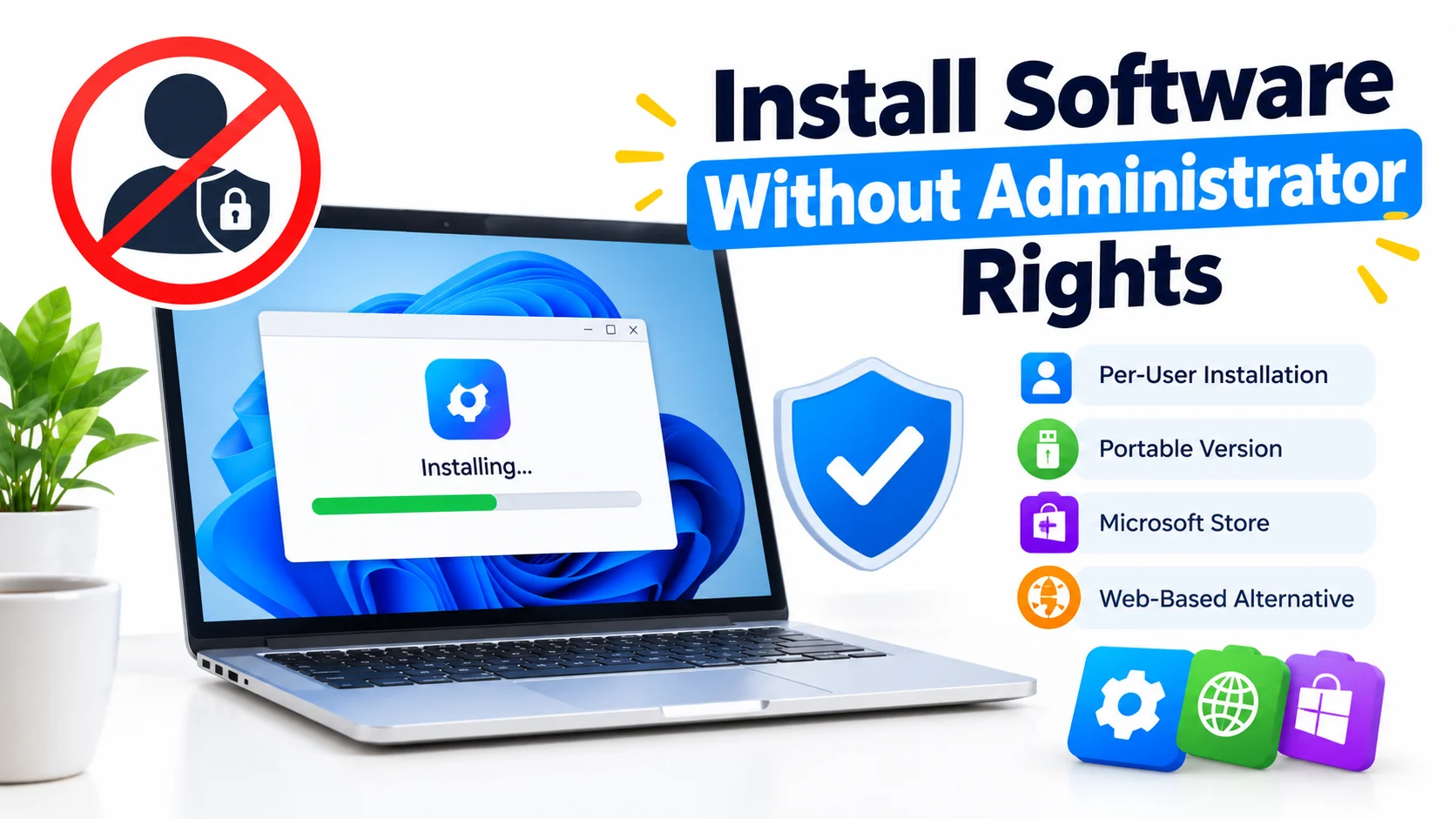
Trying to install software without administrator rights can be challenging on a Windows PC, especially when the computer is managed by an organization, school, or another administrator. Windows normally requires elevated permissions when an application needs to modify protected system locations or make system-wide changes.
However, some applications can be installed or used without administrator privileges. The key is to use legitimate installation options designed for standard users rather than attempting to bypass Windows security controls.
In this guide, you’ll learn several practical ways to install or run software when you don’t have administrator access.
Why Does Windows Require Administrator Rights?
Windows uses User Account Control (UAC) and account permissions to protect important system resources. Administrator approval may be required when software wants to:
- Install files into protected system folders
- Modify Windows settings
- Add system-wide services
- Change registry settings outside the user’s profile
- Install device drivers
- Configure software for all users
These restrictions help prevent unauthorized applications from making potentially harmful changes to the computer.
If you see an administrator-password prompt during installation, your account may have standard-user permissions.
1. Check Whether the Software Supports Per-User Installation
The easiest solution is to look for a per-user installation option.
Some Windows applications allow installation only for the current user. Instead of placing files in protected locations such as C:\Program Files, the installer stores application data inside the user’s profile.
During installation, look for options such as:
- Install for current user
- Just me
- Only for me
- User installation
- Custom installation
If one of these options is available, select it and continue with the installation.
Not every application provides this option, so the availability depends on the software developer.
2. Use a Portable Version of the Application
A portable application can often run without a traditional installation process.
Portable software typically contains the executable and required files in a folder. You can store that folder somewhere where your account has write permission, such as:
C:\Users\YourName\Documents\Apps
or:
C:\Users\YourName\Downloads
After extracting the files, launch the application’s executable.
Portable versions are particularly useful for utilities that do not need system-wide components, services, or drivers.
Important Consideration
Download portable applications only from reputable sources. Avoid modified installers or unofficial packages that claim to remove administrator requirements, because they can introduce malware or unwanted software.
3. Install the Application in Your User Profile
Some installers allow you to select a custom installation directory.
If the installer does not require administrator privileges, choose a folder inside your user profile, for example:
C:\Users\YourName\AppData\Local\Programs
or:
C:\Users\YourName\Documents\Programs
Your user account normally has permission to create and modify files in these locations.
However, changing the installation directory does not automatically eliminate an administrator requirement. If the installer needs to perform privileged operations, Windows may still request administrator approval.
4. Look for a Microsoft Store Version
For supported applications, the Microsoft Store can provide an alternative installation method.
Store applications use Windows’ application deployment mechanisms and may not require the same traditional installer workflow as a downloaded .exe or .msi package.
Open the Microsoft Store and search for the application you need. If an official version is available, review its publisher and application details before installing it.
On managed computers, however, your organization may restrict Microsoft Store access.
5. Use Web-Based Alternatives
Sometimes you don’t actually need to install desktop software.
Many applications provide browser-based versions that work directly through Microsoft Edge, Google Chrome, Firefox, or another supported browser.
Examples include:
- Online document editors
- Web-based email
- Cloud storage services
- Online image editors
- Project management tools
- Browser-based communication platforms
A web application can be a practical alternative when software installation is restricted.
6. Ask the Administrator to Approve the Application
If the application genuinely requires administrator privileges, the safest approach is to contact the person responsible for the computer.
On a work or school computer, an administrator may need to:
- Verify the software.
- Check its security and licensing requirements.
- Approve the application.
- Install it using an administrative account.
- Configure the application for your user account.
This approach is especially important for software that installs drivers, services, security components, or system-wide configuration changes.
Avoid Tools That Claim to Bypass Administrator Permissions
You may find websites and videos recommending scripts, modified installers, or utilities that claim to bypass Windows administrator restrictions.
Be cautious with these methods.
Attempting to bypass access controls can:
- Violate organizational security policies
- Expose the computer to malware
- Damage Windows configuration
- Create security vulnerabilities
- Prevent the application from working correctly
- Result in account or network restrictions
There is a major difference between installing software using a legitimate per-user method and deliberately bypassing Windows security controls.
What If the Installer Always Requests Administrator Access?
If an application consistently displays a UAC prompt or requests administrator credentials, it may depend on system-level components.
Common reasons include:
- The installer writes to protected directories.
- The application installs a Windows service.
- A device driver is required.
- System-wide registry settings must be changed.
- The application needs to configure security components.
- The software is designed for all users.
In these situations, simply moving the installer to another folder usually won’t solve the problem.
How to Find Software That Works Without Admin Rights
When looking for software for a standard Windows account, check the developer’s documentation for terms such as:
- Portable
- Per-user installation
- User-level installation
- No admin required
- Standalone version
- Microsoft Store version
The official developer website should be your first choice for downloading software.
Frequently Asked Questions
Can I install software on Windows without administrator rights?
Yes, some applications support per-user installation or portable versions. However, applications that require system-level changes generally need administrator approval.
Can I install an EXE file without admin rights?
An .exe file can sometimes run without administrator privileges, but the file format itself does not determine whether administrator access is required. The application’s installation and system requirements determine the necessary permissions.
Can portable software work without administrator rights?
Often, yes. Portable applications typically run from a user-writable folder and do not require traditional system-wide installation. Some portable programs may still require elevated permissions for specific features.
Why does Windows ask for an administrator password?
Windows requests administrator credentials when an operation requires permissions that your current account does not have. This is part of Windows security and User Account Control.
Can I install software in the AppData folder?
Some applications can be installed or extracted into a user’s AppData directory without administrator access. However, this only works if the application itself does not require privileged system changes.
Is it safe to bypass administrator restrictions?
Deliberately bypassing Windows security controls is not recommended. If software requires administrative privileges, use an approved installation method or ask the system administrator for assistance.
Final Thoughts
You can sometimes install software without administrator rights by using a legitimate per-user installer, portable application, user-writable installation directory, Microsoft Store version, or browser-based alternative. These approaches work best for applications that do not require system-wide changes.
If Windows still requests administrator credentials, don’t try to circumvent the security mechanism. Instead, check the application’s requirements or ask the computer administrator to approve and install it.
Using software through supported installation methods helps keep Windows secure while still giving standard users access to the applications they need.