

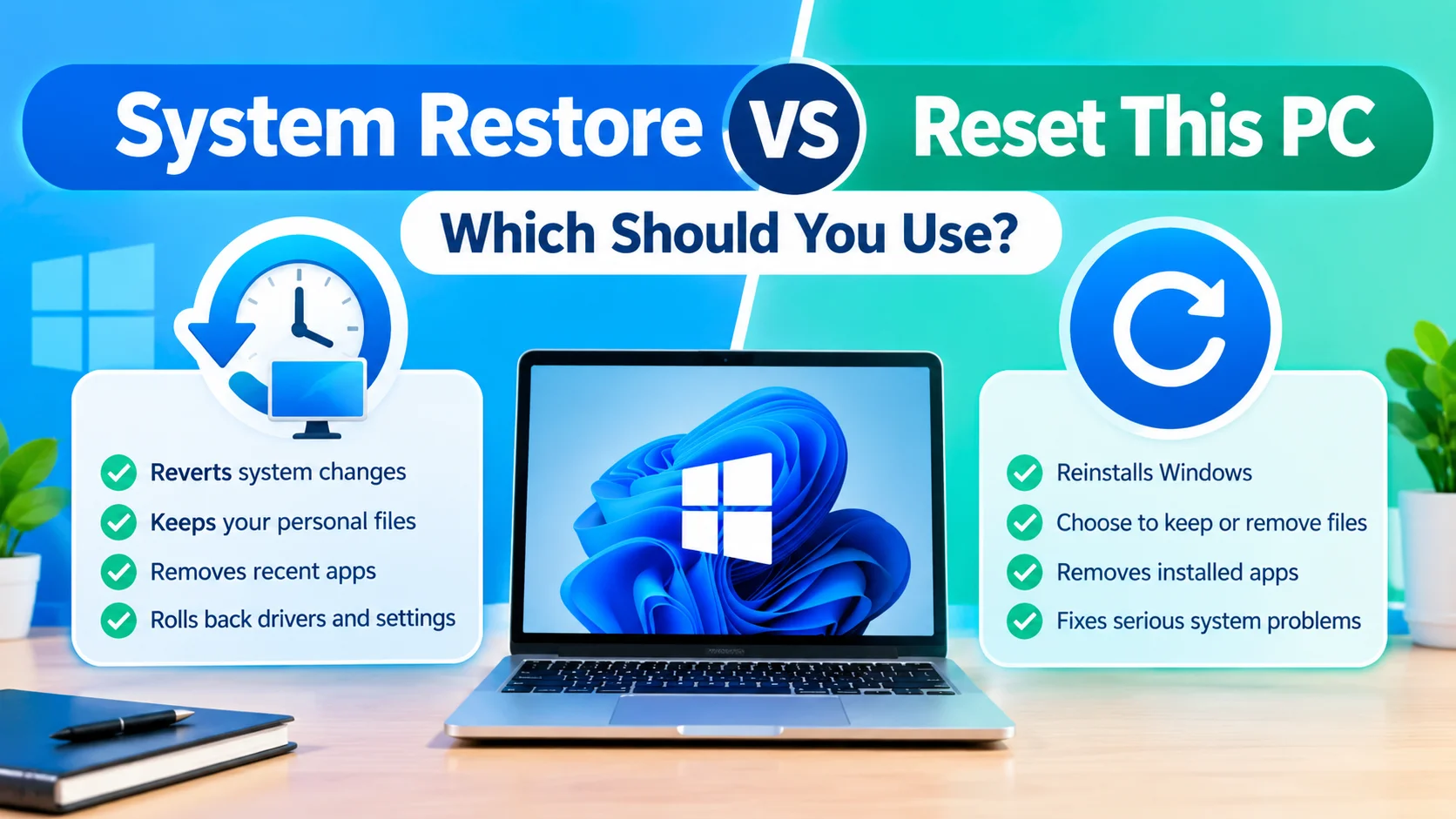
System Restore vs Reset This PC are two Windows recovery options that can help fix system problems, but they work in very different ways. System Restore can reverse recent system changes, while Reset This PC reinstalls Windows and can remove applications, settings, and personal files depending on the option selected.
Understanding the difference between System Restore and Reset This PC can help you choose the right recovery method while minimizing unnecessary changes or data loss.
What Is System Restore?
System Restore is a Windows recovery feature that rolls system files, drivers, registry settings, and installed applications back to an earlier restore point.
It is useful when a recent software installation, driver update, or configuration change causes Windows to become unstable.
What System Restore Changes
System Restore can:
- Revert system files to an earlier state
- Restore previous registry settings
- Remove applications installed after the selected restore point
- Roll back certain driver changes
- Preserve personal files such as documents, photos, and videos
System Restore does not normally erase your personal files.
Learn how to restore Windows using System Restore to undo recent system changes, fix problems, and return your PC to an earlier working state.
What Is Reset This PC?
Reset This PC is a more extensive Windows recovery option. It reinstalls Windows and allows you to choose whether to keep or remove your personal files.
Depending on the option selected, Reset This PC can remove installed applications, settings, and system changes.
Windows generally provides two main choices:
Keep My Files
This option reinstalls Windows while keeping personal files. However, installed applications and many system settings are removed.
You may need to reinstall programs after the reset.
Remove Everything
This option removes personal files, applications, and settings before reinstalling Windows. It is a much more comprehensive reset and should be used carefully.
System Restore vs Reset This PC
The main difference is how much of Windows is changed.
| Feature | System Restore | Reset This PC |
|---|---|---|
| Restores Windows system settings | Yes | Yes |
| Reinstalls Windows | No | Yes |
| Removes installed applications | Some recent apps | Usually yes |
| Keeps personal files | Yes | Depends on option |
| Reverses recent driver changes | Yes | Yes |
| Requires extensive setup afterward | Usually no | Often |
| Best for recent system problems | Yes | Sometimes |
| Useful for severely damaged Windows | Limited | Yes |
When Should You Use System Restore?
System Restore is generally appropriate when the problem started recently.
For example, if Windows worked normally yesterday but began crashing after installing a driver or application, restoring Windows to an earlier restore point may reverse the problematic change.
Try System Restore when:
- A recent driver update caused problems
- Windows became unstable after installing software
- System settings were recently changed
- Applications or Windows components started failing unexpectedly
- Restore points are available
Before using it, check which applications and drivers will be affected by the selected restore point.
When Should You Use Reset This PC?
Reset This PC may be appropriate when Windows has persistent problems that cannot be resolved through less disruptive troubleshooting.
Consider it when:
- Windows remains unstable after troubleshooting
- Important system components are damaged
- You want to reinstall Windows without performing a traditional clean installation
- System Restore is unavailable or does not solve the problem
- You want to remove most software and configuration changes
If you choose Remove Everything, make sure important files are backed up first.
Which Recovery Option Should You Try First?
If the problem is recent and a suitable restore point exists, System Restore is usually the less disruptive recovery method because it does not normally remove personal files.
If System Restore does not resolve the issue, or Windows has broader problems, Reset This PC provides a more extensive recovery process.
The safest approach is to start with the recovery method that makes the fewest changes necessary to address the problem.
How to Open System Restore
You can access System Restore from Windows recovery options or by searching for recovery tools.
To check for available restore points:
- Press Windows + R.
- Type
rstrui.exe. - Press Enter.
- Select a restore point.
- Review the affected programs and drivers.
- Select Next and confirm the restore operation.
- Allow Windows to restart and complete the process.
Do not interrupt the computer while System Restore is running.
How to Open Reset This PC
To access Reset This PC in Windows:
- Open Settings.
- Select System.
- Select Recovery.
- Find Reset this PC.
- Select Reset PC.
- Choose Keep my files or Remove everything.
- Follow the instructions displayed by Windows.
Review the reset options carefully before confirming.
Back Up Important Files First
Even though System Restore is designed to preserve personal files and Keep my files is intended to retain them during a reset, maintaining a separate backup is still recommended.
Copy important documents, photos, work files, browser data, and other important information to an external drive or trusted cloud storage before performing major recovery operations.
Final Thoughts
System Restore vs Reset This PC comes down to the scope of the recovery. System Restore is designed to reverse certain recent system changes, while Reset This PC reinstalls Windows and can remove applications, settings, and, depending on the selected option, personal files.
For a recent software or driver problem, checking System Restore first can be a less disruptive approach. For persistent or broader Windows problems, Reset This PC provides a more comprehensive recovery method.