

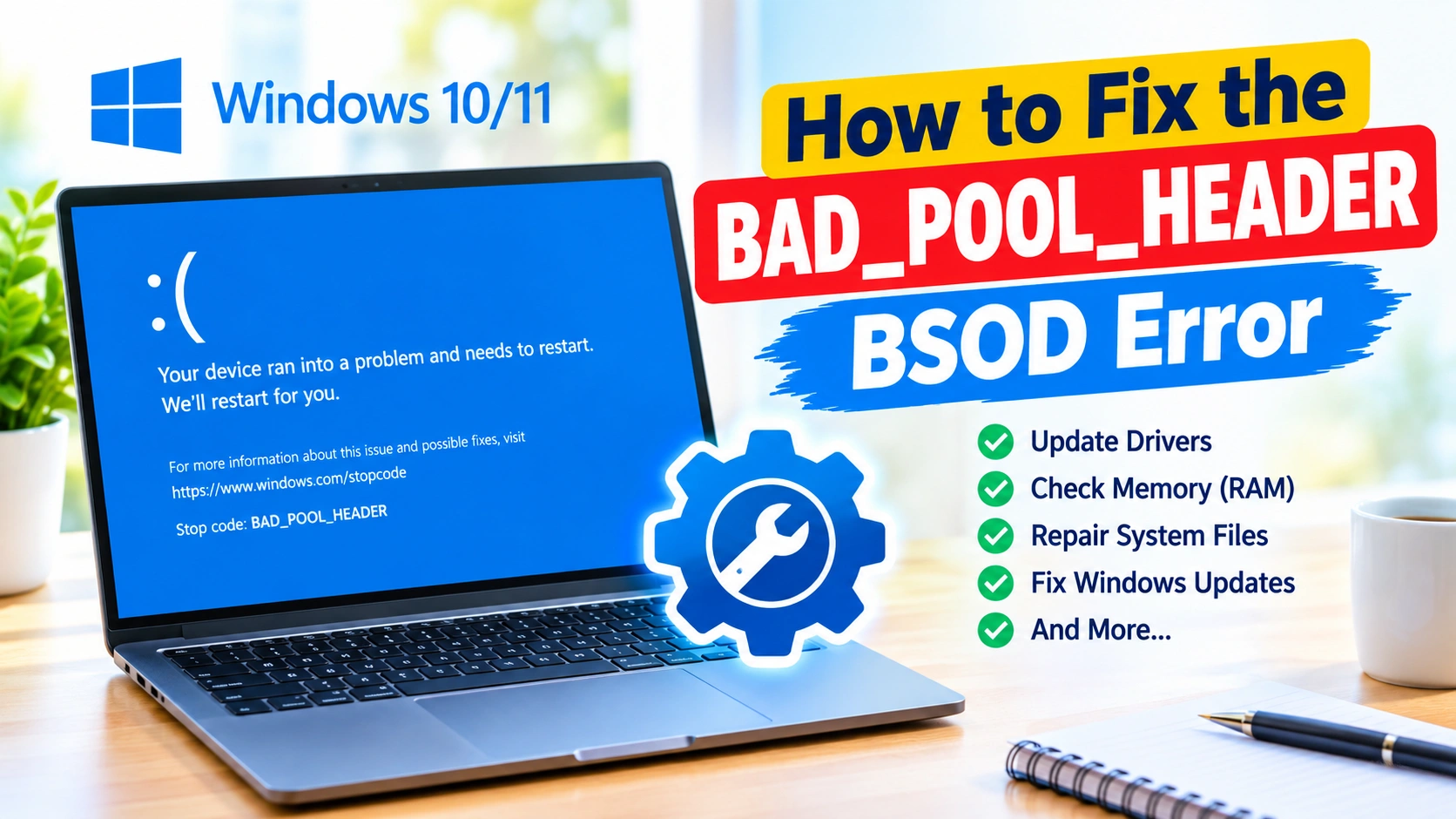
The BAD_POOL_HEADER BSOD error is a frustrating Windows crash that can suddenly restart your computer and display a blue screen with the stop code BAD_POOL_HEADER. It generally indicates that Windows encountered a problem with memory allocation in the system pool, often because of faulty drivers, incompatible software, memory problems, or corrupted system components.
The good news is that you can usually troubleshoot the problem without reinstalling Windows. This guide explains the most effective ways to fix BAD_POOL_HEADER in Windows 10 and Windows 11, starting with simple solutions and progressing to more advanced repairs.
What Is the BAD_POOL_HEADER Error?
BAD_POOL_HEADER is a Windows Blue Screen of Death (BSOD) error associated with problems in the operating system’s memory pool.
Windows uses memory pools to allocate system resources to drivers and other components. If something incorrectly manages that memory, Windows may stop the system to prevent further damage.
You may encounter messages such as:
BAD_POOL_HEADER
or a stop code similar to:
0x00000019
The exact cause can vary between computers, so troubleshooting usually involves checking drivers, recently installed software, RAM, storage, and Windows system files.
Common Causes of BAD_POOL_HEADER
Several issues can trigger this BSOD, including:
- Outdated or incompatible device drivers
- Recently installed hardware or drivers
- Faulty RAM
- Corrupted Windows system files
- Third-party antivirus or system utilities
- Damaged storage drives
- Recently installed applications
- Windows update problems
- Incorrect hardware configurations
- Overclocking or unstable BIOS settings
If the error started immediately after a particular change, such as installing a driver or hardware component, that change should be investigated first.
1. Restart Your Computer
Start with the simplest solution.
A temporary driver or memory-management problem can occasionally cause a single BAD_POOL_HEADER crash.
Restart Windows normally and check whether the error returns.
If the BSOD keeps appearing, continue with the following troubleshooting steps.
2. Disconnect Recently Added Hardware
If the problem began after connecting a new device, temporarily disconnect it.
Examples include:
- USB adapters
- External hard drives
- Printers
- Webcams
- Docking stations
- Bluetooth adapters
- Expansion cards
- New RAM
- Other recently installed hardware
Restart the computer after disconnecting the device.
If the BSOD disappears, the device or its driver may be responsible.
3. Boot Windows Into Safe Mode
If Windows crashes repeatedly during normal startup, Safe Mode can help determine whether a third-party driver or application is responsible.
To enter Safe Mode:
- Open Settings.
- Select System > Recovery.
- Under Advanced startup, select Restart now.
- Choose Troubleshoot.
- Select Advanced options > Startup Settings.
- Click Restart.
- Press 4 to enable Safe Mode or 5 for Safe Mode with Networking.
Use the computer for a while in Safe Mode.
If the BAD_POOL_HEADER error does not occur there, a third-party driver, service, or startup application becomes a more likely cause.
4. Update Your Device Drivers
Faulty or incompatible drivers are among the issues worth investigating when troubleshooting memory-related BSOD errors.
Pay particular attention to:
- Graphics drivers
- Network adapters
- Chipset drivers
- Storage controllers
- USB drivers
- Audio drivers
Update drivers through Device Manager
- Right-click the Start button.
- Select Device Manager.
- Expand a hardware category.
- Right-click the device.
- Select Update driver.
- Choose Search automatically for drivers.
For important components such as graphics cards and chipsets, you can also check the hardware manufacturer’s official website for compatible drivers.
Avoid downloading drivers from unfamiliar third-party websites.
5. Roll Back a Recently Updated Driver
If BAD_POOL_HEADER started after a driver update, reverting that driver may resolve the problem.
- Open Device Manager.
- Locate the recently updated device.
- Right-click it and choose Properties.
- Open the Driver tab.
- Select Roll Back Driver, if available.
- Restart your computer.
The option may be unavailable if Windows does not have a previous driver version stored.
6. Uninstall Recently Installed Software
Some applications install drivers or background services that interact closely with Windows.
If the BSOD began after installing new software, temporarily uninstall it.
Pay particular attention to:
- Antivirus programs
- System optimization utilities
- Hardware monitoring tools
- Virtualization software
- Disk utilities
- VPN applications
- Custom driver packages
To uninstall an application:
- Open Settings.
- Go to Apps > Installed apps.
- Find the recently installed program.
- Select the three-dot menu.
- Choose Uninstall.
- Restart Windows.
If the crash disappears, the removed software may have been contributing to the problem.
7. Run Windows Memory Diagnostic
Faulty or unstable RAM can cause unpredictable BSOD errors.
Windows includes a built-in memory testing utility.
Run Windows Memory Diagnostic
- Press Windows + R.
- Type:
mdsched.exe- Press Enter.
- Select Restart now and check for problems.
Windows will restart and perform a memory test.
If errors are reported, the RAM or its configuration should be investigated further.
If your computer has multiple memory modules, testing them individually can also help identify a problematic module.
8. Check Windows System Files With SFC
Corrupted Windows files can contribute to system instability.
The System File Checker (SFC) tool can scan protected system files and replace corrupted copies when possible.
Run SFC
- Right-click Start.
- Select Terminal (Admin) or Command Prompt (Admin).
- Enter:
sfc /scannow- Press Enter.
- Wait for the scan to complete.
Do not close the Terminal window while the scan is running.
Restart Windows after the process finishes.
9. Repair the Windows Component Store With DISM
If SFC cannot repair all corrupted files, use Microsoft’s Deployment Image Servicing and Management (DISM) tool.
Open an elevated Terminal and run:
DISM /Online /Cleanup-Image /RestoreHealthAllow the process to complete. Depending on the condition of the Windows installation, this may take some time.
After DISM finishes, run:
sfc /scannowRestart your computer afterward.
Running DISM before SFC can help repair the underlying Windows component store that SFC relies on.
10. Check Your Drive for Errors
Storage problems can contribute to corrupted files and system crashes.
Windows includes CHKDSK, which can scan a drive for file-system errors.
Open Terminal (Admin) and run:
chkdsk C: /scanIf Windows reports problems requiring an offline repair, you may be prompted to schedule a more extensive check.
Before performing repairs on a drive showing signs of physical failure, make sure important files are backed up.
11. Install Windows Updates
Microsoft regularly releases Windows updates containing security fixes, bug fixes, and compatibility improvements.
To check for updates:
- Open Settings.
- Select Windows Update.
- Click Check for updates.
- Install available updates.
- Restart your computer.
If the BAD_POOL_HEADER error began immediately after a specific Windows update, however, investigate that update rather than assuming another update will solve the issue.
12. Remove Recently Installed Windows Updates
A problematic update can sometimes introduce compatibility issues with particular hardware or software configurations.
If the BSOD started directly after an update, you can review recently installed updates.
Go to:
Settings > Windows Update > Update history
Look for updates installed around the time the crashes began.
If appropriate, use the available Windows recovery options to uninstall the problematic update.
Create a backup of important data before performing significant system changes.
In this guide, you’ll learn how to safely remove recently installed Windows updates using Windows Settings, Control Panel, Command Prompt, and Windows Recovery Environment.
13. Disable Overclocking
Overclocking can make a system unstable when CPU, RAM, or other hardware settings are too aggressive.
If you recently changed:
- CPU settings
- RAM frequency
- RAM timings
- Voltage settings
- GPU settings
- XMP/EXPO profiles
return the system to its default configuration and test it again.
You can usually restore default BIOS/UEFI settings using the motherboard’s Load Optimized Defaults, Load Setup Defaults, or similarly named option.
14. Check for Overheating
Excessive temperatures can cause instability that looks like a software problem.
Check whether crashes happen during demanding activities such as:
- Gaming
- Video rendering
- Large file compression
- 3D workloads
- Extended CPU workloads
Make sure your computer has adequate airflow and that fans and cooling components are working correctly.
For a desktop PC, accumulated dust around heatsinks and fans can also restrict cooling.
15. Perform a Clean Boot
A clean boot starts Windows with a minimal set of Microsoft services and startup programs.
This can help identify software conflicts.
Perform a clean boot
- Press Windows + R.
- Type:
msconfig- Press Enter.
- Open the Services tab.
- Check Hide all Microsoft services.
- Click Disable all.
- Open the Startup tab.
- Select Open Task Manager.
- Disable unnecessary startup applications.
- Restart your computer.
If the BSOD stops occurring, re-enable services and startup programs gradually to identify the source of the conflict.
16. Use System Restore
If BAD_POOL_HEADER started recently and System Restore points are available, restoring Windows to an earlier configuration may help.
Search Windows for:
Create a restore point
Then select System Restore and choose a restore point created before the problem started.
System Restore generally affects system files, drivers, and installed programs rather than personal documents, but you should still back up important data before making major changes.
17. Analyze the BSOD Minidump
Advanced users can investigate the crash dump created by Windows.
Minidump files are commonly stored in:
C:\Windows\MinidumpA debugger can sometimes identify the driver or component involved in the crash.
However, the driver named in a crash dump is not always the true root cause. A faulty driver can corrupt memory and cause another component to appear in the crash information.
For this reason, dump analysis is most useful when combined with information about recent driver, software, and hardware changes.
18. Reset BIOS/UEFI Settings
Incorrect firmware settings can sometimes contribute to system instability.
If you have recently changed BIOS/UEFI settings, consider returning them to their default values.
Common settings to review include:
- CPU overclocking
- RAM profiles
- Memory timings
- CPU voltage
- PCIe settings
- Power-management settings
Be careful when changing firmware settings. If you are unsure about a particular option, leave it at its default configuration.
19. Check for Failing Hardware
If software troubleshooting does not resolve BAD_POOL_HEADER, hardware may need to be investigated.
Potential problem areas include:
- RAM
- SSD or hard drive
- Motherboard
- Power supply
- CPU
- Graphics card
Hardware diagnostics from the computer or component manufacturer can be useful.
Repeated memory-test failures, storage errors, or crashes that continue after a clean Windows installation are stronger reasons to investigate hardware.
20. Reset or Reinstall Windows as a Last Resort
If the BAD_POOL_HEADER error continues despite extensive troubleshooting, Windows itself may need to be reset or reinstalled.
Before doing this:
- Back up personal files.
- Make sure important browser data is synchronized.
- Save application installers or license information where necessary.
- Confirm that you have recovery information for important accounts.
- Disconnect unnecessary external storage.
Windows provides reset and recovery options under:
Settings > System > Recovery
A clean installation is a more drastic option and should generally be considered after less disruptive troubleshooting has failed.
What to Do If BAD_POOL_HEADER Keeps Coming Back
If the error repeatedly returns, look for patterns.
Ask yourself:
- Does it happen during startup?
- Does it occur while gaming?
- Did it start after a Windows update?
- Did you install a new driver?
- Did you add RAM?
- Does Safe Mode work normally?
- Does the computer crash only under heavy workloads?
- Are multiple different BSOD stop codes appearing?
These clues can narrow down the underlying problem considerably.
For example, a crash that disappears in Safe Mode may point toward a third-party driver or service, while memory-test errors deserve attention to the RAM or memory configuration.
Quick Fix Checklist for BAD_POOL_HEADER
Try these solutions in order:
- Restart Windows.
- Disconnect recently added hardware.
- Boot into Safe Mode.
- Update recently affected drivers.
- Roll back a recent driver update.
- Uninstall recently installed software.
- Run Windows Memory Diagnostic.
- Run
sfc /scannow. - Run DISM.
- Check the system drive.
- Install or review Windows updates.
- Disable overclocking.
- Perform a clean boot.
- Use System Restore.
- Analyze crash dumps.
- Test hardware if the problem continues.
Frequently Asked Questions
What does BAD_POOL_HEADER mean?
BAD_POOL_HEADER is a Windows BSOD stop error associated with problems involving memory pool management. Drivers, software, RAM, corrupted system files, and hardware problems can all be potential causes.
Is BAD_POOL_HEADER caused by RAM?
It can be. Faulty or unstable RAM is one possible cause, but the error can also result from drivers, software conflicts, Windows corruption, storage problems, or hardware configuration issues.
Can updating drivers fix BAD_POOL_HEADER?
Yes. An outdated, corrupted, or incompatible driver can contribute to the error. Updating or rolling back recently changed drivers is therefore an important troubleshooting step.
How do I test RAM for BAD_POOL_HEADER?
You can use Windows Memory Diagnostic by pressing Windows + R, entering mdsched.exe, and choosing the option to restart and check for memory problems.
Can corrupted Windows files cause BAD_POOL_HEADER?
Corrupted Windows system components can contribute to system instability. Running DISM followed by SFC can help repair Windows component and system-file problems.
Is BAD_POOL_HEADER a serious error?
The error should not be ignored if it repeatedly occurs. A single crash can be caused by a temporary problem, but recurring BSODs may indicate a driver, software, memory, storage, or hardware issue that needs attention.
Should I reinstall Windows to fix BAD_POOL_HEADER?
Not immediately. Try driver troubleshooting, memory testing, system-file repairs, Windows updates, and hardware checks first. A Windows reset or clean installation is better treated as a later troubleshooting option.
Final Thoughts
The BAD_POOL_HEADER BSOD error can have several causes, so there is no single solution that works for every computer. Start with recent changes to drivers, software, and hardware, then check memory and Windows system files. Tools such as Windows Memory Diagnostic, SFC, DISM, and CHKDSK can help identify or repair common underlying problems.
If the error continues after software troubleshooting, investigate RAM, storage, cooling, and other hardware components. By working through the solutions systematically, you can usually narrow down the cause without immediately resorting to a complete Windows reinstall.