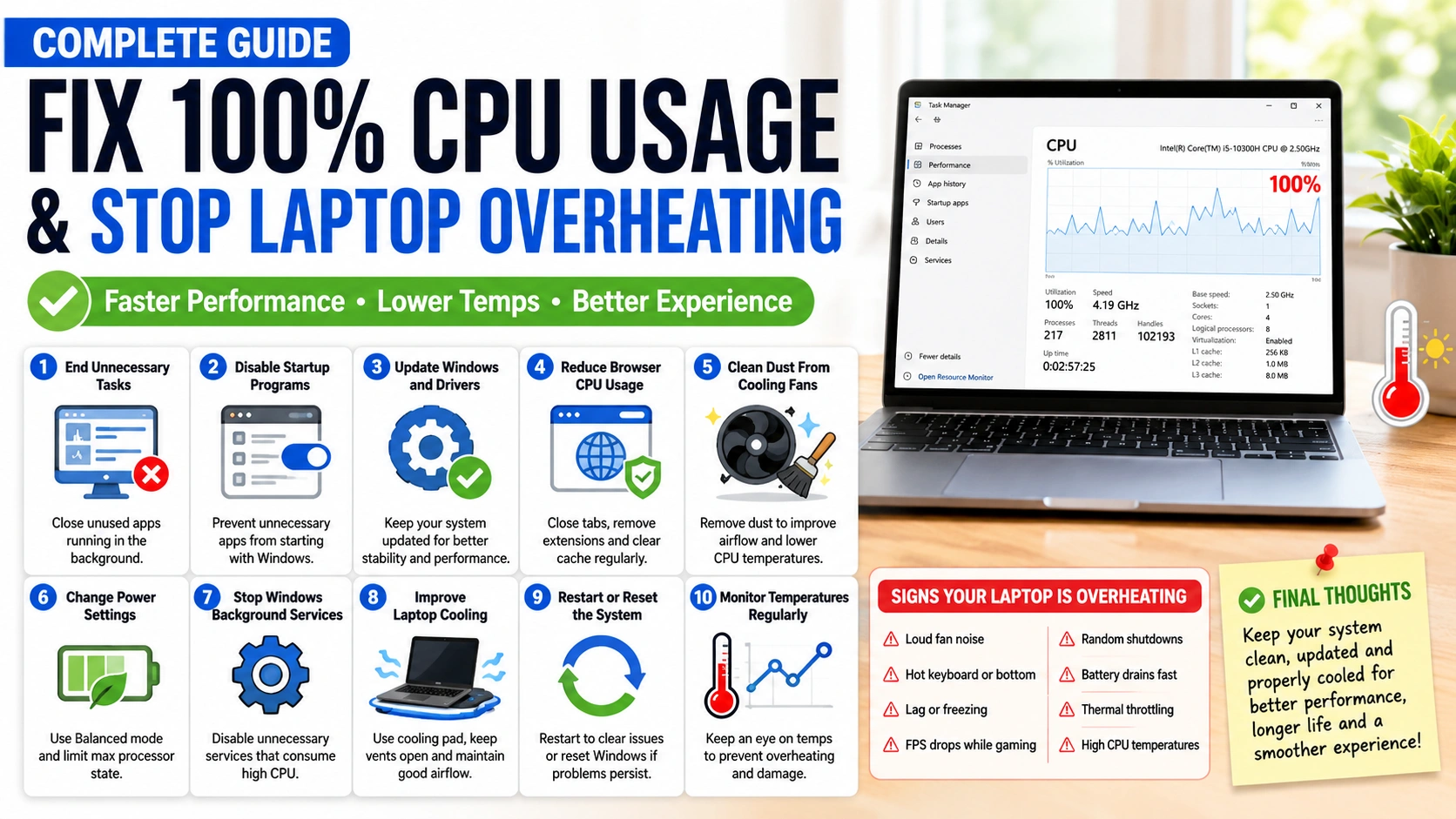
When your laptop reaches 100% CPU usage, performance can quickly become slow, unstable, and frustrating. Applications may freeze, the cooling fan becomes louder than usual, and the laptop temperature rises rapidly. In many cases, prolonged high CPU usage can also shorten hardware lifespan and reduce battery efficiency.
This problem is commonly caused by too many background applications, malware infections, outdated drivers, excessive browser tabs, or poor cooling systems filled with dust. Fortunately, there are several effective ways to lower CPU usage and stop your laptop from overheating.
By identifying the programs consuming the most resources, optimizing startup applications, updating system drivers, and improving airflow, you can restore your laptop’s speed and stability. Regular maintenance also plays an important role in keeping temperatures under control. In this guide, you will learn practical solutions to fix 100% CPU usage and keep your laptop running cooler and more efficiently.
1. Check Which Programs Use the Most CPU
The first step to fixing high CPU usage is identifying which programs are consuming the most system resources. Some applications continue running in the background without you noticing, causing the CPU to constantly work at maximum capacity. By checking CPU usage, you can quickly find problematic apps and close them before they overheat your laptop.
On Windows:
- Press Ctrl + Shift + Esc to open Task Manager.
- Click the Processes tab.
- Sort the list by CPU usage.
- Look for programs using unusually high percentages of CPU power.
Common causes include:
- Web browsers with many tabs open
- Games or video editing software
- Antivirus scans running in the background
- Windows updates
- Unknown or suspicious applications
If you find an unnecessary program consuming too much CPU, close it by selecting the app and clicking End Task. However, avoid ending important system processes, as this may cause system instability. Regularly monitoring CPU usage helps keep your laptop cooler, faster, and more responsive.
2. Disable Startup Applications
Too many startup applications can slow down your laptop and increase CPU usage immediately after booting. Many programs automatically launch in the background when Windows starts, even if you rarely use them. Disabling unnecessary startup apps can improve system performance, reduce CPU load, and help prevent overheating.
To disable startup applications on Windows:
- Press Ctrl + Shift + Esc to open Task Manager.
- Select the Startup tab.
- Review the list of programs that launch automatically.
- Right-click unnecessary applications and choose Disable.
Focus on disabling apps that are not essential, such as:
- Chat applications
- Music streaming software
- Game launchers
- Cloud sync tools you rarely use
- Unnecessary utility programs
Pay attention to the Startup Impact column, as applications marked “High” usually consume more system resources during startup. Avoid disabling important security software or critical Windows services.
After reducing startup programs, restart your laptop and check whether CPU usage and temperature improve. A cleaner startup process can make your laptop boot faster, run smoother, and stay cooler during everyday use.
3. Scan for Malware or Viruses
Malware and viruses are common causes of unusually high CPU usage and overheating. Harmful programs often run hidden processes in the background, consuming system resources without your knowledge. Some malware may even use your CPU continuously for activities such as crypto mining, data theft, or unwanted advertisements.
To check for malware on Windows:
- Open Windows Security from the Start menu.
- Select Virus & Threat Protection.
- Click Quick Scan or choose Full Scan for a deeper inspection.
- Remove or quarantine any detected threats.
You can also use trusted antivirus software for additional protection, such as:
- Microsoft Defender
- Malwarebytes
- Avast Antivirus
Signs your laptop may be infected include:
- Constantly high CPU usage
- Slow performance
- Unexpected pop-up ads
- Browser redirects
- Loud cooling fans even when idle
After completing the scan, restart your laptop and monitor CPU performance again. Regular malware scans help maintain system stability, improve speed, and prevent overheating caused by malicious background processes.
4. Update Windows and Drivers
Outdated Windows versions and old hardware drivers can cause high CPU usage, system instability, and overheating problems. Drivers control how your hardware communicates with the operating system, and outdated versions may create performance issues, software conflicts, or excessive resource usage. Keeping your system updated helps improve stability, security, and overall laptop performance.
To update Windows:
- Open Settings.
- Go to Windows Update.
- Click Check for Updates.
- Download and install all available updates.
- Restart your laptop after the installation is complete.
You should also update important drivers, including:
- Graphics drivers
- Chipset drivers
- Audio drivers
- Network drivers
- BIOS or firmware updates
Trusted driver sources include:
Updated drivers often fix bugs that cause abnormal CPU spikes and improve cooling efficiency for gaming, multitasking, and everyday use. Regular updates also help protect your laptop from security vulnerabilities and compatibility issues.
5. Reduce Browser CPU Usage
Web browsers are one of the most common causes of high CPU usage, especially when multiple tabs, extensions, or media-heavy websites are open at the same time. Excessive browser resource usage can slow down your laptop, increase fan noise, and cause overheating during everyday tasks.
To reduce browser CPU usage:
- Close unused tabs and windows
- Remove unnecessary browser extensions
- Disable auto-playing videos
- Clear browser cache regularly
- Restart the browser occasionally
- Keep the browser updated to the latest version
Popular browsers that may consume high CPU resources include:
- Google Chrome
- Mozilla Firefox
- Microsoft Edge
You can also enable hardware acceleration in browser settings to reduce CPU workload by allowing the GPU to handle graphics processing. However, on older laptops, disabling hardware acceleration may sometimes improve stability if browser crashes occur.
Another helpful step is checking the browser’s built-in task manager. For example, in Chrome, press Shift + Esc to see which tabs or extensions use the most CPU and memory.
Reducing browser CPU usage can significantly improve laptop performance, lower temperatures, and extend battery life, especially during multitasking or long browsing sessions.
6. Clean Dust From Cooling Fans
Dust buildup inside your laptop can block airflow and force the cooling fans to work harder than normal. When heat cannot escape properly, the CPU temperature rises quickly, causing overheating, loud fan noise, and reduced performance. Cleaning the cooling system regularly is one of the most effective ways to keep your laptop running cooler.
Before cleaning:
- Shut down the laptop completely
- Disconnect the charger
- Remove the battery if possible
To clean the cooling fans:
- Use compressed air to blow dust out of the air vents.
- Gently clean visible dust using a soft brush or microfiber cloth.
- Make sure the cooling fans can spin freely.
- Avoid using excessive force or sharp objects inside the vents.
Signs your laptop may need cleaning include:
- Constant loud fan noise
- Hot keyboard or bottom surface
- Sudden FPS drops while gaming
- Frequent overheating warnings
- High CPU temperatures even when idle
For older laptops, replacing the thermal paste between the CPU and heatsink can also improve heat transfer and lower temperatures significantly. If you are not comfortable opening the laptop yourself, consider visiting a professional technician.
Keeping the cooling system clean improves airflow, reduces CPU temperatures, and helps maintain stable performance during heavy workloads.
7. Change Power Settings
Your laptop’s power settings can directly affect CPU performance and temperature. Using high-performance mode forces the processor to run at higher speeds more often, which increases power consumption and heat generation. Switching to a balanced power plan can reduce CPU usage and help prevent overheating.
To change power settings on Windows:
- Open Control Panel.
- Select Power Options.
- Choose the Balanced power plan.
- Avoid using High Performance mode unless necessary for gaming or heavy workloads.
You can also customize advanced power settings:
- Lower the Maximum Processor State to around 80–99%
- Enable battery-saving features
- Reduce screen brightness
- Set the laptop to cool more aggressively
Reducing the maximum processor state can significantly lower CPU temperatures without noticeably affecting everyday performance. This is especially useful for older laptops that struggle with heat management.
Power-saving adjustments can provide several benefits:
- Lower CPU temperatures
- Quieter fan operation
- Better battery life
- More stable system performance
Using optimized power settings helps your laptop stay cooler and reduces unnecessary strain on the processor during normal tasks like browsing, streaming, or office work.
8. Stop Windows Background Services
Some Windows background services can consume excessive CPU resources and cause your laptop to overheat, especially on older or low-spec devices. While many services are necessary for system stability, certain features may continue running even when you do not actively use them. Disabling unnecessary background services can reduce CPU load and improve overall performance.
To manage background services:
- Press Windows + R.
- Type services.msc and press Enter.
- Review the list of running services carefully.
- Right-click a service and choose Stop or change its startup type if needed.
Common services that may cause high CPU usage include:
- Windows Search indexing
- SysMain (Superfetch)
- Background update services
- Telemetry or diagnostic services
Disabling Windows Search indexing may help if your disk and CPU usage remain constantly high. SysMain, which is designed to improve app loading times, can also create heavy CPU usage on some systems.
Important tips:
- Avoid disabling critical Windows services
- Research unfamiliar services before stopping them
- Restart the laptop after making changes
- Monitor CPU performance afterward
Reducing unnecessary background activity can lower temperatures, decrease fan noise, and make your laptop feel faster and more responsive during everyday use.
9. Improve Laptop Cooling
Improving laptop cooling is essential for reducing CPU temperatures and preventing performance problems caused by overheating. Even if software-related CPU issues are fixed, poor airflow and high internal temperatures can still make your laptop slow, noisy, and unstable. Better cooling helps maintain stable performance during gaming, multitasking, and long work sessions.
One of the easiest solutions is using the laptop on a hard, flat surface. Soft surfaces like beds, blankets, or pillows can block air vents and trap heat inside the device. Keeping the vents uncovered allows air to circulate properly through the cooling system.
You can also improve cooling by:
- Using an external cooling pad
- Keeping the room temperature cool
- Raising the rear of the laptop slightly for better airflow
- Cleaning air vents regularly
- Reducing heavy multitasking during hot conditions
Cooling pads with built-in fans can provide additional airflow and help lower CPU and GPU temperatures during intensive tasks such as gaming or video editing. They are especially useful for thin laptops that have limited internal cooling capacity.
Other signs that your laptop needs better cooling include:
- Constantly loud fans
- Hot keyboard surfaces
- Random shutdowns
- FPS drops while gaming
- Thermal throttling
Maintaining proper airflow and cooling can extend your laptop’s lifespan, improve performance stability, and reduce the risk of hardware damage caused by excessive heat.
10. Restart or Reset the System
If high CPU usage and overheating continue after trying other solutions, restarting or resetting the system may help resolve deeper software problems. Temporary system bugs, corrupted files, failed updates, or unstable applications can sometimes keep the CPU running at maximum usage even when no heavy tasks are active.
The simplest step is performing a full restart:
- Save your work and close all applications.
- Click Start → Power → Restart.
- Wait for Windows to reload completely.
A restart clears temporary processes, refreshes system memory, and stops background tasks that may be causing excessive CPU activity.
If the problem continues, you can try a Clean Boot:
- Press Windows + R and type msconfig.
- Open the Services tab.
- Check Hide all Microsoft services.
- Disable unnecessary startup services.
- Restart the laptop.
A clean boot helps identify software conflicts that may trigger high CPU usage or overheating.
As a last resort, you can reset Windows:
- Open Settings.
- Go to System → Recovery.
- Select Reset this PC.
- Choose whether to keep personal files or remove everything.
Resetting Windows reinstalls the operating system and can fix severe software corruption, malware damage, or persistent performance issues. Before resetting, back up important files to avoid data loss.
Restarting or resetting the system can restore stability, reduce CPU usage, and improve overall laptop performance when other troubleshooting methods fail.
Signs Your Laptop Is Overheating
Laptop overheating usually develops gradually, but ignoring the warning signs can lead to serious performance issues and even hardware damage. When the CPU temperature becomes too high, the system may slow itself down automatically to protect internal components. Recognizing the symptoms early can help prevent permanent damage and improve overall performance.
One of the most common signs is unusually loud cooling fans. If the fan constantly spins at high speed even during light tasks like browsing or watching videos, the laptop may be struggling to control heat levels.
Other common overheating symptoms include:
- Hot keyboard or bottom panel
- Sudden lag or freezing
- Slow application performance
- Random restarts or shutdowns
- FPS drops while gaming
- Battery draining faster than normal
- Blue screen errors or system crashes
Thermal throttling is another important warning sign. This happens when the CPU automatically reduces performance to lower temperatures, causing games and applications to become slower.
You can monitor laptop temperatures using tools such as:
- HWMonitor
- Core Temp
- MSI Afterburner
In general:
- Idle temperatures above 60°C may indicate cooling issues
- Heavy workload temperatures above 90°C are considered very high
If your laptop regularly overheats, cleaning the cooling system, reducing CPU usage, and improving airflow can help prevent long-term hardware damage and maintain stable performance.
Final Thoughts
Fixing 100% CPU usage and stopping laptop overheating often requires a combination of software optimization and proper hardware maintenance. High CPU usage can be caused by background applications, outdated drivers, malware infections, excessive browser activity, or poor airflow inside the laptop. Identifying the root cause is the most important step toward restoring stable performance.
Simple actions such as disabling unnecessary startup programs, updating Windows and drivers, cleaning cooling fans, and adjusting power settings can significantly reduce CPU temperatures and improve system responsiveness. Regular maintenance also helps prevent future overheating problems and extends the lifespan of your laptop components.
If your laptop continues to overheat even after trying these solutions, the issue may be related to aging hardware, failing cooling fans, or dried thermal paste that requires professional servicing. Monitoring CPU temperatures regularly can help you detect problems early before they become more serious.
By keeping your system clean, updated, and properly cooled, you can enjoy better performance, quieter operation, and a more stable computing experience for everyday work, gaming, and multitasking.