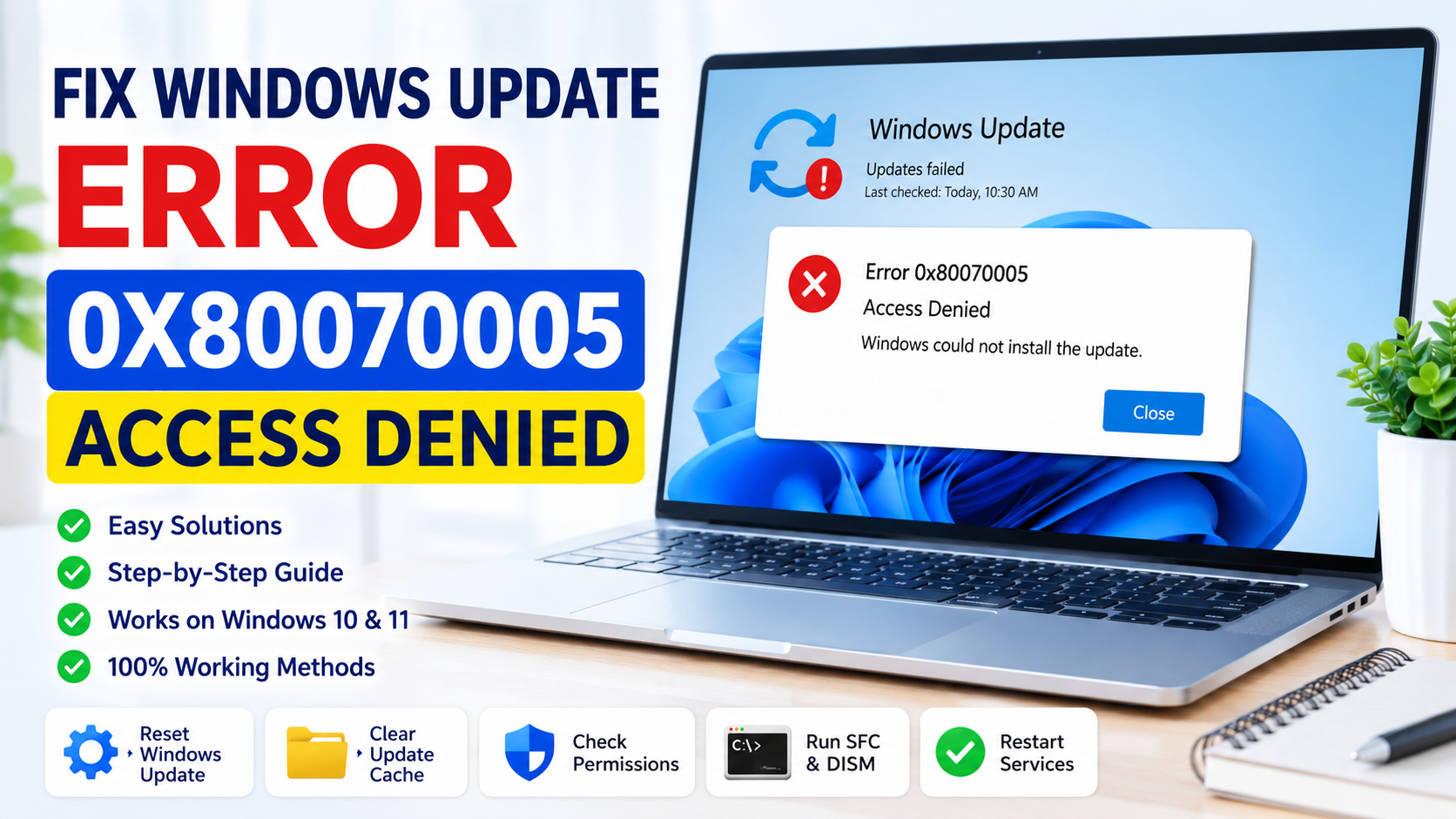
Windows Update errors can be extremely frustrating, especially when the operating system repeatedly fails to install important security patches or cumulative updates. One of the most common permission-related problems is Error 0x80070005 Access Denied. This issue usually appears when Windows cannot access protected update components, system folders, registry entries, or administrator-level resources required during the update process.
Many users first encounter the problem after downloading a Windows update successfully, only to see the installation suddenly stop with a message saying:
“Windows Update failed”
“Error 0x80070005 – Access Denied”
In some situations, the update may remain stuck at a specific percentage such as 20%, 73%, or 100%. Other users experience endless restart loops, rollback failures, Microsoft Store problems, or update installation interruptions immediately after rebooting the computer.
Although the message looks serious, the error is usually related to damaged permissions, corrupted update databases, broken system files, or interference from third-party applications. The good news is that the issue can normally be repaired without reinstalling Windows completely.
This guide explains the causes behind Windows Update Error 0x80070005 and provides detailed solutions that work for both Windows 10 and Windows 11 systems.
Why Windows Update Error 0x80070005 Happens
The 0x80070005 error is primarily associated with permission conflicts inside Windows. During the update process, the operating system needs access to protected system resources. If Windows cannot read or modify those components correctly, the installation process fails immediately.
Unlike hardware-related blue screen problems, this error usually comes from software corruption or blocked permissions.
Several factors can trigger the problem, including:
- Corrupted Windows Update cache files
- Damaged SoftwareDistribution folders
- Broken administrator privileges
- Antivirus software interference
- Corrupted Windows system files
- Disabled update services
- Registry permission conflicts
- Incomplete KB patch installations
- Faulty Microsoft Store cache
- Corrupted user profiles
- Malware infections affecting system permissions
- Failed cumulative updates
- Incorrect folder ownership settings
In many cases, the error appears after a major Windows update or feature upgrade because some system components fail to migrate correctly.
Common Symptoms of Error 0x80070005
The problem does not always appear in the same way. Different users may see slightly different messages depending on which Windows component is affected.
Common symptoms include:
- “Access Denied”
- “Windows could not install updates”
- “Feature update failed”
- “Something went wrong”
- “Update installation failed”
- “Your device is missing important security updates”
- Endless update retry loops
- Failed Microsoft Store downloads
- Windows activation failures
- Backup and restore permission errors
Some users also notice that Windows Defender stops updating properly after the error begins appearing.
Method 1 — Restart Windows Update Services
One of the simplest and most effective fixes involves restarting the core services used by Windows Update. Sometimes these services become frozen, corrupted, or partially stuck in the background.
Restarting them forces Windows to rebuild the update connection process.
Open Command Prompt as Administrator
- Open the Start menu
- Type cmd
- Right-click Command Prompt
- Select Run as administrator
Once the elevated terminal opens, stop the update services by entering these commands one at a time:
net stop wuauserv
net stop bits
net stop cryptsvc
net stop msiserver
Wait until all services stop successfully.
Now restart them:
net start wuauserv
net start bits
net start cryptsvc
net start msiserver
Restart the computer afterward and try running Windows Update again.
This method repairs many temporary update communication problems without changing system settings permanently.
Method 2 — Delete the SoftwareDistribution Update Cache
Windows stores downloaded update packages inside a hidden directory called SoftwareDistribution. If files inside that folder become corrupted, Windows Update may repeatedly fail with Error 0x80070005.
Clearing the folder forces Windows to create fresh update databases and download clean installation files again.
How to Clear SoftwareDistribution
Press Windows + R and type:
services.msc
Inside the Services window, stop these services:
- Windows Update
- Background Intelligent Transfer Service
After stopping the services:
- Open File Explorer
- Navigate to:
C:\Windows\SoftwareDistribution
- Delete all files and folders inside the directory
Do not remove the SoftwareDistribution folder itself.
After deleting the contents:
- restart the stopped services
- reboot the computer
- run Windows Update again
Windows automatically rebuilds the missing update cache during the next scan.
This repair method solves a large percentage of update-related permission errors.
Method 3 — Run the Windows Update Troubleshooter
Microsoft includes a built-in troubleshooting utility designed specifically for update failures.
Although many users ignore this tool, it can automatically detect damaged update components and reset essential services.
Steps to Launch the Troubleshooter
- Open Settings
- Select System
- Choose Troubleshoot
- Open Other troubleshooters
- Find Windows Update
- Click Run
The troubleshooter scans:
- update services
- registry entries
- temporary cache files
- corrupted permissions
- network-related issues
If Windows finds a problem, it may automatically repair the issue without additional steps.
Method 4 — Repair Corrupted Windows System Files
Corrupted system files are another major reason why Windows Update repeatedly fails.
Important update components rely on healthy system files to install patches correctly. If those files become damaged, Windows may generate access denied errors during installation.
Fortunately, Windows includes built-in repair tools called SFC and DISM.
Run SFC Scan
Open Command Prompt as Administrator and run:
sfc /scannow
The System File Checker scans protected Windows files and replaces damaged copies automatically.
The scan may require 10 to 30 minutes depending on system performance.
After the process completes:
- restart the PC
- retry Windows Update
Run DISM RestoreHealth
If the SFC scan cannot repair everything, use DISM.
Execute:
DISM /Online /Cleanup-Image /RestoreHealth
DISM repairs the Windows system image itself and downloads healthy replacement files directly from Microsoft servers.
This repair is especially effective after failed cumulative updates or interrupted feature upgrades.
Method 5 — Temporarily Disable Third-Party Antivirus Software
Security software sometimes blocks Windows from modifying protected update directories.
Aggressive antivirus engines may mistakenly identify update processes as suspicious activity.
Programs commonly associated with update permission conflicts include:
- Avast
- AVG
- McAfee
- Norton
- Bitdefender
Temporarily disable:
- real-time protection
- ransomware shields
- firewall filtering
- behavioral monitoring
After disabling protection, retry the failed update.
If the installation succeeds, add Windows Update services to the antivirus exclusion list.
Never leave antivirus protection disabled permanently.
Method 6 — Check System Drive Permissions
Incorrect ownership or broken security permissions inside the Windows folder can also trigger Error 0x80070005.
Windows Update requires full access to protected directories in order to replace system files safely.
Verify Permissions
- Open File Explorer
- Navigate to:
C:\Windows
- Right-click the folder
- Select Properties
- Open the Security tab
- Click Advanced
Verify that:
- SYSTEM has Full Control
- Administrators have Full Control
- TrustedInstaller ownership appears intact
If permissions look damaged or missing, restoring default ownership may solve the issue.
Be careful when modifying advanced Windows permissions because incorrect settings can create additional problems.
Method 7 — Perform a Clean Boot
Background software conflicts are another hidden cause of update failures.
A clean boot starts Windows with only essential Microsoft services enabled.
This helps identify whether third-party applications are interfering with Windows Update.
Clean Boot Instructions
- Press
Windows + R - Type:
msconfig
- Open the Services tab
- Enable:
- Hide all Microsoft services
- Click Disable all
- Open the Startup tab
- Disable unnecessary startup applications
- Restart the PC
After rebooting:
- run Windows Update again
- check whether the error returns
If the issue disappears, another background application caused the permission conflict.
Method 8 — Reset Windows Update Components Completely
If standard troubleshooting methods fail, manually rebuilding all Windows Update components may permanently repair the error.
Open Command Prompt as Administrator and run:
net stop wuauserv
net stop cryptsvc
net stop bits
net stop msiserver

ren C:\Windows\SoftwareDistribution SoftwareDistribution.old
ren C:\Windows\System32\catroot2 Catroot2.old

net start wuauserv
net start cryptsvc
net start bits
net start msiserver
This process:
- removes corrupted update databases
- rebuilds cryptographic catalogs
- resets Windows Update services
- creates fresh cache folders
Restart the computer after completing the commands.
Method 9 — Install Updates Manually from Microsoft
Sometimes automatic updates fail even though the update package itself is healthy.
In those situations, manually installing the KB update may bypass the permission issue entirely.
Find the Failed KB Number
- Open Windows Update History
- Locate the failed KB update
- Copy the KB number
Visit the official Microsoft Update Catalog and search for the KB package manually.
Download the version that matches your system architecture:
- x64
- x86
- ARM64
Run the installer using administrator privileges.
Method 10 — Create a New Administrator Account
Corrupted Windows profiles can permanently damage local permission structures.
If Error 0x80070005 appears only on one account, creating a fresh administrator profile may resolve the issue immediately.
Create a New Local Administrator
- Open Settings
- Navigate to Accounts
- Select Family & other users
- Add a new local account
- Change account type to Administrator
Sign into the new account and retry Windows Update.
If updates work normally, the old user profile was likely corrupted.
Additional Tips to Prevent Error 0x80070005
Maintaining a healthy Windows environment helps reduce future update failures.
Recommended maintenance practices include:
- Avoid force-shutting down during updates
- Keep SSD storage free and optimized
- Remove broken system optimization utilities
- Keep drivers updated regularly
- Scan for malware frequently
- Install cumulative updates consistently
- Avoid modifying advanced registry permissions
- Use reliable antivirus protection
- Run SFC scans periodically
- Restart the PC after major updates
Healthy update components greatly reduce the risk of access denied errors.
Final Thoughts
Windows Update Error 0x80070005 Access Denied is usually caused by damaged permissions, corrupted update cache files, broken Windows services, or security software interference. Although the error may prevent important updates from installing correctly, it is often repairable using built-in Windows recovery tools.
For most users, restarting update services, clearing the SoftwareDistribution folder, and repairing Windows files using SFC and DISM provide the fastest solutions. More advanced cases may require resetting Windows Update components completely or creating a new administrator account.
Once the corrupted permissions and update databases are repaired, Windows Update should begin installing security patches and cumulative updates normally again without displaying the 0x80070005 access denied message.


