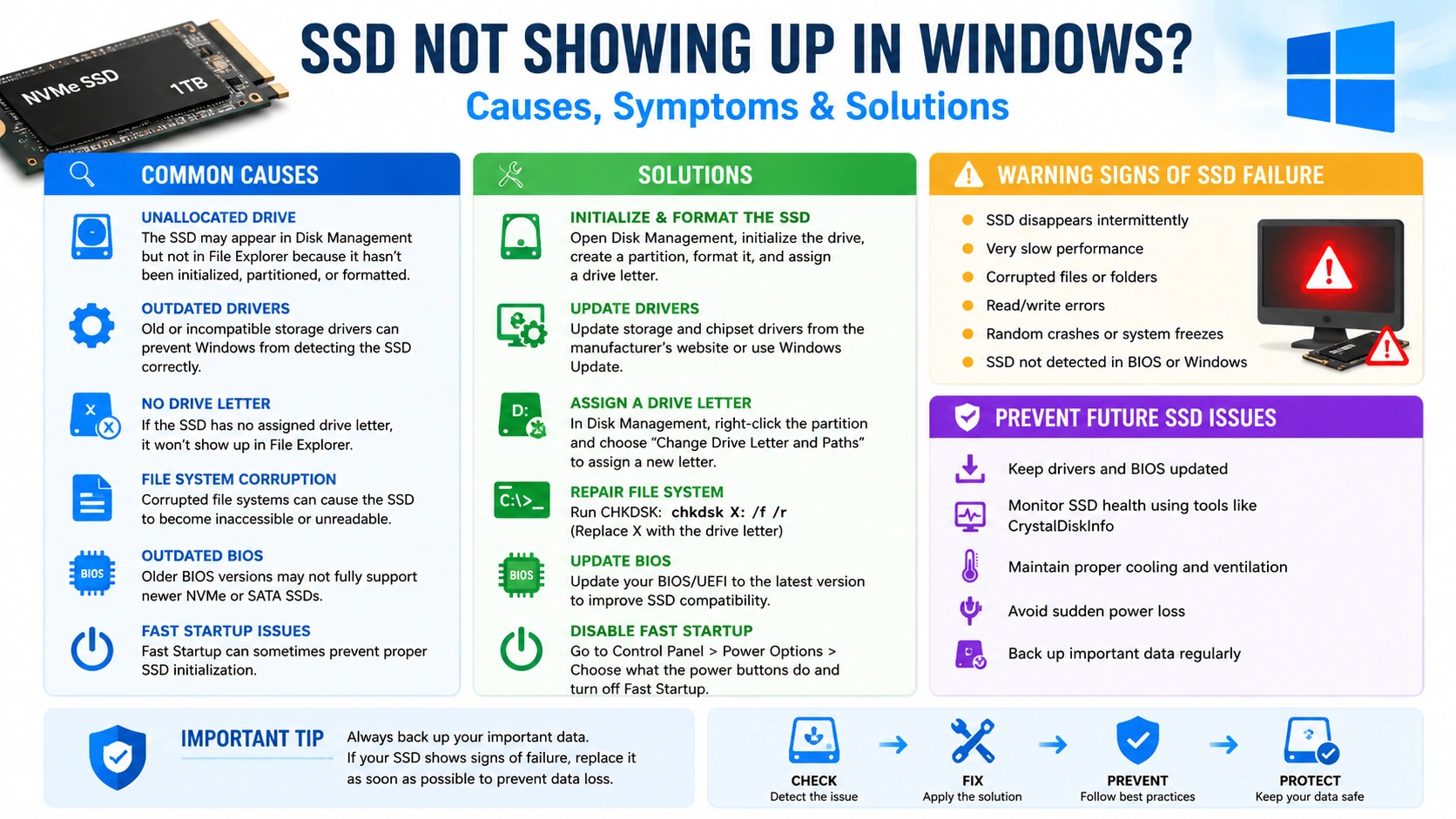
If your SSD suddenly disappears from File Explorer or fails to appear during boot, you need to fix SSD not recognized Windows problems quickly before data becomes inaccessible. This issue can happen after hardware upgrades, BIOS changes, Windows updates, driver corruption, or SSD failure.
The good news is that most SSD detection problems can be solved without replacing the drive. This guide explains the best ways to fix SSD not recognized Windows errors on desktops and laptops.
Why SSD Is Not Recognized in Windows
Several hardware and software problems may prevent your SSD from appearing correctly. Common causes include:
- Loose SATA or power cables
- Incorrect BIOS settings
- Corrupted SSD drivers
- Unallocated disk partitions
- Outdated motherboard firmware
- Damaged SSD sectors
- Faulty M.2 slot configuration
- Windows boot corruption
Understanding the cause helps you fix SSD not recognized Windows issues faster.
1. Restart Your Computer
Temporary system glitches can sometimes prevent Windows from detecting storage devices correctly. These minor software conflicts may interrupt communication between the operating system and the SSD, causing the drive to disappear from File Explorer or Disk Management. Restarting the computer refreshes hardware connections, reloads storage drivers, and often restores SSD detection automatically.
Steps
- Shut down your PC completely
- Disconnect power for 30 seconds
- Restart Windows
- Check File Explorer and Disk Management
A simple reboot sometimes restores SSD detection instantly.
2. Check SATA and Power Connections
Loose or damaged cables are one of the most common causes of SSD recognition failure. If the SATA data cable or power connector is not securely attached, Windows may be unable to communicate with the SSD properly. Faulty cables can also cause random disconnects, boot problems, or the SSD disappearing intermittently from the system.
For SATA SSDs
- Reconnect the SATA data cable
- Reconnect the PSU power cable
- Try another motherboard SATA port
- Test another SATA cable
For M.2 SSDs
- Remove the SSD carefully
- Clean dust from the slot
- Reinstall the drive securely
Hardware connection problems often cause Windows to fail to identify the SSD.
3. Verify SSD Detection in BIOS
If the BIOS cannot detect the SSD, Windows will also fail to recognize it because the operating system depends on BIOS to initialize and identify connected storage devices during startup. Problems such as disabled SATA controllers, incorrect BIOS settings, outdated firmware, or hardware connection issues can all prevent the SSD from appearing properly.
Enter BIOS
- Restart the computer
- Press F2, Delete, ESC, or F10 during startup
Check Storage Devices
Look under:
- Storage Configuration
- NVMe Configuration
- SATA Information
If the SSD does not appear, try:
- Enabling SATA Controller
- Switching SATA mode to AHCI
- Updating BIOS firmware
This method can fix SSD not recognized Windows errors caused by motherboard configuration issues.
4. Initialize the SSD in Disk Management
New SSDs often appear as unallocated drives because they have not yet been initialized, partitioned, or formatted. In this state, Windows can detect the hardware but cannot display it in File Explorer until a usable partition and drive letter are created through Disk Management.
Open Disk Management
- Press
Windows + X - Select
Disk Management
If SSD Appears as Unallocated
- Right-click the SSD
- Choose
Initialize Disk - Select GPT or MBR
- Create a New Simple Volume
- Assign a drive letter
Once initialized, the SSD becomes accessible in Windows.
5. Update SSD Drivers
Outdated storage drivers can prevent proper communication between Windows and the SSD. When drivers become corrupted, incompatible, or obsolete, the operating system may fail to recognize the SSD correctly, leading to missing drives, performance issues, or boot errors. Updating storage and chipset drivers often restores stable SSD detection and improves compatibility with Windows.
Update Drivers
- Press
Windows + X - Open
Device Manager - Expand
Disk Drives - Right-click your SSD
- Select
Update Driver
Also update:
- SATA AHCI Controller
- NVMe Controller
- Chipset Drivers
Updating drivers can resolve compatibility problems after Windows updates.
6. Assign a Drive Letter
Sometimes the SSD is detected correctly by Windows but does not appear in File Explorer because no drive letter has been assigned to the partition. Without a drive letter, Windows cannot display the SSD as an accessible storage device, even though the drive is visible in Disk Management. Assigning a new drive letter usually restores normal access immediately.
Assign Letter
- Open Disk Management
- Right-click the SSD partition
- Select
Change Drive Letter and Paths - Click
Add - Choose a new drive letter
This is a fast way to fix SSD not recognized Windows problems involving hidden partitions.
7. Run CHKDSK to Repair Errors
File system corruption can stop Windows from reading the SSD correctly by damaging important data structures required for storage access. When the file system becomes corrupted, the SSD may appear inaccessible, trigger read or write errors, disappear from File Explorer, or cause system crashes. Running repair tools such as CHKDSK can help detect and fix logical disk errors.
Run CHKDSK
Open Command Prompt as Administrator and type:
chkdsk C: /f /r
Replace C: with your SSD letter.
CHKDSK scans:
- Bad sectors
- File system corruption
- Logical disk errors
Restart the PC if prompted.
8. Update BIOS Firmware
Older BIOS versions may not fully support newer NVMe or SATA SSDs, especially high-speed modern drives released after the motherboard was manufactured. This compatibility limitation can prevent the SSD from appearing in BIOS or Windows, cause boot failures, or create unstable storage performance. Updating the BIOS firmware often improves SSD compatibility, storage detection, and overall system stability.
Update BIOS Safely
- Visit your motherboard manufacturer website
- Download the latest BIOS
- Follow official flashing instructions carefully
Popular motherboard brands include:
- ASUS
- MSI
- Gigabyte
- ASRock
A BIOS update can improve SSD compatibility and stability.
9. Disable Fast Startup
Fast Startup occasionally causes storage initialization problems by preventing Windows from fully reloading hardware drivers during shutdown and startup. As a result, the SSD may not initialize correctly, causing the drive to disappear from File Explorer or fail to load during boot. Disabling Fast Startup can help Windows detect storage devices more reliably after restarting the system.
Disable Fast Startup
- Open Control Panel
- Go to
Power Options - Select
Choose what the power buttons do - Click
Change settings currently unavailable - Disable
Turn on fast startup
Restart your computer afterward.
This method can help fix SSD not recognized Windows startup issues.
10. Test SSD Health
A failing SSD may disappear intermittently or stop responding entirely due to damaged memory cells, controller failure, or severe hardware degradation. Common warning signs include slow performance, corrupted files, frequent crashes, read or write errors, and the SSD randomly disconnecting from the system. Checking the drive’s SMART health status with diagnostic software can help determine whether the SSD is approaching failure.
Use SSD Diagnostic Tools
Manufacturer utilities include:
- Samsung Magician
- Crucial Storage Executive
- WD Dashboard
- Kingston SSD Manager
These tools check:
- Drive temperature
- SMART health status
- Firmware version
- Remaining lifespan
If the SSD health is critical, back up data immediately.
How to Prevent SSD Detection Problems
You can reduce future SSD issues by following good maintenance practices.
Best Practices
- Keep BIOS updated
- Use quality SATA cables
- Avoid sudden power loss
- Maintain proper cooling
- Update storage drivers regularly
- Monitor SSD health monthly
Preventive maintenance improves SSD reliability and lifespan.
Signs Your SSD May Be Failing
Some symptoms indicate potential hardware failure.
Common SSD Failure Symptoms
- Frequent freezing
- Extremely slow file transfers
- Random disconnects
- Blue screen crashes
- Corrupted files
- SSD disappears after reboot
If these problems continue after troubleshooting, replacement may be necessary.
Conclusion
Learning how to fix SSD not recognized Windows problems can save important files and restore system performance quickly. In many cases, the issue is caused by BIOS settings, cable problems, uninitialized partitions, or outdated drivers rather than complete SSD failure.
By following these 10 powerful solutions, you can diagnose hardware problems, repair corrupted settings, and restore SSD detection safely. If the SSD still fails after all troubleshooting steps, testing the drive on another computer can help confirm whether hardware replacement is required.


