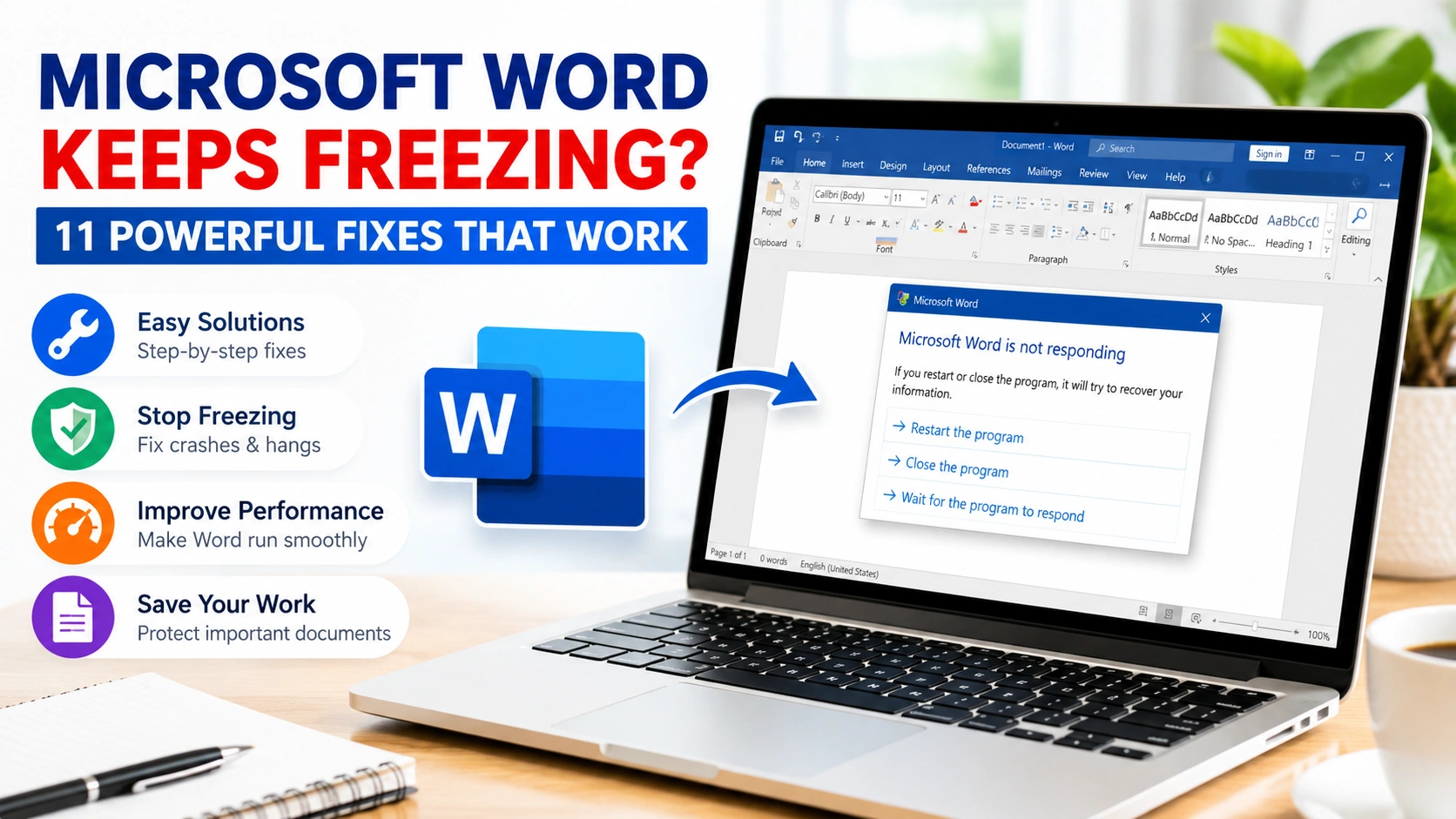
Microsoft Word is one of the most widely used word processing applications in the world. Whether you’re creating reports, writing articles, drafting contracts, or taking notes, Word is often an essential tool for productivity.
However, many users encounter a frustrating problem where Microsoft Word keeps freezing unexpectedly. The application may stop responding while typing, opening files, saving documents, or launching the program itself. In some cases, Word becomes completely unresponsive and forces users to close it through Task Manager.
If Microsoft Word keeps freezing on your computer, don’t worry. This guide explains the most common causes and provides step-by-step solutions to restore smooth performance.
Why Microsoft Word Keeps Freezing
Before applying fixes, it’s important to understand why Microsoft Word becomes unresponsive. The application relies on various Windows components, Office services, and document resources. When one of these elements encounters an issue, Word may freeze, stop responding, or crash unexpectedly.
Common causes include:
- Corrupted Microsoft Office installation files
- Problematic or incompatible add-ins
- Damaged Word templates such as Normal.dotm
- Large or corrupted documents
- Outdated Microsoft Office versions
- Insufficient RAM or system resources
- Antivirus software conflicts
- Corrupted Windows user profiles
- Faulty printer drivers
- Damaged Windows system files
In many cases, Word freezes because of software conflicts occurring in the background rather than a problem with the document itself. Identifying the root cause can significantly reduce troubleshooting time and help you apply the most effective solution.
If other programs on your computer are also crashing or becoming unresponsive, you may want to read our guide on Fixes for Application Crashes in Windows, which covers broader system-level issues that can affect Microsoft Word and other applications.
Signs That Microsoft Word Is Freezing
When Microsoft Word starts experiencing performance issues, it usually displays warning signs before becoming completely unresponsive. Recognizing these symptoms can help you identify the problem early and prevent data loss or interrupted work.
You may notice one or more of the following symptoms:
- Word displays a “Not Responding” message
- Long delays while typing or editing text
- Freezing when opening documents
- Crashing during AutoSave or manual saves
- Blank or white screen after launching Word
- The application hangs when printing documents
- Delayed responses when clicking menus or toolbars
- The cursor stops moving or becomes unresponsive
- Word takes an unusually long time to start
- Frequent crashes when switching between documents
These symptoms often indicate software conflicts, corrupted files, faulty add-ins, or issues with your Microsoft Office installation. In some cases, broader Windows problems may also affect how Word performs.
If Microsoft Word refuses to launch entirely instead of freezing, you may find our guide on Fix Software Not Opening helpful, as it covers additional troubleshooting methods for applications that fail to start in Windows.
Fix 1: Restart Microsoft Word and Windows
The simplest solution is often the most effective.
Temporary system glitches can cause Word to freeze unexpectedly.
Steps
- Close Microsoft Word.
- Press Ctrl + Shift + Esc.
- Open Task Manager.
- End all Microsoft Word processes.
- Restart your computer.
- Launch Word again.
If Word operates normally afterward, the issue may have been a temporary software conflict.
Fix 2: Open Word in Safe Mode
Safe Mode launches Word without add-ins or custom settings.
If Microsoft Word keeps freezing due to an extension, Safe Mode can help identify the problem.
Steps
- Press Windows + R.
- Type:
winword /safe
- Press Enter.
If Word works correctly in Safe Mode, an add-in is likely causing the issue.
Disable Add-ins
- Open Word.
- Select File > Options > Add-ins.
- Choose COM Add-ins.
- Click Go.
- Uncheck all add-ins.
- Restart Word.
Re-enable add-ins one at a time to identify the culprit.
Fix 3: Update Microsoft Office
Outdated Office installations frequently contain bugs that lead to freezing.
Microsoft regularly releases patches that improve performance and stability.
Steps
- Open Word.
- Click File.
- Select Account.
- Click Update Options.
- Choose Update Now.
For official update information, visit Microsoft’s Office update documentation:
https://support.microsoft.com/office
After updating, restart your computer.
Fix 4: Repair Microsoft Office
Corrupted Office files can prevent Word from functioning properly.
Windows includes a built-in repair utility.
Steps
- Open Control Panel.
- Select Programs and Features.
- Locate Microsoft Office.
- Click Change.
- Choose Quick Repair.
- Complete the repair process.
If the problem persists:
- Repeat the steps.
- Select Online Repair.
Online Repair performs a deeper restoration of Office files.
Fix 5: Delete the Normal.dotm Template
Word stores settings inside a template called Normal.dotm.
When this file becomes corrupted, Microsoft Word keeps freezing during startup or normal use.
Steps
- Close Word.
- Press Windows + R.
- Enter:
%appdata%\Microsoft\Templates
- Press Enter.
- Locate Normal.dotm.
- Rename it to:
Normal.old
- Restart Word.
Word automatically creates a fresh template.
Fix 6: Check for Problematic Documents
Sometimes the issue is not Word itself but a damaged document.
Test Method
- Open Word.
- Create a new blank document.
- Type for several minutes.
If Word works normally, a specific file may be corrupted.
Recovery Option
- Open Word.
- Select File > Open.
- Browse to the damaged document.
- Click the arrow beside Open.
- Choose Open and Repair.
This built-in feature can recover many corrupted files.
Fix 7: Disable Hardware Graphics Acceleration
Graphics acceleration occasionally conflicts with certain video drivers.
Steps
- Open Word.
- Select File > Options.
- Choose Advanced.
- Scroll to Display.
- Enable:
Disable hardware graphics acceleration
- Restart Word.
Many users report significant improvements after disabling this feature.
Fix 8: Update Windows
System-level bugs can affect Microsoft Office applications.
Keeping Windows updated helps maintain compatibility.
Steps
- Open Settings.
- Select Windows Update.
- Click Check for updates.
- Install all available updates.
- Restart your PC.
Microsoft recommends keeping both Windows and Office fully updated.
Fix 9: Change the Default Printer
Surprisingly, printer drivers can cause Microsoft Word to freeze.
Word constantly communicates with the default printer to determine page layouts.
Test Procedure
- Open Settings.
- Select Bluetooth & Devices.
- Choose Printers & Scanners.
- Set Microsoft Print to PDF as default.
Launch Word again and check performance.
If freezing disappears, update or reinstall your printer driver.
Fix 10: Run System File Checker
Corrupted Windows files may interfere with Word operations.
Steps
Open Command Prompt as Administrator and run:
sfc /scannow
Wait for the scan to finish.
If issues are found, Windows will attempt to repair them automatically.
You can learn more about System File Checker from Microsoft’s support resources:
https://learn.microsoft.com/windows
Restart your computer after the scan.
Fix 11: Reinstall Microsoft Office
If none of the previous solutions work, reinstalling Office may be necessary.
Steps
- Open Control Panel.
- Navigate to Programs and Features.
- Uninstall Microsoft Office.
- Restart your computer.
- Download the latest version from Microsoft.
- Reinstall Office.
- Activate your license.
A clean installation often resolves persistent freezing issues.
Additional Tips to Prevent Word Freezing
To keep Microsoft Word running smoothly:
- Save documents regularly
- Avoid excessive add-ins
- Keep Office updated
- Maintain adequate disk space
- Update device drivers
- Run malware scans periodically
- Use AutoSave when available
- Avoid opening extremely large files unnecessarily
- Back up important documents
Following these practices can significantly improve long-term stability.
When Word Freezes Only on Specific Files
If Microsoft Word keeps freezing only when opening certain documents, the issue may not be with Word itself. Instead, the affected file could be corrupted, excessively large, or contain elements that cause performance problems. Identifying whether the freezing occurs with one document or all documents can help narrow down the cause.
Try the following troubleshooting steps:
- Check the document for file corruption
- Remove unnecessary embedded objects
- Compress large images to reduce file size
- Convert older DOC files to the newer DOCX format
- Copy the content into a new Word document
- Scan the file for malware or malicious macros
- Remove unused fonts, charts, or media elements
- Split extremely large documents into smaller sections
Large Word files containing numerous images, tables, charts, comments, tracked changes, and embedded content are more likely to cause performance issues. In some cases, Microsoft Word keeps freezing because the document requires more memory and processing power than your system can efficiently provide.
If only one file triggers the issue while other documents open normally, focus on repairing or optimizing that specific document rather than troubleshooting the entire Microsoft Office installation. This approach can save time and quickly restore normal performance.
Frequently Asked Questions
Why does Microsoft Word keep freezing when typing?
This is commonly caused by problematic add-ins, corrupted templates, insufficient memory, or outdated Office versions.
Can antivirus software cause Word to freeze?
Yes. Some antivirus programs scan Office files aggressively and may interfere with Word’s performance.
Will reinstalling Office delete my documents?
No. Reinstalling Office removes the application but does not delete your saved documents.
How do I know if an add-in is causing the problem?
Launch Word in Safe Mode using:
winword /safe
If Word runs normally, an add-in is likely responsible.
Why does Word freeze when saving?
This may indicate file corruption, storage issues, synchronization conflicts, or a damaged Office installation.
Conclusion
When Microsoft Word keeps freezing, the issue is usually caused by corrupted templates, faulty add-ins, outdated software, damaged Office files, or system-level conflicts. Fortunately, most cases can be resolved without advanced technical knowledge.
Start with simple solutions such as restarting Word, updating Office, and disabling add-ins. If the problem continues, repair Office, reset Word templates, and check Windows system files. In severe cases, a clean Office reinstallation can restore full functionality.
By following the troubleshooting methods in this guide, you can eliminate freezing issues and keep Microsoft Word running smoothly and reliably.