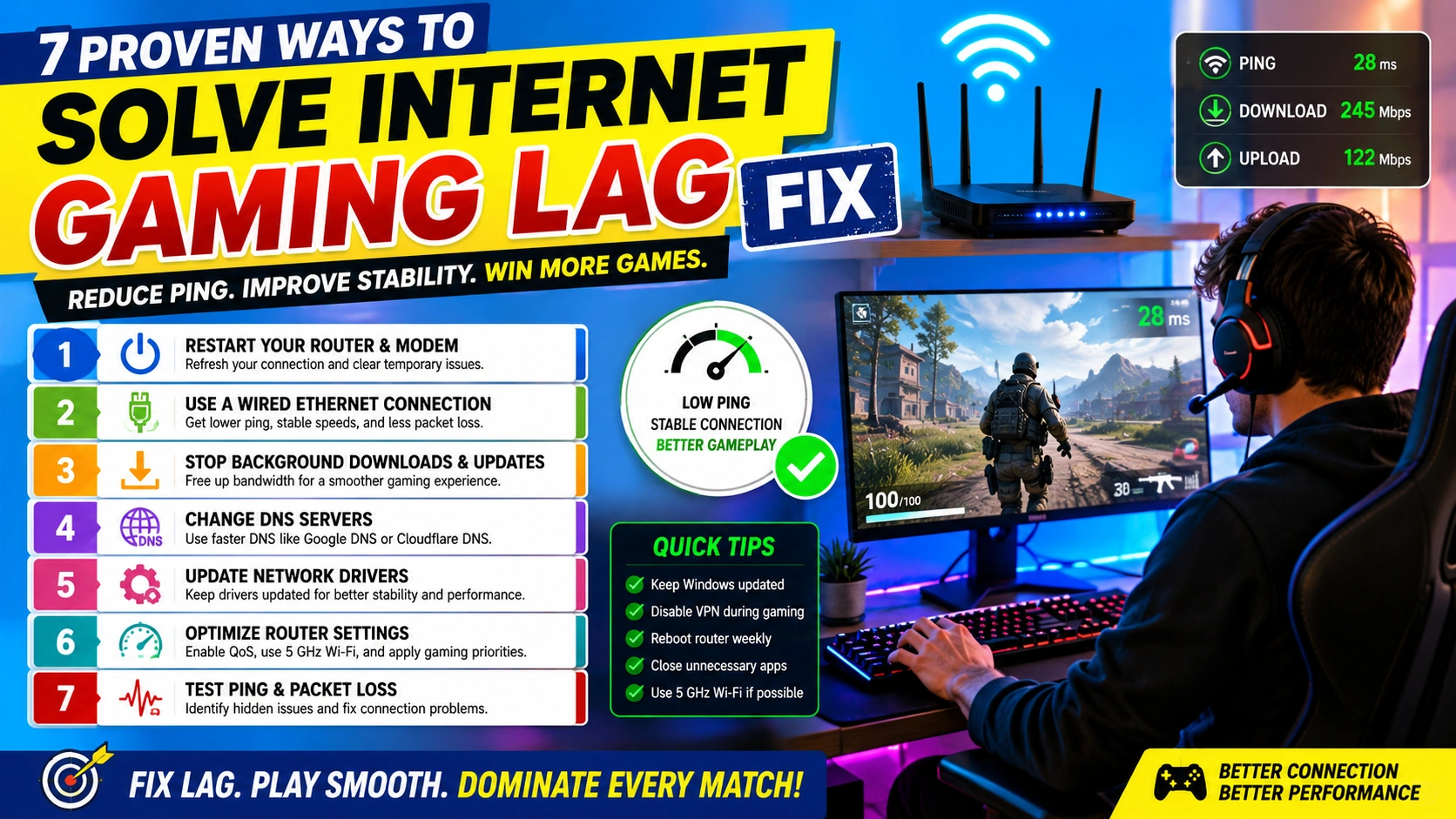
Online gaming requires a fast and stable internet connection. Even a small delay can affect gameplay, causing character movement issues, delayed actions, and frustrating losses.
If you’re experiencing high ping, packet loss, or connection instability, this guide will help you Solve Internet Gaming Lag Fix issues using proven methods. These solutions work on Windows 10, Windows 11, and most online games.
Network latency is one of the most common causes of gaming lag. This Fix Network Latency Windows Complete Tutorial Guide explains how to reduce ping, improve connection stability, and optimize your network for smoother gameplay.
What Causes Gaming Lag?
Before attempting to Solve Internet Gaming Lag Fix issues, it’s important to understand the common causes:
- Slow internet speed
- High network congestion
- Wi-Fi interference
- Background downloads
- Outdated network drivers
- Router configuration issues
- ISP-related routing problems
- Packet loss and latency spikes
Identifying the source of lag makes troubleshooting much easier. If network issues persist, you may need to Reset Network Settings to Fix Internet Problems and restore your network configuration to its default state. This can resolve connection conflicts, incorrect settings, and other networking issues that contribute to gaming lag.
1. Restart Your Router and Modem
One of the quickest ways to Solve Internet Gaming Lag Fix problems is by restarting your networking equipment.
Steps:
- Turn off your router and modem.
- Unplug both devices.
- Wait 60 seconds.
- Plug them back in.
- Reconnect and test your game.
This clears temporary network issues and refreshes your internet connection.
2. Use a Wired Ethernet Connection
Wi-Fi is convenient, but it often introduces latency, signal interference, and connection instability.
To better Solve Internet Gaming Lag Fix issues:
- Connect your PC directly to the router using an Ethernet cable.
- Avoid wireless connections during competitive gaming.
- Use Cat5e, Cat6, or newer cables for optimal performance.
A wired connection typically provides:
- Lower ping
- More stable speeds
- Reduced packet loss
If your wireless connection frequently disconnects or fails to obtain a valid network address, you may also need to troubleshoot Wi-Fi Doesn’t Have a Valid IP Configuration errors, as they can contribute to gaming lag and connectivity problems.
3. Stop Background Downloads and Updates
Background applications consume bandwidth and increase latency, which can negatively affect online gaming performance.
Check for:
- Windows Updates
- Cloud synchronization services
- Streaming platforms
- Game launchers updating games
- Large file downloads
Press Ctrl + Shift + Esc to open Task Manager and close unnecessary applications running in the background.
Keeping your system optimized is essential when trying to Solve Internet Gaming Lag Fix issues. You should also regularly Update Windows Drivers to improve network stability, hardware compatibility, and overall gaming performance. Drivers that are outdated can contribute to connection issues, higher latency, and unexpected lag during online gameplay.
This placement is more natural, improves topical relevance, and helps Rank Math recognize the internal link within the content rather than as a standalone reference.
4. Change DNS Servers
Using faster DNS servers can improve connection responsiveness and reduce delays when connecting to online game servers.
Popular DNS providers include:
Google DNS
- 8.8.8.8
- 8.8.4.4
Cloudflare DNS
- 1.1.1.1
- 1.0.0.1
To Change DNS Settings:
- Open Control Panel.
- Select Network and Sharing Center.
- Click Change Adapter Settings.
- Open your network adapter properties.
- Select Internet Protocol Version 4 (TCP/IPv4).
- Enter one of the DNS addresses listed above.
This simple adjustment can help Solve Internet Gaming Lag Fix issues caused by slow DNS resolution and inefficient server lookups.
If you experience connection failures after changing DNS settings, you may also need to troubleshoot a Fix DNS Server Not Responding Error issue, which can prevent your computer from accessing websites and online gaming services properly.
5. Update Network Drivers
Outdated network drivers can cause connection instability, packet loss, and increased latency during online gaming.
Steps:
- Press Windows + X.
- Open Device Manager.
- Expand Network Adapters.
- Right-click your network device.
- Select Update Driver.
Updating your network drivers can improve:
- Stability
- Compatibility
- Network performance
Regularly maintaining and updating drivers is an important part of any Solve Internet Gaming Lag Fix strategy. In addition to improving internet connectivity, keeping drivers current helps prevent hardware compatibility issues and network-related errors. For a complete walkthrough, see our guide on Update Windows Drivers and ensure all critical system drivers are running the latest versions.
6. Reduce Network Congestion
Multiple devices sharing the same internet connection can increase latency.
Try these solutions:
- Pause video streaming.
- Limit large downloads.
- Disconnect unused devices.
- Schedule downloads outside gaming hours.
Many modern routers also support Quality of Service (QoS), which prioritizes gaming traffic.
7. Test Ping and Packet Loss
Monitoring your connection can help identify hidden network problems that contribute to gaming lag and high latency.
Open Command Prompt and run:
ping google.com -n 50
Review the results and look for:
- Average ping
- Packet loss percentage
- Response consistency
High ping values, frequent timeouts, or packet loss can negatively impact online gaming performance. Running regular ping tests can help determine whether the issue originates from your local network, router, or internet service provider.
For more advanced troubleshooting and network diagnostics, refer to the official Microsoft Windows support.
Consistent packet loss may indicate router problems, ISP routing issues, faulty network hardware, or signal interference that requires further investigation.
Additional Tips to Solve Internet Gaming Lag Fix Problems
Follow these best practices to further Solve Internet Gaming Lag Fix issues and maintain a smooth online gaming experience:
- Keep Windows updated with the latest security and performance patches.
- Upgrade older routers that may struggle with modern gaming traffic.
- Position routers away from walls, metal objects, and electronic interference.
- Use a 5 GHz Wi-Fi connection if Ethernet is not available.
- Disable VPNs during gaming to reduce latency and routing delays.
- Reboot your modem and router weekly to refresh network connections.
- Close unnecessary browser tabs and background applications.
These habits can help reduce ping, improve connection stability, and Solve Internet Gaming Lag Fix problems before they affect gameplay.
In addition to optimizing your network, it’s also important to monitor your computer’s overall performance. Learning How to Test PC Performance can help identify hardware bottlenecks, high resource usage, or system issues that may contribute to lag and reduced gaming performance.
When to Contact Your ISP
If none of these methods successfully Solve Internet Gaming Lag Fix issues, it may be time to contact your Internet Service Provider (ISP).
Be prepared to provide:
- Ping test results
- Packet loss reports
- Internet speed test results
- The times when lag occurs most frequently
Your ISP may be able to identify problems such as:
- Line congestion
- Routing issues
- Service outages
- Faulty networking equipment
Providing detailed information can help your ISP diagnose and resolve connection issues more quickly.
Final Thoughts
Learning how to Solve Internet Gaming Lag Fix issues can dramatically improve your online gaming experience. Start with simple solutions such as restarting your router, using a wired Ethernet connection, stopping background downloads, changing DNS servers, and updating network drivers. If lag persists, test for packet loss and work with your ISP to identify deeper network problems.
By following these seven proven methods, you can reduce latency, improve connection stability, and enjoy smoother, more reliable online gameplay.