

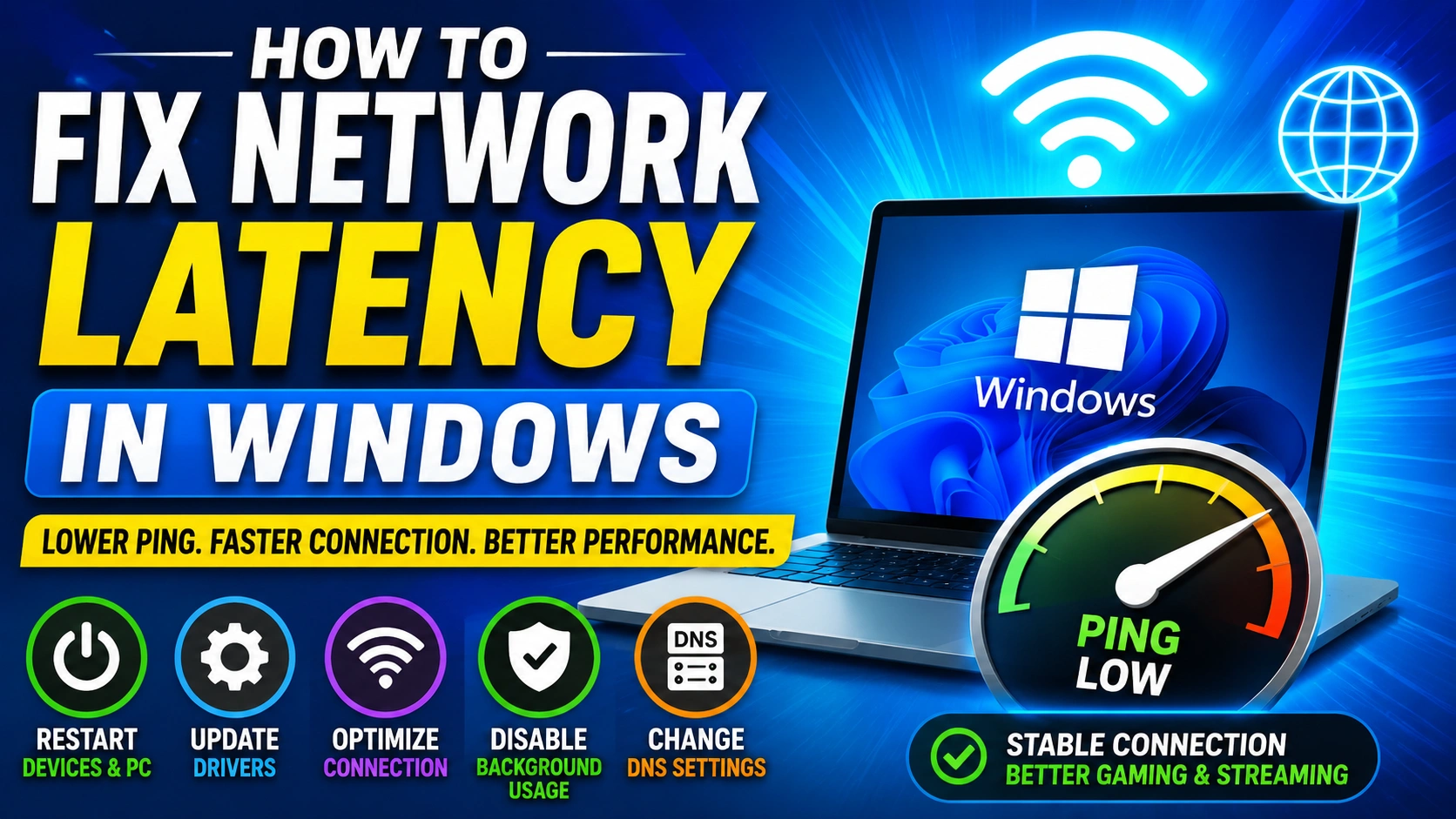
High network latency can ruin gaming, streaming, video calls, and even basic browsing. If you are experiencing lag spikes, delays, or unstable connections, this guide will help you Fix Network Latency Windows using practical and tested methods.
Resetting network settings is one of the most effective ways to resolve persistent connection issues, especially when standard troubleshooting does not work.
This tutorial is designed for Windows 10 and Windows 11 users who want stable ping, reduced latency, and consistent internet performance across all applications.
What Causes Network Latency in Windows?
Before you Fix Network Latency Windows, it is important to understand what causes it. Identifying the root cause makes troubleshooting faster and more effective.
Common causes of network latency include:
- Background apps consuming bandwidth
- Outdated or corrupted network drivers
- DNS or IP configuration issues
- Weak Wi-Fi signal or interference
- Windows system updates running in the background
- ISP routing problems
Once you identify the cause, applying the right fix becomes much easier.
How to Test PC Performance
This guide helps you analyze CPU, RAM, disk, and overall system performance to detect bottlenecks that can indirectly increase latency, lag, and unstable network behavior.
Testing your PC performance ensures that system overload is not contributing to network issues, helping you achieve more stable and consistent connectivity.
1. Restart Network Devices and PC
A simple restart is often the fastest way to Fix Network Latency Windows, especially when the issue is caused by temporary glitches or unstable connections.
Steps:
- Restart your PC
- Turn off your modem/router for at least 30 seconds
- Turn them back on and reconnect to the network
- Test your internet speed and stability
This process refreshes IP allocation, clears temporary network cache, and re-establishes a stable connection between your device and the internet service provider.
2. Update Network Drivers
Outdated or corrupted network drivers are one of the most common reasons you need to Fix Network Latency Windows repeatedly.
Steps to update network drivers:
- Open Device Manager
- Expand Network Adapters
- Right-click your active network adapter
- Click Update Driver
- Select “Search automatically for drivers”
For better stability, you can also download the latest official drivers directly from your motherboard or laptop manufacturer’s website.
Keeping drivers updated ensures better compatibility, improved performance, and reduced latency during gaming, streaming, and browsing.
3. Flush DNS and Reset TCP/IP
This method clears corrupted network configurations.
Run the following commands in Command Prompt (Admin):
ipconfig /flushdns
ipconfig /release
ipconfig /renew
netsh int ip reset
netsh winsock reset
Then restart your PC.
For reference, Microsoft explains network troubleshooting tools here:
Microsoft Support Network Troubleshooting
4. Disable Background Bandwidth Usage
Windows and installed applications often consume bandwidth in the background without showing clear signs, which can increase latency and make it harder to Fix Network Latency Windows effectively.
Fix steps:
- Temporarily pause or disable Windows Update
- Close cloud sync tools such as OneDrive or Google Drive
- End unnecessary background tasks using Task Manager
These processes can silently use network resources, leading to higher ping, lag spikes, and unstable performance.
Reducing background bandwidth usage helps stabilize your connection, especially during gaming, streaming, or video calls.
5. Change DNS Settings for Faster Routing
DNS (Domain Name System) affects how quickly your system connects to servers and loads websites. Poor DNS configuration can increase response time and make it harder to Fix Network Latency Windows effectively.
Recommended DNS servers:
- Google DNS: 8.8.8.8 / 8.8.4.4
- Cloudflare DNS: 1.1.1.1 / 1.0.0.1
Steps to change DNS:
- Open Network Settings
- Go to Change adapter options
- Right-click your active connection and open Properties
- Select Internet Protocol Version 4 (IPv4)
- Enter manual DNS values
This reduces DNS lookup delay and improves overall response time when browsing or gaming.
DNS misconfiguration can sometimes cause connectivity issues such as “DNS Server Not Responding.” This directly impacts your ability to Fix Network Latency Windows, especially during browsing, streaming, and online gaming.
You can troubleshoot this issue here:
Fixing DNS-related errors helps stabilize network routing, reduce delays, and improve connection reliability across Windows systems.
6. Optimize Windows Network Settings
Windows includes several hidden background features that can increase network latency and cause unstable ping spikes. Disabling unnecessary services helps you Fix Network Latency Windows more effectively and improves overall responsiveness.
Disable the following features:
- Delivery Optimization
- Peer-to-Peer (P2P) Windows Updates
- Background Apps running in idle mode
These processes often consume bandwidth without user awareness, increasing delay and packet instability.
Reset Network Stack (If Issues Persist)
If latency problems continue, resetting the Windows network stack can help restore default configurations:
- Reset TCP/IP settings
- Flush DNS cache
- Reset Winsock catalog
This clears corrupted or misconfigured network components that may affect performance.
Improve System Performance for Better Network Stability
Network performance is also tied to overall system health. If your PC is slow or overloaded, latency may worsen even with a good internet connection.
You can test and optimize your system using this guide:
Optimizing system performance often helps Fix Network Latency Windows more effectively by reducing background load and improving resource allocation.
7. Switch to Wired Connection (Ethernet)
Wi-Fi interference is one of the biggest latency causes.
Ethernet provides:
- Lower ping
- Stable connection
- No interference from walls or devices
If possible, always use a wired connection for gaming or video calls.
Bonus Tip: Check System Performance
Sometimes latency is not only network-related but also caused by overall system performance issues. A heavily loaded or slow PC can increase delays, input lag, and unstable connections.
To better Fix Network Latency Windows, it is important to analyze your system performance and identify bottlenecks.
You can check your PC performance here:
A slow system can indirectly increase perceived network lag by limiting resource availability and affecting real-time network processing.
Advanced Fix: Check Windows Errors
Certain system errors may also impact network stability and cause persistent latency issues. To Fix Network Latency Windows, it is important to ensure that Windows services and system components are functioning correctly.
Read more troubleshooting guides:
Fixing system-level issues can help stabilize your network behavior, improve service responsiveness, and reduce connection interruptions that contribute to high ping and lag.
Conclusion
To effectively Fix Network Latency Windows, you need a combination of network optimization, updated drivers, DNS tuning, and regular system cleanup. No single fix solves all latency issues, so a structured approach is essential.
The most effective method includes:
- Start by updating network drivers
- Flush DNS cache and reset the network stack
- Optimize and reduce background processes
- Use a wired Ethernet connection whenever possible
By consistently applying these steps, you can significantly reduce lag, improve connection stability, and achieve smoother and more reliable internet performance on Windows.