

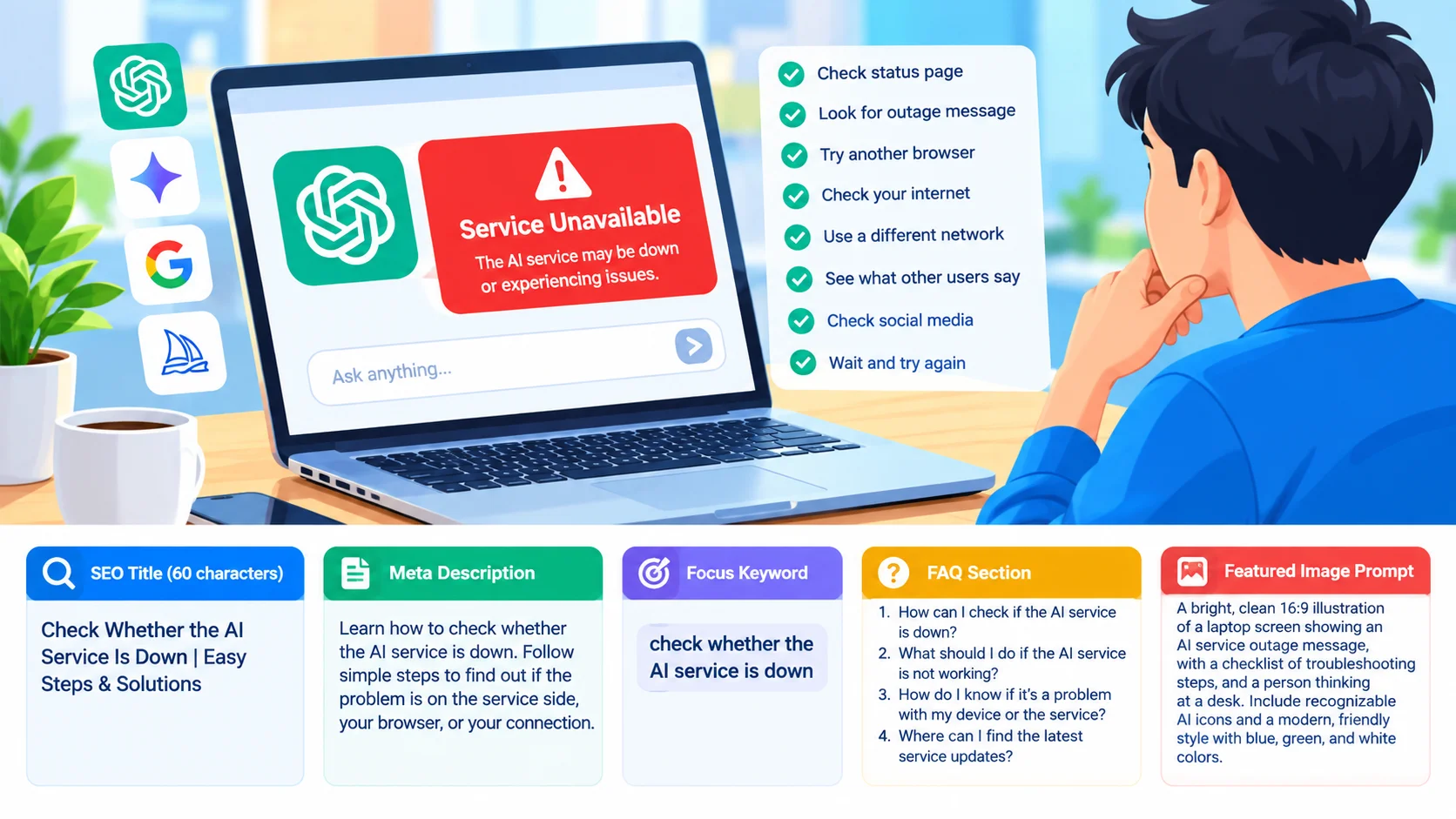
When an AI tool suddenly stops responding, produces errors, or takes much longer than usual, the problem may not be your device or internet connection. The AI service itself could be experiencing an outage, maintenance, or temporary server issues.
Learning how to check whether the AI service is down can help you quickly determine where the problem is and avoid wasting time changing settings that are working correctly.
Why Check the AI Service Status?
AI services depend on cloud servers and online infrastructure. Even with a stable internet connection, a service can become temporarily unavailable.
Common symptoms of an AI service outage include:
- The website fails to load.
- Login attempts produce errors.
- AI responses take unusually long.
- Requests repeatedly fail.
- Uploaded files cannot be processed.
- Images or other features stop working.
- The service displays a server or network error.
- Some features work while others are unavailable.
Before troubleshooting your browser, computer, or network, checking the service status can help identify whether the problem is widespread.
1. Visit the Official Status Page
The first step is to look for the AI provider’s official service-status page. Many major online services publish real-time information about system availability and ongoing incidents.
Look for information such as:
- Current operational status
- Active incidents
- Scheduled maintenance
- Performance problems
- Service interruptions
- Resolved incidents
If the provider reports an active incident, there may be nothing wrong with your computer. You may simply need to wait until the service is restored.
2. Check for an Outage Message
Some AI platforms display an outage notification directly on their website or application.
Read the message carefully. It may identify the affected feature, such as:
- Chat or text generation
- Image generation
- File uploads
- API requests
- Account login
- Voice features
- Search or browsing functions
An outage affecting only one feature can make the service appear broken even when the rest of the platform is operating normally.
3. Test the Service From Another Browser
If the official status page shows normal operation, the problem may be local.
Try opening the AI service in another browser. For example, if you normally use Chrome, test the website with Edge or Firefox.
If the service works in another browser, the original browser may have:
- Corrupted cached data
- A problematic extension
- Outdated site data
- Blocked cookies
- A browser configuration issue
You can then troubleshoot the affected browser instead of changing your entire network setup.
4. Check Your Internet Connection
A local internet problem can look like an AI service outage.
Open a few other websites and check whether they load normally. If multiple websites are unavailable, the problem is more likely related to your internet connection.
You can also restart your modem or router and reconnect your computer before testing the AI service again.
5. Try a Different Network
Another useful test is to connect your device to a different network.
For example, you could temporarily switch from your regular Wi-Fi connection to a mobile hotspot.
If the AI service works on another network, the issue could involve your:
- Wi-Fi connection
- Router
- DNS configuration
- Network provider
- Firewall
- Network filtering
If the service fails on multiple networks, a broader service-side problem becomes more likely.
6. Check Downtime Reports From Other Users
Third-party outage-reporting websites and community discussions can provide additional clues when an official status page has not yet been updated.
Look for a sudden increase in reports from users experiencing similar problems.
However, third-party reports should be treated as supporting information rather than definitive proof. A small number of reports could indicate individual problems rather than a widespread outage.
7. Check Social Media and Official Announcements
AI providers sometimes announce major service problems through their official social media accounts or support channels.
Search for recent announcements mentioning:
- Service outages
- Maintenance
- Login problems
- API interruptions
- Performance degradation
- Feature availability
Make sure the information is recent because an older outage report may no longer describe the current situation.
8. Wait and Try Again
If the service provider confirms an outage, repeatedly changing your computer settings usually will not solve the problem.
Instead, wait for the provider to restore the affected systems and periodically test the service again.
For important work, consider keeping a local copy of your prompts, documents, or other information so you can continue working while an online AI service is unavailable.
How to Tell if the Problem Is Your Device or the AI Service
Use the following quick checklist:
| Test | Possible indication |
|---|---|
| Official status page reports an incident | Service-side problem is likely |
| Other websites work normally | Internet connection may be fine |
| AI service fails in multiple browsers | Less likely to be a browser-specific issue |
| AI service works in another browser | Browser settings may be responsible |
| AI service works on another network | Network-related problem is possible |
| Other users report the same problem | Widespread outage may be occurring |
| Only one feature fails | Feature-specific service issue is possible |
No single test can identify every outage, but combining several checks can help narrow down the cause.
What to Do When the AI Service Is Down
If an outage is confirmed, you can:
- Check the provider’s official status page.
- Save your current work locally.
- Avoid repeatedly changing system settings.
- Monitor official service updates.
- Try again after some time.
- Use an alternative tool if your work is urgent.
If the provider reports that everything is operational, continue troubleshooting your browser, network, account, or device.
Frequently Asked Questions
How can I check whether an AI service is down?
Visit the AI provider’s official status page and look for active incidents, outages, or maintenance notices. You can also check whether other users are reporting the same problem.
How do I know if the problem is my device or the AI service?
Try the service in another browser or on another device. You can also switch to a different internet connection. If the problem occurs across multiple devices and networks, the AI service may be experiencing an outage.
What should I do if the AI service is not working?
First, check the official service-status page. If an outage is confirmed, wait for the provider to resolve the issue. If the service is operational, troubleshoot your browser, internet connection, or account.
Can an AI service be down even if my internet works?
Yes. Your internet connection can work normally while the AI provider’s servers experience an outage or performance problem.
Should I clear my browser cache when an AI service stops working?
Clearing cached files and cookies can help with browser-related problems, but it is usually better to check the AI provider’s status page first to determine whether the issue is service-wide.
Where can I find the latest AI service outage information?
The most reliable source is the provider’s official status page. Official announcements and support channels can also provide information about ongoing incidents and maintenance.
Final Thoughts
Knowing how to check whether the AI service is down can save time when an AI website suddenly stops working. Start with the provider’s official status information, then test your browser, internet connection, and another network if necessary.
This simple troubleshooting process helps you determine whether you are dealing with a widespread service outage or a problem specific to your computer or connection.