

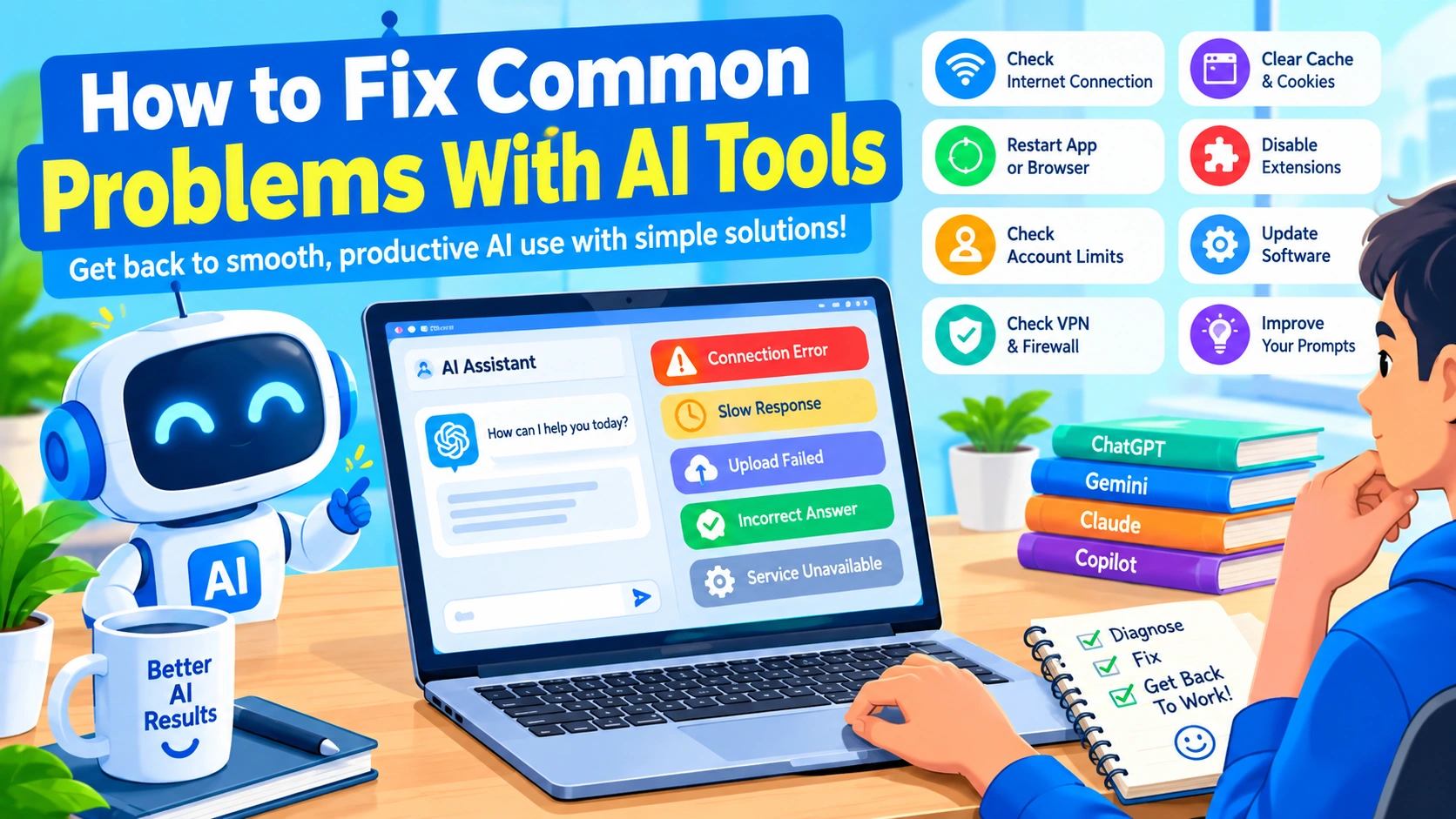
Artificial intelligence tools have become useful for writing, research, coding, image creation, productivity, and many other tasks. However, AI tools do not always work perfectly. You may experience failed requests, slow responses, incorrect answers, connection errors, missing features, or results that do not match your instructions.
Fortunately, many common AI tool problems can be fixed without advanced technical knowledge. In most cases, the issue is related to the internet connection, browser, account, service status, application settings, or the way a prompt is written.
This guide explains how to fix common problems with AI tools and improve the reliability and quality of AI-generated results.
Why Do AI Tools Stop Working?
AI services usually depend on several components working together. Your device needs an active internet connection, the browser or application must communicate with the AI service, and the service itself must be available.
Common causes include:
- Unstable internet connections
- Browser cache or cookie problems
- Outdated applications
- Temporary server outages
- Overloaded AI services
- Account or login issues
- Usage limits
- Incorrect prompts
- Unsupported file formats
- Browser extensions interfering with the service
- VPN or firewall restrictions
- Insufficient device resources
Identifying the cause makes troubleshooting much easier.
1. Check Your Internet Connection
The first thing to check when an AI tool fails is your internet connection.
AI services generally require a stable connection because requests and responses are processed online. A connection that appears to work for normal websites may still experience interruptions when communicating with an AI service.
Try opening several websites in a new browser tab. If they load slowly or fail intermittently, your connection may be responsible.
Try these steps:
- Disconnect and reconnect to Wi-Fi.
- Restart your router or modem.
- Try another Wi-Fi network.
- Test the service using mobile data.
- Temporarily disable a VPN.
- Restart your computer.
If the AI tool works normally after switching networks, the original connection may be causing the problem.
2. Refresh the AI Tool
Sometimes an AI webpage simply gets stuck.
You may see an endless loading animation, an incomplete response, or a button that does nothing.
Before making major changes, refresh the page.
On Windows, press:
Ctrl + R
You can also close the browser tab and reopen the AI service.
If the problem continues, try completely closing the browser and launching it again.
3. Clear Browser Cache and Cookies
A damaged or outdated browser cache can cause websites to behave incorrectly.
If an AI tool repeatedly displays an error, fails to load its interface, or keeps showing an old page, clearing cached website data may help.
In most modern browsers, you can open the privacy settings and remove cached files and cookies for the affected website.
After clearing the data:
- Close the browser.
- Reopen it.
- Visit the AI service again.
- Sign in if necessary.
- Test a simple request.
You do not necessarily need to clear all browsing data. If your browser allows it, remove data only for the affected website.
In this guide, you will learn how to clear cached files and cookies in popular Windows browsers and when you should consider removing this stored data.
4. Try Incognito or Private Mode
A quick way to determine whether browser settings are causing an AI problem is to use private browsing.
Open an Incognito or Private window and access the AI service.
If it works correctly there, the problem may be related to:
- Browser extensions
- Cookies
- Cached data
- Website permissions
- Browser settings
This is a useful troubleshooting test because it does not require changing your normal browser configuration immediately.
5. Disable Browser Extensions
Some browser extensions can interfere with AI websites.
Ad blockers, privacy extensions, script blockers, translation tools, password managers, and security extensions can sometimes affect website functionality.
If an AI tool works in private browsing but not in a normal window, disable extensions one at a time.
After disabling an extension, reload the AI website and test it again.
Once you identify the problematic extension, you can keep it disabled for that website instead of removing it completely.
6. Check Whether the AI Service Is Down
Sometimes there is nothing wrong with your computer.
AI services operate on large cloud infrastructures, and temporary outages can occur. A service may experience:
- Server overload
- Authentication problems
- API failures
- Network issues
- Scheduled maintenance
- Regional problems
If the AI website suddenly stops working for many users, check the provider’s official status page.
Search for the official status page of the AI service rather than relying only on social media posts or third-party outage websites.
If there is a confirmed outage, the best solution is usually to wait until the provider resolves the problem.
Learning how to check whether the AI service is down can help you quickly determine where the problem is and avoid wasting time changing settings that are working correctly.
7. Restart the AI Application
If you use an AI tool through a desktop or mobile application, completely close the application and reopen it.
Do not simply minimize the program.
On Windows, you can close the application and check Task Manager if it remains running in the background.
Then launch the application again and test the service.
Restarting can resolve temporary application errors and connection problems.
8. Update the AI Application
An outdated AI application may have compatibility problems.
Developers regularly release updates to fix bugs, improve performance, and add support for newer operating systems or service changes.
Check the application’s official update mechanism and install the latest available version.
Avoid downloading unofficial modified versions of AI applications because they may introduce security and privacy risks.
9. Check Your Account
If an AI tool suddenly refuses to perform certain actions, your account may be involved.
Check whether you are properly signed in and whether the service has changed your available features.
Some AI platforms impose limits based on:
- Subscription level
- Daily usage
- Monthly usage
- Model availability
- File upload limits
- Image generation limits
- API quotas
If you have reached a usage limit, restarting the browser will not remove it. You may need to wait for the limit to reset or use another available model or feature.
10. Make Your Prompt More Specific
Not every AI problem is a technical problem.
Sometimes the AI tool is working correctly, but the instructions are too vague.
For example, instead of asking:
“Write an article about computers.”
Try providing more details:
“Write a 1,500-word beginner-friendly article about fixing slow Windows 11 computers. Include causes, step-by-step solutions, an FAQ section, and an SEO-friendly title.”
A better prompt can produce a more useful response because the AI has clearer instructions.
A useful prompt structure
Include:
- The task
- The topic
- Your target audience
- Desired format
- Important requirements
- Length
- Tone
- Restrictions
The more important the task, the more useful detailed instructions can be.
11. Break Large Requests Into Smaller Tasks
AI tools may struggle with extremely large or complicated requests.
Instead of asking an AI service to complete a huge project in one request, divide it into smaller stages.
For example:
- Create an outline.
- Develop the first section.
- Write the remaining sections.
- Add FAQs.
- Review the content.
- Improve the final version.
This approach can reduce errors and make it easier to control the final result.
It is especially useful for long documents, programming projects, research tasks, and large content-production workflows.
12. What to Do When AI Gives Incorrect Answers
AI-generated information can sometimes be inaccurate.
An AI model may produce an answer that sounds convincing but contains incorrect facts, outdated information, or an invented reference.
This is sometimes called an AI hallucination.
When accuracy matters, verify important information using reliable sources.
Pay particular attention to:
- Medical information
- Financial information
- Legal information
- Technical specifications
- Current news
- Software versions
- Product pricing
- Security recommendations
Do not assume that an answer is correct simply because it is written confidently.
13. Check AI-Generated Code Carefully
AI coding assistants can save considerable time, but generated code can contain mistakes.
If AI gives you code that does not work:
- Read the error message.
- Identify the affected file or function.
- Check whether the required dependency is installed.
- Confirm that the code matches your software version.
- Test a smaller portion of the code.
- Ask the AI to explain the error.
- Apply one change at a time.
Avoid replacing an entire working project with generated code without creating a backup first.
For WordPress, PHP, JavaScript, or server configuration changes, a small syntax error can sometimes cause a website to stop working.
14. Fix AI File Upload Problems
Some AI tools allow users to upload PDFs, images, spreadsheets, documents, or other files.
If an upload fails, check:
- File size
- File format
- File name
- Internet connection
- Account limits
- Browser compatibility
- Service availability
Try uploading a smaller file to determine whether the problem is related to size.
If a particular file consistently fails, open it locally to make sure it is not damaged.
Converting the file to a supported format may also solve the problem.
15. Reduce the Size of Large Files
Large files can take longer to upload and may exceed the limits of an AI platform.
For images, consider reducing resolution or compressing the file.
For documents, remove unnecessary images and pages if they are not needed.
For spreadsheets, remove unused data where practical.
Always keep an original copy before modifying an important file.
16. Fix AI Image Generation Problems
AI image generators can sometimes produce results that are very different from what you expected.
This is often caused by unclear or overly complicated prompts.
Instead of writing a long collection of unrelated instructions, describe the most important elements clearly.
A useful image prompt can include:
- Main subject
- Environment
- Composition
- Lighting
- Perspective
- Image orientation
- Visual style
- Important text requirements
For example:
“Create a bright 16:9 technology illustration showing a Windows computer displaying an AI error message, with a clean modern desktop environment and blue futuristic interface elements.”
If the result is close but not correct, modify the prompt instead of completely rewriting it.
17. Try a Different Browser
If an AI service does not work correctly in your normal browser, test another browser.
For example, you could compare:
- Chrome
- Edge
- Firefox
If the service works in another browser, the issue is probably related to the original browser’s configuration, extensions, or cached data.
Keeping two browsers installed can also be useful when troubleshooting web applications.
18. Disable VPN, Proxy, or Network Filtering
VPNs and proxy servers can sometimes affect access to online AI services.
This may happen because of:
- Regional routing
- IP reputation
- Network filtering
- DNS problems
- Firewall rules
- Corporate network restrictions
If an AI service works normally when your VPN is disabled, the VPN connection may be responsible.
For security reasons, do not disable protective software permanently just to make a website work. Instead, identify the specific network restriction whenever possible.
19. Restart Your Computer
It may sound simple, but restarting Windows can resolve many temporary problems.
A restart can clear:
- Temporary application processes
- Memory-related problems
- Network connection states
- Background software conflicts
- Browser processes
- System service errors
If an AI application was working earlier and suddenly stopped responding, restart the computer before performing more complicated troubleshooting.
20. Keep Your Browser and Operating System Updated
AI websites frequently use modern web technologies.
An outdated browser or operating system can eventually cause compatibility issues.
Install browser and operating system updates from official sources.
Keeping software updated also provides important security improvements, so updates should not be ignored without a good reason.
21. Check the AI Tool’s Usage Limits
Many AI services limit how frequently users can send requests.
You might encounter messages indicating:
- Too many requests
- Rate limit exceeded
- Usage limit reached
- Try again later
- Capacity unavailable
If this happens, avoid repeatedly clicking the same button.
Wait for the limit to reset and try again later.
If the platform offers multiple models, another available model may sometimes be suitable for less demanding tasks.
22. What to Do When AI Responses Stop Midway
An AI response may occasionally stop before completing the requested task.
Possible causes include:
- Temporary network interruptions
- Service overload
- Response-length limits
- Browser problems
- Complex requests
Instead of sending the exact same large prompt repeatedly, ask the AI to continue from the point where it stopped.
For example:
“Continue from the last completed section and finish the remaining sections without repeating the previous content.”
For long projects, working section by section is generally more reliable.
23. Protect Your Privacy When Using AI Tools
Troubleshooting AI tools should also include privacy considerations.
Do not upload sensitive information unless you understand how the service handles it.
Avoid entering:
- Passwords
- Authentication codes
- Credit card information
- Private keys
- Confidential business documents
- Sensitive personal records
Before uploading a document, consider whether the AI service actually needs all of its contents.
Removing unnecessary sensitive information is a good security practice.
24. Create a Simple AI Troubleshooting Checklist
When an AI tool stops working, use this checklist:
Basic checks
- Check your internet connection.
- Refresh the page.
- Restart the application.
- Sign out and sign in again.
- Try another browser.
- Try private browsing.
Browser checks
- Clear website cache.
- Clear cookies for the affected service.
- Disable extensions.
- Update your browser.
Account checks
- Confirm your account is active.
- Check usage limits.
- Check available features.
- Verify your subscription if applicable.
Network checks
- Disable VPN temporarily.
- Check proxy settings.
- Test another network.
- Check firewall or network filtering.
Service checks
- Check the official service status page.
- Look for maintenance announcements.
- Wait if there is a confirmed outage.
Prompt checks
- Make your instructions more specific.
- Break complex tasks into smaller steps.
- Provide the required context.
- Verify important information independently.
When Should You Contact AI Tool Support?
If basic troubleshooting does not solve the problem, contact the AI provider’s official support team.
Before contacting support, collect useful information such as:
- Exact error message
- Approximate time the problem occurred
- Browser or application version
- Operating system
- Type of device
- Steps that reproduce the problem
- Whether another browser works
- Whether another network works
Avoid sending passwords, authentication codes, API keys, or other private information.
Providing precise troubleshooting information can help support teams identify the problem faster.
Frequently Asked Questions
Why is my AI tool not responding?
The service may be experiencing an outage, your connection may be unstable, or the browser may have encountered a temporary problem. Refresh the page, test your connection, and check the provider’s service status.
Why does an AI tool keep giving wrong answers?
AI models can generate inaccurate information. Improve your prompt and verify important facts using reliable sources. For high-stakes subjects, do not rely on AI output alone.
Why is my AI response incomplete?
Long or complex requests can sometimes produce incomplete responses. Ask the AI to continue from the last completed section or divide the task into smaller requests.
Why can’t I upload a file to an AI tool?
The file may be too large, unsupported, damaged, or restricted by your account. Check the service’s supported formats and file-size limits, then test with a smaller file.
Can browser extensions cause AI websites to stop working?
Yes. Some extensions can interfere with scripts, cookies, network requests, or page elements. Try private browsing or temporarily disable extensions to identify the cause.
Should I restart my computer when an AI tool stops working?
Restarting can resolve temporary browser, application, memory, and network problems. It is a simple troubleshooting step worth trying before more advanced solutions.
Are AI-generated answers always accurate?
No. AI systems can make factual errors, misunderstand instructions, or provide outdated information. Important information should be checked against reliable sources.
Final Thoughts
AI tools can occasionally fail, but many problems are relatively easy to troubleshoot. Start with simple solutions such as checking your internet connection, refreshing the page, restarting the application, and trying another browser.
If the problem continues, investigate browser extensions, cached data, account limits, network settings, and the AI provider’s service status. When the technology is working but the results are poor, improve your prompts and break complicated tasks into smaller steps.
Most importantly, remember that AI is a tool rather than an infallible source of information. Use it efficiently, verify important results, and protect sensitive information when working with AI services.
With a systematic troubleshooting approach, you can resolve many common AI tool problems and get more reliable results from artificial intelligence applications.