

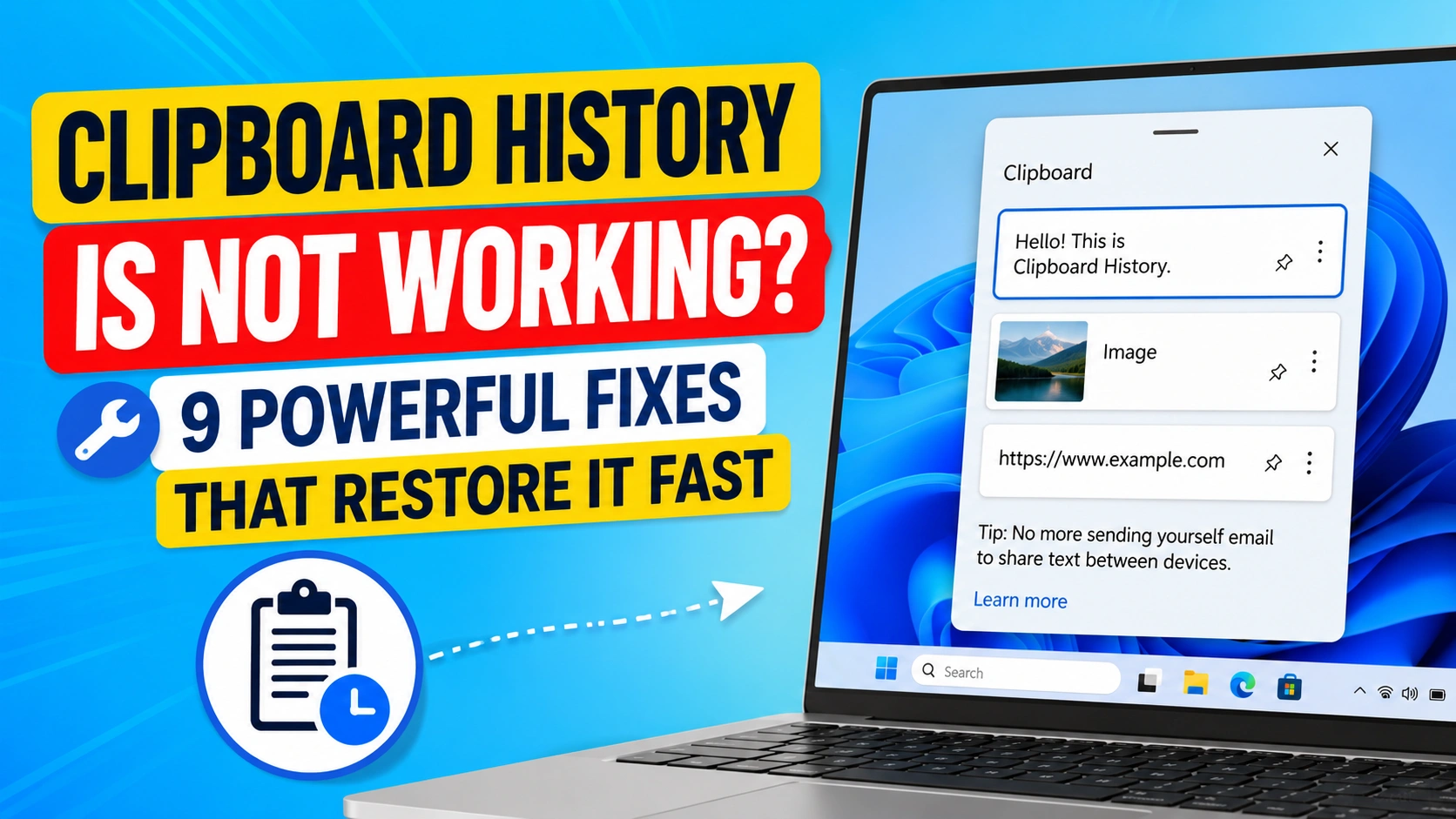
Clipboard History is one of the most useful productivity features in Windows. It allows you to access previously copied text, images, and other content by pressing Windows + V.
However, many users encounter situations where Clipboard History Is Not Working correctly. The feature may fail to open, copied items may disappear, or Windows may display a message saying Clipboard History is unavailable.
Fortunately, most Clipboard History problems can be fixed using built-in Windows tools and settings. This guide explains the most effective solutions.
Why Clipboard History Is Not Working
There are several reasons why Clipboard History Is Not Working on Windows. The feature depends on multiple system components, and problems with any of them can prevent Clipboard History from functioning correctly.
Common causes include:
- Clipboard History is disabled in Windows settings
- Windows services are not running correctly
- Corrupted or missing system files
- Group Policy restrictions blocking clipboard features
- Clipboard sync settings conflicts
- Outdated Windows updates
- Temporary system glitches and bugs
- Third-party clipboard management applications
If Clipboard History Is Not Working, identifying the underlying cause is the first step toward applying the correct solution. In many cases, a simple settings adjustment or system repair can restore Clipboard History and allow you to access previously copied items again.
Fix 1: Make Sure Clipboard History Is Enabled
The most common reason Clipboard History Is Not Working is that the feature has been turned off.
Steps
- Open Settings
- Select System
- Click Clipboard
- Turn on Clipboard History
After enabling the feature, press Windows + V and check whether the clipboard panel appears.
Fix 2: Restart Windows Explorer
Windows Explorer manages many desktop functions, including clipboard-related features.
Steps
- Press Ctrl + Shift + Esc
- Open Task Manager
- Locate Windows Explorer
- Right-click it
- Select Restart
This refreshes key Windows components without requiring a full reboot.
Fix 3: Clear Clipboard Data
Corrupted clipboard data can sometimes prevent Clipboard History from working properly.
Steps
- Open Settings
- Go to System
- Select Clipboard
- Under Clear Clipboard Data
- Click Clear
Restart the computer and test the feature again.
Fix 4: Check Group Policy Settings
On some systems, especially business computers, administrators may disable Clipboard History through Group Policy.
Steps
- Press Windows + R
- Type gpedit.msc
- Press Enter
- Navigate to:
Computer Configuration → Administrative Templates → System → OS Policies
- Open Allow Clipboard History
- Set it to Enabled or Not Configured
Restart Windows afterward.
Fix 5: Run the System File Checker
Corrupted system files can cause various Windows features to malfunction.
Steps
- Open Command Prompt as Administrator
- Enter:
sfc /scannow
- Wait for the scan to finish
- Restart your computer
The tool automatically repairs many damaged system files.
Fix 6: Repair Windows Image Files
If the SFC scan cannot resolve the issue, use DISM.
Steps
Open Command Prompt as Administrator and run:
DISM /Online /Cleanup-Image /RestoreHealth
Allow the process to complete before restarting the system.
Fix 7: Disable Third-Party Clipboard Managers
Many clipboard management applications replace Windows clipboard functionality.
Examples include:
- ClipboardFusion
- Ditto
- CopyQ
- Other clipboard utilities
Temporarily disable these applications and check whether Clipboard History Is Not Working has been resolved.
Fix 8: Install the Latest Windows Updates
Microsoft frequently releases fixes for Windows features and services.
Steps
- Open Settings
- Select Windows Update
- Click Check for Updates
- Install all available updates
- Restart the PC
Updating Windows often resolves unexpected clipboard issues.
Fix 9: Create a New User Account
If the problem affects only one user profile, account corruption may be responsible.
Steps
- Open Settings
- Select Accounts
- Click Other Users
- Create a new local account
- Sign in to the new profile
Test Clipboard History in the new account.
Additional Tips When Clipboard History Is Not Working
To avoid future clipboard problems:
- Keep Windows updated
- Avoid running multiple clipboard managers
- Regularly clear clipboard data
- Perform routine malware scans
- Restart Windows occasionally
- Maintain sufficient free disk space
These practices help Windows clipboard services operate reliably.
When to Reset Clipboard Components
If none of the fixes work and Clipboard History Is Not Working persists, you can reset clipboard-related services by restarting Windows and clearing stored clipboard data.
Resetting these components often resolves situations where Clipboard History Is Not Working because of corrupted temporary files, misconfigured services, or Windows system glitches.
In severe cases, when Clipboard History Is Not Working even after troubleshooting, performing an in-place Windows repair installation may restore damaged system components without deleting personal files. This repair process can fix underlying Windows issues that prevent Clipboard History from functioning correctly.
Conclusion
When Clipboard History Is Not Working, the cause is usually a disabled setting, corrupted clipboard data, damaged system files, or interference from third-party applications.
Most users can restore Clipboard History by enabling the feature, restarting Windows Explorer, clearing clipboard data, running SFC and DISM scans, or installing the latest Windows updates. Following these fixes should quickly bring back the convenience of Windows Clipboard History and improve productivity.
If Clipboard History issues are related to keyboard shortcuts not responding correctly, you may also find our guide on Print Screen Not Working helpful. It covers common screenshot and keyboard shortcut problems along with step-by-step solutions.
For more information about Clipboard History features, synchronization options, and supported content types, refer to Microsoft’s official documentation on using the Windows Clipboard.
With the proper troubleshooting steps, most Clipboard History problems can be resolved quickly, allowing you to work more efficiently and avoid interruptions to your workflow.