

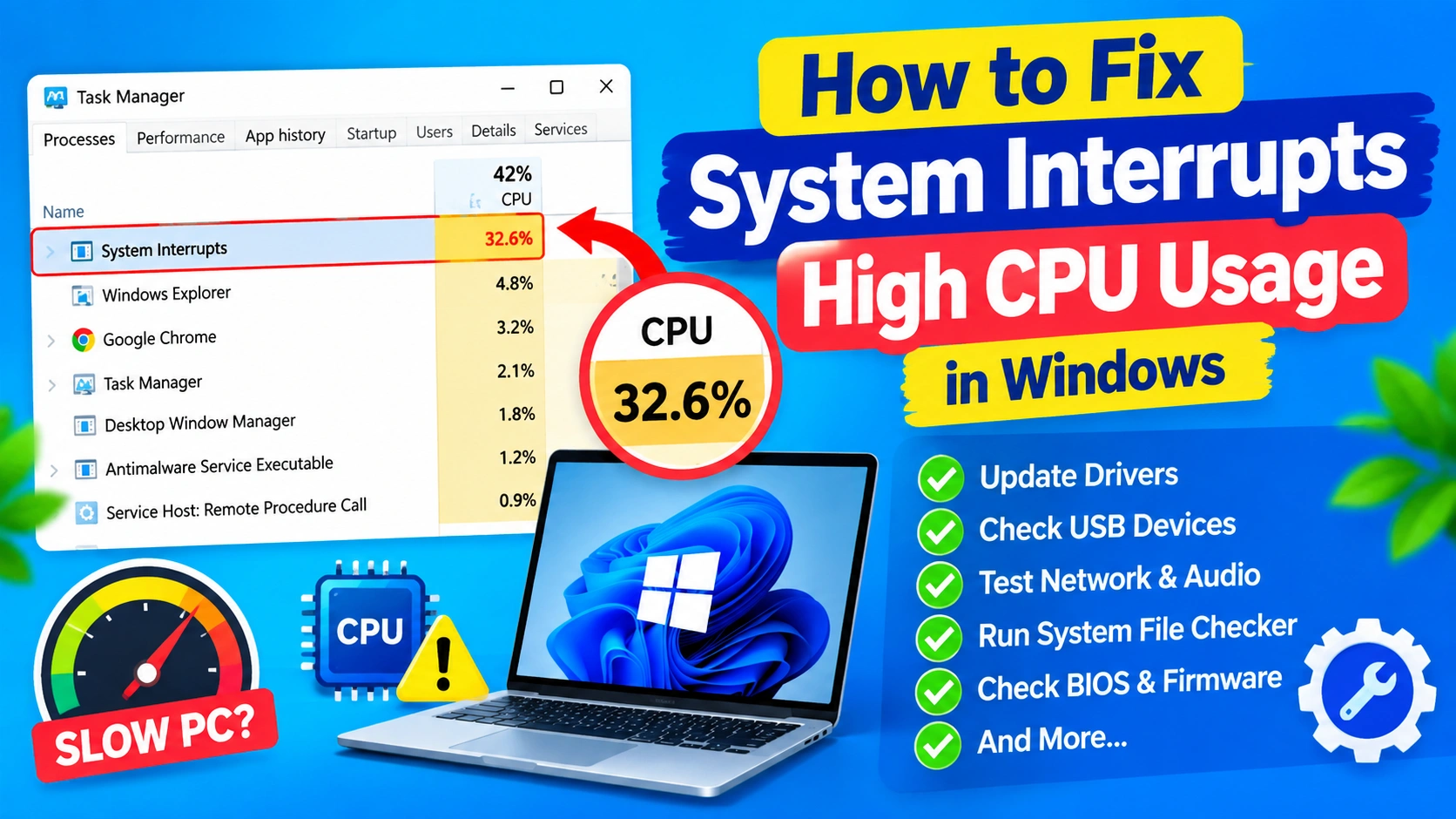
If your Windows PC suddenly becomes slow, fans start spinning loudly, or programs begin responding slowly, System Interrupts high CPU usage may be responsible. The System Interrupts process is a normal part of Windows, but unusually high CPU usage can indicate a hardware, driver, or device problem.
In most cases, System Interrupts is not the actual cause. Instead, it is a way Windows reports CPU time being used to handle hardware interrupts and deferred procedure calls (DPCs).
This guide explains what System Interrupts means, why it can consume excessive CPU resources, and how to troubleshoot the problem safely.
What Is System Interrupts in Windows?
System Interrupts is a Windows process that represents hardware interrupts handled by the processor.
Hardware devices such as:
- Keyboard and mouse
- USB devices
- Network adapters
- Sound cards
- Storage drives
- Graphics hardware
- Bluetooth devices
- System timers
can send interrupts to the CPU when they need attention.
Normally, System Interrupts uses very little CPU. A small percentage that occasionally increases is generally normal.
However, if Task Manager shows System Interrupts consistently using 10%, 20%, 30%, or more CPU, something may be interfering with normal hardware communication.
Important: System Interrupts is usually a symptom rather than a program that you can simply close.
Why Is System Interrupts Using So Much CPU?
High System Interrupts CPU usage can have several causes. Common problems include:
- Faulty or outdated device drivers
- USB devices or peripherals
- Problems with the audio driver
- Network adapter issues
- Storage drive problems
- Graphics driver problems
- BIOS or firmware issues
- Power-management problems
- Hardware conflicts
- Damaged Windows system components
The challenge is identifying which device or driver is responsible.
1. Restart Your Windows PC
Before making advanced changes, restart Windows.
A restart can clear temporary driver problems, reset hardware devices, and reload system services.
To restart Windows:
- Press Windows + X.
- Select Shut down or sign out.
- Click Restart.
- Wait for Windows to load completely.
- Open Task Manager.
- Check System Interrupts CPU usage again.
If CPU usage returns to normal, the problem may have been temporary.
If it quickly becomes high again, continue troubleshooting.
2. Check System Interrupts in Task Manager
First, confirm that the CPU usage problem is actually occurring.
Press:
Ctrl + Shift + Esc
to open Task Manager.
Click Processes and look for System Interrupts.
You can click the CPU column to sort processes by CPU usage.
What should you look for?
If System Interrupts remains near zero or only occasionally increases, there may not be a problem.
If it stays unusually high while the computer is idle, investigate your hardware and drivers.
Also check whether CPU usage drops when you disconnect external devices.
3. Disconnect Unnecessary USB Devices
A malfunctioning USB device can cause excessive hardware interrupts.
Temporarily disconnect devices such as:
- USB flash drives
- External hard drives
- USB hubs
- Webcams
- Printers
- Game controllers
- USB Wi-Fi adapters
- External audio devices
- Card readers
Leave only essential devices connected.
Then check Task Manager again.
Use a process of elimination
Disconnect one device at a time rather than everything simultaneously.
For example:
- Disconnect an external drive.
- Wait 30–60 seconds.
- Check CPU usage.
- Reconnect it.
- Test another device.
If System Interrupts CPU usage drops after disconnecting a particular device, its driver, cable, firmware, or hardware may be responsible.
4. Update Device Drivers
Outdated or corrupted drivers are among the most common causes of hardware-related CPU problems.
Pay particular attention to:
- Chipset drivers
- Network drivers
- Audio drivers
- Graphics drivers
- Storage controller drivers
- USB controller drivers
- Bluetooth drivers
Update drivers through Device Manager
- Press Windows + X.
- Select Device Manager.
- Expand a hardware category.
- Right-click the device.
- Select Update driver.
- Choose Search automatically for drivers.
Repeat the process for devices that may be related to the problem.
For the best compatibility, you can also obtain drivers directly from your computer or motherboard manufacturer’s official support website.
5. Reinstall a Problematic Driver
Updating a driver may not fix the problem if the existing installation is corrupted.
In that situation, reinstalling the driver can help.
Reinstall a device driver
- Open Device Manager.
- Find the suspected device.
- Right-click it.
- Select Uninstall device.
- Confirm the removal.
- Restart Windows.
Windows may automatically reinstall a compatible driver after restarting.
For graphics, chipset, audio, or network drivers, using the manufacturer’s current driver package can sometimes provide a cleaner installation.
6. Check Your Network Adapter
Network hardware can sometimes cause excessive interrupt activity.
This is particularly worth checking if System Interrupts becomes high when:
- Connecting to Wi-Fi
- Downloading large files
- Uploading files
- Using Bluetooth
- Starting online games
- Streaming video
Temporarily disable the network adapter
- Press Windows + X.
- Open Device Manager.
- Expand Network adapters.
- Right-click your Wi-Fi or Ethernet adapter.
- Select Disable device.
- Check CPU usage.
If System Interrupts immediately decreases, the network adapter or its driver deserves further investigation.
Remember to re-enable the adapter afterward.
7. Check Your Audio Device
Audio drivers can also generate excessive DPC or interrupt activity.
Try disabling your audio device temporarily.
- Open Device Manager.
- Expand Sound, video and game controllers.
- Right-click your audio device.
- Select Disable device.
- Monitor CPU usage.
If the problem disappears, update or reinstall the audio driver.
You can also test with another audio output device to determine whether the problem is hardware-specific.
8. Check Your Graphics Driver
A faulty graphics driver can cause unusual CPU and interrupt activity.
Update your graphics driver from the appropriate manufacturer:
- Intel
- AMD
- NVIDIA
If the problem started immediately after a driver update, rolling back to the previous driver can also be worth testing.
To roll back a driver:
- Open Device Manager.
- Expand Display adapters.
- Right-click your graphics adapter.
- Select Properties.
- Open the Driver tab.
- Select Roll Back Driver, if available.
Restart Windows after making the change.
9. Check Your Storage Drive
Storage problems can sometimes produce excessive system activity.
If System Interrupts becomes high when opening files, installing software, or transferring data, check your storage hardware.
Check the drive with Windows tools
Open Command Prompt as administrator and run:
chkdsk C: /scanThis performs an online scan of the Windows drive.
You can also check the drive’s health using the manufacturer’s diagnostic software or a trusted disk-monitoring utility.
If you notice:
- Frequent freezing
- Clicking sounds from a hard drive
- Very slow file transfers
- Missing files
- Unexpected disk errors
back up important data before performing extensive troubleshooting.
10. Run Windows System File Checker
Corrupted Windows components can contribute to unusual system behavior.
Open Command Prompt as administrator and run:
sfc /scannowWait until the scan reaches 100%.
If Windows reports that it repaired corrupted files, restart your computer and check System Interrupts again.
11. Run DISM to Repair Windows
If SFC cannot repair all corrupted files, use DISM.
Open Command Prompt as administrator and run:
DISM /Online /Cleanup-Image /RestoreHealthThe process may take several minutes.
After it finishes, run:
sfc /scannowThen restart your computer.
Using DISM followed by SFC can repair Windows component problems that may otherwise cause unexpected system behavior.
12. Disable Fast Startup Temporarily
Windows Fast Startup can occasionally contribute to hardware initialization problems.
You can temporarily disable it for testing.
Steps:
- Press Windows + R.
- Enter:
control- Open Power Options.
- Select Choose what the power buttons do.
- Click Change settings that are currently unavailable.
- Clear Turn on fast startup.
- Save the changes.
- Restart Windows.
Check whether System Interrupts CPU usage improves.
If it does not make a difference, you can re-enable Fast Startup.
13. Check Power Management Settings
Aggressive power-management settings can sometimes interact poorly with certain hardware and drivers.
This is especially relevant on laptops.
Check:
Settings → System → Power & battery
Try using a balanced power mode rather than an aggressive performance or battery-saving configuration.
You can also test whether the problem occurs when the laptop is:
- Running on battery
- Connected to AC power
- Using an external monitor
- Connected to a docking station
If the problem occurs only in one configuration, power management or attached hardware may be involved.
14. Disconnect External Monitors and Docks
USB-C docks, Thunderbolt devices, external monitors, and docking stations can introduce additional hardware drivers.
If you use a docking station, temporarily disconnect it.
Then test the computer using only its built-in hardware.
If CPU usage drops significantly, reconnect devices one at a time to identify the source.
15. Check for BIOS and Firmware Updates
The BIOS/UEFI controls communication between Windows and many hardware components.
An outdated BIOS can sometimes cause compatibility or power-management problems.
Check your computer or motherboard manufacturer’s support page for:
- BIOS updates
- Chipset firmware
- Device firmware
- Thunderbolt firmware
- SSD firmware
Important: BIOS updates should be performed carefully. Use the exact firmware intended for your computer or motherboard model and follow the manufacturer’s instructions.
Do not interrupt power during a BIOS update.
16. Use a Clean Boot to Find Software Conflicts
A clean boot starts Windows with a minimal set of third-party services and startup programs.
This can help determine whether additional software is contributing to the problem.
Basic clean-boot procedure
- Press Windows + R.
- Type:
msconfig- Press Enter.
- Open the Services tab.
- Check Hide all Microsoft services.
- Click Disable all.
- Open the Startup tab.
- Open Task Manager.
- Disable unnecessary startup applications.
- Restart the PC.
If System Interrupts behaves normally after a clean boot, gradually re-enable services and startup applications until you identify the conflict.
17. Check for Hardware Problems
If software troubleshooting does not solve the problem, hardware may be responsible.
Potential causes include:
- Failing USB hardware
- Defective network adapter
- Faulty sound hardware
- Damaged motherboard components
- Failing storage devices
- Bad cables
- Faulty expansion cards
- Poorly connected components
For a desktop PC, remove unnecessary PCIe devices temporarily if you are comfortable working inside the computer.
For laptops, hardware troubleshooting is generally better handled through the manufacturer’s diagnostic tools or a qualified technician.
18. Use LatencyMon for Advanced Troubleshooting
If System Interrupts remains high and you cannot identify the problematic device, an advanced diagnostic utility such as LatencyMon can help identify drivers associated with high DPC or interrupt latency.
It can provide information about drivers that are taking unusually long to respond.
This is particularly useful when troubleshooting:
- Audio crackling
- Random freezes
- Stuttering
- Network problems
- Hardware-related performance issues
Do not assume that the driver with the highest number is automatically defective. Use the results as a clue and investigate the associated hardware.
19. Check When the Problem Started
Think about what changed shortly before the problem appeared.
For example:
- Did you install a new driver?
- Did Windows update recently?
- Did you connect a new USB device?
- Did you install new hardware?
- Did you update BIOS?
- Did you install a new security program?
- Did the problem begin after connecting a monitor or dock?
This can dramatically narrow down the possible cause.
If the problem began immediately after a driver or software change, reversing that change may be an effective first test.
20. Restart After Every Major Hardware or Driver Change
Windows sometimes needs to reload hardware drivers completely after changes.
After:
- Installing drivers
- Removing drivers
- Changing BIOS settings
- Disabling hardware
- Installing firmware
restart the computer and test again.
This makes it easier to determine whether a specific change actually fixed the problem.
How to Identify the Real Cause
Because System Interrupts isn’t a conventional application, troubleshooting should focus on the hardware beneath it.
A useful elimination process is:
System Interrupts high CPU → disconnect external devices → test USB → test network → test audio → test graphics → update drivers → check storage → check BIOS/firmware → investigate hardware
This approach is usually more effective than trying to terminate System Interrupts.
What CPU Usage Is Normal for System Interrupts?
There is no single percentage that is considered normal for every computer.
System Interrupts should generally consume very little CPU when the system is idle.
Brief increases are normal when hardware is performing work.
Persistent high usage, especially when the computer is doing very little, deserves investigation.
Instead of focusing only on a particular percentage, look for a consistent pattern:
Idle PC + sustained high System Interrupts + noticeable performance problems = investigate hardware or drivers.
Should You End System Interrupts?
No.
System Interrupts is part of Windows’ hardware-interrupt handling. It isn’t a normal application that you should terminate from Task Manager.
The better approach is to find the device or driver generating excessive interrupt activity.
Can Malware Cause System Interrupts High CPU?
Malware isn’t usually the first explanation for high System Interrupts.
Because System Interrupts represents hardware-related CPU activity, a faulty driver or device is generally a more likely explanation.
However, if high CPU usage occurs alongside suspicious applications, browser behavior, unexpected processes, or other security symptoms, perform a Windows Security scan.
Quick Fix Checklist
If you need a shorter troubleshooting sequence, try these steps in order:
- Restart Windows.
- Check System Interrupts in Task Manager.
- Disconnect unnecessary USB devices.
- Update chipset drivers.
- Update network drivers.
- Update audio drivers.
- Update graphics drivers.
- Check storage health.
- Run
sfc /scannow. - Run
DISM /Online /Cleanup-Image /RestoreHealth. - Disable Fast Startup temporarily.
- Test with a clean boot.
- Check BIOS and firmware updates.
- Use hardware diagnostics.
- Investigate DPC/interrupt latency if the problem persists.
Frequently Asked Questions
Why does System Interrupts use 100% CPU?
System Interrupts normally should not consume 100% CPU for an extended period. If this happens, a hardware device, driver, firmware issue, or hardware malfunction may be generating excessive interrupt activity.
Can I disable System Interrupts?
No. System Interrupts is part of Windows’ hardware communication system. You should identify and fix the underlying problem instead of attempting to disable it.
Does System Interrupts mean my CPU is failing?
Not necessarily. High System Interrupts usually points toward a hardware device or driver problem rather than a defective CPU.
Can a USB device cause high System Interrupts?
Yes. A malfunctioning USB device, USB controller, driver, cable, or hub can potentially generate excessive interrupt activity.
Why is System Interrupts high when my PC is idle?
If the computer is idle but System Interrupts remains unusually high, a background hardware or driver issue may be continuously generating interrupts. Disconnecting external hardware and updating drivers are good first steps.
Does reinstalling Windows fix System Interrupts?
It can fix problems caused by corrupted Windows components or software configuration, but it may not solve a defective hardware device or problematic firmware. Hardware and driver troubleshooting should generally come first.
Final Thoughts
System Interrupts high CPU usage is usually a symptom, not the actual problem. Windows uses System Interrupts to represent CPU time spent handling hardware-related interrupts, so the most effective solution is to identify the device or driver generating excessive activity.
Start with simple steps such as restarting Windows and disconnecting USB devices. Then move on to updating drivers, checking network and audio hardware, testing storage, repairing Windows system files, and investigating BIOS or firmware issues.
If the problem continues after software troubleshooting, hardware diagnostics may be necessary. By testing devices one at a time, you can usually narrow down the source without making unnecessary changes to Windows.