

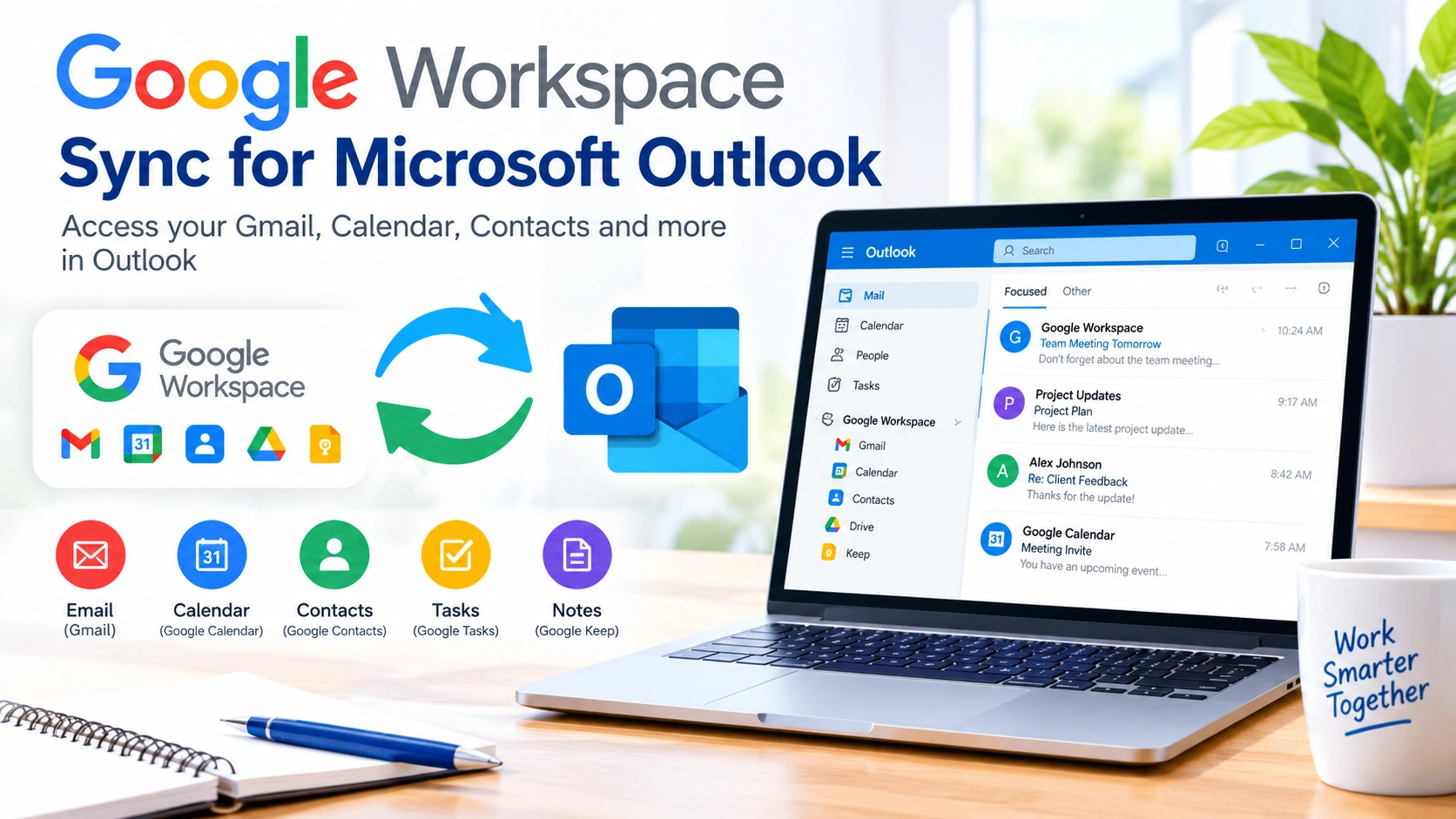
Google Workspace Sync for Microsoft Outlook (GWSMO) allows Google Workspace users to work with their email, calendar, contacts, and other data through Microsoft Outlook. It is particularly useful for organizations that use Google Workspace for business communication but prefer Outlook as their desktop email and scheduling application.
Instead of switching between separate applications, GWSMO connects Outlook with a Google Workspace account and provides an Outlook-based workflow while keeping data synchronized with Google services.
In this guide, you’ll learn what Google Workspace Sync for Microsoft Outlook is, how it works, how to install it, and how to troubleshoot common synchronization problems.
What Is Google Workspace Sync for Microsoft Outlook?
Google Workspace Sync for Microsoft Outlook is a Google-provided application that connects Microsoft Outlook with Google Workspace accounts.
It is designed primarily for Google Workspace users who want to use Outlook as their desktop client. Depending on the supported configuration, the synchronization process can make Google Workspace information available through familiar Outlook features.
GWSMO can synchronize items such as:
- Gmail messages
- Google Calendar events
- Google Contacts
- Tasks and notes
- Google Workspace account information
- Mail folders and labels
The exact features available can depend on your Google Workspace account, Outlook version, and administrator settings.
Why Use Google Workspace Sync for Microsoft Outlook?
Microsoft Outlook remains popular in business environments because of its email management, calendar tools, search features, and integration with other Microsoft applications.
GWSMO can be useful when an organization uses Google Workspace but employees are already comfortable with Outlook.
Familiar Outlook Interface
Users can continue managing email and calendars through an interface they already know instead of learning an entirely different desktop workflow.
Google Workspace Integration
GWSMO helps connect Outlook with Google Workspace data, reducing the need to manually move messages, contacts, or calendar information between services.
Centralized Email Management
Messages from a Google Workspace account can be accessed through Outlook alongside other supported Outlook features.
Easier Transition
Organizations moving from Microsoft-based email environments to Google Workspace may find Outlook synchronization useful during the transition period.
System Requirements Before Installing GWSMO
Before installing Google Workspace Sync for Microsoft Outlook, verify that your computer and account meet Google’s current requirements.
You should check:
- Your Windows version
- Your Microsoft Outlook version
- Whether your Google Workspace administrator allows GWSMO
- Whether you have permission to install software
- Whether your Google Workspace account is supported
- Whether Outlook is already installed correctly
It is also important to close Outlook before beginning the installation.
Because Google and Microsoft periodically change supported versions, always check the current official documentation before deploying GWSMO across an organization.
How to Install Google Workspace Sync for Microsoft Outlook
The installation process is relatively straightforward.
Step 1: Download GWSMO
Download the Google Workspace Sync for Microsoft Outlook installer from Google’s official Google Workspace documentation or download page.
Avoid third-party download sites because synchronization software should always come from a trusted source.
Step 2: Close Microsoft Outlook
If Outlook is running, save your work and close it before starting the installation.
Closing Outlook helps prevent conflicts while the synchronization software is being installed or configured.
Step 3: Run the Installer
Open the downloaded GWSMO installer and follow the instructions displayed on screen.
Windows may ask for permission to allow the installer to make changes to your computer.
Step 4: Sign In to Google Workspace
After installation, you will generally be prompted to sign in using your Google Workspace account.
Complete Google’s authentication process, including any additional verification required by your organization’s security policies.
Step 5: Configure the Outlook Profile
GWSMO can create or configure an Outlook profile associated with your Google Workspace account.
Depending on the setup, you may be able to select synchronization and data options during this process.
Step 6: Open Outlook
Once setup is complete, start Microsoft Outlook and allow time for the initial synchronization.
The first synchronization can take considerably longer than subsequent updates, particularly when the mailbox contains a large amount of data.
How GWSMO Synchronization Works
GWSMO acts as a bridge between Google Workspace and Microsoft Outlook.
When you perform supported actions in Outlook, GWSMO communicates with Google Workspace so that the corresponding information can remain synchronized.
For example, an email received in Gmail may become available through Outlook. Similarly, supported calendar changes made through Outlook can synchronize with Google Calendar.
Synchronization is not necessarily instantaneous for every type of data. Large mailboxes, network conditions, account policies, and other factors can affect synchronization speed.
Google Workspace Sync vs. IMAP
It is easy to confuse GWSMO with a traditional IMAP email configuration, but they are not the same.
IMAP primarily provides access to email messages and folders. GWSMO is designed specifically to connect Microsoft Outlook with Google Workspace and supports additional Google Workspace-related functionality.
This distinction matters for organizations that need calendar, contact, and other synchronization features rather than email alone.
How to Check Whether GWSMO Is Working
After installation, send a test email from another account to your Google Workspace address.
Check whether the message appears in Outlook.
You can also:
- Create a test calendar event.
- Check Google Calendar.
- Modify the event.
- Return to Outlook.
- Verify whether the change synchronizes.
Testing both email and calendar functionality can help determine whether the problem affects the entire connection or only a specific synchronization component.
Common Google Workspace Sync Problems
Although GWSMO is designed to automate synchronization, problems can occur.
Outlook Is Not Synchronizing
If new messages or calendar changes are not appearing, check your internet connection first.
Then verify that:
- Outlook is connected.
- Your Google Workspace account can sign in normally.
- GWSMO is installed correctly.
- Outlook is using the intended profile.
- Your organization has not restricted synchronization.
Restarting Outlook can also resolve temporary synchronization issues.
Initial Synchronization Takes Too Long
The first synchronization can take significantly longer than normal because Outlook may need to process a large amount of Google Workspace data.
If the mailbox is large, allow the synchronization process enough time to complete before assuming it has failed.
Avoid repeatedly restarting the process unless troubleshooting steps specifically recommend doing so.
Calendar Events Are Missing
If email synchronization works but calendar events do not, check your Google Calendar and Outlook configuration.
Make sure you are using the correct Google Workspace account and that your administrator has not disabled relevant features.
Also check whether the event belongs to a calendar that is supported by your current configuration.
Contacts Are Not Appearing
Contacts may require additional synchronization time.
Confirm that your contacts are associated with the correct Google Workspace account and that Outlook is displaying the correct address book.
Outlook Becomes Slow
Large synchronized mailboxes can consume significant local resources.
If Outlook becomes slow, consider reducing the amount of data stored locally when configuration options allow it. You can also remove unnecessary Outlook add-ins and make sure Windows and Outlook are fully updated.
How to Troubleshoot GWSMO Synchronization
If synchronization stops working, use a systematic troubleshooting process.
1. Check Your Internet Connection
Make sure websites and Google Workspace services are accessible.
2. Confirm Your Account
Sign in to Google Workspace through a web browser and verify that your account works normally.
3. Restart Outlook
Close Outlook completely and reopen it.
4. Restart Windows
A system restart can clear temporary application and networking problems.
5. Check the GWSMO Installation
Verify that the Google Workspace synchronization software is installed correctly and has not been removed or disabled.
6. Check Administrator Policies
Business accounts may have restrictions configured by an administrator. If the problem affects multiple users, contact your Google Workspace administrator.
7. Check for Updates
Make sure Windows, Outlook, and supported Google synchronization components are running compatible versions.
Tips for a Smooth GWSMO Setup
A few preparation steps can make deployment easier.
Back Up Important Data
Before making major changes to Outlook profiles or mailbox configurations, make sure important information is backed up according to your organization’s data-protection procedures.
Start With a Test Account
Businesses deploying GWSMO to many employees should consider testing the configuration with a small group first.
This makes it easier to identify compatibility or policy problems before performing a wider rollout.
Keep Outlook Updated
Using a supported version of Outlook can reduce compatibility problems.
Monitor Large Mailboxes
Large accounts may require more time and local storage during synchronization.
Document Your Configuration
For business environments, keep records of installation procedures, account requirements, administrator policies, and troubleshooting steps.
This can make future deployments significantly easier.
Is GWSMO Right for Your Organization?
GWSMO can be useful when an organization uses Google Workspace but wants employees to continue using Microsoft Outlook.
It is particularly relevant when:
- Employees are already experienced with Outlook.
- Google Workspace is the organization’s primary productivity platform.
- Desktop Outlook remains part of the company’s workflow.
- Users need access to Google Workspace information through Outlook.
- IT teams want a supported synchronization method.
Organizations that have completely standardized on Google’s web applications may not need GWSMO. Likewise, businesses heavily dependent on native Microsoft 365 features should carefully evaluate whether Google Workspace and Outlook provide the combination of features they require.
Frequently Asked Questions
What does Google Workspace Sync for Microsoft Outlook do?
Google Workspace Sync for Microsoft Outlook connects a Google Workspace account with Microsoft Outlook, allowing supported Google Workspace information such as email, calendar, and contacts to be accessed through Outlook.
Is GWSMO free?
GWSMO is provided by Google for supported Google Workspace environments. However, access to Google Workspace itself is generally associated with a Google Workspace subscription or organization-managed account.
Can I use GWSMO with a personal Gmail account?
GWSMO is primarily intended for Google Workspace accounts rather than ordinary consumer Gmail accounts. Check Google’s current requirements before attempting an installation.
Does GWSMO replace Microsoft Outlook?
No. GWSMO is a synchronization and integration tool. Microsoft Outlook remains the desktop application used to access supported Google Workspace information.
Why is my GWSMO synchronization slow?
Large mailboxes, network conditions, local Outlook performance, and the amount of information being synchronized can affect performance. Initial synchronization can take longer than routine updates.
Can GWSMO synchronize Google Calendar with Outlook?
Yes, calendar synchronization is one of the major purposes of GWSMO. The exact behavior depends on the supported Outlook and Google Workspace configuration.
What should I do if GWSMO stops synchronizing?
Start by checking your internet connection, Google Workspace account, Outlook profile, and GWSMO installation. If the problem continues, check administrator policies and Google’s current troubleshooting documentation.
Final Thoughts
Google Workspace Sync for Microsoft Outlook provides a practical connection between Google Workspace and the familiar Microsoft Outlook desktop environment. For users who prefer Outlook while their organization relies on Google Workspace, it can simplify access to email, calendars, contacts, and other supported information.
A successful setup depends on using supported versions, configuring the correct Google Workspace account, allowing sufficient time for initial synchronization, and following organizational security policies. When problems occur, checking connectivity, account configuration, Outlook profiles, and administrator settings can help identify the cause.
Before deploying GWSMO across an organization, test the configuration with a small group of users and consult Google’s latest documentation for current compatibility and feature requirements.