

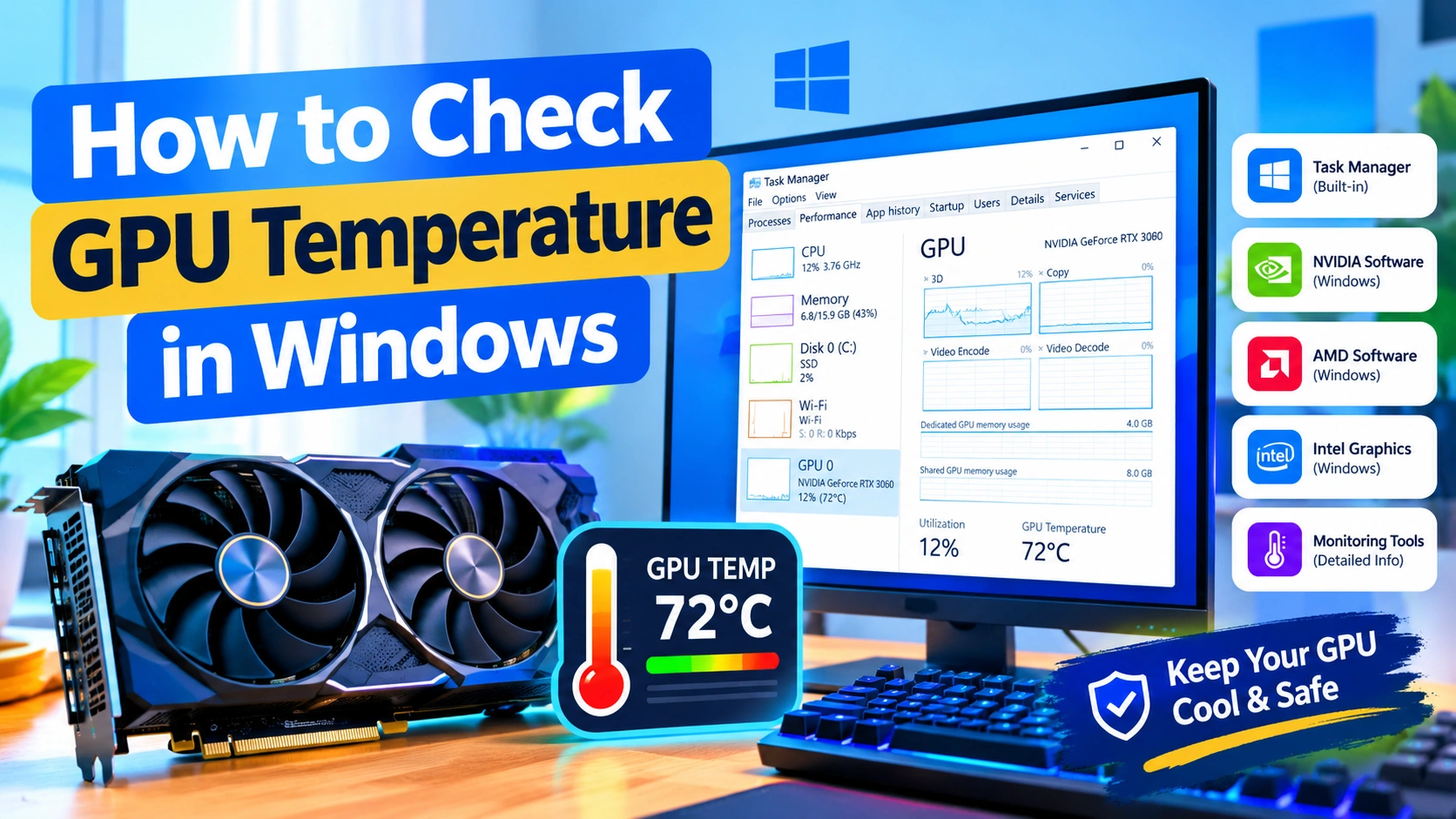
Monitoring your GPU temperature is an important part of maintaining a stable and reliable Windows PC. A graphics card can become significantly warmer when you play games, edit videos, render 3D projects, or run other graphics-intensive applications. If temperatures remain too high for long periods, the GPU may reduce its performance, cause graphical problems, or contribute to system instability.
Fortunately, Windows users have several ways to check GPU temperature. You can use built-in Windows features, graphics-card software, or trusted hardware-monitoring utilities.
In this guide, you will learn how to check GPU temperature in Windows, what temperatures are considered normal, and what you can do if your graphics card is running too hot.
What Is GPU Temperature?
GPU temperature is the amount of heat generated by your graphics processing unit while it is operating.
When your computer is idle, the GPU usually runs at a relatively low temperature. During gaming or demanding workloads, the temperature naturally increases because the graphics processor is working harder.
GPU temperature can be affected by:
- GPU model
- Room temperature
- PC case airflow
- Fan speed
- GPU workload
- Graphics settings
- Dust buildup
- Thermal paste condition
- Laptop cooling design
- GPU overclocking
There is no single temperature that applies to every graphics card. Different GPUs have different thermal limits and cooling systems.
How to Check GPU Temperature Using Windows Task Manager
Windows Task Manager can display GPU temperature on supported systems and graphics hardware.
Step 1: Open Task Manager
Press:
Ctrl + Shift + Esc
Alternatively, right-click the Start button and select Task Manager.
Step 2: Open the Performance Tab
Select Performance from the left-side menu.
You should see hardware such as:
- CPU
- Memory
- Disk
- Ethernet or Wi-Fi
- GPU
Click your GPU.
Step 3: Check the Temperature
If Windows and your graphics driver support GPU temperature reporting, the temperature appears in the GPU performance panel.
You may also see information such as:
- GPU utilization
- GPU memory usage
- Dedicated GPU memory
- Shared GPU memory
- GPU engine
- Driver version
If the temperature is not displayed, your hardware or driver may not expose the required sensor information through Task Manager.
How to Check GPU Temperature With NVIDIA Software
If your computer uses an NVIDIA graphics card, you can monitor GPU information using NVIDIA’s software.
Depending on your driver and software version, available monitoring features can differ.
For more detailed temperature monitoring, third-party utilities can provide additional sensor information.
NVIDIA graphics cards may also report information through applications that communicate directly with the GPU driver.
How to Check GPU Temperature With AMD Software
AMD Radeon graphics cards can provide temperature information through AMD’s graphics software.
Open the Radeon software installed on your PC and look for the performance or metrics section.
Depending on your GPU, you may see:
- GPU temperature
- GPU utilization
- GPU clock speed
- GPU fan speed
- GPU power consumption
- GPU memory usage
AMD GPUs may also report more than one temperature measurement on supported models.
How to Check GPU Temperature With Intel Graphics
Intel integrated and dedicated graphics hardware can also expose temperature and performance information through compatible Intel software and monitoring utilities.
On systems using integrated graphics, GPU temperature may behave differently from that of a dedicated graphics card because the graphics processor can share system resources with the CPU.
If a temperature reading is unavailable, check whether your particular Intel graphics hardware exposes a supported thermal sensor.
Check GPU Temperature With a Hardware Monitoring Tool
A dedicated hardware-monitoring application is often the easiest way to get detailed GPU sensor information.
Popular monitoring applications can show:
- GPU temperature
- GPU hotspot temperature
- GPU fan speed
- GPU clock speed
- GPU voltage
- GPU utilization
- GPU memory temperature
- GPU power usage
One advantage of dedicated monitoring software is that you can watch temperatures while running a game or other demanding application.
Why GPU Hotspot Temperature Matters
Some modern graphics cards provide a GPU hotspot or junction temperature.
This reading represents the hottest measured area of the GPU rather than the average GPU temperature.
For example, a graphics card might show:
- GPU temperature: 70°C
- Hotspot temperature: 82°C
That difference can be normal depending on the GPU and workload.
The exact acceptable range depends on the graphics card manufacturer’s specifications.
How to Check GPU Temperature While Gaming
Checking the temperature while the computer is idle does not tell you how hot the GPU becomes under heavy workloads.
For a better test:
- Start your GPU monitoring software.
- Launch a demanding game.
- Play for approximately 15–30 minutes.
- Check the GPU temperature.
- Check GPU utilization.
- Observe the maximum temperature.
- Exit the game and watch how quickly the GPU cools.
A GPU temperature that rises during gaming is expected.
The important thing is whether the temperature remains within the manufacturer’s recommended operating range.
What Is a Normal GPU Temperature?
GPU temperatures vary considerably between graphics cards, cases, workloads, and environments.
As a general guideline:
| GPU Condition | Typical Temperature Range |
|---|---|
| Light desktop use | 30–50°C |
| General workloads | 40–65°C |
| Gaming | 60–85°C |
| Heavy rendering | 70–90°C |
These ranges are only general references, not universal limits.
A graphics card designed to operate at higher temperatures may be perfectly normal at temperatures that would be concerning for another model.
Always check the specifications for your particular GPU.
Is 80°C Too Hot for a GPU?
An 80°C GPU temperature is not automatically dangerous.
Many graphics cards are designed to operate at relatively high temperatures under heavy workloads.
However, you should pay attention to the temperature trend.
If your GPU reaches 80°C during demanding gaming and remains stable, this may be normal for the hardware.
If it reaches 80–90°C during light workloads, repeatedly approaches its thermal limit, or experiences performance problems, further investigation is worthwhile.
Is 90°C Too Hot for a GPU?
A GPU reaching around 90°C deserves attention, particularly if this happens regularly.
The actual thermal limit depends on the GPU model.
Check for:
- Manufacturer temperature specifications
- GPU hotspot temperature
- Fan speed
- GPU utilization
- Case airflow
- Ambient temperature
- Clock-speed reductions
If the GPU is approaching its thermal limit, it may automatically reduce clock speeds to control heat.
Signs That Your GPU May Be Overheating
High GPU temperature can sometimes be accompanied by noticeable symptoms.
Common warning signs include:
- Sudden FPS drops
- Game crashes
- Driver crashes
- Screen artifacts
- Black screens
- Unexpected system restarts
- Excessive GPU fan noise
- Reduced GPU clock speed
- Performance fluctuations
- Computer shutdowns under heavy load
Temperature alone does not prove that the GPU is overheating. These symptoms can also be caused by drivers, power problems, unstable overclocks, faulty hardware, or software conflicts.
How to Reduce GPU Temperature
If your graphics card is consistently hotter than expected, several solutions can help.
1. Clean Dust From the PC
Dust can restrict airflow and reduce cooling performance.
Turn off the computer and disconnect its power before cleaning.
Pay particular attention to:
- GPU heatsink
- GPU fans
- Case fans
- Dust filters
- Front intake vents
- Rear exhaust vents
Avoid forcing fans to spin excessively fast with compressed air while cleaning them.
2. Improve Case Airflow
Good airflow helps remove hot air from the case.
A basic airflow arrangement usually includes:
- Front or bottom intake fans
- Rear or top exhaust fans
Make sure cables and other components are not unnecessarily blocking airflow.
3. Check GPU Fans
Some graphics cards intentionally stop their fans during low temperatures.
This is known as a zero-RPM or fan-stop mode.
Therefore, fans not spinning while the PC is idle does not necessarily indicate a problem.
During heavy workloads, however, the fans should respond according to the GPU’s fan-control settings.
4. Lower Graphics Settings
Reducing demanding graphics settings can reduce GPU workload.
Try lowering:
- Resolution
- Ray tracing
- Shadow quality
- Texture quality
- Ambient occlusion
- Anti-aliasing
- Rendering scale
You can also enable a frame-rate limit if your game is rendering significantly more frames than your monitor needs.
5. Increase GPU Fan Speed
Compatible graphics-card software may allow you to create a custom fan curve.
Increasing fan speed can lower GPU temperature, although it will generally increase noise.
Make small adjustments rather than immediately setting the fans to maximum speed.
6. Check Ambient Temperature
Your room temperature directly affects PC cooling.
If the room is hot, your GPU may also run hotter.
For example, a GPU operating in a 30°C room will generally have a harder cooling challenge than the same GPU operating in a 20°C room.
7. Remove an Unnecessary Overclock
An overclock can increase GPU power consumption and heat output.
If temperatures became significantly higher after changing GPU clock, voltage, or power settings, return the graphics card to its default configuration and test again.
GPU Temperature vs CPU Temperature
GPU and CPU temperatures are different measurements.
The CPU handles general-purpose computing tasks, while the GPU specializes in graphics and highly parallel workloads.
During gaming, both components may become warm.
A useful monitoring setup therefore includes:
- CPU temperature
- GPU temperature
- GPU hotspot temperature
- GPU utilization
- CPU utilization
- Fan speeds
Monitoring both components can help determine which part of the system is generating excessive heat.
Why GPU Temperature Changes During the Day
It is normal for GPU temperature to change constantly.
For example, the GPU might run at a low temperature while browsing the web and become considerably warmer when you start a game.
Temperature can also change because of:
- Background applications
- Browser hardware acceleration
- Video playback
- Game menus
- Windows updates
- Rendering workloads
- Room temperature
- Fan-control behavior
A short temperature spike is generally less concerning than consistently high temperatures under normal workloads.
How to Monitor GPU Temperature Over Time
If you are troubleshooting overheating, don’t just record one temperature reading.
Instead, monitor the GPU during different situations:
Idle Test
Leave the computer at the desktop for several minutes and record the temperature.
Gaming Test
Run a demanding game for 15–30 minutes and record the maximum temperature.
Stress Test
If necessary, use a reputable GPU stress-testing application and monitor temperatures carefully.
Do not leave a stress test running indefinitely. Stop the test if temperatures approach the manufacturer’s specified limit or the system becomes unstable.
What to Do if GPU Temperature Is Not Showing
If Windows Task Manager does not display GPU temperature, try these steps:
- Update the graphics driver.
- Restart Windows.
- Check whether your GPU supports temperature reporting.
- Try the manufacturer’s graphics software.
- Use a reputable hardware-monitoring application.
- Check the GPU BIOS or manufacturer’s documentation.
- Verify that the monitoring application has permission to access hardware sensors.
Some GPUs simply do not expose every sensor to every application.
Laptop GPU Temperature
Laptop GPUs can run hotter than desktop graphics cards because laptops have less physical space for cooling.
When checking a laptop GPU, also consider:
- Laptop ventilation
- Cooling fan condition
- Dust buildup
- Surface placement
- Room temperature
- Performance mode
- Power settings
Avoid using a gaming laptop on soft surfaces such as beds or blankets because they can obstruct ventilation openings.
Should You Monitor GPU Temperature Regularly?
Most users do not need to constantly watch GPU temperature.
However, monitoring is useful when:
- Installing a new graphics card
- Building a new PC
- Troubleshooting crashes
- Testing a game
- Overclocking
- Cleaning the computer
- Changing the case
- Replacing cooling components
- Investigating sudden performance loss
Occasional temperature checks can help identify cooling problems before they become serious.
Frequently Asked Questions
How do I check my GPU temperature in Windows?
Open Task Manager → Performance → GPU. On supported hardware and drivers, Windows displays the GPU temperature. For additional sensor information, use graphics-card software or a hardware-monitoring utility.
What GPU temperature is normal while gaming?
Many GPUs operate somewhere around 60–85°C during gaming, but acceptable temperatures vary by model. Always compare the reading with your GPU manufacturer’s specifications.
Is 70°C safe for a GPU?
A 70°C GPU temperature is commonly seen during gaming and other demanding workloads. Whether it is ideal depends on the specific graphics card, workload, and cooling configuration.
Why is my GPU temperature high when I’m not gaming?
Possible causes include background applications, video playback, browser hardware acceleration, multiple monitors, driver issues, or poor airflow. Check GPU utilization alongside the temperature to identify what is using the graphics processor.
Why does my GPU fan stop spinning?
Many modern graphics cards use a fan-stop feature that turns the fans off when the GPU is cool. The fans normally start automatically when the temperature or workload increases.
Does high GPU temperature reduce performance?
It can. When a GPU reaches its thermal limits, it may reduce clock speeds to control heat. This behavior can result in lower or inconsistent performance.
Final Thoughts
Checking GPU temperature in Windows is a simple way to understand how your graphics card behaves under different workloads. Start with Task Manager if your system supports temperature reporting, then use your GPU manufacturer’s software or a reputable monitoring utility when you need more detailed sensor information.
Remember that there is no universal “safe” GPU temperature for every graphics card. Instead, compare your readings with the specifications for your specific GPU and pay attention to sustained high temperatures, unusual fan behavior, performance drops, and system instability.
Regular monitoring is particularly useful after installing a new GPU, changing cooling hardware, overclocking, or troubleshooting gaming performance.