

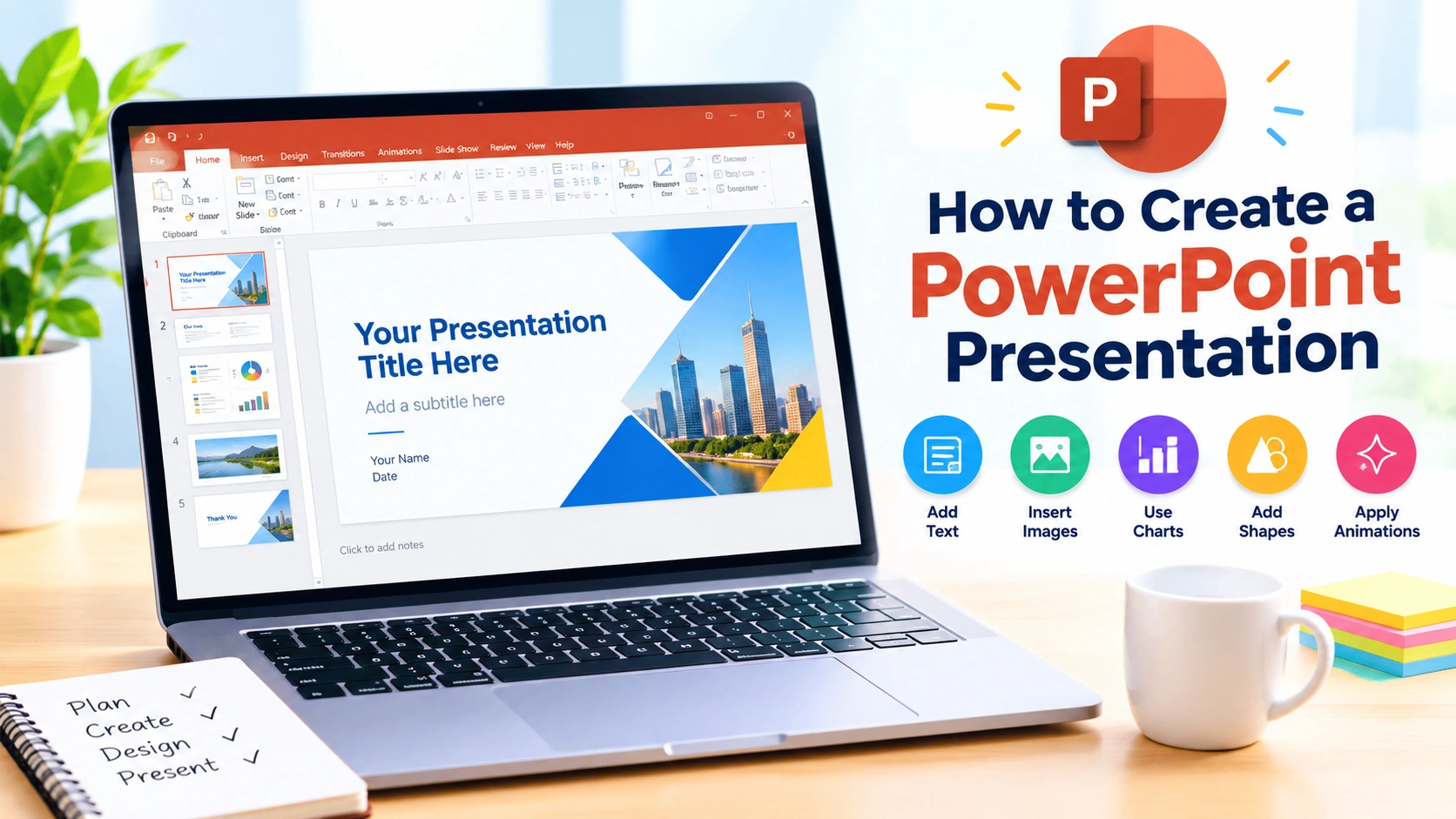
Creating a PowerPoint presentation is an effective way to organize information and communicate ideas clearly. Whether you are preparing a school assignment, business presentation, project report, training session, or personal slideshow, Microsoft PowerPoint provides tools for creating professional-looking slides without requiring advanced design skills.
In this guide, you will learn how to create a PowerPoint presentation from scratch, add and format content, use images and charts, apply a consistent design, and prepare your presentation for delivery.
Why Create a PowerPoint Presentation?
PowerPoint presentations combine text, images, charts, diagrams, and other visual elements into an easy-to-follow format. A well-designed presentation can help your audience understand complex information and remember important points.
PowerPoint can be used for:
- School and university assignments
- Business meetings and reports
- Project presentations
- Training and educational materials
- Sales presentations
- Product demonstrations
- Conference presentations
- Personal photo slideshows
The key is to focus on clear information and simple visual design rather than filling every slide with content.
How to Create a PowerPoint Presentation
1. Open Microsoft PowerPoint
Start by opening Microsoft PowerPoint on your Windows PC.
Depending on your version of Microsoft Office or Microsoft 365, you may see several template options when PowerPoint starts.
Select Blank Presentation if you want to create your own design, or choose a template that matches your topic.
Starting with a template can save time because it provides predefined layouts, fonts, colors, and design elements.
2. Plan Your Presentation
Before adding slides, determine what you want your audience to learn.
A simple presentation structure could include:
- Title slide
- Introduction
- Main topic or problem
- Key information
- Examples or supporting evidence
- Summary
- Conclusion or questions
Planning your presentation first helps prevent unnecessary slides and keeps your content organized.
3. Create the Title Slide
The first slide should introduce your presentation.
Include information such as:
- Presentation title
- Subtitle, if necessary
- Your name
- Organization, school, or company
- Date
Keep the title short and easy to read. Avoid adding large blocks of text to the opening slide.
4. Add New Slides
To add another slide, select Home > New Slide.
PowerPoint provides different layouts, including:
- Title and Content
- Section Header
- Two Content
- Comparison
- Title Only
- Blank
Choose the layout that best matches the information you want to present.
For example, a Two Content layout can be useful when comparing two products, ideas, or processes.
5. Add and Format Text
Click inside a text placeholder and enter your content.
For readable slides, use short sentences and concise bullet points instead of large paragraphs.
You can format text using options such as:
- Font type
- Font size
- Bold
- Italic
- Text alignment
- Bullets and numbering
- Text color
Use consistent formatting throughout the presentation. A title should generally be more prominent than the supporting text.
6. Choose a Professional Design
The Design tab provides themes and design variations that can quickly change the appearance of your presentation.
When selecting a theme, consider:
- Your audience
- Presentation subject
- Brand or organizational colors
- Text readability
- Overall simplicity
Avoid using too many different fonts, colors, or decorative effects. A consistent design makes your presentation easier to follow.
7. Insert Images
Images can make slides more engaging and help explain concepts visually.
To add an image, select:
Insert > Pictures
You can then select an image from your computer or another available source.
After inserting an image, resize it using the corner handles to maintain its proportions. Avoid stretching images because this can make them look distorted.
Choose images that directly support the information on the slide rather than using decorative images that add little value.
8. Add Icons, Shapes, and SmartArt
PowerPoint includes tools for creating simple diagrams and visual explanations.
You can use:
Insert > Shapes
to add rectangles, circles, arrows, lines, and other objects.
You can also use SmartArt to create visual representations of:
- Processes
- Hierarchies
- Lists
- Cycles
- Relationships
These tools are particularly useful when explaining a process or showing how different ideas are connected.
9. Insert Charts and Tables
Charts can make numerical information easier to understand.
Select:
Insert > Chart
You can choose from several chart types, including:
- Column
- Bar
- Line
- Pie
- Area
Choose the chart type based on the information you want to communicate.
For example, a line chart can show changes over time, while a bar chart can make comparisons between categories easier.
Tables can also be inserted when you need to organize structured information.
10. Add Transitions Between Slides
Transitions control how one slide changes to the next.
Open the Transitions tab and select an effect.
Simple transitions are usually preferable for professional presentations. Excessive animation can distract the audience from your content.
You can also adjust the transition duration and decide whether slides advance with a mouse click or automatically.
11. Use Animations Carefully
Animations can control when individual elements appear on a slide.
For example, you might make bullet points appear one at a time while explaining them.
To add an animation:
- Select an object or text.
- Open the Animations tab.
- Choose an animation effect.
- Adjust the timing and order if necessary.
Use animation only when it improves the presentation. Too many animated elements can make a slideshow difficult to follow.
12. Add Speaker Notes
Speaker notes can help you remember important details without placing everything on the slide.
Select the Notes area below the slide and enter additional information.
You can use notes for:
- Talking points
- Statistics
- Examples
- Questions to ask the audience
- Reminders about demonstrations
Keeping detailed explanations in speaker notes allows the slides themselves to remain clean and concise.
13. Review Your Presentation
Before presenting, review every slide carefully.
Check for:
- Spelling mistakes
- Grammar errors
- Incorrect information
- Inconsistent formatting
- Poor-quality images
- Overcrowded slides
- Missing titles or labels
Run the presentation from the beginning and view it as your audience would.
Pay attention to whether each slide naturally leads to the next one.
14. Practice the Presentation
A good presentation is not only about the slides. Practice is also important.
Read through your presentation several times and practice explaining the main points without simply reading the text on the screen.
PowerPoint also includes presentation tools that can help you rehearse timing and prepare for delivery.
If your presentation has a specific time limit, practice until you can finish comfortably within that limit.
15. Save Your PowerPoint Presentation
Save your presentation regularly while working.
Select File > Save As if you want to choose the file name and location.
The standard PowerPoint format is:
.pptx
Choose a descriptive filename so that you can easily identify the presentation later.
It is also a good idea to keep a backup copy if the presentation is important.
Tips for Creating a Better PowerPoint Presentation
Keep Slides Simple
Avoid putting too much information on one slide. If a slide contains several paragraphs, consider dividing the information across multiple slides.
Use Readable Fonts
Choose clear fonts and make sure the text is large enough for people sitting farther away from the screen.
Maintain Consistency
Use the same general font styles, colors, spacing, and alignment throughout the presentation.
Use Visuals to Support Your Message
Images, diagrams, icons, and charts should help explain the subject rather than simply fill empty space.
Limit Unnecessary Effects
Animations and transitions should support your presentation. They should not become the main attraction.
Highlight Important Information
Use headings, bold text, visual contrast, or simple diagrams to draw attention to key points.
Common PowerPoint Mistakes to Avoid
Some presentations become difficult to follow because of poor slide design.
Avoid:
- Using too much text
- Mixing many unrelated fonts
- Using tiny text
- Adding too many animations
- Using low-quality images
- Choosing colors with poor contrast
- Reading every word directly from the screen
- Adding unnecessary information
- Failing to proofread slides
- Presenting without practicing
A simple presentation with clear information is often more effective than a complicated design filled with visual effects.
How to Make Your PowerPoint Presentation More Professional
For a more polished result, create a visual hierarchy. Make the presentation title prominent, use clear section headings, and organize supporting information underneath them.
You can also use the Slide Master feature to maintain consistent formatting across multiple slides. This is especially useful for business presentations and large projects.
Before delivering the presentation, check how it looks on the actual display or projector if possible. Colors, text size, and image quality can appear different on another screen.
Final Thoughts
Learning how to create a PowerPoint presentation is useful for students, professionals, teachers, and anyone who needs to communicate information visually. The process starts with planning your content and then building clear slides with appropriate text, images, charts, and design elements.
Focus on your message first, keep the layout consistent, and avoid unnecessary visual effects. With regular practice, you can create PowerPoint presentations that are organized, readable, and easier for your audience to understand.