

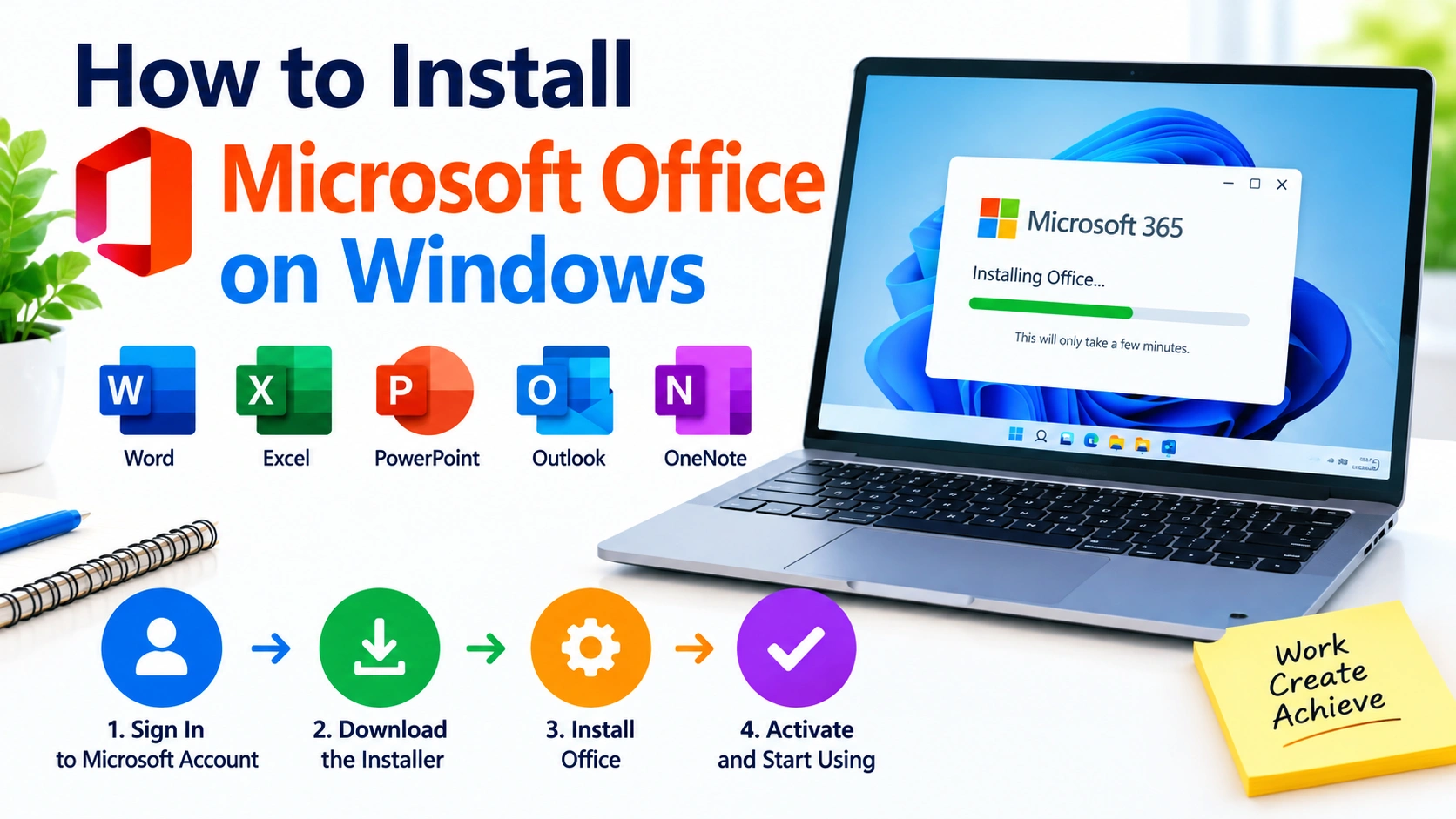
Microsoft Office remains one of the most widely used productivity suites for Windows users. Whether you need Word for documents, Excel for spreadsheets, PowerPoint for presentations, or Outlook for email, installing Office correctly helps ensure that all applications work smoothly and receive the latest updates.
The installation process is relatively straightforward, but the exact steps can vary depending on whether you have a Microsoft 365 subscription, a one-time Office license, or a product key.
This guide explains how to install Microsoft Office on Windows, activate it, troubleshoot common installation problems, and verify that everything is working correctly.
What You Need Before Installing Microsoft Office
Before starting the installation, make sure your Windows PC is ready.
You should have:
- A supported version of Windows
- A stable internet connection
- A Microsoft account associated with your Office license or Microsoft 365 subscription
- Enough free storage space
- Administrator access to the computer
- Your Office product key, if you purchased a version that requires one
If you are reinstalling Office, it is also useful to know which Microsoft account was originally used to activate the software.
How to Install Microsoft Office on Windows
The safest approach is to download Office directly through Microsoft’s official website rather than using third-party download sites.
1. Sign In to Your Microsoft Account
Open a web browser and sign in to the Microsoft account connected to your Microsoft 365 subscription or Office purchase.
If you purchased Office with a product key, you may need to redeem the key before the installation becomes available through your account.
2. Open Your Microsoft 365 or Office Account
After signing in, locate the section where your Microsoft 365 subscription or Office products are listed.
Look for an option such as Install apps, Install Office, or a similar installation button.
Select it to begin downloading the Office installer.
3. Download the Office Installer
Your browser will download an Office setup file to your PC.
Depending on your browser, the file may appear in the Downloads folder or in the browser’s download list.
Once the download finishes, open the installer.
Windows may display a security prompt asking whether you want to allow the installer to make changes to your computer.
Select Yes to continue if you downloaded the installer from Microsoft.
4. Wait for Office to Install
The Office installer will connect to Microsoft’s servers and download the required applications.
The installation may take several minutes depending on your internet connection and computer performance.
Avoid shutting down your PC while the installation is in progress.
When the process finishes, Windows should display a confirmation that Office has been installed.
How to Activate Microsoft Office
Installing Office and activating it are related but separate steps.
After installation, open an Office application such as Microsoft Word.
You may be asked to sign in with the Microsoft account associated with your Office license.
Sign in and follow the activation instructions.
If you purchased a product key, activation may already be associated with your Microsoft account after the key was redeemed.
Check Office Activation Status
To check whether Office is activated:
- Open Word, Excel, or PowerPoint.
- Select File.
- Open Account.
- Look for the Product Information section.
- Check the activation or subscription information.
If the account and license are recognized, Office should be ready to use.
How to Install Office With a Product Key
If you have a new Office product key, the first step is usually to associate the key with your Microsoft account.
Go to Microsoft’s official Office setup page and sign in when prompted.
Enter your 25-character product key and follow the instructions.
Once the key has been linked to your account, you can download and install the corresponding Office software on your Windows PC.
Keep your product key in a safe place until you have confirmed that the license has been successfully activated.
How to Choose Which Office Apps to Use
Depending on your Office edition, the installation may include several applications.
Common Office applications include:
- Word — Create and edit documents.
- Excel — Work with spreadsheets, calculations, and data.
- PowerPoint — Create presentations.
- Outlook — Manage email, calendars, and contacts.
- OneNote — Take and organize notes.
- Access — Manage databases in editions that include it.
Microsoft 365 plans and standalone Office editions can contain different combinations of applications, so the available programs depend on your license.
How to Update Microsoft Office
Keeping Office updated can improve security, compatibility, and reliability.
To manually check for updates:
- Open Word, Excel, or another Office application.
- Select File.
- Choose Account.
- Find Office Updates.
- Select Update Options.
- Choose Update Now.
If automatic updates are enabled, Office can download and install updates without requiring you to manually check each time.
Common Microsoft Office Installation Problems
Although Office usually installs without problems, you may encounter errors.
Office Installation Gets Stuck
If installation appears to stop responding, first give it some time. Large installations can take longer on slower connections.
If it remains stuck:
- Check your internet connection.
- Restart the computer.
- Close unnecessary applications.
- Run the Office installer again.
- Make sure Windows is fully updated.
Another Office Version Is Already Installed
Having an older Office installation can sometimes interfere with a new installation.
If you no longer need the previous version, uninstall it from Windows Settings before attempting another installation.
Go to:
Settings > Apps > Installed apps
Find the Office installation and select the appropriate uninstall option.
Be careful when removing Office if you have existing Outlook profiles or locally stored files that you still need.
Office Won’t Activate
Activation problems can occur when the wrong Microsoft account is being used.
Check that you are signed in with the account associated with your Office license.
Also verify that your internet connection is working and that your subscription has not expired.
Office Apps Will Not Open
If Word, Excel, or another Office application crashes or refuses to start, repairing the installation may help.
Open:
Settings > Apps > Installed apps
Find Microsoft 365 or Microsoft Office, open its advanced options, and look for the available repair options.
Try Quick Repair first. If the problem remains, Online Repair can perform a more extensive repair, although it requires an internet connection.
Should You Uninstall Office Before Reinstalling It?
Not always.
If Office is installed but experiencing problems, try repairing the existing installation before completely removing it.
However, uninstalling Office can be useful when:
- The installation is severely damaged.
- You are switching to a different Office edition.
- A previous installation is interfering with a new installation.
- Repair tools do not resolve the problem.
- You are preparing the computer for a clean Office installation.
After uninstalling, restart Windows before installing Office again.
Tips for a Smooth Office Installation
Follow these recommendations to avoid common problems:
- Download Office from Microsoft’s official sources.
- Use the correct Microsoft account.
- Keep your product key secure.
- Maintain a stable internet connection during installation.
- Install Windows updates before installing Office.
- Close unnecessary applications during setup.
- Avoid running multiple Office installers simultaneously.
- Restart Windows if installation problems persist.
- Keep Office updated after installation.
Frequently Asked Questions
Can I install Microsoft Office without a Microsoft account?
It depends on the Office edition and license. Many modern Microsoft 365 and Office installations use a Microsoft account to associate the software with your license.
How long does Microsoft Office take to install?
Installation time depends primarily on your internet connection, computer performance, and the Office edition being installed. A typical installation can finish within several minutes.
Can I reinstall Office on the same PC?
Yes. If your license permits installation on the computer, you can generally reinstall Office using the Microsoft account associated with the license.
Do I need an internet connection?
An internet connection is normally required to download and activate modern Office installations. Some applications can subsequently be used offline, depending on the license and configuration.
What should I do if my Office product key does not work?
Double-check that the key was entered correctly and that you are using the Microsoft account associated with the purchase. If the problem continues, use Microsoft’s official support and account-recovery options rather than downloading an unofficial Office installer.
Final Thoughts
Installing Microsoft Office on Windows is usually a simple process when you use the correct installer and Microsoft account. Start by confirming your Office license, download the software from an official Microsoft source, run the installer, and sign in to activate the applications.
If something goes wrong, repairing the existing installation, checking your account, updating Windows, or reinstalling Office can often resolve the problem. Once Office is installed and activated, keeping it updated is an important step for maintaining security and compatibility.