

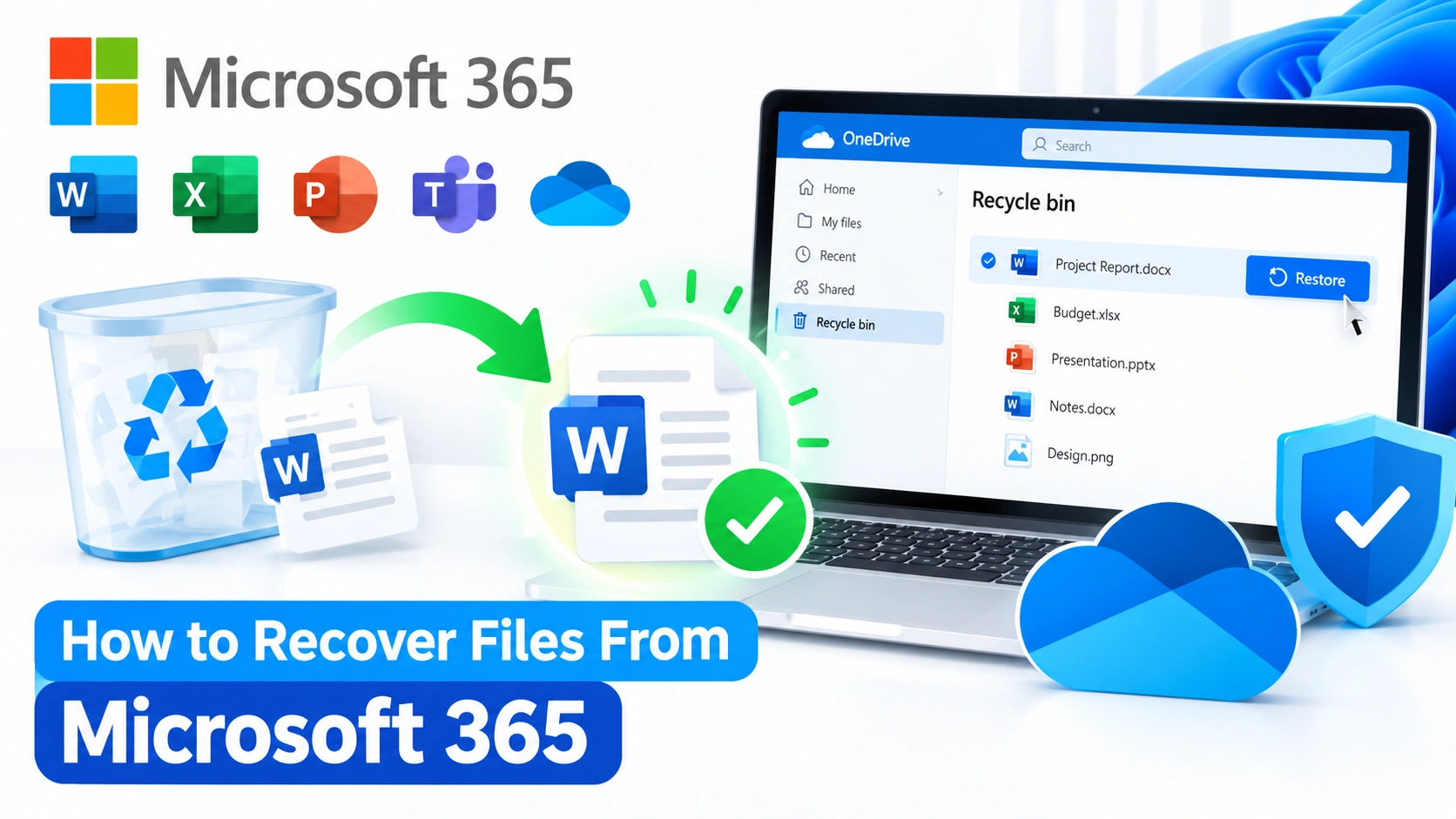
Losing an important document, spreadsheet, presentation, or other file in Microsoft 365 can be stressful, especially when the file contains work you cannot easily recreate. Fortunately, Microsoft 365 includes several recovery options that can help restore deleted or previous versions of files.
Depending on where the file was stored, you may be able to recover it from the Recycle Bin, restore an earlier version, recover an unsaved Office document, or use OneDrive and SharePoint recovery features.
This guide explains how to recover files from Microsoft 365 using practical methods that work across common Microsoft 365 applications and storage services.
Why Microsoft 365 Files Can Disappear
Before recovering a file, it helps to understand why it may no longer be available.
Common causes include:
- Accidental deletion
- Emptying the Recycle Bin
- Overwriting a document with incorrect information
- Synchronization problems with OneDrive
- Accidental file movement
- Failed or interrupted editing sessions
- Changes made by another user
- File corruption
- Microsoft 365 synchronization conflicts
The recovery method depends largely on where the original file was stored.
Method 1: Check the OneDrive Recycle Bin
If the missing file was stored in OneDrive, the first place to look is the OneDrive Recycle Bin.
Step 1: Open OneDrive
Sign in to your Microsoft account and open OneDrive.
Step 2: Open the Recycle Bin
Select Recycle bin from the OneDrive navigation panel.
You should see recently deleted files and folders associated with your OneDrive storage.
Step 3: Find the Missing File
Look through the list or use the available search and sorting options.
Select the file you want to restore.
Step 4: Restore the File
Choose Restore.
The file should return to its original location in OneDrive.
If you do not see the file, check whether you are signed in to the correct Microsoft account.
Method 2: Recover a File From the SharePoint Recycle Bin
Files stored in Microsoft SharePoint or Microsoft Teams may use SharePoint storage behind the scenes.
If a document disappeared from a shared library, check the SharePoint Recycle Bin.
Open the relevant SharePoint site and select Recycle bin.
Find the deleted document and select Restore.
Depending on your organization’s Microsoft 365 configuration and permissions, you may need assistance from a SharePoint or Microsoft 365 administrator.
Method 3: Restore an Earlier Version of a Microsoft 365 File
Sometimes the file itself has not been deleted. Instead, its contents have been accidentally changed or overwritten.
Microsoft 365’s version history can be useful in this situation.
Open the document from OneDrive or SharePoint and look for Version history.
You can then review previous versions of the file.
Select an earlier version to inspect its contents. If it contains the information you need, choose the option to restore that version.
When Version History Is Useful
Version history can help when:
- Important text was accidentally deleted
- A spreadsheet was overwritten
- A presentation was changed incorrectly
- A document was modified by another collaborator
- You need to compare earlier versions of a file
This approach is often preferable to trying to recreate lost content manually.
Method 4: Recover an Unsaved Word Document
If Microsoft Word closed unexpectedly before you saved your document, you may still be able to recover it.
Open Word and check the Document Recovery panel if it appears.
You can also look under Word’s recovery options for unsaved documents.
Depending on your version of Microsoft 365, you may find an option similar to:
File → Info → Manage Document → Recover Unsaved Documents
Review the available files and open the one that appears to contain your missing work.
If the recovered document contains the expected content, save it immediately under a new filename.
Method 5: Recover an Unsaved Excel Workbook
Excel also provides recovery options for workbooks that were not saved properly.
Open Excel and check for the Document Recovery panel.
You can also check the option for recovering unsaved workbooks through:
File → Open → Recover Unsaved Workbooks
Look for the most recent version of your workbook.
After opening it, verify the worksheets and data before saving the recovered file.
Method 6: Recover an Unsaved PowerPoint Presentation
PowerPoint can sometimes recover a presentation after an unexpected shutdown or application failure.
Open PowerPoint and check whether a Document Recovery panel appears.
You can also look through PowerPoint’s recovery options for unsaved presentations.
If a recovered presentation appears, open it and immediately save a copy.
Method 7: Use OneDrive File Version History
OneDrive can automatically maintain previous versions of supported files.
This is particularly useful when a file still exists but its contents have changed.
Open OneDrive and locate the file.
Right-click the file and select Version history if the option is available.
Review the available versions and select the version you need.
Then restore it or download a copy, depending on your requirements.
Method 8: Restore Files After a Major OneDrive Problem
If many files have been changed, deleted, or corrupted at once, restoring individual files may not be practical.
Eligible Microsoft 365 users may have access to broader OneDrive restoration capabilities.
A large-scale restoration can be useful after problems such as:
- Accidental mass deletion
- Extensive file modifications
- Synchronization problems
- Certain malware or ransomware incidents
Before performing a large restoration, identify the approximate time when the files were still correct.
This makes it easier to choose an appropriate restoration point.
Method 9: Check the Microsoft 365 App’s Recent Files
If you cannot remember where a document was saved, check the application’s recent files list.
Open Word, Excel, or PowerPoint and select Open.
Look through Recent files.
A document that appears to be missing may simply have been moved to another folder or saved under an unexpected location.
You can also check the file’s location when it opens.
Method 10: Search OneDrive and SharePoint
A file may appear to be deleted when it has actually been moved.
Use the search functionality in OneDrive or SharePoint to look for:
- The original filename
- A unique word from the document
- The file extension
- The name of the person who modified it
- The approximate folder where it was stored
For example, if you are looking for a Word document called Project Report, search for both Project Report and Project.
This can reveal files that were accidentally moved or renamed.
Method 11: Check Your Local OneDrive Folder
If OneDrive synchronization is enabled on Windows, the file may also exist in your local OneDrive folder.
Open File Explorer and select your OneDrive folder.
Search for the missing document.
Pay attention to synchronization icons and status messages.
A file that is available locally but not visible online may indicate a synchronization issue rather than permanent deletion.
Avoid deleting or moving additional files until you understand what caused the synchronization problem.
Method 12: Check the Windows Recycle Bin
If you use OneDrive synchronization on Windows, it is also worth checking the Windows Recycle Bin.
Open the Recycle Bin on the desktop and search for the missing file.
If you find it, right-click the file and select Restore.
Windows should return the file to its original location.
Method 13: Contact a Microsoft 365 Administrator
Business and organizational Microsoft 365 accounts can have additional recovery mechanisms and retention policies.
If a file cannot be recovered through the normal OneDrive or SharePoint interface, contact your organization’s Microsoft 365 administrator.
An administrator may be able to determine:
- Whether the file was deleted
- Whether a retention policy applies
- Whether the file is still recoverable
- Whether SharePoint recovery options are available
- Whether the account has additional organizational backup or compliance policies
Do not assume that a permanently deleted file is immediately unrecoverable in every Microsoft 365 environment. Recovery capabilities depend on the service, account type, configuration, and retention settings.
What to Do If Microsoft 365 Cannot Recover the File
If the file cannot be found in OneDrive, SharePoint, version history, or recovery options, investigate whether another copy exists.
Check:
- Another computer
- External drives
- Windows File History
- Existing backups
- Previous downloaded copies
- Email attachments
- Shared folders
- Other collaborators’ copies
If the document contained critical information, avoid repeatedly modifying the storage device where a potentially recoverable local copy may exist.
For business-critical data, professional data recovery assistance may be appropriate when the original file was stored locally and the storage device itself is experiencing problems.
How to Prevent Microsoft 365 File Loss
Recovery is useful, but prevention can save significant time.
Keep OneDrive Synchronization Working
Make sure OneDrive is signed in and synchronizing normally.
Pay attention to synchronization errors instead of ignoring them.
Use Version History
Version history provides an additional layer of protection when files are modified accidentally.
Keep Independent Backups
Do not rely exclusively on a single copy of important data.
Maintain appropriate backups for documents that would be difficult or expensive to recreate.
Be Careful With Shared Documents
Microsoft 365 makes collaboration easy, but multiple people can modify the same document.
Use version history when you need to identify or reverse unwanted changes.
Avoid Permanently Deleting Important Files
When cleaning up OneDrive or SharePoint, verify that a file is no longer needed before permanently deleting it.
Frequently Asked Questions
Can I recover permanently deleted files from Microsoft 365?
Sometimes. Recovery depends on where the file was stored, the account type, retention settings, and whether the file remains within an available recovery period.
Can I recover an older version of a Word document?
Yes. If version history is available for the document, you can review earlier versions and restore an appropriate copy.
Where are deleted OneDrive files stored?
Deleted OneDrive files are generally moved to the OneDrive Recycle Bin before being permanently removed according to the applicable retention rules.
Can Microsoft 365 recover an unsaved document?
Word, Excel, and PowerPoint have document recovery features that may recover unsaved work after an unexpected shutdown or application failure. Recovery is not guaranteed.
What if a file disappeared from Microsoft Teams?
Files shared through Teams channels are commonly stored in SharePoint, while files shared through individual chats can be associated with OneDrive. Check the appropriate storage location.
Conclusion
Knowing how to recover files from Microsoft 365 can help you retrieve important documents without immediately resorting to third-party recovery software. Start by checking OneDrive or SharePoint’s Recycle Bin, then investigate version history, unsaved Office documents, local OneDrive files, and available backups.
For organizations, Microsoft 365 administrators may have additional recovery and retention options. The sooner you investigate a missing file, the more recovery possibilities you are likely to have.