

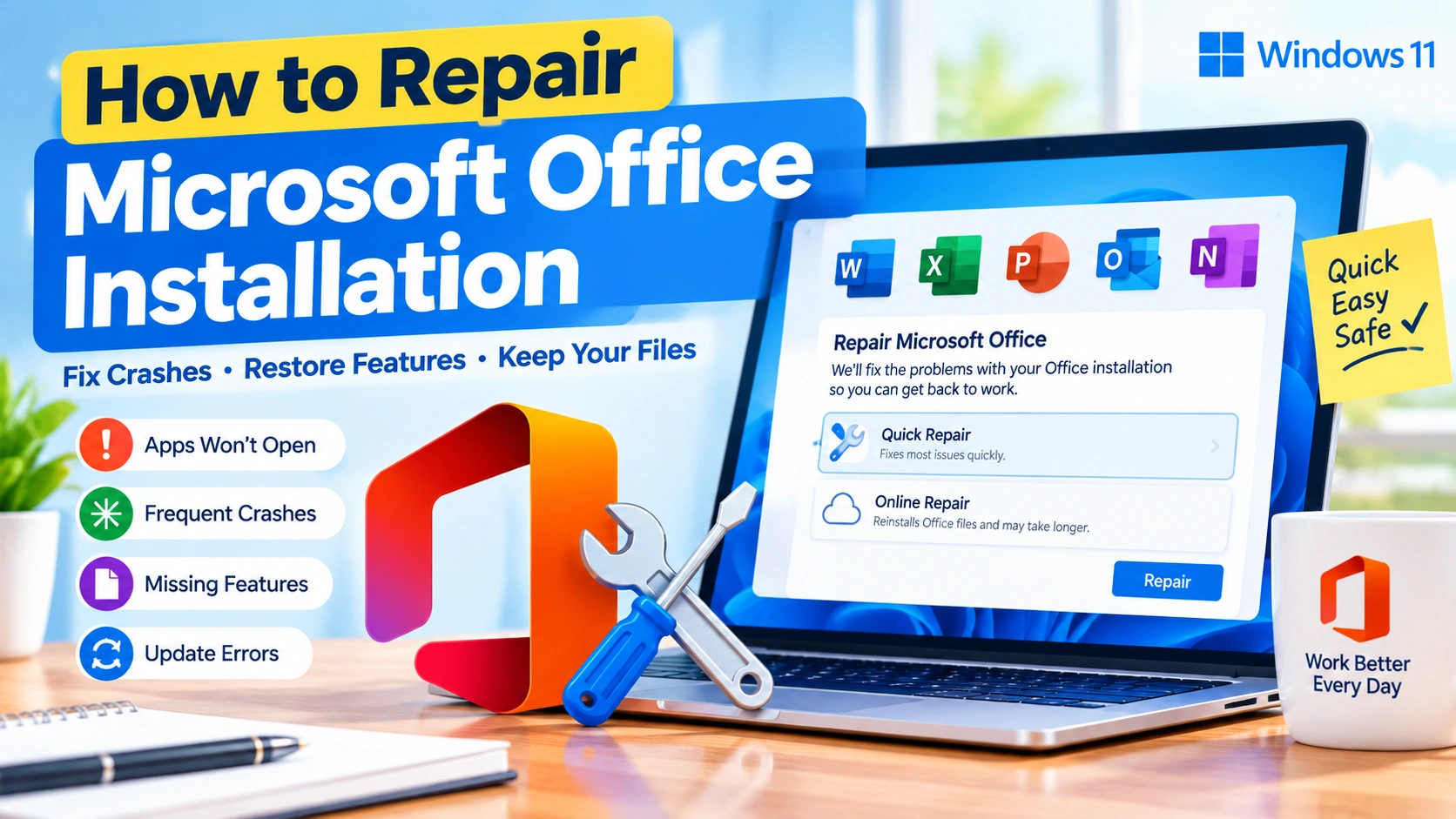
Microsoft Office can sometimes stop working correctly even when Word, Excel, PowerPoint, or Outlook is still installed on your computer. You may experience applications that refuse to open, crash unexpectedly, display activation errors, freeze during startup, or show missing or corrupted features.
Fortunately, you usually do not need to uninstall Microsoft Office immediately. Windows includes built-in repair options that can replace damaged files and restore Office components while keeping your documents and settings intact.
This guide explains how to repair Microsoft Office installation in Windows using the available repair methods, including Quick Repair, Online Repair, Windows Settings, Control Panel, and additional troubleshooting steps.
Why Does Microsoft Office Need Repairing?
An Office installation can become damaged for several reasons. Common causes include:
- Corrupted Office program files
- Interrupted Office updates
- Windows updates causing compatibility problems
- Damaged installation components
- Conflicts with third-party applications
- Incorrect Office configuration
- Malware or unwanted software
- Problems with Microsoft Office services
- Disk errors or insufficient storage
- Failed add-ins
- Incomplete installations or updates
A repair is particularly useful when Office applications worked previously but suddenly started crashing, freezing, or refusing to launch.
Common Signs of a Damaged Office Installation
Before repairing Office, look for symptoms that indicate the installation may be corrupted.
1. Word or Excel Keeps Crashing
If Microsoft Word, Excel, or another Office application closes unexpectedly, repairing the installation may restore damaged components.
2. Office Applications Will Not Start
You may click an Office shortcut and nothing happens, or Windows may display an error message.
3. Office Freezes During Startup
An application may remain stuck on the loading screen for several seconds or minutes.
4. Office Features Are Missing
Buttons, templates, commands, or other features may stop working correctly after an update or configuration change.
5. Office Shows Installation or Update Errors
Repeated installation or update failures can indicate that some Office components are damaged.
6. Outlook Has Unexpected Problems
Outlook may fail to start, repeatedly display errors, or become unstable because of problems with Office components or add-ins.
Method 1: Repair Microsoft Office From Windows Settings
The easiest way to repair a modern Microsoft 365 or Office installation is through Windows Settings.
The exact menu names can vary slightly between Windows versions.
Step 1: Open Windows Settings
Press:
Windows + I
to open Settings.
Step 2: Open Installed Apps
In Windows 11, select:
Apps > Installed apps
Find Microsoft 365, Microsoft Office, or the Office installation listed on your computer.
Step 3: Open Office Options
Click the three-dot menu next to Microsoft Office and select:
Modify
Windows may ask for administrator permission.
Step 4: Choose a Repair Option
Depending on your installation, Windows may display two options:
- Quick Repair
- Online Repair
Start with Quick Repair if you want the faster option.
Step 5: Start the Repair
Click Repair and wait for Windows to complete the process.
You may not be able to use Office applications while the repair is running.
Step 6: Restart Windows
After the repair finishes, restart your computer.
Then open Word, Excel, or the Office application that was experiencing problems.
Method 2: Use Quick Repair
Quick Repair is normally the first repair option to try.
It checks the Office installation and replaces or fixes damaged components without requiring a full download of Office.
Quick Repair is useful when:
- Word suddenly crashes
- Excel will not open
- PowerPoint behaves unexpectedly
- Office applications are unstable
- Office features have stopped working
- You want a relatively fast repair
How to Run Quick Repair
- Press Windows + I.
- Select Apps.
- Open Installed apps.
- Find Microsoft 365 or Microsoft Office.
- Click the three-dot menu.
- Select Modify.
- Choose Quick Repair.
- Click Repair.
- Wait for the process to finish.
- Restart Windows.
After restarting, test the affected Office application.
Method 3: Use Online Repair
If Quick Repair does not solve the problem, try Online Repair.
Online Repair performs a more comprehensive repair and may download Office files again. Because of this, it can take longer than Quick Repair and requires an internet connection.
When Should You Use Online Repair?
Consider Online Repair when:
- Quick Repair did not fix the problem
- Several Office applications are affected
- Office files appear severely corrupted
- Office repeatedly crashes
- Installation components are missing
- Office cannot update correctly
- Office continues displaying installation errors
How to Run Online Repair
- Open Settings.
- Select Apps.
- Choose Installed apps.
- Locate Microsoft Office or Microsoft 365.
- Click the three-dot menu.
- Select Modify.
- Select Online Repair.
- Click Repair.
- Follow the instructions on screen.
- Wait for the repair to complete.
Do not shut down your computer while the repair is running.
Afterward, restart Windows and test Office again.
Quick Repair vs. Online Repair
Choosing the right repair option is simple.
| Feature | Quick Repair | Online Repair |
|---|---|---|
| Repair speed | Faster | Slower |
| Internet required | Usually no | Yes |
| Repair depth | Basic | Comprehensive |
| Downloads Office files | Minimal | May download files |
| Recommended first | Yes | If Quick Repair fails |
| Useful for serious corruption | Sometimes | Usually better |
Recommendation: Start with Quick Repair. If the problem remains, use Online Repair.
Method 4: Repair Microsoft Office Using Control Panel
Older Office installations may provide repair options through the traditional Control Panel.
This method is particularly useful if you cannot find the appropriate Office repair option in Windows Settings.
Step 1: Open Control Panel
Press:
Windows + R
Type:
control
Press Enter.
Step 2: Open Programs
Select:
Programs > Programs and Features
Step 3: Find Microsoft Office
Look for an entry such as:
- Microsoft 365
- Microsoft Office
- Microsoft Office Professional
- Microsoft Office Home and Business
The exact name depends on your Office edition.
Step 4: Select Change
Select Microsoft Office and click:
Change
Windows should open the Office setup and repair options.
Step 5: Choose Repair
Follow the instructions displayed by the Office installer.
When the process finishes, restart your computer and test Office.
Method 5: Repair Office From an Office Application
If an Office application still opens, you can also check whether the problem is caused by an add-in or configuration rather than the installation itself.
For example, if Word opens normally but crashes when loading a document, try starting Word in Safe Mode.
Press:
Windows + R
Then enter:
winword /safe
Press Enter.
If Word works correctly in Safe Mode, an add-in may be causing the problem.
For Excel, use:
excel /safe
For PowerPoint:
powerpnt /safe
If the application works normally in Safe Mode, disable recently installed add-ins and restart the application normally.
Method 6: Disable Problematic Office Add-ins
Office add-ins can sometimes cause crashes and startup problems.
If an application works in Safe Mode, check its add-ins.
For Word:
- Open Word.
- Select File.
- Select Options.
- Choose Add-ins.
- Look at the bottom of the window.
- Select COM Add-ins from the Manage menu.
- Click Go.
- Disable recently installed or suspicious add-ins.
- Restart Word.
Repeat the process for Excel, PowerPoint, or Outlook if necessary.
Do not disable everything permanently without testing. Disable one or a few suspected add-ins at a time so you can identify the source of the problem.
Method 7: Update Microsoft Office
An outdated Office installation can sometimes cause compatibility and stability problems.
If Office still opens, check for updates.
Update Office From Word or Excel
- Open Word or Excel.
- Select File.
- Select Account.
- Find Office Updates.
- Select Update Options.
- Click Update Now.
Allow Office to download and install available updates.
After the update completes, restart the computer.
Method 8: Restart the Office Installation Process
Sometimes an Office process remains running in the background and prevents applications from starting correctly.
You can check Task Manager.
Step 1: Open Task Manager
Press:
Ctrl + Shift + Esc
Step 2: Look for Office Processes
Check for processes associated with Office applications.
For example:
- WINWORD.EXE
- EXCEL.EXE
- POWERPNT.EXE
- OUTLOOK.EXE
Step 3: Close a Frozen Application
If an Office application is clearly frozen, select the process and choose:
End task
Then try opening Office again.
Be careful not to terminate processes you do not recognize.
Method 9: Restart Windows
A simple restart can resolve temporary Office problems.
Windows may have pending updates, background installation processes, or locked files that prevent Office from functioning correctly.
Before restarting:
- Save your work.
- Close Office applications.
- Restart Windows.
- Wait for Windows to finish loading.
- Test Office again.
If the problem returns immediately after every restart, continue with the repair methods above.
Method 10: Check Windows System Files
Sometimes Office appears to be damaged when the underlying Windows system files are the actual problem.
Windows includes built-in tools that can check and repair system files.
Run System File Checker
Open Windows Terminal or Command Prompt as administrator.
Run:
sfc /scannow
Wait until the scan reaches 100%.
If Windows reports that it repaired corrupted files, restart your computer and test Office again.
Run DISM
If SFC cannot repair everything, use DISM:
DISM /Online /Cleanup-Image /RestoreHealth
After DISM completes, run:
sfc /scannow
again.
Restart Windows when finished.
Method 11: Check Available Storage
Office repairs and updates require free disk space.
If your system drive is nearly full, installation and update processes can fail.
To check storage:
- Press Windows + I.
- Select System.
- Select Storage.
- Check the available space on your system drive.
Remove unnecessary temporary files if the drive is critically low on storage.
Avoid manually deleting unknown files from Windows or Office directories.
Method 12: Check Your Internet Connection
Online Repair requires an internet connection because Windows may need to download Office installation files.
If Online Repair fails:
- Check whether websites load normally.
- Restart your router if necessary.
- Temporarily disconnect and reconnect Wi-Fi.
- Try a wired connection if available.
- Disable problematic VPN connections temporarily.
- Retry the Office repair.
Do not repeatedly restart the repair process if the installer is actively working.
What Happens When You Repair Microsoft Office?
Repairing Office generally attempts to restore damaged installation components.
Depending on the repair type and Office edition, Windows may:
- Replace damaged files
- Restore missing components
- Repair Office services
- Correct installation problems
- Reconfigure Office components
- Download fresh Office files during Online Repair
Your personal Word documents, Excel spreadsheets, presentations, and other files are not normally deleted simply because you repair Office.
However, it is always sensible to save important work and maintain backups before performing significant software maintenance.
What If Microsoft Office Still Does Not Work?
If both Quick Repair and Online Repair fail, the problem may not be limited to the Office installation.
Try these additional steps.
Check Windows Updates
Open:
Settings > Windows Update
Install available updates and restart Windows.
Test Another Windows User Account
A corrupted Windows user profile can sometimes cause application-specific problems.
If Office works correctly under another account, the problem may be related to your Windows profile rather than the Office installation itself.
Check Antivirus or Security Software
Security software can occasionally interfere with legitimate application processes.
Do not permanently disable your antivirus just to test Office. Instead, check its logs or temporarily use its supported troubleshooting features.
Reinstall Microsoft Office
If repair methods cannot restore Office, reinstalling may be the next option.
Before uninstalling Office, make sure you know which Microsoft account or product license is associated with the installation.
Should You Repair or Reinstall Microsoft Office?
Repair should usually be attempted before a complete reinstall.
Choose Quick Repair When:
- The problem is relatively minor.
- One Office application is unstable.
- You want the fastest troubleshooting step.
Choose Online Repair When:
- Quick Repair failed.
- Multiple Office applications are affected.
- Office installation files may be damaged.
- You suspect significant installation corruption.
Consider Reinstalling When:
- Both repair methods fail.
- Office cannot be repaired successfully.
- Installation errors continue.
- Office components remain missing or corrupted.
Frequently Asked Questions
Does repairing Microsoft Office delete my files?
Normally, repairing Office does not delete your personal documents. Nevertheless, important files should always be backed up before performing major software repairs.
Which is better, Quick Repair or Online Repair?
Quick Repair is the best first option because it is faster and less disruptive. Online Repair is more comprehensive and is worth trying if Quick Repair does not resolve the problem.
Does Online Repair require the internet?
Yes. Online Repair may download fresh Office installation files, so a reliable internet connection is recommended.
Will I need to activate Office again after repairing it?
Usually, you should not need to reactivate Office simply because you performed a repair. If an activation prompt appears afterward, sign in with the Microsoft account associated with your Office license.
How long does Office repair take?
Quick Repair generally takes less time than Online Repair. The actual duration depends on your computer, Office edition, installation condition, and internet connection.
Can I repair Office without uninstalling it?
Yes. Microsoft provides repair options that allow you to repair an existing Office installation without performing a full uninstall first.
Why does Microsoft Office keep crashing after repair?
Possible causes include incompatible add-ins, outdated drivers, Windows system-file corruption, damaged user profiles, conflicting security software, or problems with the specific Office document being opened.
Should I restart my computer after repairing Office?
Yes. Restarting Windows after a repair is recommended because it allows repaired services and components to load cleanly.
Final Thoughts
When Microsoft Office starts crashing, freezing, or refusing to open, repairing the installation is usually a better first step than immediately uninstalling the software.
Start with Quick Repair through Windows Settings. If that does not solve the problem, move to Online Repair. You can also use Control Panel for compatible Office installations.
If Office continues to malfunction after repair, investigate add-ins, Office updates, Windows system-file corruption, storage problems, and your Windows user profile. A complete reinstall should generally be considered only after these troubleshooting steps have failed.
With the right repair method, many Office installation problems can be resolved without removing your personal documents or starting from scratch.