

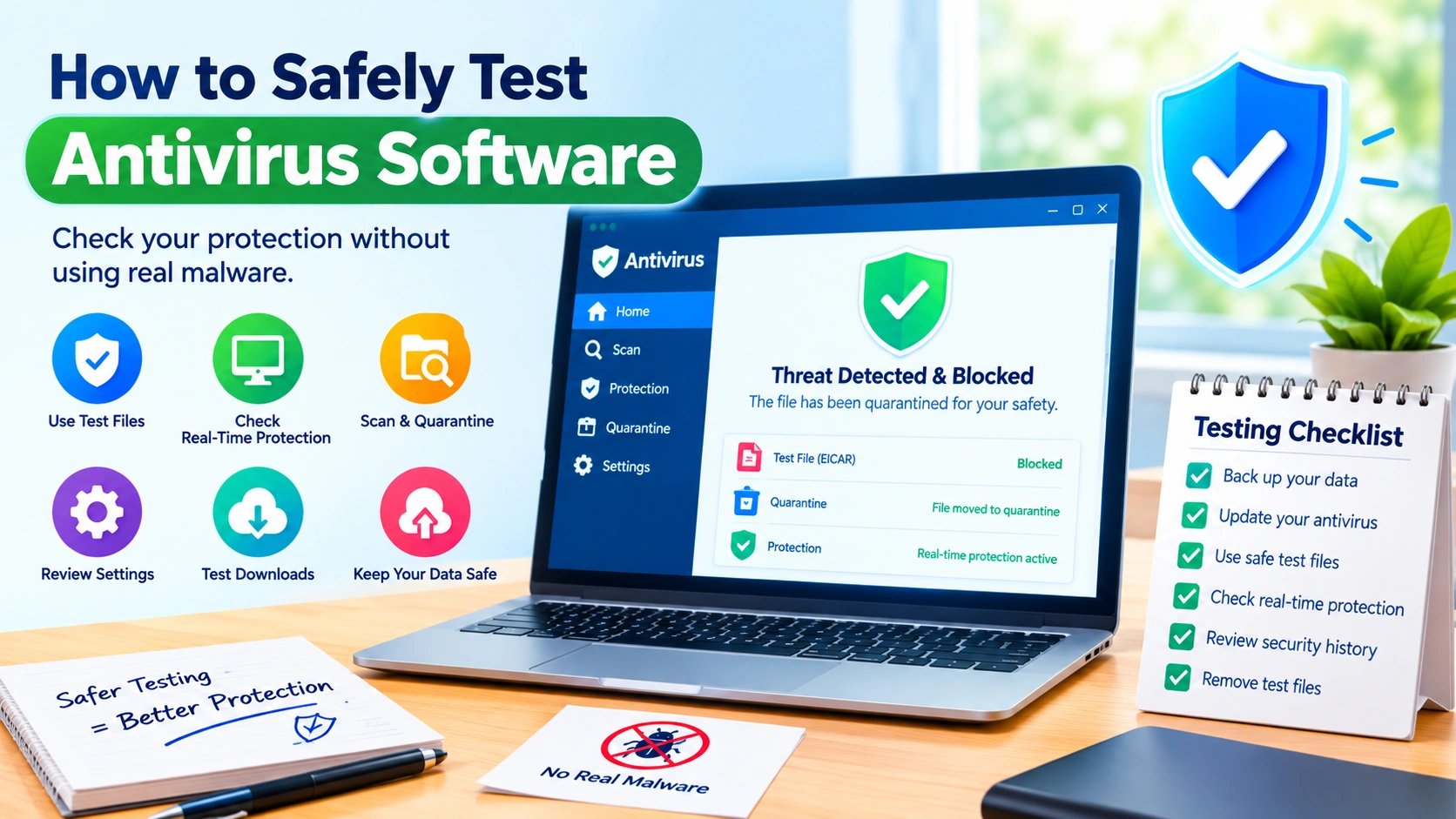
Testing antivirus software can help you determine whether your security solution is working correctly, but using real malware is risky and unnecessary. A safer approach is to use controlled test files, isolated environments, and reputable security-testing resources.
This guide explains how to safely test antivirus software without deliberately infecting your everyday computer.
Why Test Antivirus Software?
Antivirus programs are designed to detect, block, quarantine, and remove malicious software. However, simply installing an antivirus application does not guarantee that every protection feature is functioning as expected.
A controlled test can help you check whether your antivirus can:
- Detect suspicious files
- Block potentially dangerous downloads
- Monitor files in real time
- Quarantine detected threats
- Display appropriate security alerts
- Prevent suspicious applications from running
- Perform scheduled and manual scans
- Detect threats without excessive false positives
The key is to perform these tests without introducing actual malware into your normal computing environment.
Never Use Real Malware for Testing
The most important safety rule is simple: do not download or create real malware just to test an antivirus program.
Actual malicious software can:
- Encrypt or delete files
- Steal passwords and browser data
- Install additional malware
- Damage Windows
- Spread to other devices
- Compromise network accounts
- Remain active after an attempted removal
Even experienced security researchers use isolated laboratories and carefully controlled systems when working with live malware.
For ordinary antivirus testing, simulated threats are a much safer choice.
Use a Safe Antivirus Test File
One of the most widely recognized options is the EICAR test file. EICAR provides a standardized test string designed specifically to trigger antivirus detection without being an actual virus.
The file is intended to allow security products to demonstrate how they respond to a detected threat.
Because it is a test pattern rather than functional malware, it is considerably safer than downloading a genuine malicious program.
What Can the EICAR Test Demonstrate?
Depending on your security software, the test can help you observe whether it:
- Detects the test file.
- Displays a warning.
- Blocks access to the file.
- Automatically quarantines it.
- Records the detection in its security history.
- Prevents the file from being opened or executed.
Keep in mind that different antivirus products may respond differently.
Test Real-Time Protection
Real-time protection is one of the most important antivirus features to test.
Normally, real-time protection continuously monitors files and system activity. When a suspicious file is created, downloaded, or accessed, the security software may immediately intervene.
To test this feature safely:
- Make sure your antivirus is enabled.
- Use a recognized antivirus test file such as EICAR.
- Obtain the test file only from the official test-file source.
- Observe what happens when the file is downloaded or created.
- Check whether the antivirus blocks or quarantines it.
- Open the antivirus dashboard and review its detection history.
Do not disable security features simply to make the test more dramatic.
Test Manual Scanning
You can also check whether the antivirus detects a known test file during a manual scan.
Place the harmless test file in a dedicated temporary folder and run your antivirus’s custom or full scan.
A successful test should generally result in the antivirus identifying the test pattern and taking the configured action.
Afterward, remove the test file and empty the antivirus quarantine if appropriate.
Check Quarantine Behavior
Detection is only part of the process. It is also useful to understand what your antivirus does after identifying a potential threat.
Depending on the product and configuration, it might:
- Quarantine the file
- Delete the file
- Block access
- Ask you what action to take
- Record the event in a security log
Open the antivirus security history after your test.
Look for information such as the detected item, action taken, detection time, and current status.
This can help confirm that the security product is actually responding rather than merely displaying a notification.
Test in a Virtual Machine
If you need more advanced security testing, consider using a virtual machine (VM) rather than your primary Windows installation.
A virtual machine creates an isolated environment where you can test software with considerably less risk to your main system.
For example, you can create a separate Windows installation using virtualization software and use it specifically for security experiments.
However, virtualization is not an absolute security guarantee. Improperly configured virtual machines can still expose shared folders, network connections, clipboard data, or other resources.
For safer testing:
- Keep the VM separate from important files.
- Avoid sharing personal folders.
- Disable unnecessary integration features.
- Use snapshots before experiments.
- Keep the test environment isolated from sensitive accounts.
- Never assume that a VM makes dangerous malware completely harmless.
For normal antivirus verification, a simulated test file is usually preferable to running malware inside a VM.
Test Antivirus Settings
Antivirus performance can also depend on its configuration.
Review settings such as:
- Real-time protection
- Cloud-delivered protection
- Automatic sample submission
- Potentially unwanted application detection
- Network protection
- Web protection
- Scheduled scanning
- Automatic updates
- Tamper protection
Avoid changing security settings permanently just for a test.
If you temporarily change a setting for troubleshooting, restore the recommended protection afterward.
Verify Antivirus Updates
An antivirus product can become less effective when its security intelligence or application components are outdated.
Before testing, check whether the software is fully updated.
Look for options such as:
Settings → Update → Check for updates
The exact menu names vary between antivirus products.
A test performed on outdated security software may not accurately represent its normal protection capabilities.
Test Download Protection Carefully
Many security products include browser or web protection that works before a file reaches your computer.
Rather than downloading actual malicious software, use recognized security-testing resources designed for safe evaluation.
Pay attention to whether your antivirus:
- Blocks the webpage
- Warns before downloading
- Blocks the download
- Scans the downloaded file
- Generates a security notification
Never bypass a security warning simply because you want to see what happens next.
Test False Positives
Antivirus testing is not only about detecting threats. You can also evaluate whether your security software incorrectly identifies legitimate software as malicious.
Use trusted, known-clean applications for this purpose.
If a legitimate application is flagged:
- Don’t immediately disable the antivirus.
- Verify that you obtained the application from a trustworthy source.
- Check the antivirus detection name.
- Research the detection through the security vendor’s official documentation.
- Submit the file for analysis if the vendor provides that option.
A false positive can sometimes be caused by a damaged installer, suspicious behavior, an uncommon application, or an incorrect detection.
Keep Testing Separate From Your Personal Files
Create a dedicated test directory rather than placing security-testing files alongside important documents.
For example:
C:\SecurityTest\Do not store personal photographs, work documents, passwords, or other valuable data in the testing directory.
Even harmless test files should be removed when you’re finished.
Back Up Important Data First
Before conducting any experiment involving system changes, make sure important data is backed up.
A good backup strategy should include copies of important files stored somewhere other than the computer being tested.
For higher-risk laboratory work, consider creating a complete system image or VM snapshot so you can restore the environment after testing.
Backups are especially important if you experiment with unfamiliar security software, system configuration changes, or third-party tools.
What Not to Do When Testing Antivirus Software
Avoid these common mistakes:
Don’t Download Random Malware Samples
Malware samples found on forums, file-sharing services, or unofficial repositories may be mislabeled or bundled with additional threats.
Don’t Disable Antivirus Protection
Turning off security protection defeats the purpose of testing it and increases your exposure to threats.
Don’t Test on Your Main PC
If an experiment requires running potentially dangerous software, don’t use a computer containing personal or business data.
Don’t Connect a Malware Test Environment to Sensitive Networks
An infected system can potentially expose other devices. Advanced malware research should use properly isolated laboratory networks.
Don’t Test With Your Real Accounts
Never sign into banking, email, work, cloud-storage, or other sensitive accounts from an environment that may contain malicious software.
How to Tell Whether Your Antivirus Test Worked
After completing a safe test, check several indicators.
Detection
Did the antivirus identify the test file?
Response
Did it quarantine, block, or otherwise handle the test file?
Notification
Did you receive a security alert?
Security History
Was the event recorded in the antivirus dashboard?
Recovery
Could you safely remove the test file and restore the system to its normal state?
A successful test doesn’t prove that an antivirus product can detect every real-world threat. It only confirms that particular protection mechanisms responded to the controlled test.
Antivirus Testing Checklist
Use this checklist before and after testing:
- Back up important data.
- Update the antivirus software.
- Keep real-time protection enabled.
- Use a recognized test file rather than real malware.
- Test in a dedicated folder or isolated environment.
- Observe the antivirus response.
- Review security history.
- Verify quarantine behavior.
- Remove the test file afterward.
- Restore any temporary configuration changes.
- Run another security scan if appropriate.
Frequently Asked Questions
Is it safe to test antivirus software?
Yes, provided you use safe testing methods. A recognized antivirus test file such as the EICAR test file can demonstrate basic detection behavior without using functional malware.
Can I test antivirus software with real malware?
Using real malware is unnecessary for most users and creates significant risks. Professional malware analysis should be performed in properly isolated research environments.
What is the EICAR test file?
The EICAR test file is a standardized antivirus test pattern designed to trigger security software without being an actual malicious program.
Should I disable my antivirus during testing?
Generally, no. Disabling protection makes the system more vulnerable and can undermine the purpose of the test.
Can I test antivirus software on my everyday computer?
For basic detection testing, a safe test file can be used on a normal computer. More advanced testing should be performed in an appropriately isolated environment rather than on a system containing important personal data.
Does detecting a test file prove that antivirus software is effective?
No. It demonstrates that the antivirus responds to that particular test pattern. Real-world protection depends on many factors, including malware detection, behavior monitoring, updates, web protection, and system configuration.
Final Thoughts
Learning how to safely test antivirus software doesn’t require exposing your computer to dangerous malware. Using recognized test files, checking real-time protection, reviewing quarantine behavior, and keeping experiments isolated can provide useful information while minimizing risk.
For most home users, a standardized antivirus test file is the safest starting point. If you need more advanced testing, use a properly isolated virtual laboratory and avoid connecting experimental systems to sensitive accounts or important data.