

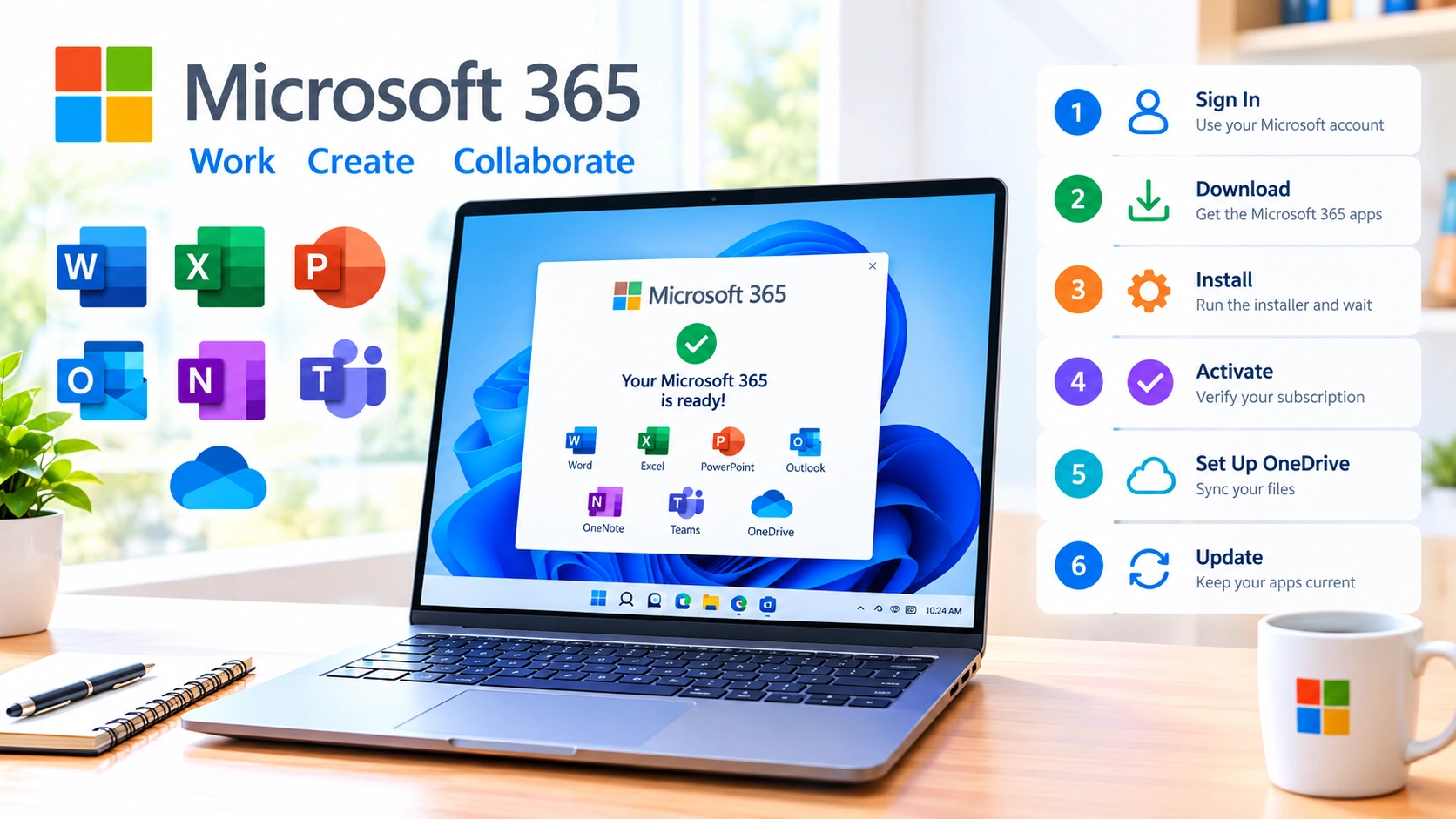
Microsoft 365 brings essential productivity apps such as Word, Excel, PowerPoint, Outlook, and OneDrive together in one subscription. Setting it up correctly on Windows ensures that your applications are activated, updated, and connected to the right Microsoft account.
Whether you are setting up Microsoft 365 on a new Windows PC or reinstalling it after a reset, the process is straightforward. This guide explains how to set up Microsoft 365 on Windows and covers downloading the apps, signing in, activating your subscription, configuring OneDrive, and checking for updates.
What You Need Before Setting Up Microsoft 365
Before installing Microsoft 365, make sure your Windows computer meets the basic requirements and that you have access to the Microsoft account associated with your subscription.
You should have:
- A Windows PC with an active internet connection
- A Microsoft account
- An active Microsoft 365 subscription or eligible license
- Your Microsoft 365 account credentials
- Enough available storage for the Office applications
- Windows updates installed where possible
If Microsoft 365 was purchased through an organization, you may need to use your work or school account instead of a personal Microsoft account.
1. Sign In to Your Microsoft Account
The first step is to access the Microsoft account associated with your Microsoft 365 subscription.
Open a web browser on your Windows PC and go to the Microsoft 365 website. Sign in using the account that owns the subscription.
After signing in, look for the option to install Microsoft 365 apps.
Using the correct account is important. If you accidentally sign in with a different Microsoft account, the installation may complete but the applications might not be activated.
2. Download Microsoft 365 for Windows
After signing in, choose the option to install Microsoft 365 applications.
Depending on Microsoft’s current account interface and subscription type, the installation button may appear under your account dashboard or Microsoft 365 apps section.
Select the Windows installation option and download the installer.
Your browser will usually save the installation file in the Downloads folder.
3. Start the Microsoft 365 Installation
Once the installer has finished downloading, open it.
Windows may display a User Account Control prompt asking whether you want to allow the installer to make changes to your device.
Select Yes if you started the installation yourself.
The Microsoft 365 installer will then begin downloading and installing the required applications. The installation can take several minutes depending on your internet connection and computer performance.
Avoid shutting down your computer while the installation is running.
4. Wait for the Installation to Finish
Microsoft 365 uses an online installation process, so an internet connection is normally required while the applications are being installed.
You may see a progress window while the installer works.
When the installation finishes, you should be able to find applications such as:
- Microsoft Word
- Microsoft Excel
- Microsoft PowerPoint
- Microsoft Outlook
- Microsoft OneNote
- Microsoft Teams
- OneDrive
The exact applications available can vary depending on your Microsoft 365 subscription and account type.
5. Open Microsoft Word
After installation, open Microsoft Word from the Start menu.
The first application you open may ask you to sign in.
Select Sign in and enter the Microsoft account credentials associated with your Microsoft 365 subscription.
Microsoft 365 will use this account to verify your license.
6. Activate Microsoft 365
After signing in, Microsoft 365 should automatically detect the subscription associated with your account.
If activation is successful, Word or another Office application should indicate that the product is activated.
You can check the activation status by opening an Office application and going to:
File > Account
Look for the Product Information section.
Your subscription and activation information should appear there.
If Microsoft 365 asks you to purchase a subscription even though you already have one, check that you signed in with the correct Microsoft account.
7. Set Up OneDrive
OneDrive is an important part of the Microsoft 365 experience because it allows files to be synchronized between supported devices.
To configure OneDrive, open the OneDrive application from Windows.
Sign in using the same Microsoft account associated with Microsoft 365.
During setup, Windows will ask you where you want your OneDrive folder to be located. The default location is usually suitable for most users.
Once configured, files stored in the OneDrive folder can synchronize with your Microsoft account.
Why OneDrive Setup Matters
OneDrive can help you:
- Access files from multiple devices
- Synchronize documents automatically
- Keep files available through the cloud
- Share documents with other people
- Recover certain files using Microsoft’s available recovery features
However, synchronization is not a substitute for maintaining a separate backup of important data.
8. Configure Microsoft Word
After Microsoft 365 is activated, you can customize Word according to your preferences.
Open Word and select:
File > Options
From here, you can configure settings such as:
- Default document format
- AutoSave behavior
- Proofing
- Language preferences
- Save locations
- Ribbon customization
- Privacy settings
- Advanced Word options
If you frequently create documents, configuring the default save location can make your workflow more convenient.
9. Configure Excel and PowerPoint
You can also open Excel and PowerPoint to make sure they work correctly.
In Excel, test basic functions such as creating a workbook and saving it to OneDrive.
In PowerPoint, create a blank presentation and verify that you can save and reopen it.
Testing the applications immediately after installation can help identify activation or account problems before you begin important work.
10. Configure Outlook if Included
If your Microsoft 365 subscription includes Outlook, open it and follow the account setup process.
You may be asked to provide your email address and sign-in credentials.
Outlook can then synchronize your supported email, calendar, contacts, and other account information.
If you are using a work or school Microsoft 365 account, your organization may apply additional security or configuration requirements.
11. Update Microsoft 365
Keeping Microsoft 365 updated is important because Microsoft regularly releases application updates containing security improvements, bug fixes, and new features.
To manually check for updates in an Office application:
- Open Word, Excel, or another Microsoft 365 application.
- Select File.
- Select Account.
- Find Office Updates.
- Select Update Options.
- Choose Update Now.
If the option is available, allow Microsoft 365 to download and install the latest updates.
You can also leave automatic updates enabled so Microsoft 365 can receive updates without requiring you to check manually.
12. Check Your Microsoft 365 Subscription
If you want to confirm your subscription status, sign in to your Microsoft account and review your Microsoft 365 account information.
Check details such as:
- Subscription status
- Renewal information
- Services included with your plan
- Devices associated with your account
- Available OneDrive storage
This is particularly useful if Microsoft 365 reports an activation problem.
Common Microsoft 365 Setup Problems
Although the installation process is normally simple, several issues can prevent Microsoft 365 from working correctly.
Microsoft 365 Will Not Install
If the installation fails, check your internet connection first.
You should also make sure that:
- Windows is updated
- You have sufficient disk space
- Another Office installation is not interfering
- Your account has permission to install applications
- Security software is not blocking the installer
Restarting Windows and trying the installation again can also resolve temporary installation problems.
Microsoft 365 Says It Is Not Activated
An activation message usually means Microsoft 365 cannot verify your license.
Start by opening:
File > Account
Confirm that you are signed in with the Microsoft account associated with your subscription.
If you have multiple Microsoft accounts, signing out and signing back in with the correct account can resolve the problem.
Microsoft 365 Keeps Asking You to Sign In
Repeated sign-in requests can occur because of account, credential, connectivity, or application issues.
Make sure your Windows account and Microsoft 365 account are working correctly.
You should also install available Microsoft 365 updates and restart the computer.
For work or school accounts, an administrator may need to investigate the issue if organizational authentication is involved.
OneDrive Is Not Synchronizing
If OneDrive is not syncing, check that you are signed in to the correct account.
Also verify that:
- Your internet connection is working
- OneDrive is running
- You have available cloud storage
- The file path does not contain unsupported characters
- OneDrive is not paused
Restarting OneDrive can resolve temporary synchronization problems.
How to Verify That Microsoft 365 Is Ready
After completing the setup, perform a quick test.
Open Word and create a blank document. Type a few lines and save the document to OneDrive.
Then open Excel and create a simple spreadsheet.
Finally, open PowerPoint and create a blank presentation.
If the applications open normally, your account is recognized, files can be saved, and Microsoft 365 shows an active subscription, the basic setup is complete.
Tips for a Better Microsoft 365 Setup
A few additional steps can make Microsoft 365 easier and safer to use.
Use a Strong Microsoft Account Password
Your Microsoft account controls access to Microsoft 365 and potentially your OneDrive files. Use a strong, unique password.
Enable Multi-Factor Authentication
Where available, enable multi-factor authentication for your Microsoft account. This provides an additional layer of protection if your password is compromised.
Keep Windows Updated
Microsoft 365 works closely with Windows components and services. Keeping Windows updated can help maintain compatibility and security.
Keep OneDrive Organized
Avoid automatically synchronizing unnecessary folders if you have limited storage. Organize important documents into clearly named folders so they are easier to find.
Back Up Important Files
Cloud synchronization should not be your only protection for irreplaceable files. Maintain another backup of important documents, photos, and other data.
Frequently Asked Questions
Can I install Microsoft 365 on a Windows PC?
Yes. Microsoft 365 applications can be installed on compatible Windows computers using a Microsoft account with the appropriate license or subscription.
Do I need a Microsoft account?
For most Microsoft 365 installations and activation processes, you need to sign in with the Microsoft account associated with the license. Work and school users may instead use an organizational account.
How do I know if Microsoft 365 is activated?
Open Word or another Microsoft 365 application and go to File > Account. The Product Information section displays the relevant activation and subscription information.
Is OneDrive required?
OneDrive is not necessarily required to use every Microsoft 365 application. However, it provides useful cloud storage and synchronization features that integrate closely with Microsoft 365.
Why can’t I activate Microsoft 365?
Common causes include signing in with the wrong account, an expired subscription, connectivity problems, or an issue with the Office installation.
Conclusion
Setting up Microsoft 365 on Windows involves more than simply installing Word, Excel, and PowerPoint. You should also sign in with the correct Microsoft account, verify activation, configure OneDrive, check for updates, and test the applications.
Once these steps are complete, your Windows PC should be ready for everyday Microsoft 365 tasks such as creating documents, analyzing spreadsheets, preparing presentations, managing email, and synchronizing files across devices.