

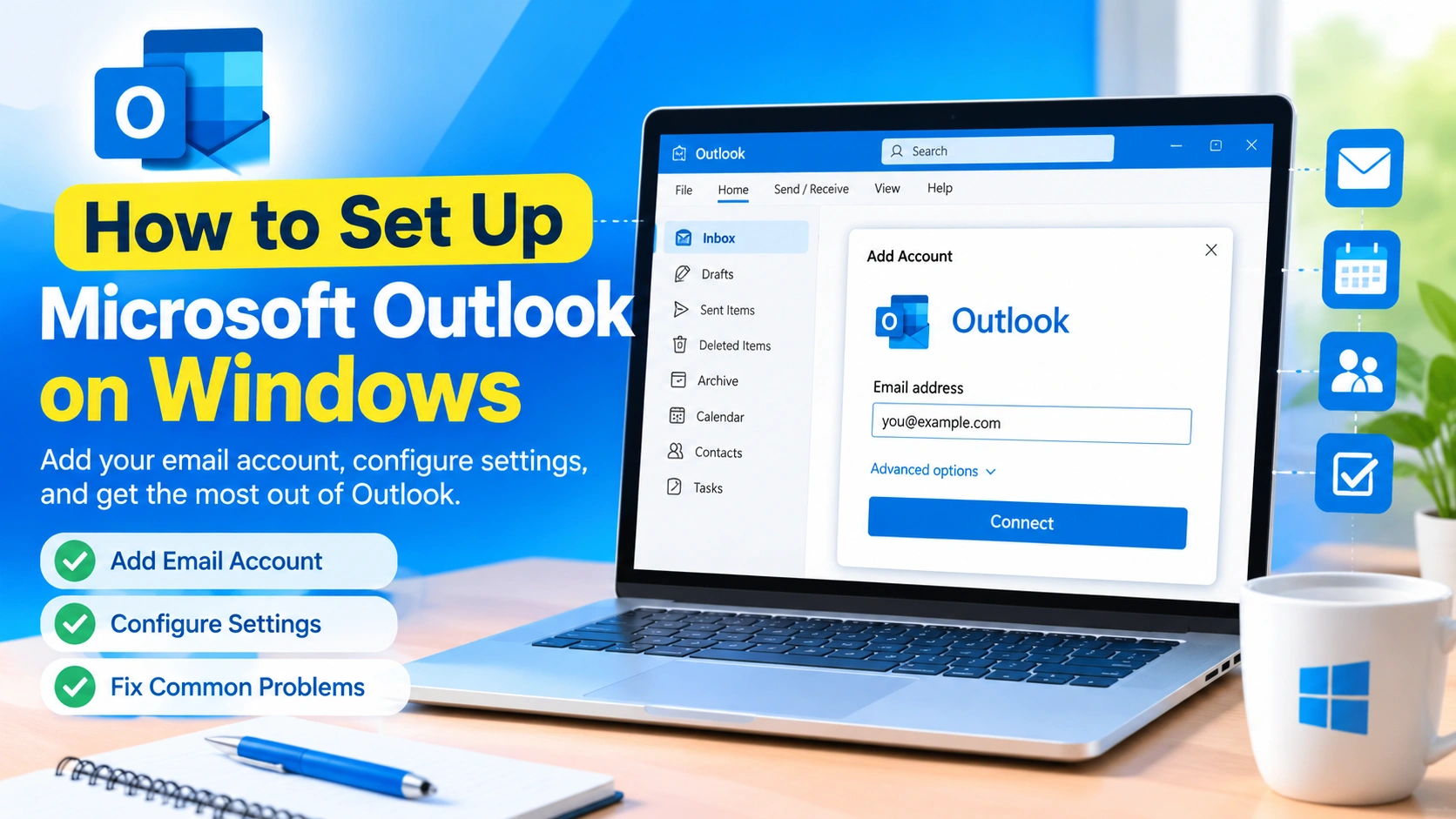
Microsoft Outlook is a popular email and productivity application for Windows that lets you manage email, calendars, contacts, tasks, and appointments from one place. Whether you use Outlook for work, school, or personal communication, setting it up correctly can make email management much easier.
If you have recently installed Microsoft Outlook or purchased a Microsoft 365 subscription, you may need to add your email account before you can start sending and receiving messages.
This guide explains how to set up Microsoft Outlook on Windows, including adding an account automatically, configuring an account manually, changing common settings, and troubleshooting problems that may occur during setup.
What You Need Before Setting Up Outlook
Before starting the Outlook setup process, make sure you have the information required for your email account.
You will usually need:
- Your email address
- Your email account password
- An active internet connection
- Microsoft Outlook installed on Windows
- Your Microsoft account details if required
- Two-step verification information if enabled
For most popular email providers, Outlook can automatically detect the correct mail server settings. Manual configuration may only be necessary for certain business, private-domain, or older email accounts.
How to Set Up Microsoft Outlook on Windows
The exact interface can vary depending on whether you are using the new Outlook app or classic Outlook for Windows. However, the general setup process is similar.
Step 1: Open Microsoft Outlook
First, open Outlook from the Windows Start menu.
Click Start, type:
Outlook
Then select Microsoft Outlook from the search results.
If Outlook is being opened for the first time, you may immediately see an account setup screen.
If an account is already configured, you can usually add another account from Outlook’s account settings.
Step 2: Enter Your Email Address
When Outlook asks you to add an account, enter your complete email address.
For example:
yourname@example.com
Click Continue, Connect, or Next, depending on the version of Outlook you are using.
Outlook will attempt to identify your email provider and configure the required settings automatically.
Step 3: Enter Your Password
When prompted, enter the password associated with your email account.
Make sure the password is entered correctly. If you have enabled two-factor authentication, Outlook may also ask you to approve a sign-in request or enter a verification code.
Avoid saving your password on a shared or public computer.
Step 4: Complete the Sign-In Process
Follow any additional authentication instructions displayed by Outlook.
Some accounts may require:
- Microsoft Authenticator approval
- A security code
- Two-factor authentication
- A browser-based sign-in
- Organization approval
Once authentication is complete, Outlook should begin connecting to your mailbox.
Step 5: Allow Outlook to Synchronize
After the account has been added, Outlook will synchronize your mailbox.
Depending on the amount of email stored in your account and your internet connection, the initial synchronization may take some time.
You may see existing messages, folders, contacts, or calendar information appear gradually.
Keep Outlook open until synchronization has finished.
How to Add Another Email Account to Outlook
You can manage multiple email accounts from the same Outlook installation.
To add another account, open Outlook and locate the account settings.
Depending on your Outlook version, look for:
File → Add Account
or:
Settings → Accounts → Email accounts
Enter the additional email address and follow the sign-in instructions.
After setup is complete, the additional mailbox should appear within Outlook.
How to Set Up a Gmail Account in Outlook
Gmail accounts can generally be added to Outlook through the standard account setup process.
Open Outlook and select the option to add a new account.
Enter your Gmail address and continue.
Outlook may open a Google sign-in window. Enter your Google credentials and complete any security verification requested by Google.
You may need to grant Outlook permission to access your Gmail account.
Once authorization is complete, Outlook can synchronize your Gmail messages, folders, and other supported data.
How to Set Up a Microsoft Account in Outlook
If you use an Outlook.com, Hotmail, Live, or Microsoft 365 email address, the setup process is usually straightforward.
Open Outlook and select Add Account.
Enter your Microsoft email address and select Continue.
Enter your password and complete Microsoft’s authentication process.
If two-step verification is enabled, approve the sign-in request or enter the required security code.
Outlook should then connect to your mailbox automatically.
How to Manually Configure Outlook Email Settings
Most modern email accounts can be configured automatically. However, some private-domain or specialized email services may require manual settings.
You may need information such as:
- IMAP server
- IMAP port
- SMTP server
- SMTP port
- Encryption method
- Username
- Password
For example, an email provider might give you settings similar to:
Incoming mail:
- Server:
imap.example.com - Port:
993 - Encryption: SSL/TLS
Outgoing mail:
- Server:
smtp.example.com - Port:
587 - Encryption: STARTTLS
These are only examples. Do not use them as actual settings unless your email provider specifically provides those values.
Using incorrect server settings can prevent Outlook from downloading or sending messages.
IMAP vs. POP in Outlook
When configuring an email account manually, you may encounter IMAP and POP.
IMAP
IMAP keeps email synchronized between the email server and your devices.
This is generally useful if you access the same mailbox from:
- A Windows PC
- A smartphone
- A tablet
- A web browser
Messages and folders can remain synchronized across supported devices.
POP
POP downloads email from the server to the email application.
It is an older approach and may not provide the same multi-device synchronization experience as IMAP.
For most users who access email from several devices, IMAP is generally more convenient when supported by the provider.
How to Change Outlook’s Default Email Account
If you have multiple accounts configured, you may want Outlook to use a particular account when sending new messages.
Open Outlook’s account settings and locate your configured email accounts.
Select the account you want to use as the default and look for the option to make it the default account.
The exact location of this option depends on the Outlook version installed on your Windows computer.
How to Change Outlook Email Notifications
Windows can display notifications when new email arrives.
To configure Outlook notifications, open Outlook’s settings and look for notification options.
You can typically control whether Outlook displays alerts for:
- New email
- Calendar events
- Reminders
- Other Outlook activity
You can also check Windows notification settings if Outlook notifications are not appearing.
In Windows, open:
Settings → System → Notifications
Find Outlook and make sure notifications are enabled.
How to Create an Outlook Email Signature
A signature can automatically appear at the bottom of your outgoing messages.
To create one, open Outlook settings and find the Signature section.
Create a new signature and enter information such as:
- Your name
- Job title
- Company
- Website
- Phone number
You can usually choose whether the signature is automatically inserted into new messages, replies, or forwarded messages.
A simple professional signature is usually easier to read than one containing excessive formatting.
How to Change the Default Outlook Font
Outlook allows you to customize the appearance of email messages.
Open Outlook settings and find the mail composition or font settings.
You can adjust options such as:
- Font family
- Font size
- Font style
- Default formatting
Choose a readable font and size that works well for everyday email communication.
How to Organize Your Outlook Inbox
After setting up Outlook, organizing your mailbox can make it easier to find important messages.
Consider creating folders for categories such as:
- Work
- Personal
- Receipts
- Projects
- Important
- Archived
You can also use Outlook’s search functionality to locate messages quickly.
Rules can automate certain tasks, such as moving messages from particular senders into specific folders.
How to Test Outlook After Setup
Once your email account has been configured, perform a simple test.
Test incoming email
Send yourself an email from another account.
Wait for the message to appear in Outlook.
Test outgoing email
Create a new message and send it to another email address that you can access.
Confirm that the message arrives successfully.
Test synchronization
If your account is also configured on a smartphone or another computer, check whether the sent or received message appears there.
If all three tests work, your Outlook account is likely configured correctly.
Common Microsoft Outlook Setup Problems
Sometimes Outlook may fail to add an email account. Several common issues can cause this problem.
Outlook cannot connect to the server
Check your internet connection first.
If your internet connection works normally, verify that your email provider’s servers are operational and that the account credentials are correct.
For manually configured accounts, double-check the incoming and outgoing server addresses and ports.
Outlook keeps asking for your password
Repeated password prompts can occur for several reasons.
Try these steps:
- Verify that the password is correct.
- Sign in to your email account through its official website.
- Complete any pending security verification.
- Check whether your password was recently changed.
- Remove and re-add the account if necessary.
- Install available Outlook and Windows updates.
If your organization manages the account, contact the administrator if the problem continues.
Outlook is not receiving new emails
If messages are not arriving, check whether Outlook is connected.
Also verify that:
- Your internet connection works.
- The mailbox is not full.
- Outlook is not offline.
- The email account is configured correctly.
- Messages are not being redirected to another folder.
Check your Junk Email and other folders as well.
Outlook cannot send emails
If Outlook receives email but cannot send it, the outgoing mail configuration may be incorrect.
Check the SMTP settings provided by your email service.
Also check whether your provider requires authentication for outgoing mail.
A firewall, security application, or network restriction can sometimes interfere with outgoing email connections.
Outlook setup gets stuck
If the setup process appears to freeze, wait several minutes before closing the application.
If nothing changes:
- Check your internet connection.
- Restart Outlook.
- Restart Windows.
- Install available Office or Outlook updates.
- Try adding the account again.
For persistent problems, repairing the Microsoft 365 or Office installation may help.
How to Update Outlook on Windows
Keeping Outlook updated can provide bug fixes, security improvements, and compatibility updates.
For classic Outlook included with Microsoft 365, open Outlook and select:
File → Office Account → Update Options → Update Now
The available options may vary depending on your Microsoft 365 installation and organization settings.
If you use the newer Outlook application, updates may be delivered through the Microsoft Store or Windows application update mechanisms.
How to Repair Outlook When It Stops Working
If Outlook was working correctly but suddenly develops problems, repairing Microsoft 365 may help.
Open:
Settings → Apps → Installed apps
Find Microsoft 365 or the relevant Office installation.
Open its available options and look for Modify or Repair.
Depending on the installation, Windows may provide options such as:
- Quick Repair
- Online Repair
Quick Repair is generally the faster option. Online Repair can perform a more extensive repair but may require an internet connection and additional setup time.
How to Remove an Email Account From Outlook
If you no longer want an account connected to Outlook, you can remove it from the application’s account settings.
Open Outlook’s account management area, select the email account, and choose the option to remove it.
Be careful when removing accounts from Outlook, particularly if messages are stored locally or the account contains important data.
Removing an account from Outlook does not necessarily delete the email account itself from your email provider.
Tips for a Better Outlook Setup
For a smoother Outlook experience, consider these practices:
- Keep Windows and Outlook updated.
- Use a strong, unique password.
- Enable multi-factor authentication when available.
- Avoid configuring unknown mail servers.
- Keep your Outlook folders organized.
- Periodically remove unnecessary emails.
- Check mailbox storage limits.
- Use rules to automate repetitive email management.
- Back up important locally stored Outlook data.
Frequently Asked Questions
Is Microsoft Outlook free on Windows?
It depends on the Outlook version and account you use. Microsoft provides different Outlook experiences, while some advanced Microsoft 365 features require a subscription.
Can I use Gmail with Outlook?
Yes. Gmail can generally be connected to Outlook using the standard account setup process and Google’s authentication system.
Can I add multiple accounts to Outlook?
Yes. Outlook supports multiple email accounts, allowing you to manage different mailboxes from one application.
Why does Outlook ask for my password repeatedly?
Repeated password requests can be caused by incorrect credentials, authentication problems, account configuration issues, or organizational security policies.
Do I need IMAP or POP?
For many users who access email on multiple devices, IMAP provides a more convenient synchronized experience. Your email provider determines which protocols are available.
Why is Outlook not receiving email?
Check your internet connection, account status, mailbox storage, synchronization status, and email folders. Also verify that your account settings are correct.
How do I know if Outlook is configured correctly?
Send a test email to yourself or another account and confirm that Outlook can both send and receive messages. You can also check synchronization across your other devices.
Final Thoughts
Setting up Microsoft Outlook on Windows is usually straightforward because modern Outlook versions can automatically detect many popular email services. After entering your email address and completing authentication, Outlook can synchronize your mailbox and provide access to email, calendars, contacts, and other productivity features.
If automatic setup does not work, check your email provider’s account requirements before attempting manual configuration. Correct server addresses, ports, encryption settings, and authentication methods are essential for reliable email delivery.
Once Outlook is working, take a few minutes to configure notifications, signatures, folders, and other preferences. A well-organized Outlook installation can make everyday email management faster and easier.