

Microsoft PowerToys is one of the most useful utility collections available for Windows users. Developed by Microsoft, this free toolkit adds advanced features that help improve productivity, streamline workflows, and enhance the overall Windows experience.
If you’re looking for additional software to improve efficiency, check out our guide to Free Windows Apps That Make Work Easier.
Microsoft PowerToys includes a wide range of tools designed to solve common Windows limitations. From advanced window management and bulk file renaming to text extraction and keyboard customization, these utilities help users complete tasks more efficiently. Many of the features are especially valuable for professionals, developers, content creators, and anyone who spends significant time working on a Windows PC.
Whether you’re a casual user or an IT professional, Microsoft PowerToys provides powerful utilities that make daily tasks faster and easier. In this guide, you’ll learn about the best Microsoft PowerToys features, how to install them, and how they can help improve your productivity.
What Is Microsoft PowerToys?
Microsoft PowerToys is a collection of free utilities developed by Microsoft to help users customize, optimize, and enhance their Windows experience. Originally introduced for earlier versions of Windows, the project was later revived as an open-source application for Windows 10 and Windows 11.
The toolkit includes a variety of productivity-focused features that address common Windows limitations. From advanced window management and keyboard customization to file renaming and text extraction, Microsoft PowerToys provides practical tools that help users work more efficiently.
Key Benefits of Microsoft PowerToys
- Improve multitasking efficiency
- Customize Windows behavior
- Speed up file management tasks
- Enhance keyboard shortcuts and workflows
- Simplify image and text handling
- Increase overall productivity
- Access advanced features not available in standard Windows installations
How to Install Microsoft PowerToys
Installing Microsoft PowerToys is quick and straightforward. Microsoft provides multiple installation options, allowing users to choose the method that best suits their needs.
Method 1: Download from the Official Website
- Visit the official Microsoft PowerToys website.
- Download the latest installer.
- Run the setup file.
- Follow the installation wizard.
- Launch Microsoft PowerToys from the Start menu.
Method 2: Install Using Microsoft Store
- Open Microsoft Store.
- Search for “Microsoft PowerToys.”
- Click Install.
- Wait for the installation process to complete.
- Launch the application and configure the desired utilities.
For the latest updates, release notes, and download options, visit the official Microsoft PowerToys documentation on Microsoft’s website.
1. FancyZones
FancyZones is one of the most popular Microsoft PowerToys features and is widely used by professionals who work with multiple applications simultaneously.
This utility allows users to create custom window layouts and snap applications into predefined zones, making it easier to organize the desktop and switch between tasks efficiently. Whether you’re managing spreadsheets, browsers, documents, or design tools, FancyZones can significantly improve your workflow.
Benefits of FancyZones
- Better multitasking
- Organized desktop layouts
- Faster window management
- Custom workspace configurations
- Improved productivity on large or multiple monitors
FancyZones is especially useful for users who frequently work with several windows at once. If your computer feels slow while multitasking, understanding common Windows system bottlenecks can help identify performance issues and improve overall responsiveness.
2. PowerRename
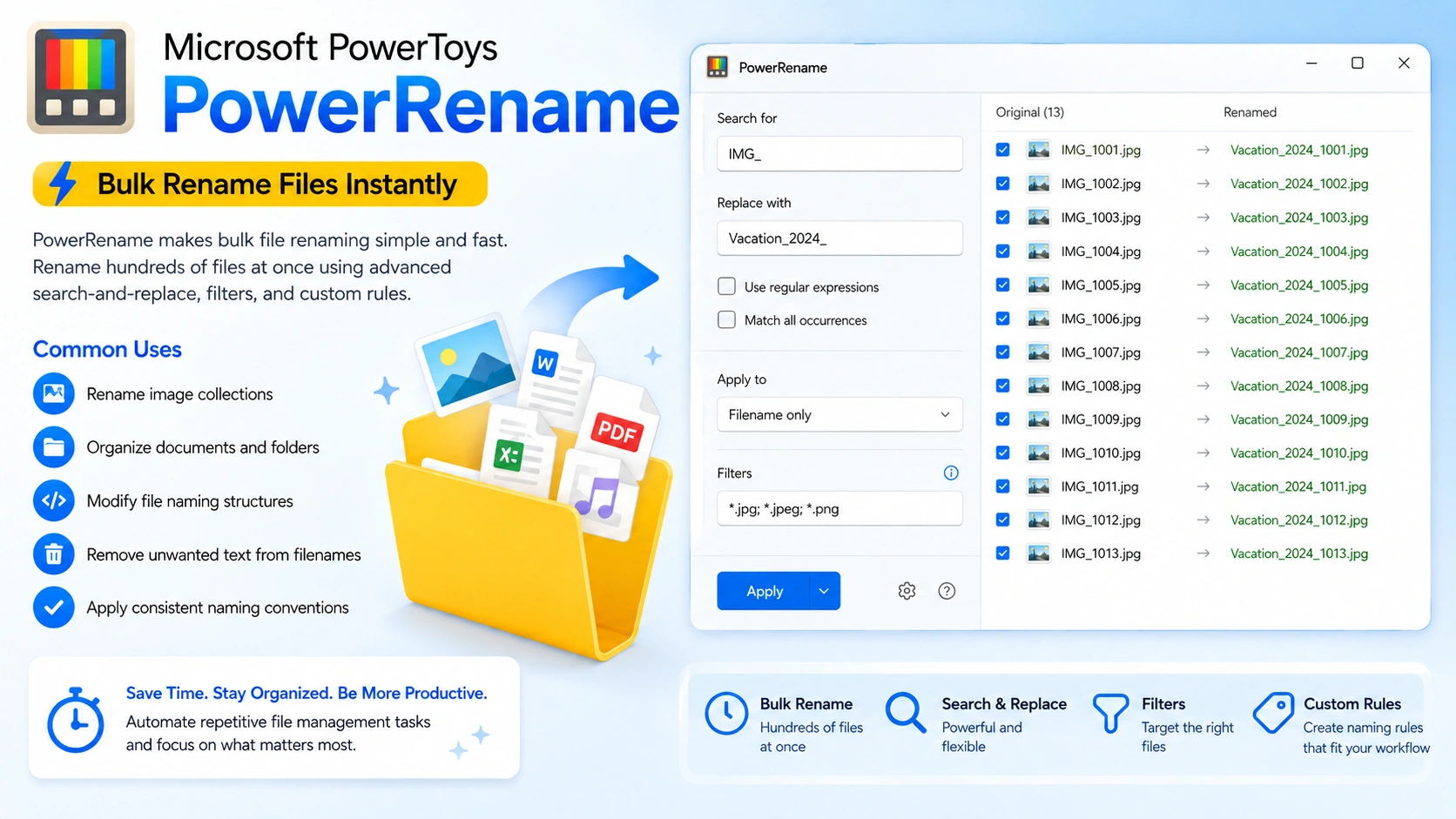
PowerRename is another powerful Microsoft PowerToys utility that simplifies bulk file renaming. Instead of renaming files one by one, users can rename hundreds of files simultaneously using advanced search-and-replace functions, filters, and custom naming rules.
This feature is especially useful for photographers, content creators, and professionals who regularly manage large collections of files.
Common Uses of PowerRename
- Rename image collections
- Organize documents and folders
- Modify file naming structures
- Remove unwanted text from filenames
- Apply consistent naming conventions across multiple files
By automating repetitive file management tasks, PowerRename can save significant time and improve organization. If you encounter software issues while managing files after a system upgrade, learning how to fix program compatibility issues after Windows Update can help restore normal application functionality.
3. PowerToys Run
PowerToys Run is a fast and powerful application launcher included with Microsoft PowerToys. It helps users quickly access applications, files, folders, and system commands without navigating through multiple menus.
Simply press the assigned keyboard shortcut and start typing to search for:
- Applications
- Files
- Folders
- Running processes
- System commands
- Calculator results
Many users consider PowerToys Run a faster and more efficient alternative to Windows Search. It is particularly useful for power users who want instant access to frequently used tools and resources.
If you’re looking for more software that can improve efficiency and streamline daily tasks, explore our guide to Windows productivity apps for additional recommendations.
4. Keyboard Manager
Keyboard Manager is a useful Microsoft PowerToys feature that allows users to customize their keyboard layout and shortcuts. By remapping keys and creating custom shortcuts, users can streamline repetitive tasks and improve overall productivity.
This utility is particularly valuable for developers, writers, and power users who rely heavily on keyboard shortcuts throughout the day.
Features of Keyboard Manager
- Reassign individual keys
- Create custom keyboard shortcuts
- Replace unused or rarely used keys
- Improve workflow efficiency
- Personalize keyboard controls for specific tasks
With Keyboard Manager, users can tailor their Windows experience to better match their workflow and preferences.
5. Image Resizer
Image Resizer is one of the most practical Microsoft PowerToys utilities for managing images. It adds a quick resizing option directly to File Explorer, allowing users to resize one or multiple images without opening separate editing software.
How to Use Image Resizer
- Select one or more images.
- Right-click the selected files.
- Choose Resize Pictures.
- Select the desired image dimensions.
- Save the resized copies.
The entire process takes only a few seconds, making it ideal for users who frequently work with images.
Benefits of Image Resizer
- Resize multiple images at once
- Save time compared to manual editing
- Reduce image file sizes for sharing
- Create web-friendly image dimensions
- Improve file management efficiency
Content creators, bloggers, and marketers may also benefit from using AI writing assistants to speed up content production and complement their image workflow.
6. Text Extractor
Text Extractor is one of the most useful Microsoft PowerToys features for users who frequently work with screenshots, scanned documents, and images containing text. This built-in OCR (Optical Character Recognition) tool allows users to copy text directly from images without installing third-party software.
How Text Extractor Works
- Launch the Text Extractor shortcut.
- Select the area containing text.
- Let the tool recognize the text automatically.
- Copy the extracted text to the clipboard.
Benefits of Text Extractor
- Extract text from screenshots
- Copy text from scanned documents
- Save time on manual typing
- Improve productivity when researching information
- Eliminate the need for separate OCR applications
This feature is particularly useful for students, researchers, content creators, and professionals who regularly work with image-based content.
7. Always On Top
Always On Top is a simple yet powerful Microsoft PowerToys utility that keeps selected windows above all other open applications. This makes it easier to reference important information while working in multiple programs.
Common Uses for Always On Top
- Watching tutorials while following instructions
- Monitoring dashboards and analytics
- Referencing documents during meetings
- Keeping notes visible while working
- Tracking system monitoring tools
By keeping critical windows visible, Always On Top helps reduce unnecessary switching between applications and improves workflow efficiency.
8. Color Picker
Color Picker is a valuable Microsoft PowerToys tool for designers, developers, and digital creators. It allows users to identify and copy color values from anywhere on the screen instantly.
Features of Color Picker
- HEX color values
- RGB color values
- HSL color values
- Color history tracking
- Quick copy functionality
This utility simplifies design workflows and helps maintain color consistency across projects.
9. Mouse Utilities
Microsoft PowerToys includes several mouse enhancement features designed to improve cursor visibility and navigation. These tools are especially helpful during presentations, training sessions, and remote meetings.
Mouse Utilities Features
- Locate the cursor quickly
- Highlight mouse clicks
- Improve presentation visibility
- Enhance cursor tracking
- Make demonstrations easier to follow
These features help users work more efficiently and make on-screen actions easier for others to see.
10. File Locksmith
File Locksmith is a practical Microsoft PowerToys utility that identifies which applications are locking files and folders. Instead of guessing why a file cannot be moved, renamed, or deleted, users can quickly determine which process is currently using it.
Benefits of File Locksmith
- Identify locked files instantly
- Troubleshoot file access issues
- Determine which application is using a file
- Simplify file management tasks
- Save time during system troubleshooting
This feature is particularly useful for IT professionals, developers, and advanced Windows users who frequently manage files and system resources.
11. Hosts File Editor
Hosts File Editor is a useful Microsoft PowerToys utility that simplifies the process of managing the Windows Hosts file. Instead of manually editing system files through a text editor, users can make changes using a more user-friendly interface.
Benefits of Hosts File Editor
- Simple editing interface
- Reduced risk of configuration errors
- Faster troubleshooting of network issues
- Easier management of custom domain mappings
- Improved workflow for developers and IT professionals
This feature is particularly helpful when testing websites locally or troubleshooting connectivity problems.
12. Screen Ruler
Screen Ruler is a handy Microsoft PowerToys tool that allows users to measure on-screen distances, dimensions, and spacing. It can help improve accuracy when working on design, development, or layout-related projects.
Common Uses of Screen Ruler
- Measuring user interface elements
- Checking website layouts
- Verifying design spacing
- Analyzing screen dimensions
- Improving visual consistency
This utility is especially valuable for UI designers, web developers, and graphic designers who need precise measurements during their workflow.
13. Quick Accent
Quick Accent helps users type accented characters without memorizing complex keyboard shortcuts or character codes. This feature makes multilingual typing faster and more convenient.
Supported Languages
- Spanish
- French
- German
- Portuguese
- Italian
- Other languages that use accented characters
Quick Accent is particularly useful for writers, translators, students, and professionals who regularly work with multiple languages.
14. Peek
Peek is a convenient Microsoft PowerToys feature that provides quick file previews directly from File Explorer, similar to the Quick Look feature available on macOS.
File Types Supported by Peek
- Images
- Documents
- Text files
- Source code files
- Various supported file formats
Users can preview files instantly without opening separate applications, helping save time and improve productivity when browsing large collections of files.
15. Environment Variables Manager
Environment Variables Manager provides a dedicated interface for viewing and managing Windows environment variables. Instead of navigating through multiple system settings menus, users can make changes from a centralized location.
Benefits of Environment Variables Manager
- Simplified environment variable management
- Easier configuration of development tools
- Faster troubleshooting of software issues
- Improved visibility of system and user variables
- Reduced risk of configuration mistakes
This feature is especially beneficial for developers, system administrators, and IT professionals who frequently work with programming environments, command-line tools, and server configurations.
Best Microsoft PowerToys Settings
After installing Microsoft PowerToys, consider enabling the most useful features to maximize productivity and improve your Windows experience. While the ideal configuration depends on your workflow, the following utilities provide the greatest benefits for most users:
- FancyZones
- PowerToys Run
- PowerRename
- Text Extractor
- Image Resizer
- Always On Top
These Microsoft PowerToys features can help streamline multitasking, simplify file management, and reduce the time spent performing repetitive tasks. New users should start with these utilities before exploring the more advanced options available within the toolkit.
Microsoft PowerToys System Requirements
Microsoft PowerToys is designed to run on modern Windows systems and has relatively modest hardware requirements.
Supported Operating Systems
- Windows 10
- Windows 11
- 64-bit systems
For the best experience, keep Windows updated to the latest version and ensure your system has sufficient resources for multitasking and productivity applications.
If you want to verify your computer’s performance, consider reading our guide on how to test PC performance to identify potential hardware limitations and ensure optimal operation.
Why Microsoft PowerToys Is Worth Installing
Microsoft PowerToys combines dozens of useful utilities into a single package. Rather than installing multiple third-party applications, users gain access to advanced window management, file organization, keyboard customization, OCR functionality, color selection tools, and many other productivity-enhancing features.
Another major advantage is that Microsoft PowerToys is actively maintained by Microsoft and supported by an open-source community. Regular updates introduce new features, improve stability, and ensure compatibility with the latest versions of Windows.
Because the software is completely free, users can significantly enhance their Windows experience without additional costs.
Conclusion
Microsoft PowerToys is one of the best productivity tools available for Windows users. Features such as FancyZones, PowerRename, PowerToys Run, Text Extractor, Image Resizer, and Always On Top can significantly improve efficiency and simplify everyday tasks.
Whether you are a casual user, content creator, developer, or IT professional, Microsoft PowerToys offers practical utilities that help you work smarter and manage your system more effectively. From multitasking and file management to customization and automation, the toolkit provides valuable enhancements that are not included in a standard Windows installation.
If you frequently use Windows for work, study, or content creation, installing Microsoft PowerToys is a simple upgrade that delivers immediate productivity benefits. With regular updates, powerful features, and zero cost, Microsoft PowerToys remains one of the most valuable utilities available for Windows today.