

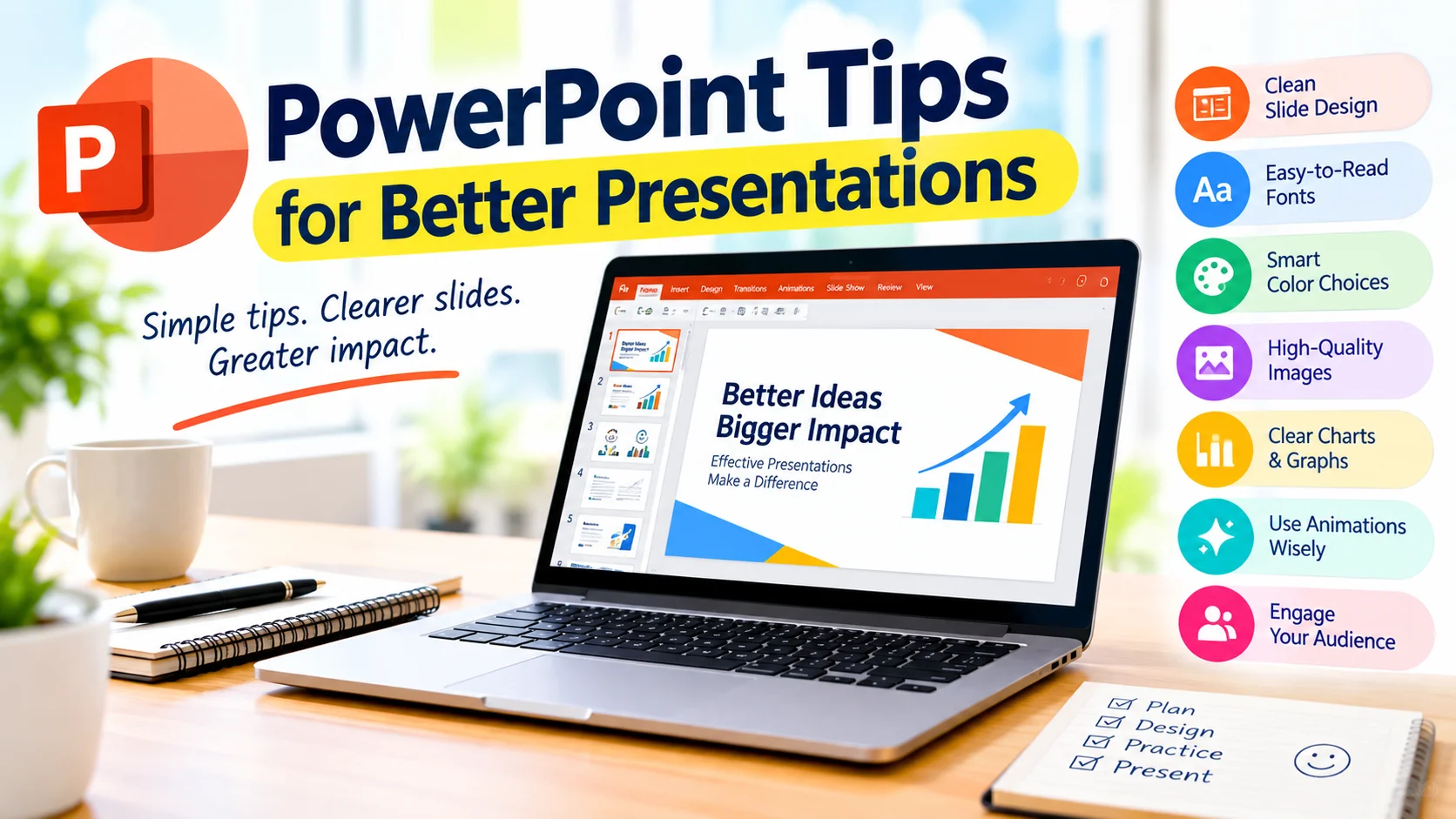
Microsoft PowerPoint is one of the most popular tools for creating presentations at work, school, and business meetings. However, simply adding information to slides does not automatically make a presentation effective. A well-designed PowerPoint presentation should be easy to understand, visually appealing, and focused on the key message.
Whether you are preparing a school project, business presentation, training session, or meeting, these PowerPoint tips for better presentations can help you create slides that look professional and keep your audience engaged.
1. Start With a Clear Presentation Structure
Before opening PowerPoint, decide what you want your audience to learn from the presentation. A clear structure makes it easier to organize your ideas.
A simple presentation structure can include:
- Introduction: Explain the topic and purpose.
- Main points: Present the most important information.
- Examples or evidence: Support your main points.
- Conclusion: Summarize the key ideas.
- Call to action: Explain what the audience should do next, when appropriate.
Planning the structure first can prevent your slides from becoming a collection of unrelated information.
2. Keep Each Slide Simple
One of the most useful PowerPoint presentation tips is to avoid overcrowding your slides. Large blocks of text can make presentations difficult to follow.
Instead of placing an entire paragraph on a slide, use:
- Short sentences
- Bullet points
- Keywords
- Simple diagrams
- Relevant images
Your slides should support what you are saying rather than replace your speech entirely.
3. Use Consistent Fonts
Using too many fonts can make a presentation look unprofessional. Choose one or two easy-to-read fonts and use them consistently throughout the presentation.
Make sure the text is large enough to be read from the back of the room. Sans-serif fonts are often a practical choice for presentations because they remain readable on screens.
For example, you can use:
- One font for headings
- One font for body text
- Consistent sizes for similar types of content
Consistency helps your audience focus on the information instead of the formatting.
4. Choose a Professional Color Scheme
Colors can make PowerPoint slides more attractive, but excessive colors can become distracting.
Choose a small color palette that works well with your topic and use it consistently. Make sure there is enough contrast between the text and background.
For example, dark text on a light background is generally easy to read. If you use a dark background, choose text colors that remain clearly visible.
5. Use High-Quality Images
Images can help explain complicated ideas and make slides more engaging. However, avoid adding images simply to fill empty space.
Choose images that are:
- Relevant to the topic
- Clear and high resolution
- Properly positioned
- Easy for the audience to understand
Avoid stretched, blurry, or unrelated images because they can reduce the professional appearance of your presentation.
6. Use Charts to Explain Data
If your presentation contains statistics or numbers, consider using charts instead of displaying long lists of figures.
PowerPoint provides several chart types, including:
- Column charts
- Bar charts
- Line charts
- Pie charts
- Area charts
Choose the chart type that best represents your information. Keep charts simple and highlight the most important figures so your audience can understand the data quickly.
7. Limit Bullet Points
Bullet points are useful for organizing information, but too many bullets can make a slide difficult to read.
Try to keep each slide focused on one main idea. Use short bullet points and explain the details verbally when presenting.
For example, instead of writing a long explanation about productivity, you could use:
- Plan tasks in advance
- Prioritize important work
- Reduce distractions
- Review progress regularly
This gives your audience a quick overview while allowing you to provide additional details during the presentation.
8. Use Animations Carefully
PowerPoint animations can make presentations more dynamic, but excessive animation can distract your audience.
Use animations when they have a clear purpose, such as:
- Revealing information step by step
- Showing a process
- Directing attention to a specific element
- Demonstrating movement or sequence
Avoid using different animation effects on every slide. Simple and consistent effects are usually easier for the audience to follow.
9. Avoid Excessive Transitions
Slide transitions can provide a smooth visual change between slides. However, complicated transitions can become distracting.
For professional presentations, simple transitions are often enough. If you use transitions, consider applying the same style consistently instead of using a different effect on every slide.
10. Make Important Information Stand Out
Not every piece of information on a slide has equal importance. Use visual hierarchy to guide your audience toward the most important information.
You can emphasize important content with:
- Larger text
- Bold formatting
- Strategic placement
- Contrast
- Simple shapes or icons
Avoid highlighting everything because nothing will appear important if every element receives the same emphasis.
11. Use Speaker Notes
Speaker notes can help you remember important details without placing everything on the slide.
Use the notes section to record:
- Supporting information
- Statistics
- Examples
- Questions to ask the audience
- Reminders about what to explain
This allows you to keep your slides clean while still having useful information available during your presentation.
12. Practice Before Presenting
Even a well-designed PowerPoint presentation can be ineffective without preparation. Practice your presentation several times before presenting it to an audience.
During practice, check:
- How long the presentation takes
- Whether the transitions between topics feel natural
- Whether the text is easy to read
- Whether the information is presented clearly
- Which slides require additional explanation
Practice can also help reduce the need to read directly from your slides.
13. Use PowerPoint Presenter View
Presenter View can make presenting easier when you have access to a second display. It can show your current slide, upcoming slide, speaker notes, and presentation controls while the audience sees the presentation itself.
This can be particularly useful for longer presentations where remembering every detail is difficult.
14. Check Your Presentation on the Actual Display
A presentation can look different on another monitor, projector, or television. Before presenting, check your slides on the equipment you plan to use whenever possible.
Look for:
- Small text
- Poor color contrast
- Cropped images
- Incorrect formatting
- Videos that do not play
- Fonts that appear differently
Testing the presentation beforehand can help prevent technical surprises.
15. Keep the Audience in Mind
A successful presentation is not only about how the slides look. Consider who will be viewing the presentation and what they need to understand.
For example, a technical presentation for IT professionals can contain more specialized terminology than a presentation designed for beginners.
Ask yourself:
What does my audience need to know, and what is the clearest way to explain it?
This simple question can improve both your slide design and presentation structure.
16. End With a Strong Conclusion
Do not finish your presentation immediately after the final information slide. Include a short conclusion that reinforces the main message.
A good conclusion can include:
- The most important points
- A key takeaway
- Recommended next steps
- A question-and-answer section
- Contact information when appropriate
Your final slide should leave the audience with a clear understanding of what they should remember.
Common PowerPoint Presentation Mistakes to Avoid
Even experienced PowerPoint users can make design mistakes. Some common problems include:
- Adding too much text to slides
- Using tiny fonts
- Choosing poor color combinations
- Using too many animations
- Adding irrelevant images
- Reading every word from the screen
- Using inconsistent formatting
- Including too many slides without a clear purpose
- Failing to test videos or other media
- Not practicing before presenting
Avoiding these problems can make your presentation clearer and more professional.
Final Thoughts
Creating an effective PowerPoint presentation is about more than choosing an attractive template. The best presentations combine clear organization, readable design, useful visuals, and confident delivery.
Keep your slides simple, focus on one main idea at a time, use visuals where they add value, and practice before presenting. With these PowerPoint tips for better presentations, you can create slides that communicate your ideas clearly and help your audience stay focused.
Whether you are a student, employee, teacher, or business professional, improving your PowerPoint skills can make presentations easier to create and more effective to deliver.