

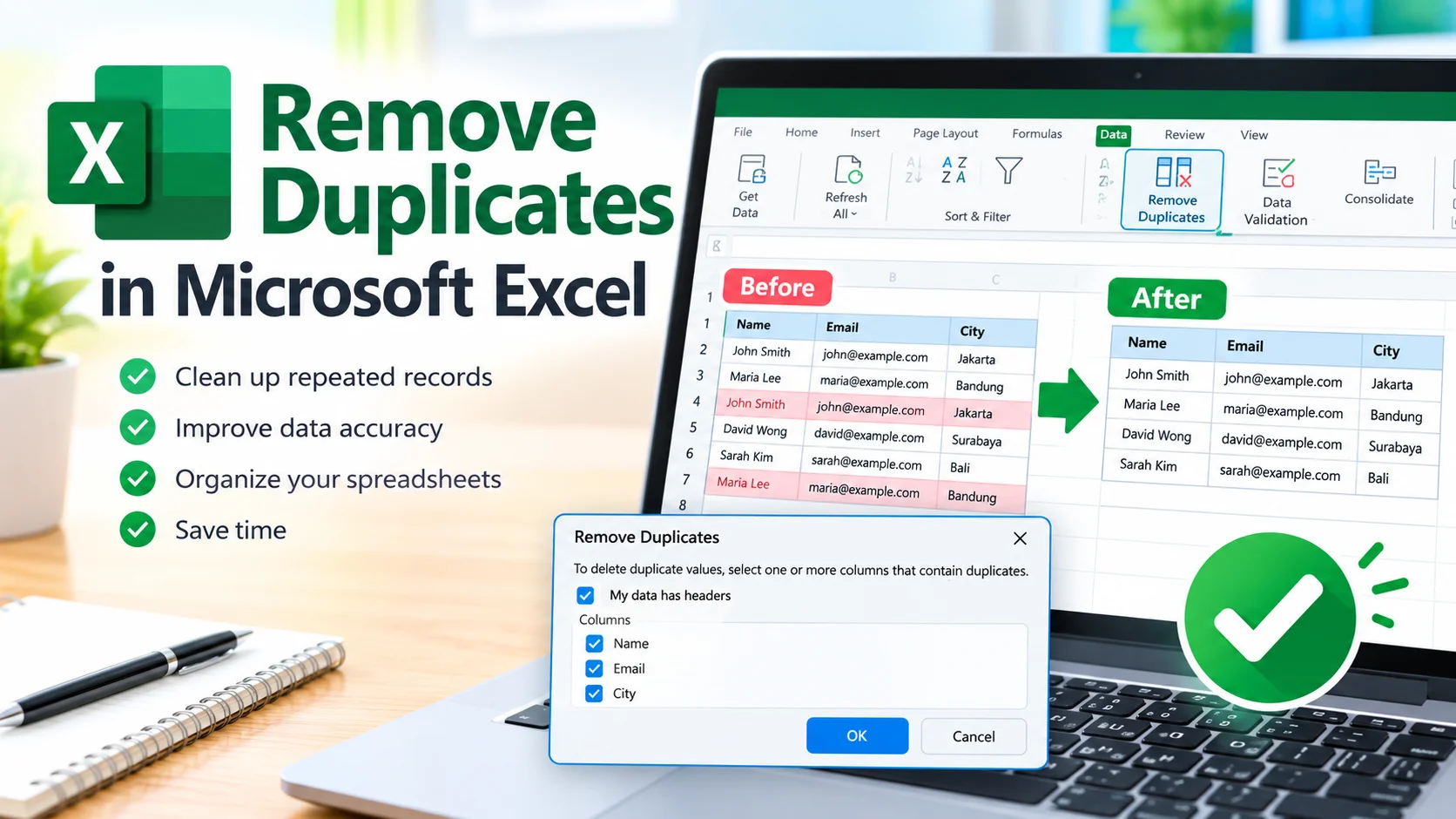
Remove Duplicates in Microsoft Excel to clean up repeated records, organize spreadsheets, and improve data accuracy. Whether you’re working with customer lists, sales records, inventory data, or survey results, Excel provides a quick way to identify and remove duplicate entries without manually checking every row.
Duplicate data can make reports harder to understand and may lead to inaccurate calculations. Fortunately, Microsoft Excel includes a built-in Remove Duplicates feature that can clean a selected range in just a few clicks.
What Are Duplicate Values in Excel?
Duplicate values are repeated pieces of data that appear more than once in a worksheet. For example, a customer list might contain the same email address in several rows.
Consider this simple dataset:
| Name | City | |
|---|---|---|
| John Smith | john@example.com | New York City |
| Maria Lee | maria@example.com | Los Angeles |
| John Smith | john@example.com | Chicago |
| David Wong | david@example.com | Houston |
The third row duplicates the first row. Removing it leaves one unique record for John Smith.
However, Excel determines duplicates based on the columns you select. Two rows might have the same name but different email addresses, for example, so they should not necessarily be treated as duplicates.
How to Remove Duplicates in Microsoft Excel
You can remove duplicate records directly from an Excel worksheet.
Step 1: Select Your Data
Open your workbook and select the range containing the information you want to clean.
If your data is organized as an Excel table, click anywhere inside the table instead. Excel can automatically identify the table’s data range.
Step 2: Open the Remove Duplicates Tool
Go to the Data tab on the Excel ribbon.
Look for the Data Tools section and select Remove Duplicates.
Excel will display a dialog box containing the columns in your selected range.
Step 3: Choose the Columns
Select the columns Excel should use when determining whether a record is duplicated.
For example, if you select Name, Email, and City, Excel considers two rows duplicates only when the values in all three selected columns match.
If you select only Email, Excel removes records with repeated email addresses even when other information differs.
Step 4: Confirm the Removal
Click OK.
Excel analyzes the selected data and removes duplicate records according to your chosen columns. A message then reports how many duplicate values were removed and how many unique values remain.
Click OK to close the message.
How to Remove Duplicates From an Excel Table
Excel tables make duplicate removal especially convenient.
- Click anywhere inside the table.
- Select the Data tab.
- Click Remove Duplicates.
- Choose the columns you want Excel to compare.
- Click OK.
Excel removes duplicate rows from the table while preserving the table structure.
How to Find Duplicates Without Deleting Them
Sometimes you may want to review duplicate values before removing them. In that situation, avoid the Remove Duplicates command and use conditional formatting instead.
Select the relevant cells, then go to:
Home → Conditional Formatting → Highlight Cells Rules → Duplicate Values
Excel highlights duplicate entries, allowing you to inspect them before making changes.
This approach is useful when similar records might contain legitimate differences.
Remove Duplicates From One Column
If you only need to identify unique values in a single column, select that column before using Remove Duplicates.
For example, if column A contains product codes, you can select column A and remove repeated codes.
Be careful when working with a multi-column dataset. Removing duplicates from only one column can affect the relationship between data in different columns.
Use Excel’s UNIQUE Function Instead
If you don’t want to delete the original data, Excel also provides the UNIQUE function in supported versions.
For example:
=UNIQUE(A2:A100)This creates a separate list containing unique values from the specified range.
For multiple columns, you can use:
=UNIQUE(A2:C100)The advantage is that the original dataset remains unchanged. The resulting list can also update when the source data changes.
What Happens When You Remove Duplicates?
Excel keeps the first occurrence of a duplicate record and removes subsequent matching records based on the columns you selected.
For example:
| Product | Category |
|---|---|
| Laptop | Computer |
| Monitor | Display |
| Laptop | Computer |
If both columns are selected, Excel keeps the first Laptop record and removes the second one.
Because the operation changes your worksheet, it’s a good idea to create a backup or save a copy of important data before removing duplicates.
Tips for Removing Duplicates Safely
Before cleaning a large spreadsheet, keep these tips in mind:
- Make a backup: Save a copy before deleting duplicate records.
- Check your columns: Select only the columns that should define a duplicate.
- Review similar records: Two records that look similar may contain important differences.
- Check for spaces: Extra spaces can cause apparently identical values to be treated differently.
- Use conditional formatting first: Highlight duplicates when you need to review them manually.
- Consider UNIQUE: Use the
UNIQUEfunction when you want a separate list without changing the original data. - Use tables: Excel tables make it easier to manage and maintain structured datasets.
Remove Duplicates vs. UNIQUE
The two methods serve different purposes.
Remove Duplicates permanently changes the selected dataset by deleting repeated records. It’s useful when you want to clean an existing list.
UNIQUE creates a new list containing distinct values while leaving the source data intact. It’s useful when you want to preserve the original information.
Choose the method based on whether you need to clean the original data or create a unique list from it.
Frequently Asked Questions
Does Excel remove all duplicate rows?
Excel removes duplicate occurrences after keeping the first matching record. The columns selected in the Remove Duplicates dialog determine what Excel considers a duplicate.
Can I undo Remove Duplicates?
Yes. Immediately after removing duplicates, you can use Ctrl + Z to undo the operation. For important spreadsheets, creating a backup beforehand is still recommended.
Can Excel remove duplicates based on one column?
Yes. Select the column you want Excel to use for comparison in the Remove Duplicates dialog.
Does removing duplicates sort my data?
No. Removing duplicates doesn’t normally sort the remaining records. The existing order is generally preserved.
What is the easiest way to remove duplicates in Excel?
For most datasets, select the data, open Data → Remove Duplicates, choose the columns that define a duplicate, and click OK.
Keep Your Excel Data Clean
Duplicate records can reduce the accuracy and usefulness of a spreadsheet, particularly when you’re working with large datasets. Remove Duplicates in Microsoft Excel provides a straightforward way to clean repeated records while giving you control over which columns Excel uses for comparison.
For situations where you need to preserve the original data, the UNIQUE function provides another practical solution. By choosing the appropriate method and checking your data before deletion, you can maintain cleaner, more reliable Excel worksheets.