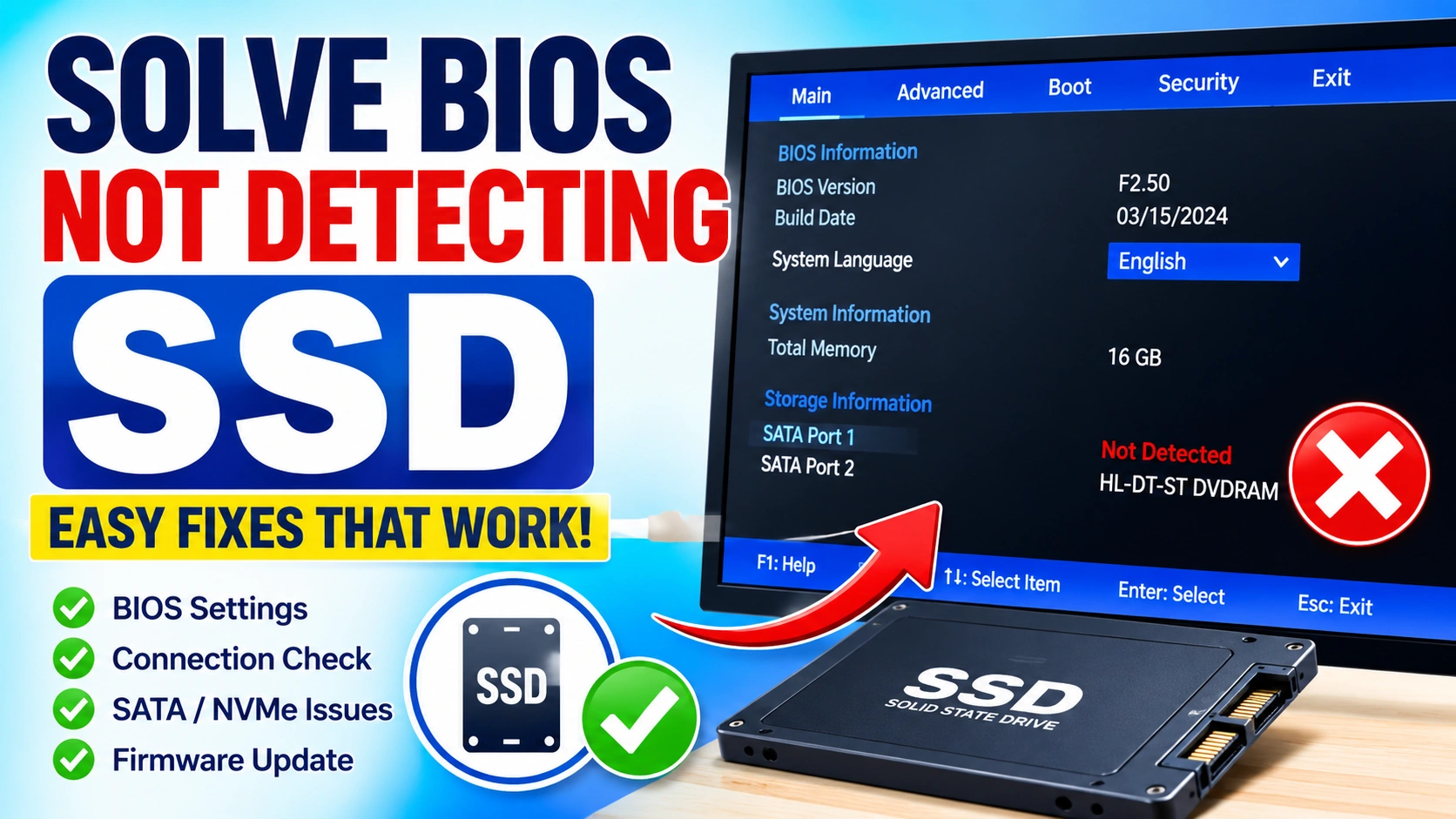
If your computer cannot recognize an SSD during startup, it can prevent the operating system from loading and make your files inaccessible. Whether you have installed a new SSD or your existing drive suddenly disappeared, there are several ways to Solve BIOS Not Detecting SSD without replacing the hardware immediately.
This guide explains the most common causes and provides step-by-step solutions to help your motherboard recognize the SSD again.
Why You Need to Solve BIOS Not Detecting SSD
If your computer’s BIOS cannot detect an SSD, the operating system will not be able to access the storage device. As a result, your PC may fail to boot, display boot device errors, or become stuck on the startup screen. This issue can affect both traditional SATA SSDs and modern NVMe M.2 SSDs, making it a common problem for desktop and laptop users alike.
Several factors can cause BIOS detection problems, including:
- Loose or improperly connected SSD cables
- Disabled SATA or NVMe controllers in BIOS
- Incorrect BIOS or UEFI configuration settings
- Outdated BIOS firmware that lacks SSD compatibility
- M.2 slot compatibility limitations on the motherboard
- SSD hardware failure or physical damage
- Corrupted CMOS or BIOS settings
Before attempting advanced repairs, it is important to identify the root cause of the issue. Understanding why the SSD is not being detected will help you apply the correct solution and avoid unnecessary hardware replacements. In many cases, you can successfully Solve BIOS Not Detecting SSD by adjusting BIOS settings, checking connections, or updating system firmware.
Check SSD Connections First
One of the easiest and most effective ways to Solve BIOS Not Detecting SSD is to inspect the physical connection between the SSD and the motherboard. Loose cables, improperly seated drives, or damaged connectors can prevent the BIOS from recognizing the storage device during startup.
For SATA SSDs
Follow these steps to verify the connection:
- Shut down the computer completely.
- Disconnect the power cable from the PC.
- Open the computer case.
- Inspect the SATA data cable connected to the SSD.
- Ensure the cable is firmly connected to both the SSD and motherboard.
- Check the SATA power connector from the power supply.
- Try using a different SATA cable if available.
- Connect the SSD to another SATA port on the motherboard.
Faulty SATA cables and damaged motherboard ports are common causes of SSD detection issues.
For NVMe SSDs
If you are using an M.2 NVMe SSD:
- Turn off the computer and unplug the power source.
- Remove the SSD carefully from the M.2 slot.
- Inspect the gold connector pins for dust or debris.
- Clean the connector gently if necessary.
- Reinsert the SSD at the correct angle.
- Secure the drive using the mounting screw.
- Verify that the SSD is fully seated in the slot.
Even a slightly loose NVMe SSD can prevent BIOS from detecting the drive.
After reconnecting the SSD, restart the computer and check whether the drive appears in BIOS. In many cases, reseating the drive resolves the issue immediately.
Verify SSD Detection in BIOS
After checking the physical connections, the next step to Solve BIOS Not Detecting SSD is confirming whether the drive appears in the BIOS or UEFI interface.
Restart your computer and enter the BIOS setup screen.
Common BIOS access keys include:
- Delete
- F2
- F10
- Esc
The correct key usually appears briefly during startup.
Once inside BIOS, look for storage-related menus such as:
- Storage Configuration
- SATA Configuration
- NVMe Configuration
- Boot Devices
- Advanced Storage Settings
Check whether your SSD is listed among the connected storage devices.
If the SSD Appears in BIOS
If the SSD is visible, the hardware is likely functioning correctly. The problem may instead be related to:
- Incorrect boot order
- Missing boot files
- Windows startup corruption
- UEFI or Legacy boot mode mismatch
In this situation, focus on troubleshooting the operating system and boot configuration.
If the SSD Does Not Appear in BIOS
If the SSD is missing from all storage menus, the issue may be caused by:
- Disabled SATA or NVMe controllers
- Incorrect BIOS settings
- M.2 slot compatibility problems
- Outdated BIOS firmware
- SSD hardware failure
Continue with the next troubleshooting methods to identify the exact cause and fully Solve BIOS Not Detecting SSD.
Enable Storage Controllers to Solve BIOS Not Detecting SSD
Many modern motherboards allow users to enable or disable storage controllers directly from the BIOS or UEFI firmware. If a storage controller is disabled, the motherboard may not detect connected SSDs even when the hardware is functioning properly.
To Solve BIOS Not Detecting SSD, enter the BIOS setup menu and navigate to the storage or advanced configuration section. The exact location varies depending on the motherboard manufacturer.
Check the following settings:
- SATA Controller = Enabled
- NVMe Support = Enabled
- Storage Controller = Active
- PCIe Storage Configuration = Enabled (if available)
Some motherboards automatically disable certain storage ports when specific settings are changed. For example, enabling RAID mode or using certain PCIe devices may disable individual SATA ports.
After verifying the settings:
- Save the BIOS configuration.
- Exit BIOS.
- Restart the computer.
- Check whether the SSD now appears in the storage list.
Disabled storage controllers are one of the most common causes of SSD detection problems, especially after BIOS updates or factory resets.
Change SATA Mode Settings
Incorrect SATA mode configuration can prevent the motherboard from properly communicating with an SSD.
To Solve BIOS Not Detecting SSD, locate the SATA Mode option within the BIOS storage settings.
Most systems offer the following modes:
- AHCI
- IDE
- RAID
AHCI Mode
AHCI (Advanced Host Controller Interface) is the recommended mode for most SSDs. It supports advanced SSD features such as Native Command Queuing (NCQ) and TRIM, which improve performance and drive longevity.
IDE Mode
IDE mode is a legacy compatibility option designed for older operating systems and hard drives. Modern SSDs generally perform poorly in this mode.
RAID Mode
RAID mode is intended for systems using multiple storage drives configured in a RAID array. If RAID is enabled without a proper RAID configuration, SSD detection issues may occur.
If your system is not using RAID:
- Enter BIOS.
- Locate SATA Mode.
- Select AHCI.
- Save changes.
- Restart the computer.
Many users successfully Solve BIOS Not Detecting SSD simply by switching from IDE or RAID mode to AHCI.
Check M.2 Slot Compatibility
M.2 SSD installation can be confusing because not all M.2 slots support every SSD type.
Even though two SSDs may have the same M.2 connector, they can use completely different communication protocols.
Common M.2 SSD types include:
- SATA M.2 SSD
- NVMe PCIe SSD
Some motherboards support both standards, while others support only one.
For example:
- An NVMe SSD may not work in a SATA-only M.2 slot.
- A SATA M.2 SSD may not be detected in an NVMe-only slot.
To Solve BIOS Not Detecting SSD, consult your motherboard manual and verify:
- Which M.2 slots are available
- Supported SSD types
- Supported PCIe generations
- Shared bandwidth limitations
Many motherboards also disable certain SATA ports when an M.2 slot is occupied. If this occurs, moving the SSD to another slot or changing the SATA connection may resolve the issue.
This compatibility check is particularly important for newly built PCs, motherboard upgrades, and first-time NVMe SSD installations. Ensuring that the SSD is installed in a supported slot can quickly Solve BIOS Not Detecting SSD and eliminate unnecessary troubleshooting.
Update BIOS Firmware
Older BIOS versions may not fully support newer SSD models.
Visit your motherboard manufacturer’s support page and download the latest BIOS update.
Before updating:
- Backup important data
- Follow official instructions
- Ensure stable power during the update
Many SSD compatibility issues are resolved through BIOS updates.
For official guidance, refer to the BIOS documentation available from motherboard manufacturers and storage vendors.
Reset BIOS to Default Settings
Misconfigured BIOS settings can interfere with storage detection.
To reset BIOS:
- Enter BIOS Setup.
- Select Load Optimized Defaults.
- Save the settings.
- Restart the computer.
This process restores factory settings and often resolves SSD recognition problems.
Clear CMOS Memory
If BIOS settings become corrupted, clearing CMOS may help.
Steps:
- Power off the computer.
- Disconnect power.
- Remove the CMOS battery.
- Wait several minutes.
- Reinstall the battery.
- Start the system.
Many modern motherboards also provide a dedicated CMOS reset button.
Disable Fast Boot Temporarily
Fast Boot can occasionally skip hardware initialization.
To test:
- Enter BIOS.
- Disable Fast Boot.
- Save changes.
- Restart the computer.
If the SSD becomes visible afterward, Fast Boot may have been contributing to the issue.
Test the SSD on Another Computer
To determine whether the SSD itself is faulty:
- Install it in another PC.
- Use an external USB enclosure.
- Check whether it appears in BIOS.
If multiple systems fail to detect the SSD, the drive may be defective.
Inspect SSD Health
Storage devices can eventually fail.
Warning signs include:
- SSD disappearing randomly
- Frequent system crashes
- File corruption
- Slow performance
- Boot failures
If the SSD cannot be detected anywhere, replacement may be necessary.
Additional Tips to Solve BIOS Not Detecting SSD
To avoid future SSD detection problems:
- Keep BIOS updated.
- Use quality SATA cables.
- Avoid unexpected power loss.
- Monitor SSD health regularly.
- Install SSDs correctly.
- Maintain adequate airflow inside the PC.
Preventive maintenance can improve SSD reliability and lifespan.
Frequently Asked Questions
Why is my SSD not showing up in BIOS?
The most common causes are loose cables, disabled storage controllers, outdated BIOS firmware, incompatible M.2 slots, or SSD failure.
Can BIOS updates fix SSD detection issues?
Yes. BIOS updates often improve hardware compatibility and may help detect newer SSD models.
Does a faulty SATA cable cause SSD detection problems?
Yes. Damaged or loose SATA cables frequently prevent BIOS from communicating with the SSD.
Why does BIOS detect my SSD but Windows does not?
The drive may require initialization, partition creation, driver updates, or boot repair within Windows.
Can a dead CMOS battery affect SSD detection?
Yes. Corrupted or reset BIOS settings caused by a failing CMOS battery may impact storage detection.
Conclusion
Learning how to Solve BIOS Not Detecting SSD can save time and prevent unnecessary hardware replacement. In many cases, the issue is caused by loose connections, incorrect BIOS settings, disabled storage controllers, outdated firmware, or compatibility problems. By systematically checking hardware connections, BIOS configuration, firmware versions, and SSD health, you can restore SSD detection and get your computer running normally again.


