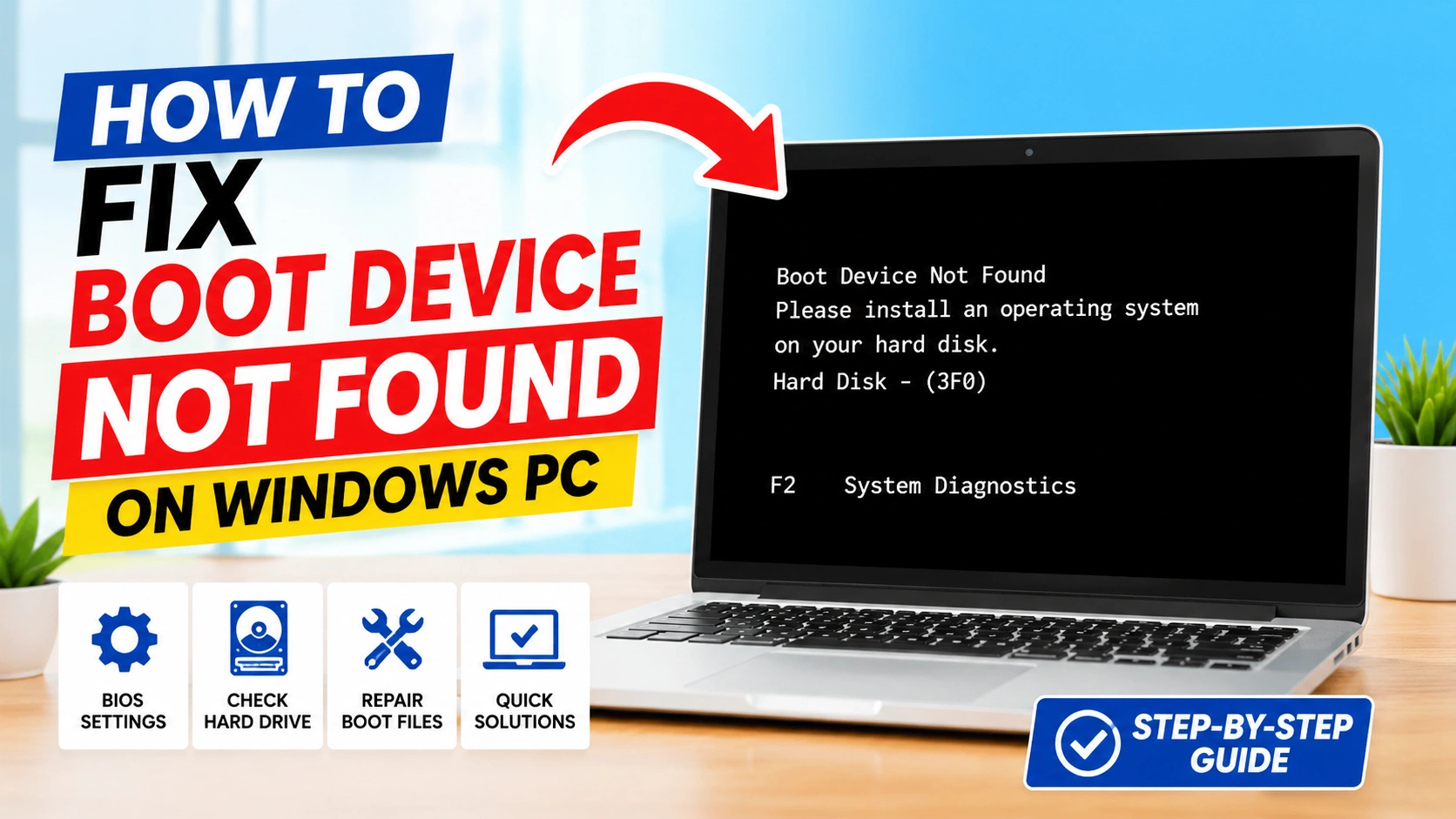
The Fix Boot Device Not Found process is one of the most common troubleshooting tasks when a computer refuses to start normally. This error typically appears when the system BIOS or UEFI cannot locate the operating system drive that contains Windows.
A Boot Device Not Found error may occur after a BIOS update, hardware replacement, SSD installation, power outage, or unexpected system shutdown. Fortunately, most cases can be resolved without replacing the entire computer.
This guide explains the most effective methods to Fix Boot Device Not Found errors on Windows PCs.
What Causes a Boot Device Not Found Error?
Before you can successfully Fix Boot Device Not Found errors, it is important to understand what causes them. This startup problem occurs when the BIOS or UEFI firmware cannot locate a bootable device containing the Windows operating system.
Several factors can trigger this issue:
Incorrect BIOS or UEFI Settings
Changes to BIOS or UEFI settings can prevent the system from detecting the correct boot drive. This often happens after a BIOS update, CMOS reset, or hardware upgrade.
Loose SATA or Power Connections
A disconnected or damaged SATA cable, loose NVMe drive, or faulty power connection can stop the motherboard from communicating with the storage device during startup.
Damaged SSD or HDD
Storage devices have a limited lifespan. A failing SSD or hard drive may become unreadable, causing the system to display a Boot Device Not Found error because Windows can no longer be accessed.
Corrupted Boot Configuration Data
Windows relies on boot files and Boot Configuration Data (BCD) to start properly. If these files become corrupted due to improper shutdowns, malware, or disk errors, the computer may fail to boot.
Failed or Interrupted Windows Updates
A Windows update that is interrupted by a power outage, system crash, or forced shutdown can damage critical startup files and lead to boot-related errors.
Incorrect Boot Order Settings
If the BIOS is configured to boot from the wrong device, such as a USB drive, external disk, or secondary storage device, the system may not find the Windows installation.
Hardware Failure
Faulty motherboard components, damaged storage controllers, failing RAM, or power supply issues can interfere with drive detection and prevent the computer from booting successfully.
MBR or GPT Partition Problems
Damage to the Master Boot Record (MBR) or GUID Partition Table (GPT) can make the operating system inaccessible. This commonly occurs after disk cloning, partition modifications, or installation errors.
Virus or Malware Infection
Certain malware infections can modify or delete important boot files, resulting in startup failures and Boot Device Not Found messages.
Understanding the root cause of the problem helps you choose the most effective troubleshooting method and restore normal system operation more quickly.
1. Restart the Computer
Before performing advanced troubleshooting, restart your PC completely.
- Turn off the computer.
- Disconnect external USB drives.
- Wait 30 seconds.
- Turn the computer back on.
Sometimes the error is caused by a temporary hardware detection issue.
2. Check BIOS or UEFI Boot Order
An incorrect boot sequence is a common reason for Boot Device Not Found errors.
Steps
- Restart the PC.
- Press the BIOS key (F2, F10, F12, DEL, or ESC).
- Open the Boot menu.
- Verify that your Windows SSD or HDD is listed first.
- Save changes and exit.
If another device appears before the system drive, Windows may fail to load.
3. Verify SSD or HDD Detection
To successfully Fix Boot Device Not Found, ensure the storage device is recognized by the motherboard.
Check Storage Detection
- Enter BIOS setup.
- Navigate to Storage or System Information.
- Look for your SSD or HDD.
If the drive is not detected:
- Turn off the computer.
- Reseat SATA cables.
- Check power connections.
- Try another SATA port.
For laptops, reseat the SSD if possible.
4. Disable Legacy Boot or Enable UEFI
Modern Windows installations typically use UEFI mode.
Steps
- Open BIOS settings.
- Locate Boot Mode.
- Select UEFI.
- Disable Legacy Support if Windows was installed in UEFI mode.
- Save and restart.
A mismatch between Windows installation mode and BIOS configuration can cause boot failures.
5. Repair Windows Startup
Windows includes built-in recovery tools that can repair startup issues.
Access Startup Repair
- Boot from a Windows installation USB.
- Select Repair your computer.
- Choose Troubleshoot.
- Open Advanced Options.
- Click Startup Repair.
Allow Windows to scan and repair boot-related files automatically.
6. Rebuild Boot Configuration Data
Corrupted BCD files often trigger startup errors.
Open Command Prompt
From Windows Recovery Environment, run:
bootrec /fixmbr
bootrec /fixboot
bootrec /scanos
bootrec /rebuildbcd
Restart the computer after the commands complete.
This procedure can often Fix Boot Device Not Found issues caused by damaged boot records.
7. Check Drive Health
A failing SSD or HDD may disappear intermittently during startup.
Run Disk Check
In Command Prompt:
chkdsk C: /f /r
Replace C: with the correct Windows drive letter if necessary.
You can also use manufacturer diagnostic tools to verify storage health.
8. Reset BIOS Settings
Incorrect BIOS settings may prevent proper boot detection.
Reset BIOS
- Enter BIOS.
- Select Load Optimized Defaults.
- Save changes.
- Restart the PC.
This restores factory-recommended settings.
9. Update BIOS Firmware
Older BIOS versions may not fully support newer storage devices.
Before Updating
- Backup important data
- Ensure stable power
- Follow manufacturer instructions carefully
Download the latest BIOS version from your motherboard or laptop manufacturer’s website.
Firmware updates can improve storage compatibility and boot reliability.
10. Replace a Failed Storage Drive
If the SSD or HDD is no longer detected even after reconnecting cables and changing ports, the drive may have failed.
Signs of drive failure include:
- Clicking noises from HDDs
- Frequent system crashes
- SMART warnings
- Drive disappearing from BIOS
In this situation, replacing the drive may be necessary.
Prevent Future Boot Device Errors
To reduce the chance of future boot problems:
- Keep BIOS firmware updated
- Use high-quality SATA cables
- Avoid sudden power interruptions
- Monitor SSD and HDD health regularly
- Maintain proper system cooling
- Create regular backups
Preventive maintenance helps improve storage reliability and system stability.
Frequently Asked Questions
What does Boot Device Not Found mean?
The Boot Device Not Found error means your computer’s BIOS or UEFI firmware cannot detect a bootable storage device that contains the Windows operating system. This may happen because of incorrect boot settings, disconnected storage drives, corrupted boot files, or hardware failure.
Can a loose SATA cable cause Boot Device Not Found?
Yes. A loose, damaged, or improperly connected SATA cable can prevent the motherboard from detecting your SSD or HDD during startup. Checking and reconnecting both the SATA data cable and power cable is one of the first troubleshooting steps recommended to fix Boot Device Not Found errors.
Will Startup Repair fix Boot Device Not Found?
Startup Repair can often fix Boot Device Not Found problems when the issue is caused by corrupted boot records, damaged system files, or missing Windows boot configuration data. However, it may not resolve issues related to faulty hardware or an undetected storage drive.
Can a dead SSD cause this error?
Yes. If an SSD has failed, the BIOS may no longer recognize it as a bootable device. When this happens, the system cannot locate Windows and displays the Boot Device Not Found error. Checking whether the SSD appears in BIOS is an important diagnostic step.
Should I update BIOS to fix boot problems?
Updating BIOS can improve hardware compatibility, storage detection, and overall system stability. In some cases, a BIOS update can resolve Boot Device Not Found issues, especially when using newer SSD models. Always follow the manufacturer’s instructions carefully before performing a BIOS update.
Can Boot Device Not Found occur after a Windows update?
Yes. Occasionally, a failed or interrupted Windows update can damage boot files or alter boot configuration settings. If the error appears after an update, running Startup Repair or rebuilding the Boot Configuration Data (BCD) may help restore normal operation.
How do I know if my hard drive is failing?
Common signs of a failing hard drive include unusual clicking noises, slow performance, frequent crashes, corrupted files, SMART warnings, and the drive disappearing from BIOS. If these symptoms occur, back up important data immediately and test the drive using diagnostic tools.
Can changing the boot order fix Boot Device Not Found?
Yes. If the BIOS is attempting to boot from the wrong device, such as a USB drive or secondary storage device, changing the boot order to prioritize the Windows system drive can often resolve the problem and allow the computer to start normally.
Conclusion
The Fix Boot Device Not Found process typically involves checking BIOS or UEFI settings, confirming that the SSD or HDD is properly detected, repairing Windows boot files, and inspecting hardware connections for faults. In many situations, simple solutions such as correcting the boot order, reconnecting storage cables, or rebuilding the Boot Configuration Data (BCD) can restore normal system startup.
If the error persists, it may indicate a failing storage device, corrupted system files, or underlying hardware problems that require further diagnosis. Regular system maintenance, BIOS updates, and routine data backups can help prevent future boot issues and reduce the risk of data loss. By following the troubleshooting methods outlined in this guide, most users can successfully fix Boot Device Not Found errors and get their Windows PC running normally again.


