

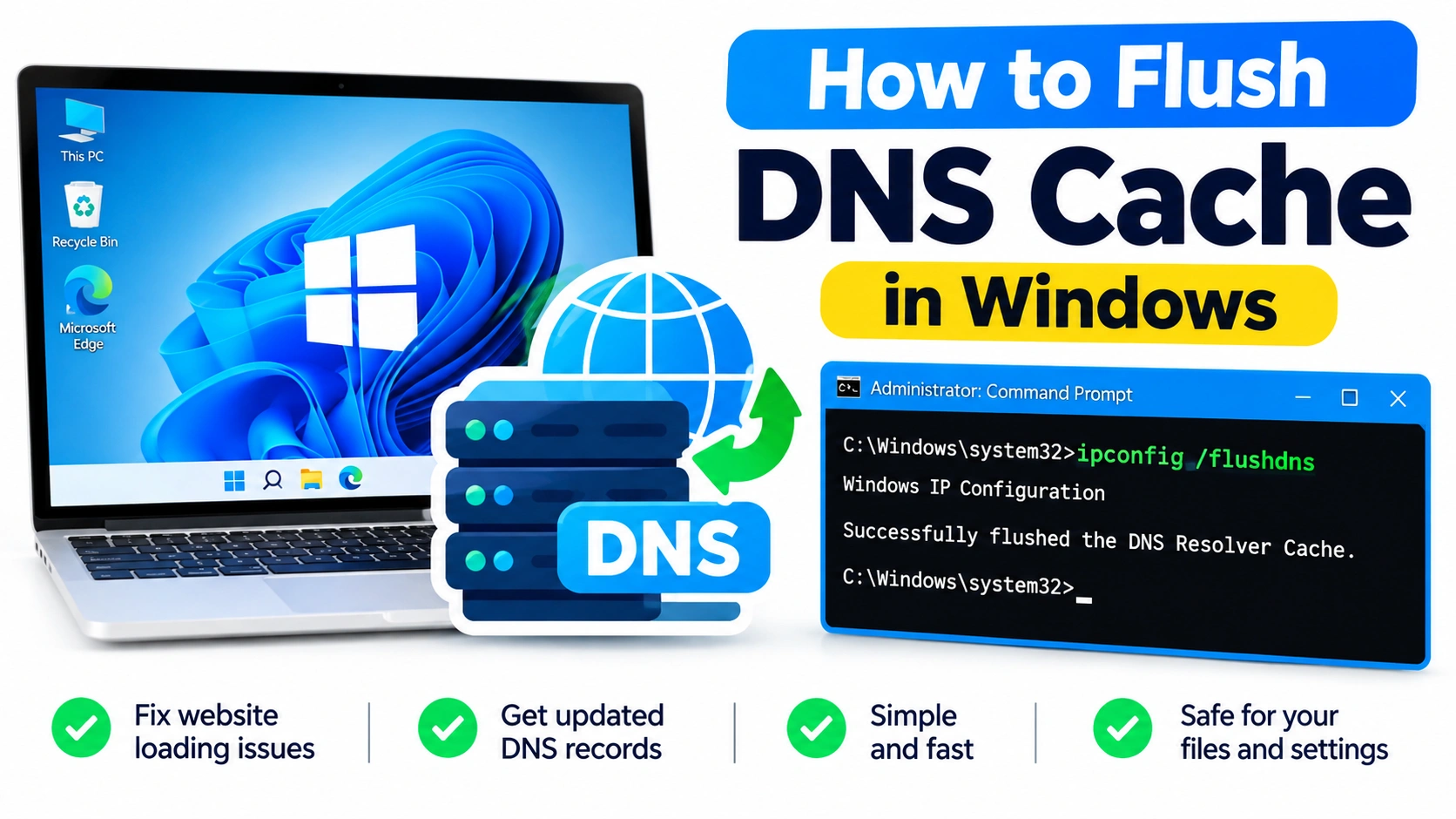
When websites suddenly stop loading, domain names resolve incorrectly, or your internet connection behaves strangely, the problem may be related to the DNS cache stored on your Windows PC. Flushing the DNS cache is a simple troubleshooting step that can force Windows to request fresh DNS information.
The process takes only a few seconds and does not delete your personal files, browser data, or saved passwords. In this guide, you’ll learn what the DNS cache does, when you should clear it, and how to flush DNS cache in Windows 10 and Windows 11.
What Is the DNS Cache?
DNS, or Domain Name System, translates website addresses such as example.com into IP addresses that computers use to communicate with servers.
To avoid performing a DNS lookup every time you visit a website, Windows temporarily stores recently resolved DNS information in a local cache.
For example, when you visit a website, your PC may remember its DNS result for a period of time. The next time you access the same domain, Windows can use the cached information instead of performing another lookup.
This normally makes browsing faster, but an outdated or incorrect DNS entry can occasionally cause connection problems.
Why Should You Flush the DNS Cache?
Flushing the DNS cache removes locally stored DNS records so Windows can obtain updated information.
You may want to flush DNS when:
- A website does not open even though your internet works.
- A domain recently changed servers or IP addresses.
- You receive DNS-related errors.
- Some websites work while others fail.
- A website works on your phone but not your PC.
- You recently changed DNS servers.
- Network troubleshooting steps have not resolved the problem.
- Windows appears to be using outdated DNS information.
Flushing DNS is especially useful after changing DNS settings or when a website has recently moved to a different server.
How to Flush DNS Cache in Windows
The fastest method is to use Command Prompt.
Step 1: Open Command Prompt
Press Windows + S and search for:
Command Prompt
Right-click Command Prompt and select Run as administrator.
You may see a User Account Control prompt. Select Yes to continue.
Step 2: Run the DNS Flush Command
In Command Prompt, enter:
ipconfig /flushdnsPress Enter.
Windows should display a message indicating that the DNS Resolver Cache was successfully flushed.
This means the cached DNS entries stored by the Windows DNS Client have been cleared.
Step 3: Test Your Connection
Close Command Prompt and try visiting the website that was experiencing problems.
If the problem was caused by an outdated DNS cache, the site may now load normally.
If it still does not work, the issue may involve your router, DNS server, network adapter, browser, firewall, or the website itself.
How to Flush DNS Using Windows PowerShell
You can also clear the DNS cache through PowerShell.
- Press Windows + X.
- Select Terminal (Admin) or Windows PowerShell (Admin), depending on your Windows version.
- Enter:
Clear-DnsClientCache- Press Enter.
The command clears the DNS client cache maintained by Windows.
You can then retry the website or application that was having connection problems.
How to Check the DNS Cache Before Flushing It
If you want to inspect the cached DNS entries first, open Command Prompt as administrator and run:
ipconfig /displaydnsWindows will display cached DNS information.
The output can contain domain names, record types, IP addresses, and other DNS-related information.
After reviewing the entries, you can clear them with:
ipconfig /flushdnsDoes Flushing DNS Delete Your Internet Settings?
No. Flushing DNS does not reset your Wi-Fi password, remove network adapters, delete personal files, or uninstall anything.
It simply clears cached DNS information maintained by Windows.
Afterward, Windows will perform new DNS lookups as applications need them.
Because DNS records are cached again over time, flushing the cache is not a permanent performance setting. It is primarily a troubleshooting technique.
What to Do If Flushing DNS Does Not Fix the Problem
If flushing DNS does not solve the issue, try these additional troubleshooting steps.
Restart Your Router
Restarting your router can resolve temporary network and DNS problems. Turn it off, wait briefly, and turn it back on.
Allow the connection to fully reconnect before testing the website again.
Try Another Website
Open several different websites.
If only one website fails, the problem may be specific to that domain rather than your computer’s DNS cache.
If many websites fail, investigate your network connection or DNS configuration.
Try a Different DNS Server
Your internet service provider normally provides DNS servers automatically, but you can also configure alternative DNS services.
Popular options include:
- Google Public DNS
- Cloudflare DNS
- Quad9
Before changing DNS servers, make sure the existing DNS configuration is actually causing the problem.
Restart Windows
A simple restart can resolve temporary networking problems and restart relevant Windows services.
If the problem started after a network configuration change, restarting the computer is a worthwhile step.
Check Your Network Adapter
If websites remain inaccessible, the problem may involve your Wi-Fi or Ethernet adapter.
Check Settings > Network & internet and make sure the appropriate connection is enabled.
You can also inspect the adapter in Device Manager for driver or hardware-related problems.
DNS Cache vs. Browser Cache
DNS cache and browser cache are different.
The DNS cache stores domain-resolution information used to help Windows find network addresses.
The browser cache stores website resources such as images, scripts, and other files to speed up page loading.
Therefore, clearing your browser cache does not necessarily flush the Windows DNS cache.
Likewise, flushing DNS does not clear your browser history, cookies, or cached website files.
If a website behaves incorrectly, you may need to troubleshoot both areas separately.
How Often Should You Flush DNS?
There is usually no reason to flush the DNS cache regularly.
Windows is designed to manage cached DNS information automatically. Repeatedly flushing the cache is unlikely to provide a permanent speed improvement.
Instead, flush DNS when you are troubleshooting a specific problem, such as incorrect domain resolution or difficulty accessing a website after DNS changes.
Common DNS Flush Errors
Most users will successfully flush the cache with:
ipconfig /flushdnsHowever, you may encounter problems if Command Prompt is not functioning correctly or if Windows networking components have other issues.
If the command does not produce the expected result, try opening Command Prompt as administrator and running it again.
You can also restart Windows and retry the command.
Frequently Asked Questions
Does flushing DNS improve internet speed?
Usually, no. Flushing DNS is primarily a troubleshooting method. It can fix problems caused by outdated DNS information, but it does not generally increase your internet connection’s maximum speed.
Is it safe to flush DNS?
Yes. Flushing the Windows DNS cache is generally safe and does not delete personal files or important Windows settings.
Do I need administrator access?
For the standard ipconfig /flushdns command, running Command Prompt as administrator is a reliable way to perform the operation and avoid permission-related issues.
Will I lose my Wi-Fi password?
No. Flushing DNS does not remove saved Wi-Fi credentials.
Should I flush DNS after changing DNS servers?
It can be useful. Clearing the existing cache helps ensure that subsequent DNS lookups are performed using the current DNS configuration.
Final Thoughts
Knowing how to flush DNS cache in Windows is a useful troubleshooting skill. The ipconfig /flushdns command provides a quick way to remove outdated DNS records and force Windows to perform fresh DNS lookups.
If a website suddenly stops working, DNS information has recently changed, or you’re experiencing unusual domain-resolution problems, flushing the DNS cache is a simple step worth trying. If it does not resolve the problem, continue troubleshooting your network connection, DNS configuration, browser, router, or network adapter.