

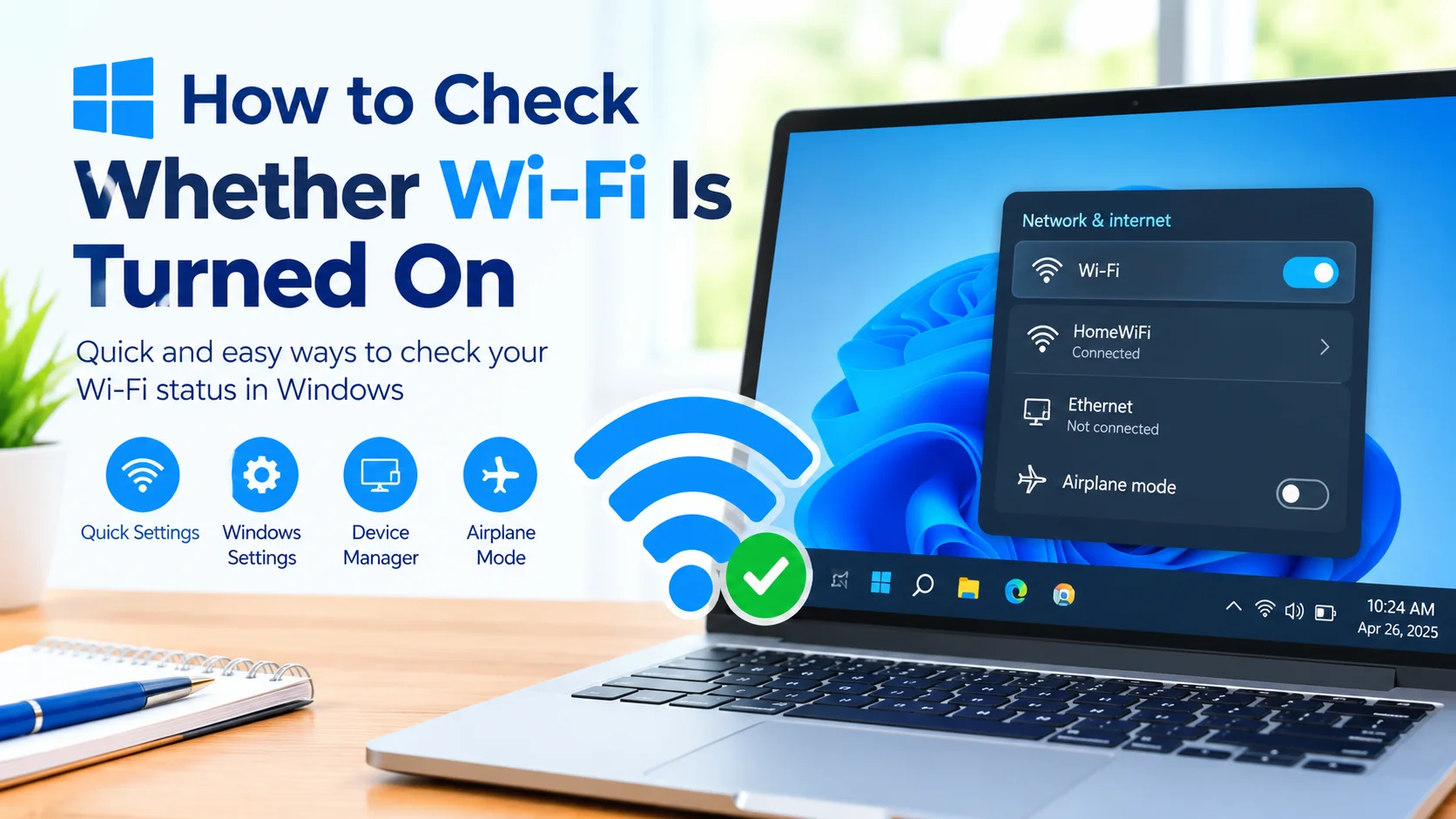
Wi-Fi is one of the easiest ways to connect a Windows computer to the internet without using an Ethernet cable. However, when a connection suddenly stops working, one of the first things to check is whether Wi-Fi is actually turned on.
Windows provides several simple ways to check whether Wi-Fi is turned on, including the Quick Settings panel, Windows Settings, and network-related options. Knowing where to look can help you quickly determine whether the problem is caused by a disabled wireless connection or something else.
In this guide, you’ll learn how to check Wi-Fi status in Windows and what to do if the Wi-Fi option is missing or turned off.
Why Check Whether Wi-Fi Is Turned On?
Before troubleshooting your internet connection, it is important to verify that your computer’s wireless adapter is enabled.
A disabled Wi-Fi connection can cause symptoms such as:
- No available wireless networks
- The Wi-Fi icon is missing
- Windows cannot connect to a wireless router
- Your computer shows an Ethernet connection instead
- Internet access disappears after restarting Windows
- A laptop cannot detect nearby Wi-Fi networks
Checking the Wi-Fi status first can save time because you may not need to perform more complicated troubleshooting.
Method 1: Check Wi-Fi Using Quick Settings
The fastest way to check Wi-Fi in Windows is through Quick Settings.
- Look at the right side of the Windows taskbar.
- Click the Network, Sound, or Battery area to open Quick Settings.
- Locate the Wi-Fi button.
- Check whether Wi-Fi is enabled.
- If Wi-Fi is turned off, click the Wi-Fi button to turn it on.
When Wi-Fi is enabled, Windows should display available wireless networks when you open the Wi-Fi options.
Select your preferred network and enter the password if Windows asks for one.
Method 2: Check Wi-Fi in Windows Settings
You can also verify Wi-Fi status through the Windows Settings app.
- Press Windows + I to open Settings.
- Select Network & internet.
- Look for the Wi-Fi option.
- Check the Wi-Fi switch.
- Turn the switch on if it is disabled.
Once Wi-Fi is enabled, select Show available networks to see nearby wireless networks.
This method is useful when the Quick Settings panel does not provide enough information about the current network configuration.
Method 3: Check Airplane Mode
Airplane mode can disable wireless communication, including Wi-Fi.
If Wi-Fi appears to be unavailable, check whether Airplane mode is enabled.
- Open Settings.
- Select Network & internet.
- Select Airplane mode.
- Make sure Airplane mode is turned off.
You can also check Airplane mode through Windows Quick Settings.
After disabling Airplane mode, wait a few seconds and check whether available Wi-Fi networks appear.
Method 4: Check the Wi-Fi Adapter
If the Wi-Fi switch is missing from Windows Settings, the wireless network adapter may be disabled.
To check the adapter:
- Right-click the Start button.
- Select Device Manager.
- Expand Network adapters.
- Look for a wireless adapter with a name containing terms such as Wireless, Wi-Fi, or 802.11.
- Right-click the adapter.
- If you see Enable device, select it.
If the adapter is already enabled, Windows should display Disable device instead.
Avoid disabling the adapter unless you are intentionally troubleshooting the wireless connection.
In this guide, you’ll learn practical ways to troubleshoot and fix a Wi-Fi adapter not working in Windows, starting with simple solutions and progressing to more advanced repairs.
What If the Wi-Fi Option Is Missing?
Sometimes Windows does not display the Wi-Fi option at all. This can happen for several reasons.
Possible causes include:
- The wireless adapter is disabled
- The Wi-Fi driver is missing or corrupted
- A recent Windows update affected the driver
- The computer does not have a wireless adapter
- Hardware problems are preventing Windows from detecting the adapter
- Airplane mode is enabled
- A laptop’s physical wireless switch or keyboard shortcut has disabled Wi-Fi
Start by checking Device Manager. If the wireless adapter does not appear, Windows may not be detecting the hardware or the required driver may not be installed correctly.
Check the Wi-Fi Driver
A driver problem can prevent Windows from properly communicating with the wireless adapter.
In Device Manager, expand Network adapters and locate the wireless device.
You can right-click it and select Properties to check its status. The General tab may display information about whether Windows has detected a problem with the device.
If the device has a warning icon, investigate the driver issue before continuing with more advanced network troubleshooting.
This guide outlines methods for addressing Windows driver issues, ranging from the simplest solutions to more advanced fixes.
Check Whether Wi-Fi Is Working
Turning Wi-Fi on does not necessarily mean that the computer has a working internet connection.
After enabling Wi-Fi, check whether Windows can detect nearby networks.
If networks appear, connect to your normal wireless network and test the connection by opening a website.
If no networks appear, move closer to the router and check whether other devices can detect the same network.
This helps determine whether the issue is limited to the Windows computer or affects the wireless network itself.
Restart Wi-Fi Before Restarting the Computer
A simple way to refresh a wireless connection is to turn Wi-Fi off and then turn it back on.
- Open Windows Quick Settings.
- Turn Wi-Fi off.
- Wait approximately 10 seconds.
- Turn Wi-Fi back on.
- Check the available networks.
- Reconnect to your wireless network.
This quick reset can resolve temporary wireless connection problems without requiring a full system restart.
When to Restart the Router
If Wi-Fi is enabled on your Windows computer but there are still connection problems, the router may be responsible.
Check another device, such as a smartphone or tablet, to determine whether it can connect to the same wireless network.
If multiple devices cannot connect, restart the router according to the manufacturer’s instructions.
Give the router a few minutes to reconnect to your internet service before testing the Windows computer again.
Frequently Asked Questions
How do I know if Wi-Fi is turned on?
Open Windows Quick Settings or go to Settings > Network & internet > Wi-Fi. If the Wi-Fi control is enabled, wireless networking is turned on.
Why can’t I see the Wi-Fi option in Windows?
A missing Wi-Fi option can be caused by a disabled wireless adapter, driver problems, Airplane mode, or an issue with the computer’s wireless hardware.
How do I turn Wi-Fi back on?
Open Quick Settings and select the Wi-Fi button, or open Settings > Network & internet > Wi-Fi and enable the Wi-Fi switch.
Does turning Wi-Fi on guarantee internet access?
No. Wi-Fi can be enabled while the computer is disconnected from a wireless network or while the router has no internet connection.
Why does my laptop keep losing Wi-Fi?
Possible causes include weak wireless signal, driver problems, power-management settings, router problems, interference, or network configuration issues.
Final Thoughts
Knowing how to check whether Wi-Fi is turned on in Windows is a useful first step when troubleshooting wireless connectivity. Start with Quick Settings, then check Windows Settings and Device Manager if the Wi-Fi option is unavailable.
If Wi-Fi is enabled but Windows still cannot connect, investigate the wireless adapter, driver, router, and network configuration. Checking these basic components in order can help identify the source of the problem without immediately resorting to complicated fixes.