

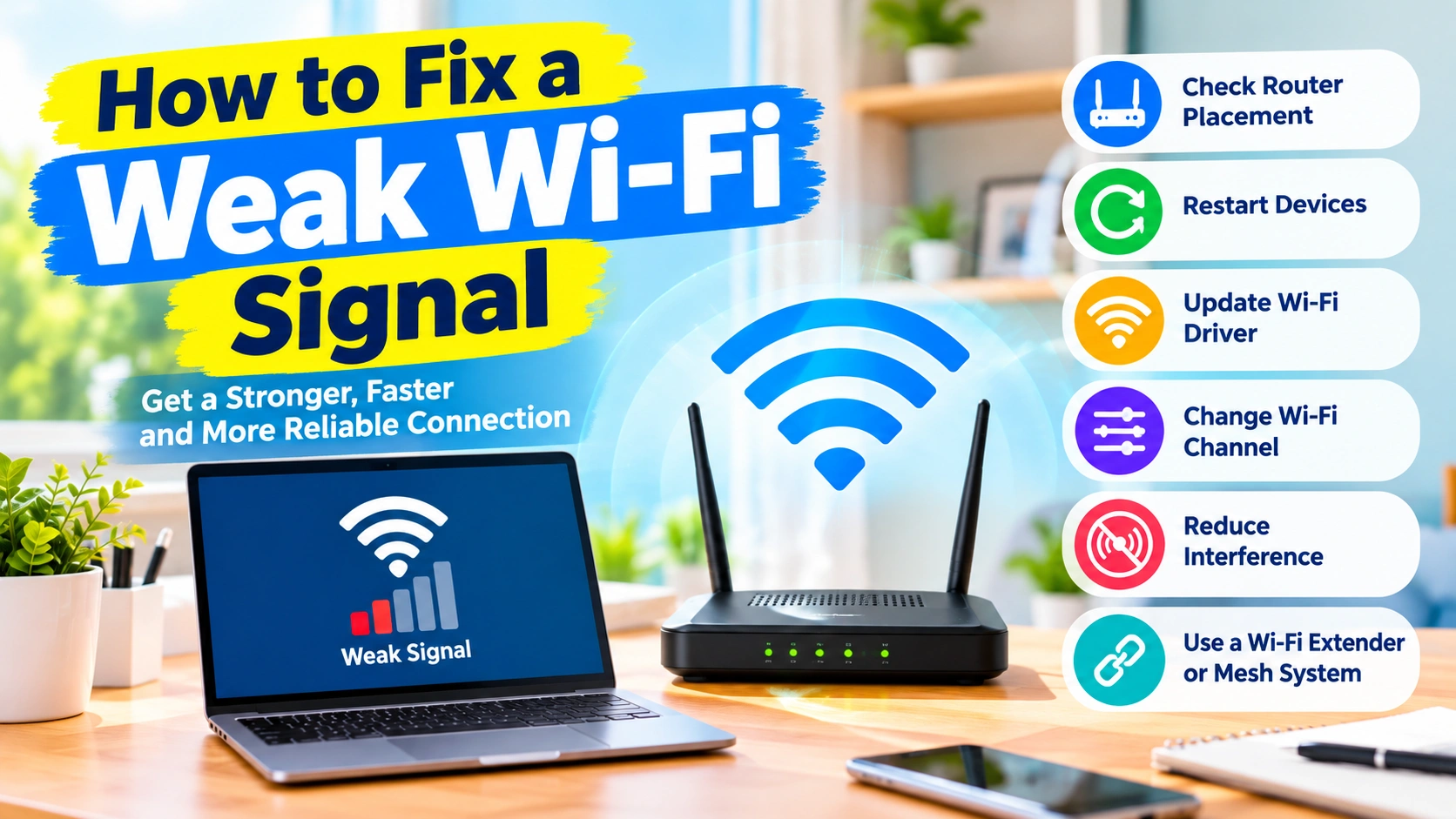
A weak Wi-Fi signal can make everyday internet use frustrating. Web pages may load slowly, videos can buffer, downloads may take much longer, and online meetings or games can disconnect unexpectedly. The problem may be caused by the router’s location, interference, outdated drivers, network congestion, or a weak wireless adapter.
Fortunately, you can often improve Wi-Fi performance without replacing your entire network.
This guide explains how to fix a weak Wi-Fi signal on Windows and how to improve wireless coverage throughout your home or office.
Why Is My Wi-Fi Signal Weak?
A weak Wi-Fi signal can have several causes. Common reasons include:
- Your computer is too far from the router.
- Walls, floors, or furniture block the wireless signal.
- Other devices create wireless interference.
- The router is positioned poorly.
- Too many devices are connected simultaneously.
- Your computer uses an outdated Wi-Fi driver.
- The router firmware needs an update.
- Your Wi-Fi adapter is configured incorrectly.
- The router is using a crowded wireless channel.
- The computer is connected to the wrong Wi-Fi band.
- The wireless adapter has a hardware problem.
Before changing advanced settings, determine whether the weak signal affects one device or every device. This simple test can help identify where the problem originates.
1. Move Closer to the Wi-Fi Router
The easiest way to test a weak Wi-Fi signal is to move your computer closer to the router.
Wireless signals become weaker as distance increases. Obstacles between your computer and router can reduce the signal even further.
Try moving your laptop or PC into the same room as the router and reconnecting.
If the connection becomes significantly stronger, distance or physical obstacles are probably contributing to the problem.
For better coverage
Place the router:
- Near the center of your home
- On an elevated surface
- Away from large metal objects
- Away from thick concrete walls
- Away from enclosed cabinets
- Away from appliances that may cause interference
Avoid hiding the router inside a desk, cabinet, or other enclosed space.
2. Restart Your Router
A simple router restart can sometimes resolve temporary wireless problems.
To restart the router:
- Save your work and disconnect important network activity.
- Turn off the router.
- Wait approximately 30 seconds.
- Turn the router back on.
- Wait for the internet and Wi-Fi indicators to stabilize.
- Reconnect your Windows computer.
Restarting can clear temporary software problems and reinitialize the wireless connection.
If the signal remains weak after restarting, continue with the next solutions.
3. Restart Your Windows Computer
The problem may be located on the computer rather than the router.
Restart Windows before making complicated changes.
After restarting:
- Open Settings.
- Select Network & internet.
- Select Wi-Fi.
- Connect to your wireless network.
- Check the signal strength.
If the connection improves after restarting, a temporary Windows networking problem may have been responsible.
4. Check the Wi-Fi Signal Strength in Windows
Windows provides a quick way to check the strength of your current wireless connection.
Select the Wi-Fi icon on the Windows taskbar.
The wireless network should display a signal-strength indicator.
Generally:
- Full bars: Strong signal
- Three bars: Good signal
- Two bars: Moderate signal
- One bar: Weak signal
If the signal is consistently very low, moving closer to the router is a useful first test.
5. Forget and Reconnect to the Wi-Fi Network
Windows can occasionally experience problems with a saved wireless network profile.
Removing the saved network and reconnecting can help.
How to forget Wi-Fi in Windows 11
- Press Windows + I.
- Open Network & internet.
- Select Wi-Fi.
- Select Manage known networks.
- Find your wireless network.
- Click Forget.
- Return to the Wi-Fi menu.
- Select your network.
- Enter the Wi-Fi password.
- Click Connect.
Windows will create a new connection using the network’s current settings.
6. Update Your Wi-Fi Adapter Driver
An outdated or incompatible wireless driver can cause connectivity and performance problems.
To check for driver updates:
- Right-click the Start button.
- Select Device Manager.
- Expand Network adapters.
- Locate your wireless adapter.
- Right-click it.
- Select Update driver.
- Choose Search automatically for drivers.
You can also check the computer manufacturer’s support website for the latest driver.
For example, laptops may use wireless hardware from Intel, Realtek, MediaTek, Qualcomm, or another manufacturer.
Why drivers matter
A newer driver may improve:
- Wireless stability
- Compatibility
- Connection reliability
- Power management
- Performance with newer routers
If the problem started immediately after a driver update, the Roll Back Driver option may also be worth checking.
7. Use the Correct Wi-Fi Band
Modern routers commonly provide multiple wireless bands, particularly 2.4 GHz and 5 GHz. Newer equipment may also support 6 GHz.
Each band has different characteristics.
| Wi-Fi Band | Coverage | Typical Advantage |
|---|---|---|
| 2.4 GHz | Longer range | Better through walls |
| 5 GHz | Shorter range | Higher speeds and less congestion |
| 6 GHz | Shorter range | More available spectrum with compatible hardware |
If your computer is far away from the router, 2.4 GHz may provide a more reliable connection.
If your computer is close to the router, 5 GHz can provide higher performance when supported by both devices.
Therefore, the fastest band is not always the best choice for a distant device.
8. Reduce Wireless Interference
Wireless interference can make a Wi-Fi signal appear weaker or make a connection unstable.
Potential sources include:
- Bluetooth devices
- Wireless speakers
- Cordless equipment
- Microwaves
- Nearby wireless networks
- USB 3.x devices placed close to some wireless adapters
- Other radio-frequency equipment
Try moving your router away from potential sources of interference.
Also avoid placing the router directly beside:
- TVs
- Large speakers
- Metal objects
- Electrical equipment
- Thick bundles of cables
A small change in router position can sometimes produce a noticeable improvement.
9. Change the Router’s Wireless Channel
If many nearby networks use the same wireless channel, congestion can affect performance.
This is especially relevant in apartments, offices, dormitories, and densely populated neighborhoods.
Log in to your router’s administration interface and look for wireless settings such as:
- Channel
- Channel width
- Wireless mode
- Band selection
For 2.4 GHz networks, channels 1, 6, and 11 are commonly used because they avoid overlapping with one another under typical 20 MHz configurations.
For 5 GHz and 6 GHz networks, available channels and restrictions vary by region and router.
If your router supports automatic channel selection, you can also test its automatic configuration.
10. Reposition the Router
Router placement has a major effect on wireless coverage.
A router should generally be placed in an open and relatively central location.
Poor router placement
Avoid placing the router:
- On the floor
- Inside a cabinet
- Behind a television
- In a corner
- Next to a large metal object
- Inside a closed room at the edge of the building
Better router placement
Try placing it:
- Higher off the floor
- In an open area
- Near the center of the coverage area
- Away from thick walls
- Away from sources of interference
If your router has external antennas, positioning them according to the manufacturer’s recommendations can also help.
11. Disable Wi-Fi Power Saving Temporarily
Windows may use power-management features to reduce wireless adapter power consumption.
On some systems, aggressive power saving can contribute to wireless performance problems.
To inspect the setting:
- Open Device Manager.
- Expand Network adapters.
- Right-click your wireless adapter.
- Select Properties.
- Open the Power Management tab.
- Review the available options.
You may see an option similar to:
Allow the computer to turn off this device to save power
For troubleshooting, you can temporarily disable this option and test the connection.
If battery life is important on a laptop, compare performance before permanently changing power settings.
12. Run the Windows Network Troubleshooter
Windows includes built-in troubleshooting tools that can identify some common network problems.
Open:
Settings → System → Troubleshoot → Other troubleshooters
Look for the available network or internet troubleshooting options.
The exact troubleshooting interface can change between Windows versions and updates.
The troubleshooter may identify problems involving:
- Network configuration
- Wireless connectivity
- Adapter configuration
- Internet access
- DNS or related network components
It may also recommend a corrective action.
13. Reset Windows Network Settings
If your Wi-Fi configuration has become corrupted or contains conflicting settings, a network reset can help.
In Windows 11, open:
Settings → Network & internet → Advanced network settings → Network reset
Then review the information Windows displays before confirming.
Important
A network reset can remove saved network adapters and configurations. You may need to reconnect to your wireless networks afterward.
Because of this, use network reset after simpler troubleshooting steps have failed.
14. Check Whether Other Devices Have the Same Problem
This is one of the most useful troubleshooting tests.
Connect another device to the same Wi-Fi network.
For example:
- Smartphone
- Laptop
- Tablet
- Smart TV
Then compare the signal strength in the same location.
If every device has a weak signal
The problem is more likely related to:
- Router placement
- Router configuration
- Wireless interference
- Router hardware
- Home layout
- Internet equipment
If only one computer has a weak signal
The problem is more likely related to:
- Wi-Fi adapter
- Driver
- Windows configuration
- Antenna
- Power-management settings
- Computer hardware
This test can prevent you from changing router settings unnecessarily.
15. Consider a Wi-Fi Extender or Mesh System
If your home has areas where the Wi-Fi signal is consistently weak, software changes may not be enough.
A Wi-Fi extender can increase coverage by receiving the existing wireless signal and retransmitting it.
A mesh Wi-Fi system uses multiple network nodes to provide broader coverage throughout a larger property.
Consider a mesh system when:
- Your home is large.
- There are multiple floors.
- Thick walls block the signal.
- One router cannot cover the entire building.
- Several areas consistently have poor coverage.
However, adding more wireless equipment is not always the best first solution. Improving router placement and reducing interference should usually come first.
How to Check Whether Wi-Fi Is Actually Slow
A weak signal and a slow internet connection are not necessarily the same problem.
Your Wi-Fi signal can be strong while your internet connection is slow because of:
- ISP congestion
- Router problems
- DNS issues
- Network congestion
- Server-side problems
- Background downloads
- Too many connected devices
You can test this by checking internet performance close to the router and then from the location where the connection is weak.
If performance is good beside the router but poor in another room, wireless coverage is more likely to be the problem.
Check for Background Network Usage
Another device or application may be consuming significant bandwidth.
On Windows, open Task Manager by pressing:
Ctrl + Shift + Esc
Check applications using network resources.
Background activities can include:
- Windows updates
- Cloud synchronization
- Game downloads
- Video streaming
- File backups
- Software updates
Stopping unnecessary downloads can improve available bandwidth, although it will not physically increase the Wi-Fi signal strength.
Improve Wi-Fi Signal on a Desktop PC
Desktop computers can sometimes have weaker wireless reception than laptops.
Some desktop Wi-Fi adapters use small antennas positioned behind the computer.
Try:
- Check that the antennas are properly connected.
- Position the antennas away from the computer chassis where practical.
- Avoid placing the PC directly inside a cabinet.
- Update the wireless adapter driver.
- Test the computer closer to the router.
If the desktop consistently receives a much weaker signal than other devices, the adapter or antenna may need inspection.
When Should You Replace the Wi-Fi Adapter?
Consider replacing the wireless adapter if:
- The adapter frequently disconnects.
- The driver is current but problems continue.
- Other devices have strong Wi-Fi in the same location.
- The computer consistently has much lower signal strength.
- The adapter does not support your router’s wireless standards.
- The adapter or antenna appears physically damaged.
For desktop PCs, a quality PCIe Wi-Fi adapter with properly positioned antennas can provide better reception than an older built-in adapter.
Quick Fix Checklist
If you want to troubleshoot a weak Wi-Fi signal quickly, follow these steps in order:
- Move closer to the router.
- Restart the router.
- Restart Windows.
- Check the Wi-Fi signal strength.
- Forget and reconnect to the network.
- Update the Wi-Fi driver.
- Try the 2.4 GHz or 5 GHz band.
- Move the router to a better location.
- Reduce wireless interference.
- Check wireless channel settings.
- Review Wi-Fi adapter power management.
- Test another device.
- Reset Windows network settings if necessary.
- Inspect the Wi-Fi adapter and antennas.
- Consider an extender or mesh system for large coverage areas.
Frequently Asked Questions
Why is my Wi-Fi signal suddenly weak?
A sudden change can be caused by router problems, interference, driver changes, a new nearby wireless network, hardware issues, or changes to the router’s configuration.
Restarting the router and testing another device can help narrow down the cause.
Does moving the router improve Wi-Fi?
Yes. Router placement can have a significant effect on wireless coverage. A central, elevated, open position generally provides better coverage than a router hidden in a cabinet or placed behind large objects.
Is 2.4 GHz better than 5 GHz for weak Wi-Fi?
Not necessarily, but 2.4 GHz generally travels farther and penetrates obstacles better than 5 GHz. If you are far from the router, 2.4 GHz may provide a more reliable connection.
Can a Wi-Fi driver cause a weak signal?
Yes. An outdated, incompatible, or malfunctioning wireless driver can contribute to connectivity and performance problems. Updating or reinstalling the appropriate driver can help.
Does a Wi-Fi extender increase internet speed?
A Wi-Fi extender primarily improves coverage. It does not increase the speed provided by your internet service. Depending on the extender and wireless conditions, the connection through an extender may also be slower than connecting directly to the router.
Why is Wi-Fi strong near the router but weak in another room?
Distance, walls, floors, furniture, metal objects, and interference can weaken wireless signals. This is usually a coverage problem rather than an internet-service problem.
Should I use a Wi-Fi extender or mesh Wi-Fi?
The right choice depends on the size and layout of the property. An extender can help with a specific weak area, while a mesh system is designed to provide broader coverage across multiple rooms or floors.
Final Thoughts
Fixing a weak Wi-Fi signal does not always require buying new networking equipment. Start by checking the distance from the router, improving router placement, reducing interference, updating your Windows Wi-Fi driver, and testing different wireless bands.
Most importantly, determine whether the problem affects one device or the entire network. If only one computer has poor reception, investigate its wireless adapter, driver, antenna, and Windows configuration. If every device struggles in the same area, focus on router placement, interference, channels, or expanding network coverage.
By working through these solutions systematically, you can identify the cause of weak Wi-Fi and improve wireless reliability without making unnecessary changes.