

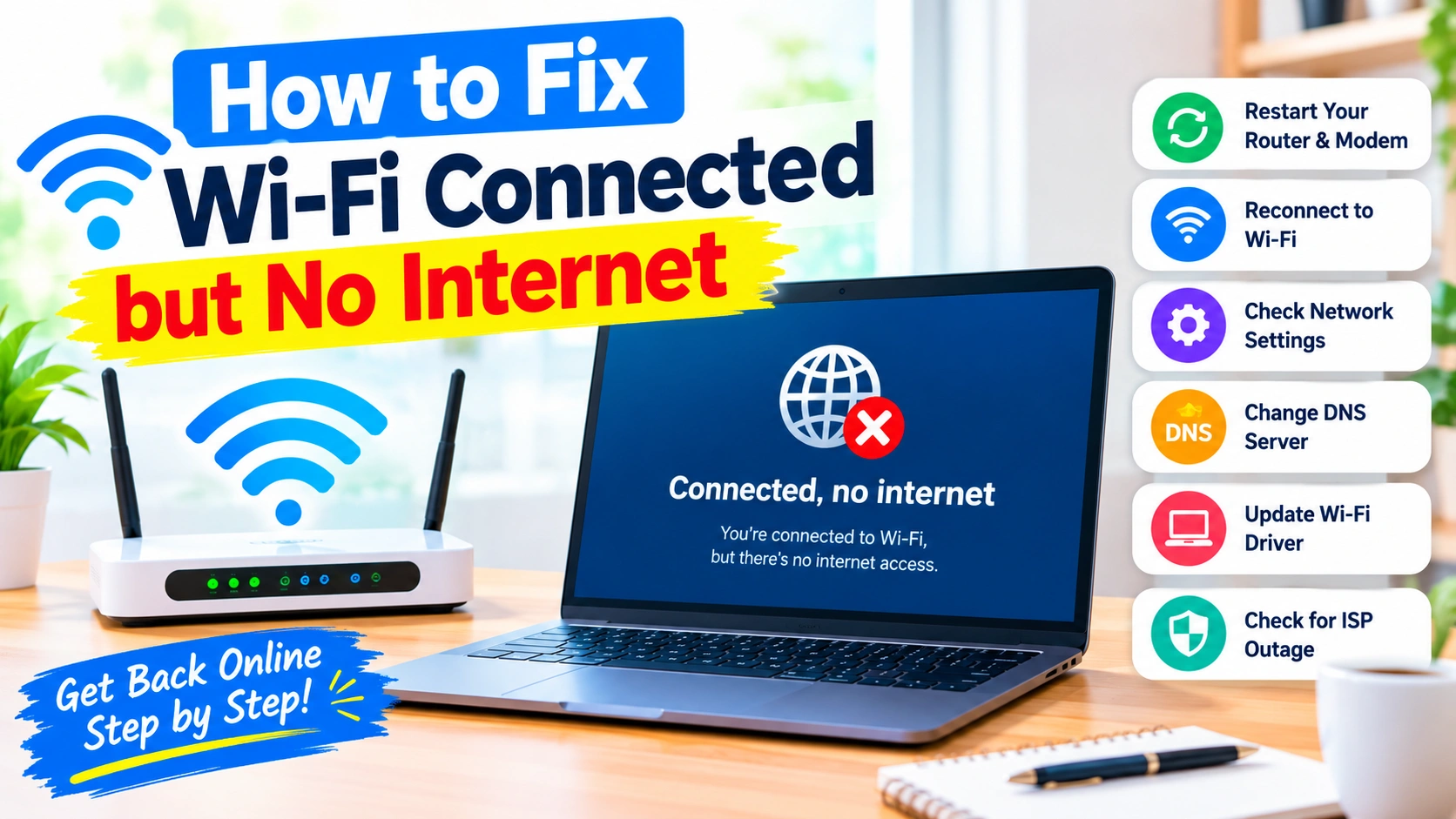
Seeing “Connected, no internet” on your computer or phone can be frustrating. Your device may show a strong Wi-Fi signal, yet websites refuse to load, apps cannot connect, and online services stop working.
The good news is that this problem is often caused by a temporary network issue, incorrect settings, DNS problems, or a router that needs attention. In many cases, you can restore your internet connection without contacting your internet service provider.
This guide explains how to troubleshoot the Wi-Fi connected but no internet problem step by step.
What Does “Connected but No Internet” Mean?
When your device connects to Wi-Fi, it establishes a wireless connection with your router. However, that does not necessarily mean the router has a working connection to the internet.
For example, your device may be communicating with your router normally while the router itself has lost its connection to your ISP.
Common symptoms include:
- Wi-Fi shows as connected, but websites do not open
- Windows displays “No Internet” or “No Internet, secured”
- Apps cannot access online services
- Other devices on the same network also have no internet
- Some websites work while others do not
- The Wi-Fi signal appears strong but internet access fails
The first step is determining whether the problem affects one device or the entire network.
1. Check Whether Other Devices Have Internet
Before changing settings, connect another phone, tablet, or computer to the same Wi-Fi network.
If other devices also cannot access the internet, the problem is probably related to your router, modem, or ISP.
If other devices work normally, the issue is more likely limited to your computer or phone.
This simple test can save you considerable troubleshooting time.
2. Restart Your Router and Modem
Restarting your network equipment is one of the easiest ways to resolve temporary connection problems.
Follow these steps:
- Turn off your router.
- If you have a separate modem or fiber ONT, turn it off as well.
- Wait about 30–60 seconds.
- Turn the modem or ONT back on first.
- Wait for its connection lights to stabilize.
- Turn the router back on.
- Wait a few minutes and reconnect your device.
A restart can clear temporary network errors and re-establish the connection between your equipment and your ISP.
3. Restart Your Computer or Phone
If the router appears to be working, restart the affected device.
A reboot can reset network services, clear temporary software problems, and reconnect the device to the Wi-Fi network.
After restarting, check whether you can open several different websites.
4. Forget and Reconnect to the Wi-Fi Network
Your saved Wi-Fi profile can occasionally become corrupted or contain outdated connection information.
On Windows, you can remove the network from your saved Wi-Fi networks and connect again.
After forgetting the network:
- Select the Wi-Fi icon.
- Find your wireless network.
- Choose the option to forget or remove it.
- Select the network again.
- Enter the Wi-Fi password.
- Test your internet connection.
This creates a fresh wireless connection between your device and router.
5. Check Airplane Mode and Wi-Fi Settings
Make sure Airplane mode is disabled and Wi-Fi is enabled.
On a laptop, also check whether your device has a physical wireless switch or keyboard shortcut that can disable Wi-Fi.
If Wi-Fi repeatedly disconnects, check whether the issue occurs only in one location or with one particular network. That information can help determine whether the problem is related to the device or the network itself.
6. Run the Windows Network Troubleshooter
Windows includes built-in tools that can identify certain network configuration problems.
Open Settings > Network & internet and look for the available network troubleshooting or diagnostic options.
Windows may detect problems involving:
- Network adapters
- IP configuration
- DNS settings
- Default gateways
- Network services
The automated troubleshooter cannot fix every problem, but it is worth trying before making advanced changes.
7. Restart the Network Adapter
Sometimes the Wi-Fi adapter is connected but not communicating correctly with the network.
You can temporarily disable and re-enable the adapter.
On Windows:
- Open Settings > Network & internet.
- Open the advanced network settings.
- Find your Wi-Fi adapter.
- Disable it.
- Wait several seconds.
- Enable it again.
- Reconnect to your Wi-Fi network.
This effectively resets the wireless adapter without requiring a complete system restart.
8. Renew Your IP Address
Your computer receives an IP address from the router. If the IP configuration becomes invalid or conflicts with another device, internet access may stop working.
On Windows, open Command Prompt and run:
ipconfig /release
ipconfig /renew
The first command releases the current IP address, while the second requests a new one from the router.
Afterward, try opening a website again.
9. Flush the DNS Cache
DNS translates website names such as example.com into IP addresses that computers can use.
A damaged or outdated DNS cache can sometimes prevent websites from loading even when your network connection is working.
Open Command Prompt and run:
ipconfig /flushdns
You should receive a message confirming that the DNS resolver cache was successfully cleared.
Then try accessing several websites.
10. Try a Different DNS Server
If your ISP’s DNS service is experiencing problems, switching to another reputable DNS service may help.
Popular public DNS services include providers such as Cloudflare and Google.
Changing DNS will not fix a disconnected router or an ISP outage, but it can help when the underlying internet connection works while domain-name lookups fail.
Before changing DNS settings, record your existing configuration so you can restore it if necessary.
11. Disable VPN and Proxy Connections
A VPN or proxy can interfere with normal internet traffic.
If you recently installed or enabled a VPN, temporarily disconnect it and test your connection.
Also check your system’s proxy settings. An incorrect proxy configuration can prevent browsers and applications from reaching the internet.
If the internet works immediately after disabling the VPN or proxy, investigate its configuration rather than changing your Wi-Fi settings unnecessarily.
12. Check Your Date and Time
Incorrect system time can cause connection problems with websites and secure services.
Make sure your computer or phone is set to automatically obtain the correct date, time, and time zone.
On Windows, check Settings > Time & language > Date & time and enable automatic time settings where appropriate.
This is especially important when websites display certificate or security errors.
13. Update Your Wi-Fi Driver
An outdated or malfunctioning network driver can cause connectivity problems.
On Windows, open Device Manager, expand Network adapters, and locate your wireless adapter.
Check for an available driver update from your computer manufacturer or the wireless adapter manufacturer.
If the problem started immediately after a driver update, you may also want to investigate whether rolling back the driver resolves the issue.
Avoid downloading drivers from unfamiliar websites. Whenever possible, use the manufacturer’s official support page.
14. Reset Windows Network Settings
If you’ve tried the basic fixes and the problem continues, Windows provides a network reset option.
A network reset removes and reinstalls network adapters and returns certain network settings to their defaults.
Use this option carefully because you may need to reconnect to Wi-Fi networks afterward and reconfigure VPN or other network software.
It is best treated as a later troubleshooting step rather than the first solution.
15. Check Your Router’s Internet Connection
If every device connected to the Wi-Fi network has no internet access, inspect the router and modem.
Look at the status lights and check whether the equipment reports an internet or WAN connection problem.
You can also log in to the router’s administration interface and check its internet status.
If the router cannot obtain an internet connection from your ISP, changing settings on your computer is unlikely to solve the problem.
16. Check for an Internet Service Outage
Sometimes the problem has nothing to do with your device.
Your ISP may be experiencing:
- A regional outage
- Maintenance
- Fiber or cable problems
- Authentication issues
- Temporary service interruptions
Check your ISP’s official service-status page or contact its support team if multiple devices remain offline.
If your neighbors using the same provider are experiencing the same problem, that is another indication that the issue may be outside your home network.
17. Test With an Ethernet Cable
If possible, connect your computer directly to the router using an Ethernet cable.
If Ethernet provides internet access while Wi-Fi does not, the problem is likely related to the wireless connection, Wi-Fi configuration, interference, or the wireless adapter.
If Ethernet also has no internet access, the problem is more likely related to the router, modem, ISP, or broader network configuration.
18. Move Closer to the Router
A weak or unstable wireless signal can cause connection problems, particularly when there are thick walls, floors, metal objects, or other sources of interference between your device and router.
Try moving closer to the router and reconnecting.
If the connection improves significantly, consider repositioning the router or using a mesh Wi-Fi system or extender to improve coverage.
19. Check for Device-Specific Problems
If only one device has no internet while every other device works, focus your troubleshooting on that device.
Possible causes include:
- Corrupted network settings
- A faulty Wi-Fi driver
- VPN or proxy software
- Security software
- DNS configuration
- Network adapter problems
- Incorrect IP settings
This situation usually does not require replacing the router.
20. When to Contact Your ISP
Contact your internet provider if you’ve restarted your equipment and multiple devices still cannot access the internet.
Before contacting support, collect useful information such as:
- When the problem started
- Whether all devices are affected
- Whether the router shows an internet connection
- Whether Ethernet works
- Any error messages displayed
- Whether the problem occurs continuously or intermittently
This information can help support staff identify whether the issue is related to your home equipment or their network.
Quick Fix Checklist
If you want to troubleshoot the problem quickly, work through these steps in order:
- Check another device.
- Restart the router and modem.
- Restart your computer or phone.
- Forget and reconnect to Wi-Fi.
- Disable any VPN or proxy.
- Restart the Wi-Fi adapter.
- Renew the IP address.
- Flush the DNS cache.
- Check for an ISP outage.
- Update the Wi-Fi driver.
- Try Ethernet.
- Reset network settings as a last resort.
Final Thoughts
A Wi-Fi connected but no internet problem does not necessarily mean your Wi-Fi hardware is broken. The wireless connection between your device and router can work perfectly while the router, DNS configuration, IP address, or ISP connection has a problem.
Start with the simplest checks: test another device, restart your network equipment, and reconnect to Wi-Fi. If the problem affects only one computer, focus on its network adapter, IP configuration, DNS, VPN, and drivers. If every device is offline, investigate the router, modem, and ISP connection instead.
By narrowing down where the connection fails, you can usually identify the cause without making unnecessary changes to your network.