

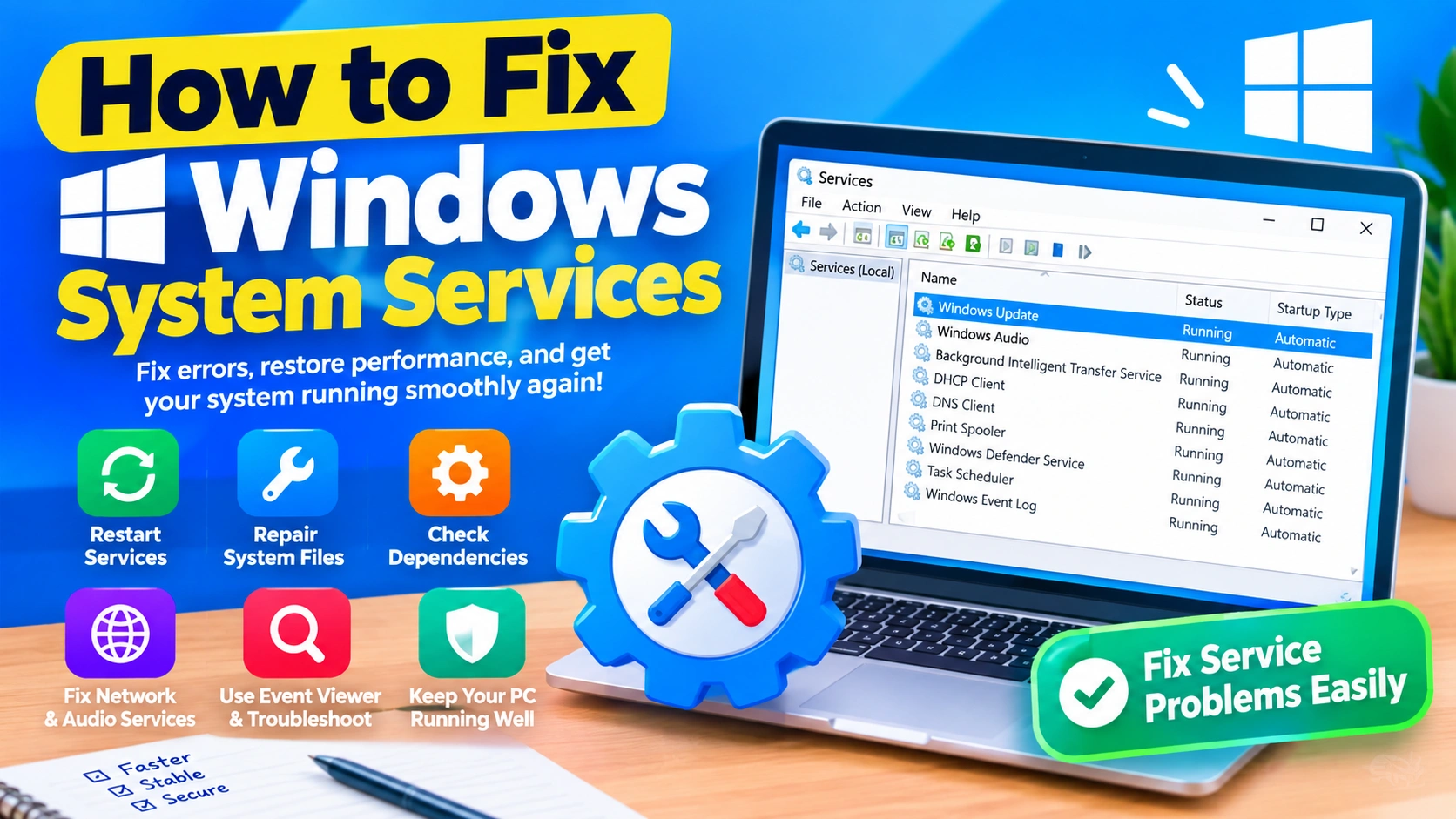
Windows relies on dozens of background services to handle essential functions such as networking, updates, security, audio, printing, and system maintenance. When one or more services stop working correctly, you may experience error messages, missing features, slow performance, or applications that refuse to start.
Fortunately, many Windows service problems can be repaired without reinstalling the operating system. This guide explains how to fix Windows system services using built-in Windows tools and practical troubleshooting methods.
What Are Windows System Services?
Windows system services are background processes that perform specific operating-system functions. Unlike normal applications, many services start automatically when Windows boots and continue running without requiring user interaction.
Examples include:
- Windows Update
- Windows Audio
- Background Intelligent Transfer Service (BITS)
- Windows Defender-related services
- DHCP Client
- DNS Client
- Print Spooler
- Windows Installer
- Task Scheduler
- Windows Event Log
If an important service is disabled, stopped, or damaged, Windows may not function normally.
Common Signs of Windows System Service Problems
A service problem can produce different symptoms depending on which component is affected.
You may notice:
- Windows Update fails repeatedly
- No internet connection
- Sound stops working
- Printers cannot be detected
- Applications fail to install
- Windows Security displays an error
- The computer becomes unusually slow
- Services cannot be started
- A service stops immediately after starting
- Windows displays error codes
- Certain features disappear from Settings
- The system freezes during startup
Before making changes, identify the affected service whenever possible.
1. Restart the Problematic Windows Service
The easiest solution is often to restart the affected service.
How to restart a service
- Press Windows + R.
- Type:
services.msc- Press Enter.
- Find the service associated with the problem.
- Right-click it.
- Select Restart.
If Restart is unavailable, choose Stop, wait a few seconds, and then select Start.
Check the startup type
Double-click the service and look at Startup type.
Common options include:
- Automatic
- Automatic (Delayed Start)
- Manual
- Disabled
Do not randomly change startup types. Some Windows services are designed to start only when another component requests them.
2. Run Windows Troubleshooters
Windows includes troubleshooting tools that can automatically detect certain service-related problems.
Depending on your Windows version, open:
Settings → System → Troubleshoot → Other troubleshooters
Run the troubleshooter related to your problem.
For example, if your issue involves networking, use the network troubleshooter. If Windows Update is failing, use the Windows Update troubleshooter.
These tools can identify configuration problems without requiring manual service changes.
3. Repair Corrupted Windows System Files
Damaged system files are a common cause of Windows services failing to start.
Microsoft provides the System File Checker (SFC) tool for this purpose.
Run SFC
- Right-click Start.
- Select Terminal (Admin) or Command Prompt (Admin).
- Enter:
sfc /scannow- Press Enter.
- Wait until the scan reaches 100%.
SFC checks protected Windows files and attempts to replace damaged versions with cached copies.
Restart your computer after the scan completes.
4. Use DISM to Repair the Windows Component Store
If SFC reports that it could not repair some files, use Deployment Image Servicing and Management (DISM).
Open an administrator Terminal and run:
DISM /Online /Cleanup-Image /RestoreHealthAllow the operation to finish. It may take several minutes.
After DISM completes, run SFC again:
sfc /scannowThis sequence can be useful when Windows components required by system services have become corrupted.
5. Check Windows Update Services
Windows Update depends on several background services. If updates are stuck or repeatedly fail, check the relevant services.
Open:
services.mscLook for services such as:
- Windows Update
- Background Intelligent Transfer Service
- Cryptographic Services
- Windows Installer
Make sure they are not unnecessarily disabled.
You can also restart Windows Update-related services from an administrator Terminal.
For example:
net stop wuauserv
net stop bits
net start bits
net start wuauserv
Then restart Windows and check for updates again.
6. Repair Network-Related Services
If your computer cannot connect to the internet, a Windows service may be malfunctioning.
Important networking services can include:
- DHCP Client
- DNS Client
- WLAN AutoConfig
- Network Connections
- Network Location Awareness
For Wi-Fi problems, pay particular attention to WLAN AutoConfig.
Open services.msc, locate the service, and check whether it is running.
You can restart it if necessary.
If the service cannot start, investigate the error shown in its Properties window rather than changing unrelated services.
7. Check the Windows Audio Service
If Windows has no sound, the Windows Audio service may be stopped.
Open:
services.mscFind:
Windows Audio
Right-click it and select Restart.
Also check Windows Audio Endpoint Builder.
If restarting the services does not solve the problem, check your audio driver in Device Manager.
A damaged or incompatible driver can cause audio services to behave incorrectly.
8. Restart the Print Spooler
Printer problems are frequently associated with the Print Spooler service.
If documents remain stuck in the print queue:
- Press Windows + R.
- Enter:
services.msc- Find Print Spooler.
- Right-click it.
- Select Restart.
If restarting the service does not work, remove stuck print jobs from the printer queue and restart the spooler again.
Avoid deleting system files manually unless you understand exactly what they contain.
9. Check Service Dependencies
Some Windows services depend on other services.
This is an important detail when troubleshooting a service that refuses to start.
Find dependencies
- Open
services.msc. - Double-click the problematic service.
- Select the Dependencies tab.
Windows will show services or system components required by that service.
If the primary service cannot start, check whether one of its dependencies is stopped or disabled.
This can help explain messages such as:
Windows could not start the service.
Instead of repeatedly trying to start the same service, investigate the dependency that is preventing it from running.
10. Use Event Viewer to Find Service Errors
Event Viewer can provide more information than the Services application.
Press Windows + R and enter:
eventvwr.mscPress Enter.
Look under areas such as:
Windows Logs → System
and
Windows Logs → Application
Look for errors recorded around the time the service failed.
Useful information may include:
- Service name
- Error code
- Failure reason
- Startup failure
- Dependency problem
- Permission issue
- Driver problem
Record the error code before searching for a solution. This makes troubleshooting much more precise.
11. Start Windows in Safe Mode
If a third-party application or driver is interfering with a Windows service, Safe Mode can help isolate the problem.
Safe Mode starts Windows with a limited set of drivers and services.
You can access advanced startup options through:
Settings → System → Recovery → Advanced startup
Then choose the appropriate recovery options to enter Safe Mode.
If the problem disappears in Safe Mode, a recently installed driver, application, security tool, or startup program may be responsible.
12. Perform a Clean Boot
A clean boot starts Windows with nonessential third-party startup components disabled.
This can help determine whether another application is interfering with Windows services.
Press Windows + R, type:
msconfigand press Enter.
Use the Services and Startup sections carefully.
Before disabling anything, make sure you understand what it is. In particular, avoid disabling Microsoft services indiscriminately.
A clean boot is primarily a diagnostic technique. Once you identify the conflicting software, restore the normal startup configuration.
13. Check Services After Installing New Software
Some applications install their own Windows services.
Examples can include:
- VPN software
- Backup applications
- Antivirus programs
- Hardware utilities
- Virtualization software
- Cloud synchronization tools
- Printer software
If the service problem appeared immediately after installing or updating an application, that timing is an important clue.
Try temporarily uninstalling or disabling the suspected software according to its documentation.
14. Check Windows Services From Terminal
Advanced users can inspect services without opening the graphical Services console.
Open Terminal as administrator.
To list running services, use:
sc queryTo check a specific service:
sc query servicenameFor example:
sc query wuauservYou can also use PowerShell:
Get-ServiceTo inspect a specific service:
Get-Service -Name wuauservThese commands can be especially useful when the Services application itself is behaving unexpectedly.
15. Do Not Randomly Disable Windows Services
One of the most important troubleshooting rules is to avoid disabling services simply because they appear unnecessary.
Some services may look unfamiliar but are required by:
- Windows networking
- Security features
- Updates
- Drivers
- Microsoft Store applications
- Hardware
- System recovery
- Authentication
Disabling the wrong service can create additional problems.
If you are unsure about a service, research its purpose before changing its startup configuration.
16. Use System Restore
If Windows services worked correctly before a recent software or driver change, System Restore may help.
System Restore can revert certain system configurations and installed software changes to an earlier restore point.
Search Windows for:
Create a restore point
Then open System Properties and select System Restore if an appropriate restore point is available.
This is particularly useful when the problem started shortly after a major configuration change.
17. Reset Windows as a Last Resort
If system services remain broken after repairing Windows files, troubleshooting dependencies, and reversing recent changes, Windows recovery options may be necessary.
Windows provides Reset this PC, which can reinstall Windows while offering options regarding personal files.
Before using any reset or recovery operation:
- Back up important files
- Verify your cloud backups
- Record important application licenses
- Make sure you understand what will be removed
- Have installation credentials available
A Windows reset should generally be considered after less destructive troubleshooting methods have failed.
Windows System Services Troubleshooting Checklist
Use this order when diagnosing a service problem:
- Identify the affected feature.
- Open
services.msc. - Check whether the relevant service is running.
- Restart the service.
- Check its dependencies.
- Look for errors in Event Viewer.
- Run Windows Troubleshooters.
- Run:
sfc /scannow- If necessary, run:
DISM /Online /Cleanup-Image /RestoreHealth- Restart the computer.
- Test in Safe Mode or with a clean boot if the problem continues.
- Use System Restore if the issue began after a recent change.
- Consider Windows recovery options only as a last resort.
Frequently Asked Questions
Why won’t a Windows service start?
A service may fail to start because of corrupted system files, disabled dependencies, incorrect permissions, damaged drivers, missing components, or conflicts with third-party software.
How do I restart Windows services?
Press Windows + R, type services.msc, press Enter, select the service, and choose Restart.
Can SFC repair Windows services?
SFC does not directly repair every service configuration problem, but it can repair corrupted protected Windows system files that may prevent services from working correctly.
Should I change a service from Disabled to Automatic?
Only if you know that the service should normally run automatically. Changing random services can create additional Windows problems.
What should I do if Windows says it cannot start a service?
First check the service’s Dependencies tab and look for related errors in Event Viewer. The exact error code can provide an important clue.
Can Windows services cause slow performance?
Yes. A malfunctioning service can sometimes consume excessive CPU, memory, disk, or network resources. However, high resource usage can also be caused by applications, drivers, malware, or hardware problems.
Final Thoughts
Windows system services are essential to many everyday operating-system functions. When a service stops working, the best approach is to troubleshoot the problem systematically rather than changing multiple service settings at once.
Start with the simplest solutions: restart the affected service, check dependencies, inspect Event Viewer, and repair corrupted system files with SFC and DISM. If the problem appeared after installing software or drivers, investigate those changes before making deeper system modifications.
With a careful approach, many Windows service problems can be fixed without reinstalling Windows.