

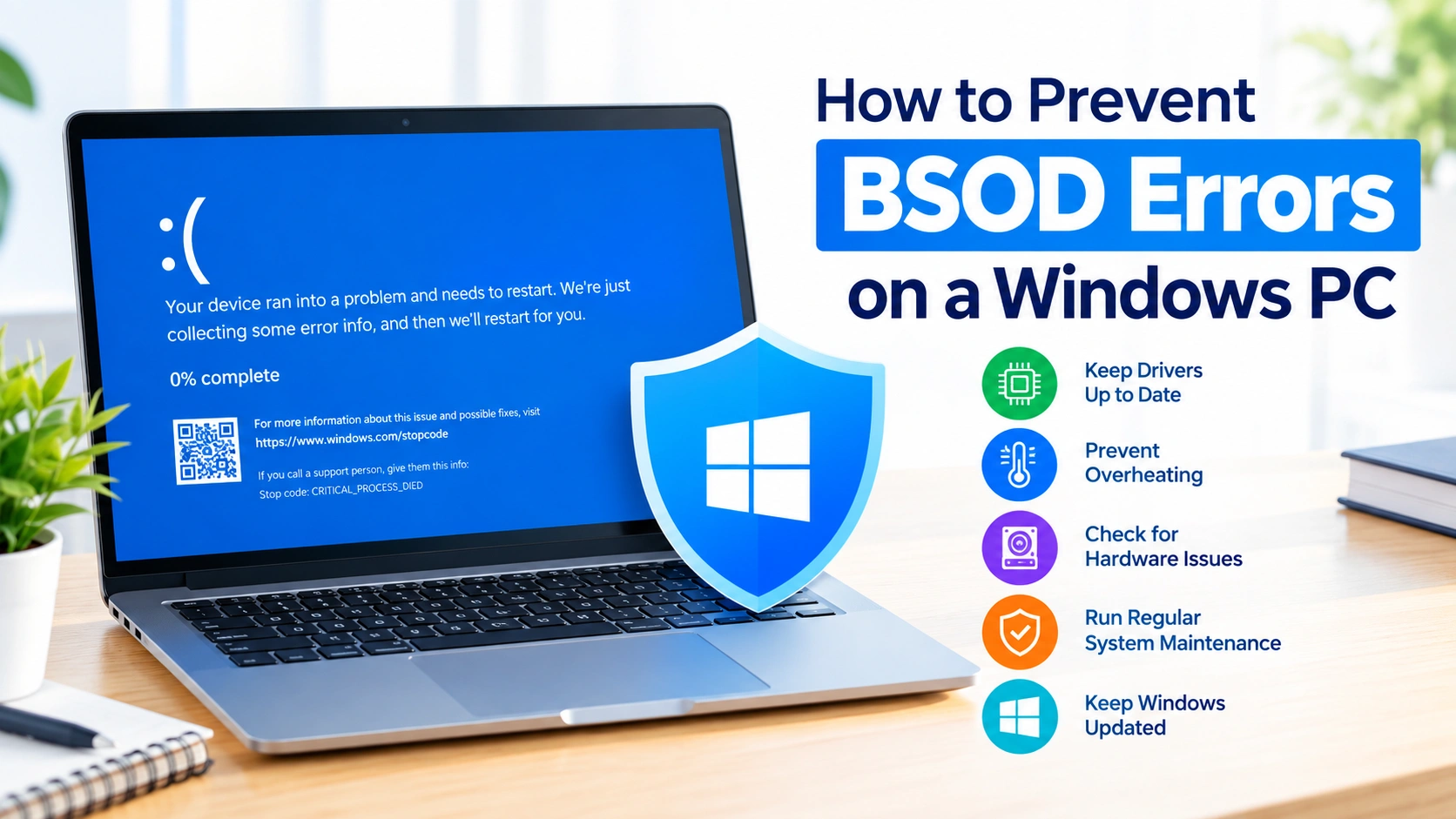
Blue Screen of Death (BSOD) errors are among the most frustrating problems Windows users can encounter. A BSOD usually appears when Windows detects a serious system problem that could cause data loss or hardware damage. The computer may suddenly restart, interrupt your work, or display an error code that can be difficult to understand.
While BSOD errors cannot always be prevented, many of them are related to outdated drivers, damaged system files, overheating, unstable hardware, problematic software, or failed updates. Taking a proactive approach to PC maintenance can significantly reduce the risk of recurring crashes.
This guide explains practical ways to prevent BSOD errors and keep a Windows PC stable.
What Causes BSOD Errors?
A BSOD occurs when Windows encounters a critical error that it cannot safely recover from. The underlying cause can vary considerably.
Common causes include:
- Outdated or incompatible device drivers
- Corrupted Windows system files
- Faulty RAM
- Failing SSDs or hard drives
- Overheating components
- Unstable overclocking
- Incompatible hardware
- Problematic applications
- Windows update problems
- Malware or unwanted software
- Insufficient system maintenance
Because different problems can produce similar symptoms, prevention starts with maintaining both software and hardware.
1. Keep Windows Updated
Microsoft regularly releases Windows updates containing security improvements, bug fixes, compatibility changes, and reliability enhancements.
Installing updates can help resolve known system problems that may otherwise contribute to crashes.
Open Settings > Windows Update and check for available updates. Restart the computer when Windows requires it to complete an installation.
However, if a particular update is known to cause compatibility problems on your specific hardware, investigate the issue before installing optional updates.
2. Update Device Drivers Carefully
Drivers allow Windows to communicate with hardware such as graphics cards, network adapters, storage controllers, and audio devices.
A corrupted, outdated, or incompatible driver can trigger BSOD errors.
Pay particular attention to:
- Graphics drivers
- Chipset drivers
- Storage drivers
- Network adapter drivers
- Audio drivers
- USB and peripheral drivers
Download drivers from your PC manufacturer’s website or the hardware manufacturer’s official website whenever possible. Avoid using random driver-download websites.
If a BSOD begins immediately after a driver update, consider rolling back the driver to the previous stable version.
3. Check Your RAM Regularly
Faulty memory can cause unpredictable Windows crashes, application failures, corrupted files, and BSOD errors.
Windows includes a built-in Windows Memory Diagnostic utility that can test installed RAM.
To run it:
- Press Windows + R.
- Type
mdsched.exe. - Press Enter.
- Choose to restart the PC and check for memory problems.
- Allow the diagnostic test to complete.
If memory errors are detected, test individual RAM modules if possible. A defective module may need to be replaced.
4. Monitor CPU and GPU Temperatures
Excessive heat can make a computer unstable, particularly during gaming, video editing, rendering, or other demanding workloads.
Make sure:
- PC ventilation openings are not blocked.
- Fans are working properly.
- Dust is removed from the cooling system.
- The CPU cooler is installed correctly.
- The graphics card has adequate airflow.
- The computer is not operating in an unusually hot environment.
Unexpected shutdowns, performance throttling, graphical glitches, and crashes under heavy workloads can be signs that thermal conditions should be investigated.
5. Avoid Unstable Overclocking
Overclocking can increase performance, but excessive or poorly configured settings can make Windows unstable.
If you regularly experience BSOD errors after changing CPU, GPU, or RAM settings, return the affected components to their default settings and test the system again.
Memory overclocking profiles can also cause instability on some hardware combinations.
For a stability-focused PC, use conservative settings and test any performance changes thoroughly.
6. Check SSD and Hard Drive Health
Storage problems can contribute to corrupted files, Windows startup failures, application crashes, and system instability.
Regularly monitor the health of your SSD or hard drive using an appropriate diagnostic tool. Pay attention to warning signs such as:
- Extremely slow file operations
- Frequent file corruption
- Unexpected freezes
- Disk-related errors
- Disappearing files
- Increasing numbers of bad sectors on supported drives
If a drive shows signs of failure, back up important data immediately rather than waiting for the drive to stop working.
7. Run System File Checker
Windows system files can become corrupted because of failed updates, software problems, unexpected shutdowns, or storage issues.
The System File Checker (SFC) tool can scan protected Windows files and attempt to repair corrupted versions.
Open Command Prompt as administrator and run:
sfc /scannowWait until the scan finishes before closing the window.
If SFC reports problems that it cannot repair, Windows’ Deployment Image Servicing and Management (DISM) tools can sometimes repair the underlying Windows component store.
For example:
DISM /Online /Cleanup-Image /RestoreHealthAfter DISM completes, running SFC again can be useful.
In this guide, you’ll learn how to run Windows System File Checker, what its results mean, and what to do if SFC cannot repair some files.
8. Remove Unnecessary or Problematic Software
Some applications install drivers, background services, security components, or system-level utilities that can interfere with Windows.
If BSOD problems began after installing new software, consider uninstalling the recently added application and checking whether system stability improves.
Be particularly cautious with:
- System tweaking utilities
- Unofficial driver tools
- Hardware monitoring software
- Aggressive system optimizers
- Modified Windows utilities
- Incompatible antivirus or security software
Install software from reputable sources and keep important applications updated.
9. Protect Your PC From Malware
Malware can modify system components, install unwanted drivers, consume system resources, or interfere with Windows services.
Use Windows’ built-in security features or a reputable security solution, and keep security definitions updated.
Avoid downloading suspicious executable files, cracked software, unknown drivers, and unverified system utilities.
Good browsing and download habits are an important part of BSOD prevention.
10. Maintain Enough Free Disk Space
Windows requires available storage for temporary files, updates, virtual memory, application operations, and system maintenance.
A nearly full system drive can contribute to performance and update problems.
Periodically remove unnecessary files and applications. Windows’ built-in storage management features can help identify large or temporary files that are no longer needed.
Try to maintain a reasonable amount of free space on the Windows system drive instead of allowing it to remain almost completely full.
11. Be Careful With Third-Party System Tweaks
Registry cleaners, automated optimization tools, unofficial Windows modifications, and aggressive performance tweaks can change important system settings.
Although some utilities advertise significant performance improvements, unnecessary system modifications can create compatibility or stability problems.
Before changing advanced Windows settings:
- Research what the setting does.
- Create a backup when appropriate.
- Record the original configuration.
- Change one thing at a time.
- Test the computer afterward.
This makes troubleshooting much easier if something goes wrong.
12. Create Regular Backups
Backups do not prevent BSOD errors, but they can prevent a system crash from becoming a major data-loss event.
Important files should be stored in at least one additional location, such as:
- An external drive
- A network storage device
- A reputable cloud-storage service
- Another backup destination
For important computers, consider maintaining multiple backup copies and periodically checking that the backups can actually be restored.
13. Pay Attention to Early Warning Signs
A BSOD rarely appears completely out of context. Some computers show warning signs before serious instability develops.
Watch for:
- Random freezes
- Frequent application crashes
- Sudden restarts
- Strange graphical artifacts
- Increasing boot times
- Disk-related warnings
- USB devices disconnecting unexpectedly
- Memory-related errors
- Problems occurring after a new driver installation
Identifying these symptoms early can make it easier to find the underlying problem before repeated BSODs occur.
14. Keep a Record of BSOD Error Codes
If your computer does experience a BSOD, don’t immediately ignore the information displayed on the screen.
Windows may provide a stop code, such as:
MEMORY_MANAGEMENTor:
PAGE_FAULT_IN_NONPAGED_AREAThe stop code can provide an important clue about the type of problem involved.
You can also use Windows diagnostic information, Event Viewer, and crash dump files to investigate repeated failures.
Recording when the crashes occur and what you were doing at the time can also reveal patterns.
15. Restart Windows Occasionally
Modern Windows PCs can remain running for long periods, but restarting the computer periodically can still be useful.
A restart clears temporary system states, reloads drivers and services, and completes certain updates.
If you regularly use sleep or hibernate instead of shutting down or restarting, consider performing a full restart when troubleshooting unusual behavior.
16. Use Stable Hardware Configurations
Adding new components can sometimes introduce compatibility problems.
When upgrading a PC:
- Verify hardware compatibility.
- Install appropriate drivers.
- Update firmware when necessary.
- Test new components individually.
- Monitor system stability after the upgrade.
If BSOD errors begin immediately after installing RAM, a graphics card, storage device, or another component, that hardware change should be one of the first things investigated.
17. Don’t Ignore Repeated BSODs
One isolated BSOD does not necessarily mean your PC is failing. However, repeated crashes should not be treated as normal.
If the same BSOD occurs repeatedly, investigate the underlying cause instead of simply restarting the computer each time.
A useful troubleshooting process is:
Check recent changes → identify the stop code → update or roll back drivers → test RAM → check storage → repair Windows files → check temperatures → investigate hardware.
This systematic approach can help narrow down the cause without randomly changing multiple system settings.
Final Thoughts
Preventing every BSOD is impossible, but good Windows maintenance can substantially reduce avoidable system crashes. Keep Windows and drivers properly maintained, monitor hardware health, avoid unstable configurations, protect the system from malware, and back up important files regularly.
Most importantly, treat recurring BSOD errors as a symptom rather than the problem itself. Identifying the underlying software or hardware issue is the key to achieving long-term Windows stability.